What Is an SSL Certificate Chain? How It Works
Advertisement
What Is an SSL Certificate Chain?
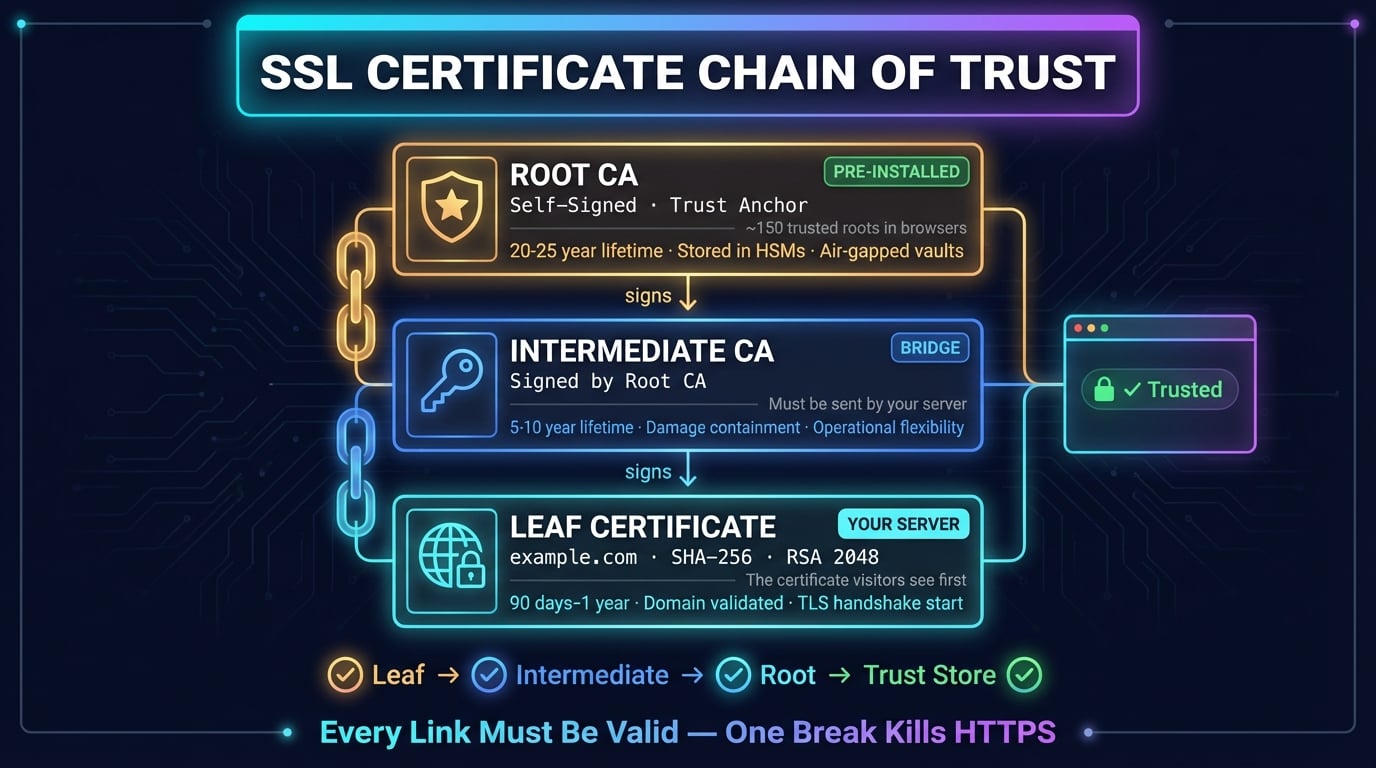
An SSL certificate chain (also called a chain of trust or certification path) is the ordered list of digital certificates that connects your website's SSL/TLS certificate back to a trusted root Certificate Authority (CA). Each certificate in the chain is digitally signed by the one above it, creating a verifiable path of trust from your server all the way up to a root CA that browsers already trust.
Think of it like a chain of endorsements. Your server certificate says "I am example.com." The intermediate CA says "I vouch for example.com's certificate." The root CA says "I vouch for that intermediate." Your browser already trusts the root CA, so by following the chain of signatures, it trusts your server too.
When you visit any HTTPS website, your browser silently traces this chain in milliseconds. If every link checks out, you see the padlock icon. If any link is missing, expired, or invalid, you get a security warning instead.
The Three Links in Every Certificate Chain
Most SSL certificate chains have exactly three levels. Understanding each one is essential for troubleshooting HTTPS issues.
| Root Certificate | Intermediate Certificate | Leaf (Server) Certificate | |
|---|---|---|---|
| Signed by | Itself (self-signed) | Root CA | Intermediate CA |
| Location | Browser/OS trust store | Sent by your server | Sent by your server |
| Typical lifetime | 20–25 years | 5–10 years | 90 days – 1 year |
| If compromised | All certs invalid — catastrophic | Revoke intermediate only | Revoke and reissue |
| Approximate count | ~150 trusted roots globally | Thousands | Hundreds of millions |
Advertisement
Root Certificate
The root certificate is the trust anchor at the top of the chain. It is self-signed, meaning the Certificate Authority signed its own certificate. Root certificates are pre-installed in your browser and operating system — this collection is called the trust store.
There are roughly 150 root CAs that major browsers trust by default. Organizations like DigiCert, Let's Encrypt (ISRG), Sectigo, and GlobalSign each operate root certificates. Because root keys are so critical, CAs store them in hardware security modules (HSMs) inside air-gapped, physically secured vaults.
Intermediate Certificate
Intermediate certificates sit between the root and your server certificate. The root CA signs the intermediate certificate, and the intermediate CA then signs end-entity (server) certificates. Most CAs use one or two intermediates.
Your web server must send intermediate certificates along with your leaf certificate during the TLS handshake. Unlike root certificates, intermediates are not pre-installed in browsers — if your server doesn't send them, the chain breaks.
Leaf Certificate (Server Certificate)
The leaf certificate (also called end-entity or server certificate) is the certificate installed on your web server. It contains your domain name, your public key, the validity period, and information about the issuer (the intermediate CA that signed it).
This is the first certificate your browser receives during the TLS handshake. The browser then works its way up the chain, verifying each signature until it reaches a trusted root.
How the Chain of Trust Works
When your browser connects to a website over HTTPS, the TLS handshake triggers a chain verification process that happens in milliseconds:
Server sends certificates — Your web server sends its leaf certificate plus all intermediate certificates to the browser.
Browser builds the chain — The browser arranges the certificates in order: leaf → intermediate(s) → root. It identifies the root by checking its trust store.
Signature verification — Starting from the leaf, the browser verifies that each certificate's digital signature was created by the private key of the next certificate up the chain.
Root lookup — The browser confirms the root certificate at the top of the chain exists in its built-in trust store. If the root is not recognized, verification fails.
Validity checks — For every certificate in the chain, the browser checks: not expired, not revoked (via CRL or OCSP), and the leaf certificate's domain matches the URL.
What Happens After Verification
If all checks pass, the browser establishes an encrypted connection and displays the padlock icon. If any single check fails — even on an intermediate certificate — the browser shows a warning like "Your connection is not private" or "NET::ERR_CERT_AUTHORITY_INVALID."
This is why the entire chain matters, not just the leaf certificate. An expired intermediate certificate will break HTTPS just as thoroughly as an expired server certificate.
Why Intermediate Certificates Exist
Root CAs could theoretically sign every server certificate directly, skipping intermediates entirely. But there are three critical reasons why they don't:
Security isolation — Root CA private keys are kept offline in HSMs inside physically secured vaults. They are used only to sign intermediates, not millions of individual server certificates. This drastically reduces the risk of the root key being compromised.
Damage containment — If an intermediate CA is compromised, only that intermediate's certificates are affected. The root CA can revoke the compromised intermediate and issue a new one — without invalidating every certificate it has ever issued.
Operational flexibility — CAs use different intermediates for different purposes: one for DV certificates, another for EV, separate ones for different regions or key algorithms (RSA vs ECDSA).
Advertisement
How to Check Your SSL Certificate Chain
There are three ways to inspect a website's certificate chain, from command-line tools to browser-based checks.
Method 1: OpenSSL (Command Line)
The openssl command is the most detailed way to inspect a certificate chain. Run this in your terminal:
openssl s_client -connect example.com:443 -showcerts 2>/dev/null | grep -E 's:|i:'Method 2: Browser Certificate Viewer
Every major browser lets you inspect the certificate chain without any special tools:
Click the padlock icon in your browser's address bar
Select "Connection is secure" → "Certificate is valid"
Open the "Certification Path" tab (Chrome/Edge) or "Details" tab (Firefox)
You will see the full chain from root (top) to leaf (bottom)
Method 3: DNS Robot SSL Checker
The fastest way to check any website's certificate chain is with an online tool. Our SSL Checker displays the complete chain, issuer details, validity dates, and verification status — all in one click. Enter any domain and see the full chain instantly.
Common Certificate Chain Errors and How to Fix Them
Certificate chain problems are one of the most frequent causes of HTTPS errors. Here are the errors you are most likely to encounter and how to resolve each one.
Advertisement
Missing Intermediate Certificate
Error message: "unable to verify the first certificate" or "incomplete certificate chain"
Cause: Your server is sending only the leaf certificate without the intermediate. Desktop browsers sometimes work around this by caching intermediates from previous visits, but mobile browsers and API clients almost always fail.
Fix: Download the intermediate certificate from your CA's documentation and add it to your server's certificate file. In Nginx, concatenate them into one file:
cat your-domain.crt intermediate.crt > fullchain.crtSelf-Signed Certificate in Chain
Error message: "self-signed certificate in certificate chain"
Cause: Either the root certificate was unnecessarily included in the chain sent by the server, or a certificate is genuinely self-signed and not from a trusted CA.
Fix: Remove the root certificate from your server's chain file. Your server should only send the leaf + intermediate(s). Browsers already have the root in their trust store — sending it is unnecessary and can cause this error.
Wrong Certificate Order
Error message: Chain verification may fail silently or produce "certificate not trusted" warnings.
Cause: Certificates in the chain file are in the wrong order.
Fix: The correct order is always: leaf certificate first, then intermediate(s) from closest-to-leaf to closest-to-root. Never include the root certificate.
Expired Certificate in Chain
Error message: "certificate has expired" — but your leaf certificate's expiry date looks fine.
Cause: An intermediate certificate in the chain has expired. This is less common but can happen when CAs rotate their intermediates.
Fix: Download the current intermediate certificate from your CA and replace the old one. Then use our SSL Checker to verify the updated chain.
Certificate Chain Best Practices
Always install intermediates — Never assume the browser will figure it out. Always configure your server to send the full chain (leaf + intermediates).
Don't send the root — Browsers already have root certificates. Including the root wastes bandwidth and can trigger errors in some clients.
Keep the correct order — Leaf first, intermediates next, no root. Some servers are picky about order; others tolerate it but may be slower to verify.
Monitor expiration — Intermediate certificates expire too. Set up alerts or use automated certificate management (like certbot with Let's Encrypt).
Verify after changes — After renewing a certificate or changing hosting, always check the chain with a tool like our SSL Checker. What worked before renewal may not work after if the CA changed its intermediate.
Use OCSP Stapling — Enable OCSP stapling on your server so browsers can verify certificate revocation status faster, without contacting the CA directly.
Check your SSL certificate chain now
Use DNS Robot's free SSL Checker to verify your certificate chain, check expiration dates, and inspect issuer details — all in one click.
Try SSL CheckerAdvertisement
Frequently Asked Questions
An SSL certificate chain is the ordered sequence of digital certificates that links your website's SSL certificate to a trusted root Certificate Authority (CA). It typically includes three levels: the leaf (server) certificate, one or more intermediate certificates, and the root certificate that your browser already trusts.