Tracert Command: How to Traceroute on Windows, Mac & Linux
Advertisement
What Is the Tracert Command?
Tracert (trace route) is a Windows command that shows the path your traffic takes to reach another host — every router ("hop") along the way and how long each one takes to answer. On macOS and Linux the same tool is called traceroute.
It's the tool to reach for when a website is slow or unreachable and you want to know where the problem is: on your own network, at your internet provider, somewhere in between, or at the destination. Where ping tells you whether a host answers, tracert tells you the route and where it breaks.
How to Run Tracert on Windows
Press Windows + R, type
cmdand press Enter (or search for Command Prompt).Type
tracertfollowed by a domain name or IP address, for exampletracert example.com, and press Enter.Wait. Tracert probes up to 30 hops, three times each, and waits up to 4 seconds for every reply — a clean trace finishes in seconds, but one full of timeouts can take several minutes. Press Ctrl + C to stop early, or use
-dand-w(below) to speed it up.
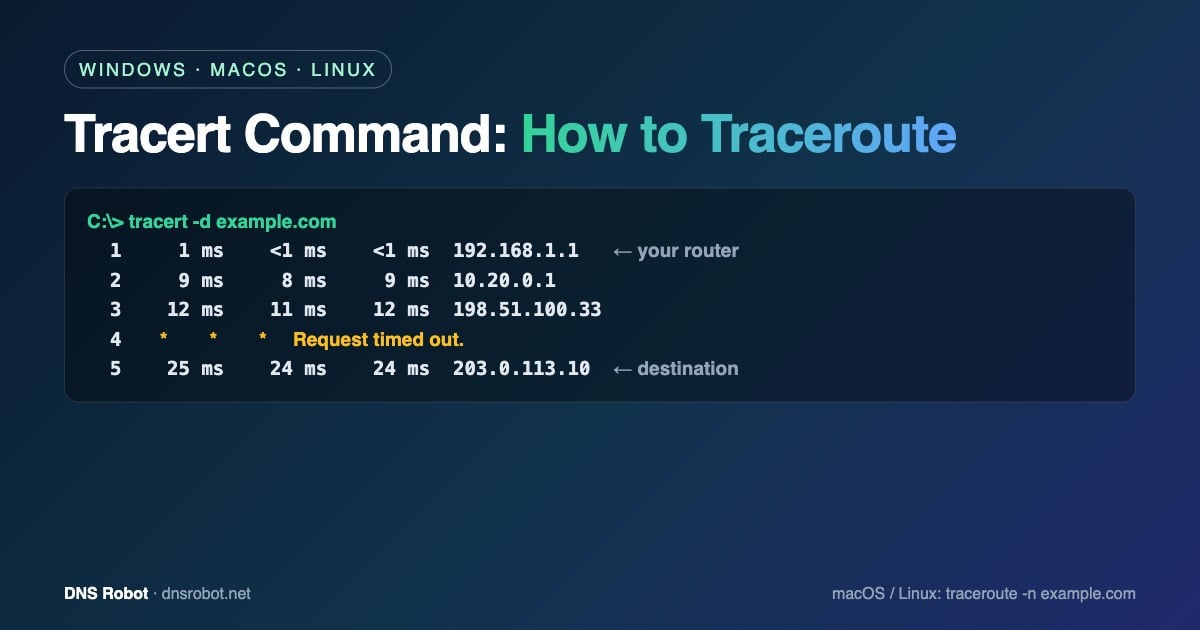
C:\> tracert example.com

Tracing route to example.com [203.0.113.10]
over a maximum of 30 hops:

  1     1 ms    <1 ms    <1 ms  192.168.1.1
  2     9 ms     8 ms     9 ms  10.20.0.1
  3    12 ms    11 ms    12 ms  198.51.100.33
  4     *        *        *     Request timed out.
  5    24 ms    23 ms    24 ms  203.0.113.1
  6    25 ms    24 ms    24 ms  203.0.113.10

Trace complete.
Each line is one hop. The three numbers are three separate probes; the address on the right is the router that answered. Hop 1 is almost always your own router, and the last line is the destination. (The IP addresses above are reserved documentation addresses.)
Advertisement
Tracert Command Options
The syntax is tracert [options] target. The options you'll actually use:
| Option | What it does | Example |
|---|---|---|
| -d | Don't resolve IP addresses to hostnames — much faster | tracert -d example.com |
| -h max_hops | Maximum number of hops (default 30) | tracert -h 15 example.com |
| -w timeout | Milliseconds to wait for each reply (default 4000) | tracert -w 1000 example.com |
| -4 | Force IPv4 | tracert -4 example.com |
| -6 | Force IPv6 | tracert -6 example.com |
Combine them freely: tracert -d -w 1000 example.com gives the fastest useful trace. To save the result for your ISP or hosting support, redirect it to a file: tracert -d example.com > trace.txt.
How to Run Traceroute on a Mac
Open Terminal (Applications › Utilities) and run traceroute example.com. macOS sends UDP probes by default; add -I to use ICMP like Windows does, which often gets answers from routers that ignore UDP. Useful options: -n (no name lookups), -m 30 (maximum hops; macOS allows up to 64 by default), -w 2 (seconds to wait per probe) and -q 1 (one probe per hop instead of three).
traceroute -n -I example.comAdvertisement
How to Run Traceroute on Linux
Run traceroute example.com. If the command isn't found, install it (sudo apt install traceroute on Debian/Ubuntu, sudo dnf install traceroute on Fedora) or use tracepath, which is usually preinstalled. Linux traceroute sends UDP probes by default, 3 per hop, up to 30 hops.
| Option | What it does |
|---|---|
| -n | Show IP addresses only (no DNS lookups) |
| -I | Use ICMP echo probes (like Windows tracert) |
| -T | Use TCP SYN probes (default port 80) — gets through firewalls that block UDP/ICMP; needs sudo |
| -p port | Destination port to probe, e.g. -T -p 443 |
| -m max_ttl | Maximum hops (default 30) |
| -q n | Probes per hop (default 3) |
| -w seconds | Time to wait for each reply |
$ traceroute -n example.com
traceroute to example.com (203.0.113.10), 30 hops max, 60 byte packets
 1  192.168.1.1  0.612 ms  0.571 ms  0.534 ms
 2  10.20.0.1  8.911 ms  9.004 ms  8.872 ms
 3  * * *
 4  203.0.113.10  24.112 ms  23.980 ms  24.051 ms
To test the path to a web server exactly as browsers reach it, trace over TCP port 443: sudo traceroute -T -p 443 example.com.
How to Read Tracert Results
Timeouts on one middle hop, but later hops answer (
*or "Request timed out"): normal. Many routers are configured to ignore or rate-limit these probes. The path is fine.Timeouts from one hop to the end: traffic is being dropped at or after the last hop that answered — often a firewall at the destination or a routing problem. Note the last responding hop; that's the network to contact.
A latency jump that stays high for every later hop (for example 10 ms → 120 ms → 121 ms → 125 ms): the delay is real and starts at that hop — often a long-distance link or a congested network. A jump on one hop that drops back afterwards is just that router answering slowly and can be ignored.
"Destination host unreachable" or "Destination net unreachable": a router reported it has no route to the target — check the address, or a firewall/routing issue at that hop.
Private addresses (192.168.x.x, 10.x.x.x) on the first hops: your own router and your ISP's internal network. Slow times here point to your local Wi-Fi or modem.
The trace ends at the destination with low times: the network path is healthy, so a slow website is more likely a server or DNS problem — check it with our DNS lookup and DNS speed test.
Advertisement
How Tracert Works
Every IP packet has a TTL (time to live) counter that each router lowers by one; when it reaches zero, the router drops the packet and sends back an ICMP "Time Exceeded" message. Tracert exploits this: it sends probes with TTL 1, then 2, then 3 and so on, so each router along the path reveals itself in turn, until the destination replies.
The operating systems use different probes. Windows tracert sends ICMP echo requests (the same packets as ping). macOS and Linux traceroute send UDP packets to high ports by default. Firewalls treat these differently, which is why the same trace can look different on Windows and Linux — and why the -I and -T options exist.
Tracert vs Traceroute vs Pathping vs MTR
| Tool | Platform | Best for |
|---|---|---|
| tracert | Windows | Quick path check with ICMP probes |
| traceroute | macOS, Linux | Path check with UDP, ICMP (-I) or TCP (-T) probes |
| pathping | Windows | Runs a trace, then measures packet loss at every hop for ~25 seconds per hop |
| mtr | macOS, Linux (and Windows via WinMTR) | Live, continuously updating trace with loss and latency per hop |
| tracepath | Linux | Traceroute without root that also discovers the path MTU |
For intermittent problems, pathping or mtr is better than a single tracert, because packet loss that only happens now and then won't show up in three probes.
Advertisement
Run a Traceroute Online
A trace from your own computer only shows the path from your network. To see whether a site is reachable from elsewhere — or to test without a terminal — run our online traceroute, which traces from DNS Robot's servers and shows each hop with its location and network. Pair it with the online ping test to measure latency and packet loss, and IP lookup to see who owns a hop's IP address.
Trace a route without a terminal
Run a traceroute from DNS Robot's servers to any domain or IP and see every hop with its latency, network and location.
Testar Online TracerouteAdvertisement
Tracert Command FAQ
On Windows, open Command Prompt and type tracert followed by a domain or IP address, for example tracert example.com. On macOS or Linux, open Terminal and type traceroute example.com.