ERR_CACHE_MISS: What It Means & How to Fix It (Chrome)
Advertisement
What Is ERR_CACHE_MISS?
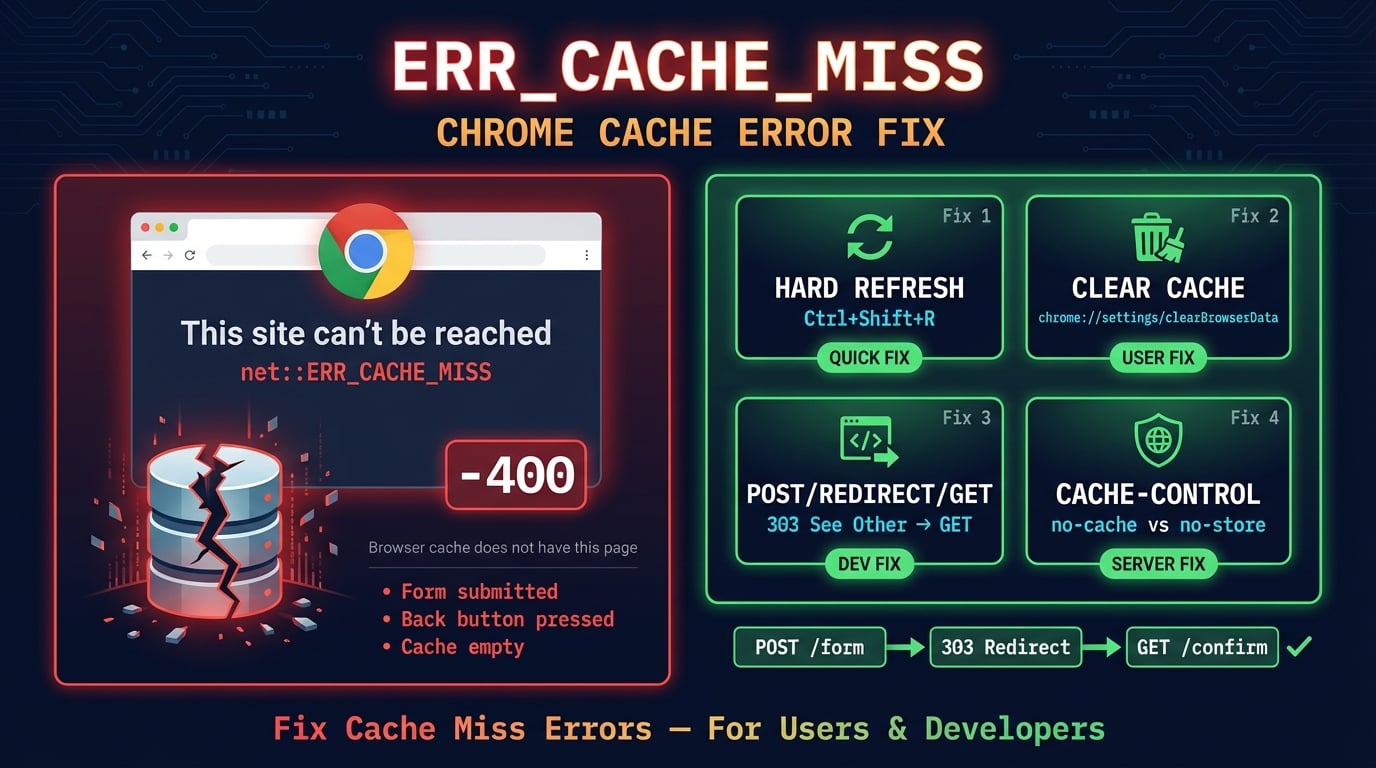
ERR_CACHE_MISS is a Chromium internal error code (error -400) that means the browser tried to retrieve a page from its local cache, but the entry does not exist. It is not an HTTP status code — it never leaves your browser. The error is defined in Chromium's source code (net_error_list.h) as: "The cache does not have the requested entry."
This typically happens when you submit a form (which sends a POST request), navigate away, and then press the back button or refresh. POST responses are not cached by default per the HTTP specification (RFC 9111), so Chrome has nothing to display when you try to go back to that page.
ERR_CACHE_MISS is not a security threat and does not indicate any problem with the website's server. It is a browser-side protection mechanism that prevents accidental form resubmission — which could cause duplicate payments, duplicate orders, or duplicate database entries.
What ERR_CACHE_MISS Looks Like
Chrome displays this error as a full-page message with the text "This site can't be reached" or "Confirm Form Resubmission." The exact message depends on the context. Here are the common variations.
ERR_CACHE_MISS — the standard error page shown in the address bar
net::ERR_CACHE_MISS — the full error code shown in DevTools console
Confirm Form Resubmission — the dialog box Chrome shows before resubmitting POST data
This webpage requires data that you entered earlier — the detailed text inside the resubmission dialog
err_cache_miss — the lowercase variant some users search for
Advertisement
What Causes ERR_CACHE_MISS?
The error has both user-side and server-side causes. Understanding which applies to your situation determines the right fix.
Form submission + back/refresh — The #1 cause. You submit a form (POST request), then press back or refresh. Chrome cannot retrieve the POST response from cache because POST responses are not cached.
Aggressive Cache-Control headers — The server sends
Cache-Control: no-storewhich tells Chrome to never cache the response. When you navigate back, there is nothing to load.Corrupted browser cache — Local cache files became damaged, often after a crash, forced shutdown, or disk error.
Browser extensions — Ad blockers, privacy extensions, and VPN extensions intercept network requests and can interfere with caching. This is a surprisingly common cause.
Outdated Chrome version — Older versions may have cache-handling bugs that have been fixed in newer releases.
Antivirus or security software — Some security programs with 'web protection' or 'HTTPS scanning' features intercept traffic between Chrome and the server, breaking cache behavior.
Multiple tabs with the same form — Opening the same checkout or form page in multiple tabs can cause cache conflicts.
VPN or proxy changes mid-session — Switching VPN servers or connecting to a different network invalidates cached entries from the previous connection.
ERR_CACHE_MISS vs Confirm Form Resubmission
These two messages are related but appear in different situations. The "Confirm Form Resubmission" dialog appears when Chrome can potentially resend the POST data — it is asking your permission. ERR_CACHE_MISS appears when Chrome cannot retrieve the cached page at all and resubmission is not possible.
The typical sequence is: you submit a form (POST) → Chrome renders the response → you press back or refresh → Chrome either shows the resubmission dialog OR displays ERR_CACHE_MISS, depending on the server's cache headers and whether the form data is still available.
Why do browsers do this? Because POST requests are "unsafe" methods under the HTTP specification. Automatically resubmitting POST data without user consent could cause real problems — duplicate credit card charges, duplicate orders, or duplicate database entries. The browser is protecting you.
Advertisement
How to Fix ERR_CACHE_MISS (For Users)
If you see this error while browsing, it is almost always fixable from your browser. Start with the simplest fix and work down the list.
Fix 1: Hard Refresh the Page
A hard refresh bypasses the browser cache and fetches a completely fresh copy of the page from the server. This is the fastest fix and resolves the error in most cases.
# Windows / Linux
Ctrl + Shift + R

# Mac
Cmd + Shift + R

# Alternative (all platforms)
Ctrl + F5
If a regular hard refresh does not work, try right-clicking the reload button (with DevTools open) and selecting "Empty Cache and Hard Reload" for the most thorough reset.
Fix 2: Clear Browser Cache
If hard refresh did not work, clear Chrome's cached data completely. This removes all corrupted cache entries and forces Chrome to start fresh.
Step 1: Open Chrome Settings (three dots → Settings) or type
chrome://settings/clearBrowserDatain the address barStep 2: Switch to the Advanced tab
Step 3: Set time range to All time
Step 4: Check Cached images and files and Cookies and other site data
Step 5: Click Clear data
Fix 3: Test in Incognito Mode
Incognito mode starts Chrome with a clean slate — no extensions, no cached data, no cookies. If the page loads in incognito but not in normal mode, the problem is caused by a browser extension or corrupted cache.
Open an incognito window with Ctrl+Shift+N (Windows/Linux) or Cmd+Shift+N (Mac), then navigate to the same page. If it loads, one of your extensions is the culprit.
Fix 4: Disable Browser Extensions
Extensions that modify page loading, block requests, or intercept network traffic are a common cause of ERR_CACHE_MISS. Ad blockers, privacy shields, and VPN extensions are the usual suspects.
Go to chrome://extensions/, disable all extensions, then reload the page. If the error disappears, re-enable extensions one at a time to find the one causing the issue.
Fix 5: Update Chrome
Older Chrome versions may contain cache-handling bugs. Go to chrome://settings/help to check for updates. Chrome usually auto-updates, but the update only applies after a restart.
If the error started after a Chrome update, it may be a newly introduced bug. Check the Chromium bug tracker for known issues with your version.
Fix 6: Flush DNS Cache
Flushing your DNS cache clears stale DNS entries that might be causing connection issues. This resolves ERR_CACHE_MISS when the error is related to network-level caching rather than browser caching.
# Windows (Command Prompt as Admin)
ipconfig /flushdns

# macOS
sudo dscacheutil -flushcache && sudo killall -HUP mDNSResponder

# Linux
sudo systemd-resolve --flush-caches

# Chrome internal DNS cache
# Visit chrome://net-internals/#dns → Click "Clear host cache"
You can verify your DNS configuration using DNS Robot's DNS Lookup tool to check if your domain resolves correctly.
Fix 7: Reset Network Settings
If nothing else works, resetting your network stack can fix deep-rooted connectivity issues that cause cache errors.
# Windows (Command Prompt as Admin)
netsh winsock reset
netsh int ip reset
ipconfig /release
ipconfig /renew

# Then restart your computerHow to Fix ERR_CACHE_MISS (For Developers)
If your users report ERR_CACHE_MISS errors on your website, the fix must come from the server side. The most important change is implementing the Post/Redirect/Get pattern.
Advertisement
The Post/Redirect/Get (PRG) Pattern
The Post/Redirect/Get (PRG) pattern is the definitive fix for ERR_CACHE_MISS. It has been a web development best practice since 2003. The concept is simple: after processing a POST form submission, respond with an HTTP redirect (302 or 303) to a GET confirmation page instead of rendering the response directly.
Without PRG, the browser history ends with a POST request. When the user presses back or refresh, Chrome must resubmit the POST data (or show ERR_CACHE_MISS). With PRG, the browser history ends with a safe GET request that can be refreshed or navigated back to without any issues.
# Without PRG (causes ERR_CACHE_MISS):
POST /checkout → 200 OK (render confirmation page)
# User refreshes → ERR_CACHE_MISS or "Confirm Form Resubmission"

# With PRG (no cache issues):
POST /checkout → 303 See Other → Location: /order/12345
GET /order/12345 → 200 OK (render confirmation page)
# User refreshes → Normal page reload (safe GET request)
Use HTTP 303 See Other (preferred) or 302 Found for the redirect. A 303 explicitly converts the POST to a GET per the HTTP specification, which is exactly the behavior you want.
Review Your Cache-Control Headers
Overly restrictive Cache-Control headers cause unnecessary ERR_CACHE_MISS errors. Use Chrome DevTools (F12 → Network tab) to inspect the response headers for your pages.
The header Cache-Control: no-store tells Chrome to never cache the response — this is the strictest option. If your page does not contain sensitive data (like financial transactions), consider using no-cache instead, which allows caching but requires revalidation.
You can check your server's HTTP headers using DNS Robot's HTTP Headers Checker to see exactly what Cache-Control directives your server sends.
| Directive | Cache Behavior | ERR_CACHE_MISS Risk |
|---|---|---|
| no-store | Never store response in cache | High — back button always fails |
| no-cache | Cache but revalidate before use | Low — Chrome serves cached on back button |
| max-age=3600 | Cache for 1 hour without revalidation | None — page loads from cache |
| private, max-age=0 | Cache but always revalidate | Low — similar to no-cache |
Fix WordPress Caching Conflicts
WordPress sites with caching plugins are especially prone to ERR_CACHE_MISS errors. Conflicting caching rules between plugins, your hosting provider's cache layer, and CDNs can create inconsistent cache behavior.
If you use WooCommerce, make sure your caching plugin excludes dynamic pages — cart, checkout, and my-account pages should never be cached. Most popular plugins (WP Super Cache, W3 Total Cache, LiteSpeed Cache) have WooCommerce-specific settings for this.
Purge all caches — Clear your caching plugin cache, hosting cache (if applicable), and CDN cache simultaneously
Disable conflicting plugins — Never run two full-page caching plugins at the same time
Exclude dynamic pages — Cart, checkout, and login pages must be excluded from cache
Check server-level caching — Your hosting provider may add their own cache layer (Varnish, LiteSpeed, etc.) that conflicts with your plugin
ERR_CACHE_MISS on Android (WebView)
Android developers frequently encounter net::ERR_CACHE_MISS when using WebView to load web pages inside their apps. This is a common issue reported in Android, Flutter, and React Native projects.
The most common cause is a missing INTERNET permission in your AndroidManifest.xml. Without it, WebView cannot make network requests and falls back to cache — which does not exist for the first load.
<!-- AndroidManifest.xml — Add this permission -->
<uses-permission android:name="android.permission.INTERNET" />
<uses-permission android:name="android.permission.ACCESS_NETWORK_STATE" />
If the permission is already present, try setting the WebView cache mode to LOAD_DEFAULT or LOAD_NO_CACHE to bypass stale cache entries. For Flutter apps, check that the webview_flutter plugin is updated to the latest version.
ERR_CACHE_MISS in Other Browsers
ERR_CACHE_MISS is a Chromium-specific error code. All Chromium-based browsers (Chrome, Edge, Brave, Opera, Vivaldi, Arc) display the same error. Other browser engines show different messages for the same underlying issue.
| Browser | Error Message | Notes |
|---|---|---|
| Chrome / Edge / Brave / Opera | ERR_CACHE_MISS | Chromium-based — identical error |
| Firefox | Document Expired | Shows: "This document is no longer available" |
| Safari | Resubmit form dialog | Shows: "Are you sure you want to send a form again?" |
Firefox's "Document Expired" message is the most well-known equivalent. It appears with the text: "This document is no longer available. The requested page contains data from a form submission (POSTDATA). This data is no longer available." The fix is the same — clear the cache or use the PRG pattern server-side.
Advertisement
Related Chrome Cache Errors
Chrome has several cache-related error codes. They all start with ERR_CACHE_ but indicate different problems.
| Error Code | What It Means | Common Cause |
|---|---|---|
| ERR_CACHE_MISS (-400) | Cache entry does not exist | POST + back/refresh, no-store header |
| ERR_CACHE_READ_FAILURE (-401) | Cannot read from disk cache | Corrupted cache files, disk error |
| ERR_CACHE_WRITE_FAILURE (-402) | Cannot write to disk cache | Full disk, permissions issue |
| ERR_CACHE_OPERATION_NOT_SUPPORTED (-403) | Operation not supported for this entry | Unsupported content type in cache |
| ERR_CACHE_CHECKSUM_MISMATCH (-408) | Cache data failed integrity check | Corrupted cache, interrupted write |
For all of these errors, clearing the browser cache (Fix 2 above) is the universal user-side fix. If the error persists after clearing cache, the problem is either an extension or a server-side configuration issue.
Check Your HTTP Headers
Use DNS Robot's free HTTP Headers Checker to inspect your server's Cache-Control headers and other response directives that affect browser caching.
Try HTTP Headers CheckerAdvertisement
Frequently Asked Questions
ERR_CACHE_MISS means Chrome tried to load a cached version of a page but the cache entry does not exist. It is a browser-side error (not a server error) that most commonly appears after submitting a form and pressing the back button or refresh.