ERR_CONNECTION_REFUSED: What It Means & How to Fix It
Advertisement
What Is ERR_CONNECTION_REFUSED?
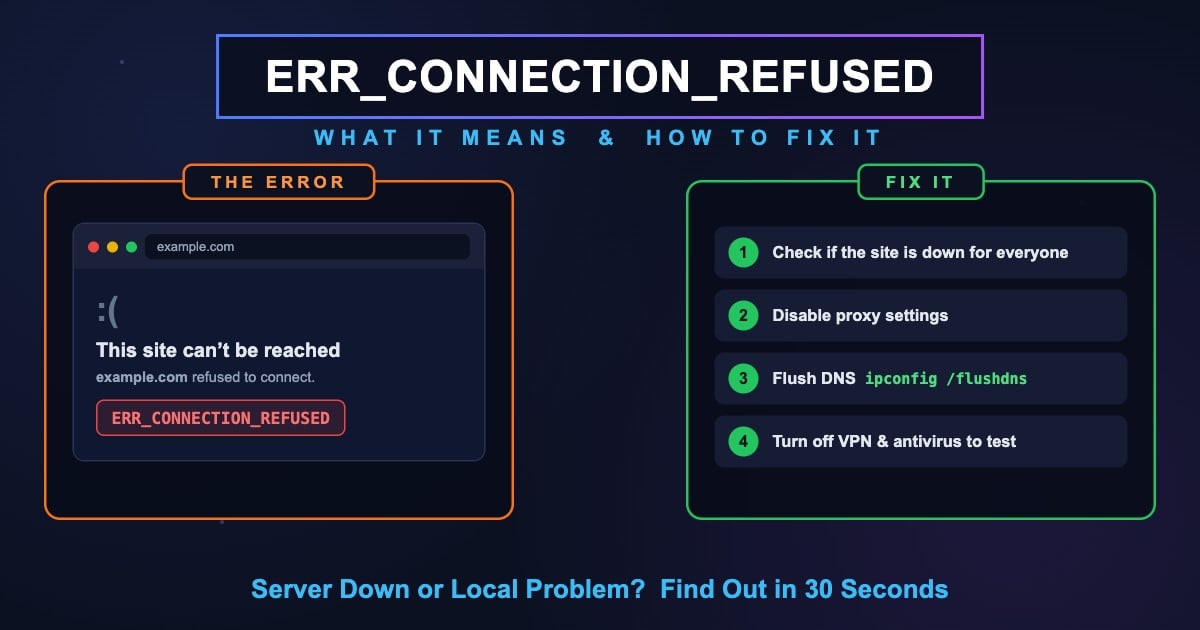
ERR_CONNECTION_REFUSED is a Chrome error that appears when your browser reaches the website's server but the server actively refuses the connection. At the network level, your computer sent a TCP connection request (SYN) to the server's IP address and port, and instead of accepting it, the server — or a firewall in front of it — answered with a reset (RST) packet that says "nothing here will talk to you."
This makes ERR_CONNECTION_REFUSED fundamentally different from DNS errors like DNS_PROBE_FINISHED_NXDOMAIN. With a DNS error, the domain name never resolved to an IP address. With ERR_CONNECTION_REFUSED, DNS worked perfectly — your browser knows exactly where the server is — but the machine at that address refused to open the door.
The refusal usually means one of three things: no service is listening on that port (the web server is down or crashed), a firewall is rejecting traffic to that port, or your device is connecting to the wrong IP address entirely — for example through a stale DNS cache or a broken proxy.
Two close relatives look similar but mean something different: ERR_CONNECTION_RESET means the connection opened and was then cut, and ERR_CONNECTION_CLOSED means the other side hung up before sending the page. If nothing answers at all, see ERR_CONNECTION_TIMED_OUT.
What This Error Looks Like in Other Browsers
Every browser reports a refused connection differently, but the underlying TCP rejection is identical.
| Browser | Error Message |
|---|---|
| Google Chrome | This site can't be reached — [site] refused to connect. ERR_CONNECTION_REFUSED |
| Microsoft Edge | Hmmm… can't reach this page — [site] refused to connect. |
| Mozilla Firefox | Unable to connect — Firefox can't establish a connection to the server. |
| Safari | Safari Can't Connect to the Server |
| Brave / Opera | This site can't be reached — ERR_CONNECTION_REFUSED |
Chromium-based browsers (Chrome, Edge, Brave, Opera) all expose the raw ERR_CONNECTION_REFUSED code. Firefox and Safari phrase it in plain language, but the cause and the fixes are exactly the same.
Advertisement
Common Causes of ERR_CONNECTION_REFUSED
Roughly half of the time the problem is on the server's side, and half of the time something on your device or network is interfering. Here are the most common causes, from most to least frequent.
The website's server is down — The web service (nginx, Apache, Node.js) crashed, is restarting, or was stopped. The machine is online but nothing answers on port 80/443.
Firewall blocking the port — A firewall on the server, your network, or your device rejects connections to that port.
Misconfigured proxy settings — Your system routes traffic through a proxy server that is offline or unreachable. This is one of the most common client-side causes.
Stale DNS cache — The site moved to a new server, but your cached DNS entry still points to the old IP address where nothing is listening anymore.
VPN or antivirus interference — Security software intercepts the connection and rejects it, or the VPN exit server can't reach the site.
Browser extension interference — Ad blockers, privacy extensions, or malware-infected extensions can block connections to specific hosts.
Hosts file override — The domain is mapped to a wrong IP (often 127.0.0.1) in your hosts file, so your browser connects to your own machine, which refuses.
Nothing listening on localhost — For developers: the local dev server isn't running, crashed, or is bound to a different port than the one you opened.
Router problem — A glitched router or modem mangles connections until it is restarted.
Fix 1: Check Whether the Site Is Down for Everyone
Before changing anything on your device, find out if the problem is on the server's side — if the site is down for everyone, no local fix will help.
The cleanest way to test is from a different network path. Open the site on your phone using mobile data (Wi-Fi off). If it fails there too, the server itself is refusing connections and you simply have to wait for the site's owner to fix it.
You can also test the server directly with these DNS Robot tools:
[Port Checker](/port-checker) — Enter the site's domain and test port 443 (HTTPS) and port 80 (HTTP). If both show closed, the web server is down or firewalled for everyone, not just you.
[Ping Test](/ping) — Checks whether the server machine responds at all. If ping works but the ports are closed, the machine is up but the web service is dead.
[HTTP Headers Checker](/http-headers) — Sends a real HTTP request from DNS Robot's servers. If it gets a response while your browser doesn't, the problem is local to your device or network.
Advertisement
Fix 2: Restart Your Router and Device
The classic first move for a reason: a reboot clears the router's connection table, DNS cache, and any glitched NAT state that can cause refused connections.
Unplug your router (and modem, if separate) from power, wait 30 seconds, plug it back in, and give it 2–3 minutes to fully reconnect. Restart your computer or phone as well to reset its network stack, then try the site again.
Fix 3: Clear Your Browser Cache and Cookies
Chrome may have cached a broken redirect, an old HSTS entry, or cookies that steer you to a dead server. Clearing them forces a completely fresh connection.
Open Chrome → click the three-dot menu → Delete browsing data
Time range → select All time
Check "Cookies and other site data" and "Cached images and files"
Click Delete data, restart Chrome, and try the site again
Advertisement
Fix 4: Disable Proxy Settings
A misconfigured or dead proxy is one of the most common causes of ERR_CONNECTION_REFUSED on every website at once. When your system is set to route traffic through a proxy that no longer exists — often left behind by an old VPN, school/work configuration, or malware — every connection is refused.
Windows: Open Settings → Network & Internet → Proxy. Turn off "Use a proxy server" under Manual proxy setup, and turn off "Automatically detect settings" if you don't use a corporate proxy.
macOS: Open System Settings → Network → Wi-Fi → Details → Proxies. Uncheck every protocol in the list (Web Proxy HTTP, Secure Web Proxy HTTPS, SOCKS Proxy) unless your organization requires one, then click OK.
Chrome uses the operating system's proxy settings, so after changing them, restart the browser and test again.
Fix 5: Flush Your DNS Cache
If the website recently moved to a new server, your cached DNS entry can still point at the old IP address — where nothing is listening anymore, so the connection is refused. Flushing the cache forces your device to look up the current address.
# Windows (Command Prompt as Administrator)
ipconfig /flushdns

# macOS
sudo dscacheutil -flushcache; sudo killall -HUP mDNSResponder

# Linux (systemd-resolved)
sudo resolvectl flush-caches

# Also clear Chrome's internal DNS cache:
# chrome://net-internals/#dns → Clear host cache
After flushing, also clear Chrome's own DNS cache at chrome://net-internals/#dns and flush the socket pools at chrome://net-internals/#sockets — Chrome keeps both separately from the operating system. For the full walkthrough, see our guide on how to flush DNS on every OS.
You can confirm what IP the domain currently resolves to with DNS Robot's DNS Lookup — if your terminal's nslookup shows a different IP than the global result, your cache was the problem.
Advertisement
Fix 6: Switch to a Public DNS Server
If your ISP's DNS server is returning outdated records, flushing the cache won't help — you'll just re-fetch the same stale IP. Switching to a fast public resolver gets you current records and often speeds up browsing overall.
| Provider | Primary DNS | Secondary DNS | Best For |
|---|---|---|---|
| Cloudflare | 1.1.1.1 | 1.0.0.1 | Speed and privacy |
| Google Public DNS | 8.8.8.8 | 8.8.4.4 | Reliability |
| Quad9 | 9.9.9.9 | 149.112.112.112 | Malware blocking |
| OpenDNS | 208.67.222.222 | 208.67.220.220 | Content filtering |
Windows: Settings → Network & Internet → your connection → Edit DNS server assignment → Manual → IPv4 on → enter 1.1.1.1 and 1.0.0.1 → Save.
macOS: System Settings → Network → Wi-Fi → Details → DNS → add 1.1.1.1 and 1.0.0.1, remove the old entries → OK.
Not sure which resolver is fastest from your location? Run DNS Robot's DNS Speed Test — it benchmarks Cloudflare, Google, Quad9 and others from your own connection in seconds.
Fix 7: Temporarily Disable VPN, Antivirus, and Firewall
VPNs, antivirus web shields, and firewalls all sit between your browser and the internet, and each one can reject connections. Antivirus HTTPS-scanning features are a frequent offender: they proxy your secure traffic through a local service, and when that service breaks, every HTTPS site gets refused.
Test in this order: disconnect the VPN and reload. Then disable the antivirus web protection module for a minute and reload. Finally, briefly turn off the firewall (Windows Defender Firewall, or macOS Firewall) and reload.
If the site loads after disabling one of them, re-enable it and add an exception for the site — or switch to a different VPN server location — rather than leaving protection off.
Fix 8: Test Extensions in Incognito Mode
Ad blockers, privacy tools, and VPN extensions can silently block connections to specific hosts. The quick test: open the site in an Incognito window (Ctrl+Shift+N / Cmd+Shift+N), where most extensions are disabled by default.
If the site loads in Incognito, an extension is the cause. Go to chrome://extensions, disable all of them, then re-enable one at a time until the error returns — that's your culprit. Remove it or exclude the site from its filters.
Fix 9: Check Your Hosts File
Your hosts file overrides DNS for specific domains. If the site is mapped there to 127.0.0.1, 0.0.0.0, or an old server IP, your browser connects to that address instead — and gets refused. Leftover development entries and ad-blocking hosts lists are the usual suspects.
# Windows — open as Administrator:
notepad C:\Windows\System32\drivers\etc\hosts

# macOS / Linux:
sudo nano /etc/hosts

# Look for lines containing the domain, e.g.:
# 127.0.0.1   example.com   ← forces the connection to your own PC
# 203.0.113.7 example.com   ← forces an old server IP

# Delete the offending line, save, then flush DNS.Localhost Refused to Connect (For Developers)
Seeing localhost refused to connect or ERR_CONNECTION_REFUSED on 127.0.0.1 is a rite of passage for every developer. It means nothing on your machine is accepting connections on the port you requested. The usual reasons:
The dev server isn't running — You never started it, or it crashed. Check the terminal where
npm run dev,rails s, orpython manage.py runservershould be running.Wrong port — The server started on a different port (e.g., 3001 because 3000 was busy) and you're opening the old one. Read the startup log line that says which port it bound.
Bound to a different interface — The server bound to
0.0.0.0or a container's internal IP, but you're hittinglocalhost— or vice versa. Docker port mappings (-p 3000:3000) must match the port the app listens on inside the container.Firewall or security software — Local firewalls can block even loopback ports; this is common on corporate machines.
HTTPS vs HTTP — You're opening https://localhost:3000 but the dev server only speaks plain HTTP. Try http:// explicitly.
# Which process is listening on port 3000?
# macOS / Linux:
lsof -i :3000

# Windows (PowerShell):
netstat -ano | findstr :3000

# No output = nothing is listening = connection refused.
# Start your dev server, or kill the stale process and restart it.
If you need to check whether a port on your public server is reachable from the internet (not just from the machine itself), use DNS Robot's Port Checker — it tests the connection from outside your network, which is what your visitors actually experience.
For Website Owners: Your Site Refuses Connections
If visitors report ERR_CONNECTION_REFUSED on your own website, the server is up (DNS resolves, the machine likely responds to ping) but the web service isn't accepting connections. Work through this checklist:
Is the web server process running? SSH in and check:
systemctl status nginx(or apache2, caddy). A crashed process after a failed reload or an out-of-memory kill is the #1 cause. Restart it:sudo systemctl restart nginx.Is it listening on the right ports? Run
ss -tlnp | grep -E ':80|:443'. If nothing listens on 443, your TLS config failed to load — checknginx -tfor config errors.Is the firewall open? Check
ufw statusor your cloud provider's security group. Ports 80 and 443 must allow inbound TCP from 0.0.0.0/0.Did your server IP change? Compare your DNS A record with the server's actual IP using DNS Lookup. After a migration, an old A record sends visitors to the previous machine.
Test from outside — Use the Port Checker on ports 80 and 443, and the HTTP Headers Checker to confirm your server answers real requests from the public internet.
How to Verify the Fix Worked
After each fix, confirm the connection at the network level rather than just reloading the page — this tells you whether the port actually opened.
# Test the TCP connection directly (Mac/Linux):
nc -zv example.com 443
# "succeeded" = port open, "refused" = still rejected

# Windows (PowerShell):
Test-NetConnection example.com -Port 443
# TcpTestSucceeded : True = fixed

# Then confirm what IP you're actually connecting to:
nslookup example.com
Or skip the terminal: enter the domain and port into DNS Robot's Port Checker for an instant open/closed answer from an external network. If the port is open externally but your browser still shows ERR_CONNECTION_REFUSED, the blocker is on your device — revisit the proxy, VPN, antivirus, and hosts-file fixes above.
Is the port open — or is the server really refusing?
DNS Robot's free Port Checker tests any domain and port from an external network in seconds. Instantly see whether a site's ports 80/443 are open, closed, or filtered — the definitive answer to "is it down for everyone or just me?"
Try Port CheckerAdvertisement
Frequently Asked Questions
It means your browser reached the website's server but the server actively rejected the TCP connection on that port. DNS resolution worked — the browser knows the server's IP — but nothing accepted the connection: the web service is down, a firewall rejected it, or your device connected to the wrong address via a stale cache or proxy.