504 Gateway Timeout: What It Means & How to Fix
Advertisement
What Is a 504 Gateway Timeout?
A 504 Gateway Timeout is an HTTP status code that means a server acting as a gateway or proxy did not receive a timely response from an upstream server. The proxy waited for the upstream to respond, but it took too long, so the proxy gave up and returned a 504 to your browser.
The official definition comes from RFC 9110 (HTTP Semantics), Section 15.6.5, which states: "The 504 (Gateway Timeout) status code indicates that the server, while acting as a gateway or proxy, did not receive a timely response from an upstream server it needed to access in order to complete the request."
The key word is gateway. A 504 always involves at least two servers: the one you connected to (the proxy/gateway) and the one behind it (the upstream/origin) that failed to respond. Common proxies include Nginx reverse proxy, Cloudflare, AWS Application Load Balancer (ALB), and CloudFront.
What a 504 Error Looks Like
The 504 error message varies depending on the browser, web server, and CDN. Here are the most common messages you will encounter.
504 Gateway Timeout
504 Gateway Time-out (Nginx default — uses a hyphen)
HTTP Error 504 — Gateway Timeout
This page isn't working — [domain] took too long to respond (Chrome / Edge)
Gateway Timeout (Firefox)
Error 504
504 Gateway Time-out — The server didn't respond in time (Apache with mod_proxy)
Error 524: A timeout occurred (Cloudflare-specific — technically not 504, but same root cause)
ERROR — The request could not be satisfied — 504 ERROR (AWS CloudFront)
Regardless of the wording, the underlying cause is always the same: a proxy server waited for the upstream server to respond and the upstream server did not respond within the configured timeout window.
Advertisement
How a 504 Gateway Timeout Happens
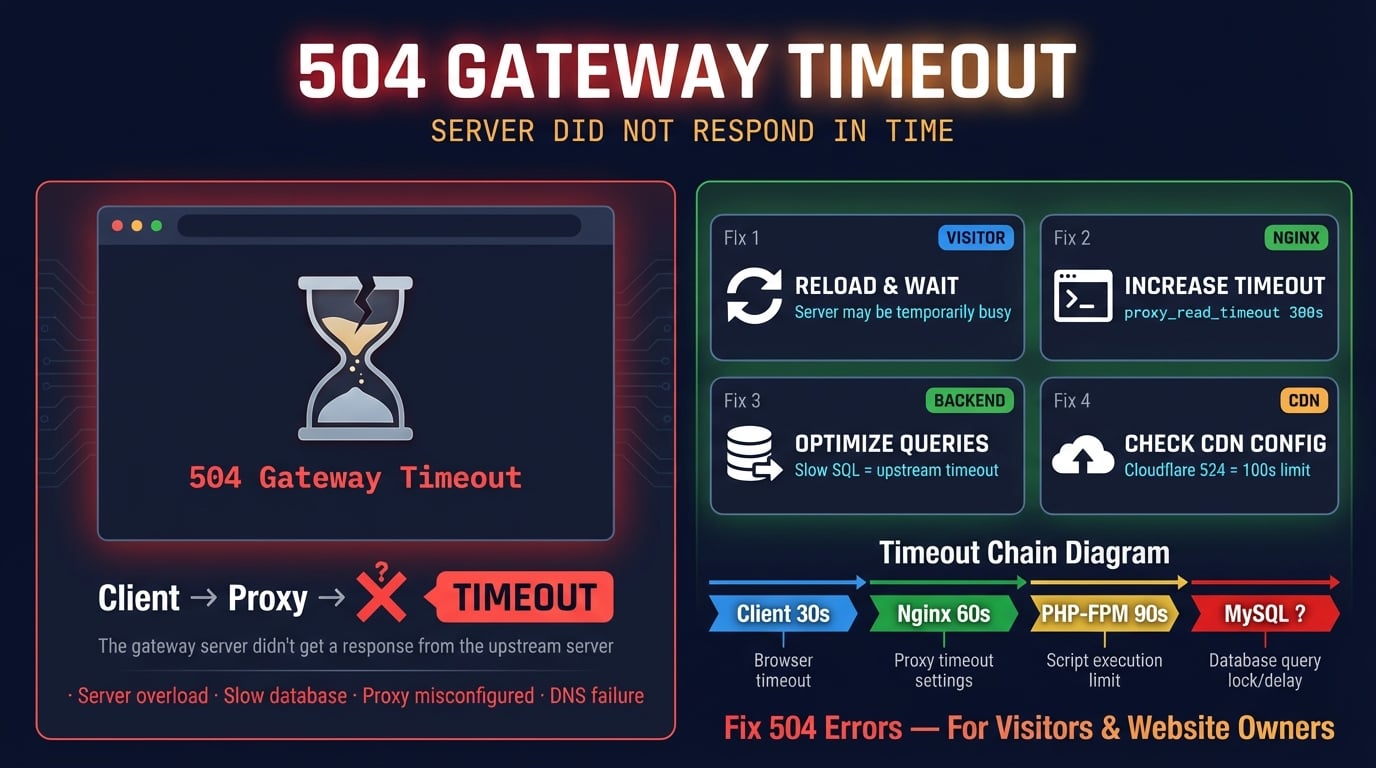
To understand the 504 error, you need to understand the timeout chain between your browser and the origin server. A typical web request passes through multiple layers, and each layer has its own timeout setting.
Here is a typical request flow: Browser → CDN (Cloudflare) → Load Balancer → Nginx → PHP-FPM → Database. If the database query takes 90 seconds and Nginx's proxy_read_timeout is set to 60 seconds, Nginx stops waiting and returns a 504 to the load balancer, which passes it back to your browser.
The server that returns the 504 is always the intermediary (proxy or gateway), never the origin server itself. The origin server simply did not respond in time — it might still be processing the request, or it might have crashed entirely.
| Layer | Default Timeout | What Happens on Timeout |
|---|---|---|
| Cloudflare (Free/Pro) | 100 seconds | Returns Error 524 (proprietary) |
| AWS CloudFront | 30 seconds | Returns 504 ERROR |
| AWS ALB | 60 seconds | Returns 504 with awselb header |
| GCP Load Balancer | 30 seconds | Returns 504 |
| Nginx (proxy_read_timeout) | 60 seconds | Returns 504 Gateway Time-out |
| Apache (ProxyTimeout) | 60 seconds | Returns 504 Gateway Timeout |
| PHP max_execution_time | 30 seconds | Script dies, Nginx gets no response → 504 |
Common Causes of 504 Gateway Timeout
Understanding the root cause is the fastest path to a fix. Here are the most common reasons a server returns 504, ranked by frequency.
Slow origin server — PHP scripts running complex database queries, generating reports, or calling slow third-party APIs can exceed the proxy's timeout. This is the #1 cause of 504 errors.
Server overload — CPU at 100%, out of memory (OOM kills), or all PHP-FPM workers busy. The origin server is alive but too overwhelmed to respond in time.
Database bottleneck — Slow SQL queries, missing indexes, table locks, or exhausted connection pools. The application hangs waiting for the database, and the proxy times out.
Misconfigured timeout values — Nginx
proxy_read_timeoutset too low for a backend that legitimately needs more time (e.g., a report generator or file upload handler).Network issues between proxy and origin — Packet loss, high latency, or routing problems between data centers. Common in multi-region or hybrid cloud setups.
Firewall or security group blocking traffic — AWS security groups not allowing traffic on ephemeral ports, iptables rules blocking internal connections, or a WAF blocking legitimate upstream requests.
DNS resolution failure at the proxy — The proxy cannot resolve the upstream hostname. In Nginx, this happens when using variables in
proxy_passwithout aresolverdirective.CDN timeout — Cloudflare has a hard 100-second limit on Free/Pro/Business plans. If your origin takes longer than 100 seconds, Cloudflare returns Error 524 regardless of your Nginx config.
DDoS attack — A flood of requests exhausts server resources, making the origin too slow to respond to legitimate traffic within the proxy's timeout window.
Advertisement
Fix for Visitors: What You Can Do
If you see a 504 error on someone else's website, the problem is on their server — not your device. However, there are a few things worth trying.
Wait and refresh — Most 504 errors are temporary. Wait 30-60 seconds, then hard-refresh the page with
Ctrl+Shift+R(Windows/Linux) orCmd+Shift+R(Mac).Check if the site is down for everyone — Use DNS Robot's HTTP Headers tool to check the server's response code from an external location. If it returns 504 for everyone, the issue is server-side.
Try incognito or a different browser — Rules out browser extensions, cached error pages, and local configuration issues.
Try a different network — Switch from Wi-Fi to mobile data, or disable your VPN. Routing issues between your ISP and the server can sometimes cause 504.
Flush your DNS cache — Stale DNS records can route requests to the wrong server. On Windows:
ipconfig /flushdns. On Mac:sudo dscacheutil -flushcache && sudo killall -HUP mDNSResponder.Check the site's status page or social media — The site may have posted about a known outage or maintenance window.
Fix 1: Increase Timeout Settings (Nginx & Apache)
The most common fix for 504 errors is increasing the timeout values on your reverse proxy. If your backend legitimately needs more than 60 seconds (the default), the proxy needs to know to wait longer.
# Nginx — reverse proxy to a backend (Node.js, Python, etc.)
location / {
    proxy_pass http://backend;
    proxy_connect_timeout 300;
    proxy_send_timeout    300;
    proxy_read_timeout    300;
    send_timeout          300;
}

# Nginx — FastCGI (PHP-FPM)
location ~ \.php$ {
    fastcgi_pass unix:/var/run/php-fpm.sock;
    fastcgi_read_timeout    300;
    fastcgi_send_timeout    300;
    fastcgi_connect_timeout 300;
    include fastcgi_params;
}For Apache with mod_proxy, add ProxyTimeout 300 in your VirtualHost or use ProxyPass / http://backend:8080/ timeout=300 for per-backend configuration.
Important: These timeouts measure the time between two successive read/write operations, not the total transfer time. So proxy_read_timeout 300 means "if no data arrives for 300 seconds," not "the entire response must complete in 300 seconds." After changing timeout values, reload the configuration: sudo nginx -t && sudo systemctl reload nginx.
Advertisement
Fix 2: Optimize Slow Scripts and Database Queries
If your backend consistently exceeds the timeout, increasing the timeout value only masks the problem. The real fix is making the backend respond faster.
Find slow queries — Enable MySQL slow query log (
slow_query_log = 1,long_query_time = 1) or useEXPLAIN ANALYZEon suspect queries. Add missing indexes, avoidSELECT *, and paginate large result sets.Add caching — Use Redis or Memcached to cache expensive query results. A query that takes 5 seconds on every page load should be cached.
Move heavy work to background jobs — Report generation, email sending, image processing, and data imports should run in a job queue (Celery, Sidekiq, Bull), not in the HTTP request cycle.
Optimize API calls — If your backend calls slow third-party APIs, add timeouts to those calls and implement circuit breakers so one slow API does not block all requests.
Reduce N+1 queries — ORM-generated queries often make hundreds of individual database calls. Use eager loading or batch queries to reduce round trips.
Fix 3: Check Server Resources (CPU, RAM, Disk)
If the origin server is overloaded, it cannot process requests fast enough, and the proxy times out waiting. Check what is consuming resources.
# Check CPU and memory usage
top -bn1 | head -20

# Check disk space (full disk = silent failures)
df -h

# Check memory details
free -m

# Find processes using the most CPU
ps aux --sort=-%cpu | head -10

# Find processes using the most memory
ps aux --sort=-%mem | head -10

# Check active network connections
ss -s
If CPU or RAM is at 90%+, you need to either optimize your application, kill runaway processes, or upgrade your server. If disk space is full, clear old log files, backups, or temp files — a full disk can silently crash databases and cause cascading 504 errors.
Advertisement
Fix 4: Check Error Logs
Error logs tell you exactly why the proxy returned 504. Always check logs before guessing at the cause.
# Nginx error log (look for "upstream timed out")
tail -50 /var/log/nginx/error.log

# Apache error log
tail -50 /var/log/apache2/error.log       # Debian/Ubuntu
tail -50 /var/log/httpd/error_log          # CentOS/RHEL

# PHP-FPM log
tail -50 /var/log/php8.2-fpm.log

# System log (OOM kills, crashes)
tail -50 /var/log/syslog
Common log messages that cause 504:
"upstream timed out (110: Connection timed out)" (Nginx) — The upstream server did not respond within proxy_read_timeout. Either increase the timeout or fix the slow upstream.
"server reached pm.max_children" (PHP-FPM) — All PHP worker processes are busy. Increase pm.max_children in the PHP-FPM pool configuration.
"connect() failed (111: Connection refused)" (Nginx) — The upstream server is not running or not listening on the expected port. Restart the backend.
"Too many connections" (MySQL) — The database connection limit is exhausted. Increase max_connections in MySQL config or optimize connection pooling.
Fix 5: Adjust PHP-FPM Settings
For PHP-based applications (WordPress, Laravel, Magento), PHP-FPM is a common bottleneck. The timeout chain must be consistent: Nginx timeout ≥ PHP-FPM timeout ≥ PHP max_execution_time.
| Setting | File | Default | Recommended |
|---|---|---|---|
| max_execution_time | php.ini | 30 seconds | 120-300 seconds |
| request_terminate_timeout | PHP-FPM pool config | 0 (uses max_execution_time) | Match max_execution_time |
| pm.max_children | PHP-FPM pool config | 5 | Based on RAM: (Total RAM - 1GB) / 40MB |
| pm.max_requests | PHP-FPM pool config | 0 (unlimited) | 500-1000 (prevents memory leaks) |
| fastcgi_read_timeout | nginx.conf | 60 seconds | ≥ max_execution_time |
After changing PHP-FPM settings, restart the service: sudo systemctl restart php8.2-fpm. Make sure Nginx's fastcgi_read_timeout is always greater than or equal to PHP's max_execution_time. Otherwise, Nginx gives up before PHP finishes, creating a 504.
Fix 6: Check CDN and Proxy Configuration
If your site is behind a CDN like Cloudflare or AWS CloudFront, the CDN has its own timeout settings that can override your server configuration.
| CDN / Proxy | Default Timeout | Max Configurable | Notes |
|---|---|---|---|
| Cloudflare Free | 100 seconds | 100 seconds (fixed) | Returns Error 524, not 504 |
| Cloudflare Pro | 100 seconds | 100 seconds (fixed) | Same as Free — cannot increase |
| Cloudflare Business | 100 seconds | 100 seconds (fixed) | Same limit applies |
| Cloudflare Enterprise | 100 seconds | 6,000 seconds | Configurable via Cache Rules |
| AWS CloudFront | 30 seconds | 180 seconds | Set in distribution origin settings |
| AWS ALB | 60 seconds | Configurable | Set via idle timeout |
| GCP Load Balancer | 30 seconds | No practical limit | Set via backend service timeout |
Cloudflare users: If you are on a Free, Pro, or Business plan and your origin takes longer than 100 seconds, you will always get Error 524. The only options are: optimize your backend to respond within 100 seconds, move long-running tasks to background jobs, or upgrade to Enterprise.
AWS CloudFront users: Increase the origin response timeout in your distribution's origin settings. The default 30 seconds is often too low for dynamic content.
Use DNS Robot's HTTP Headers tool to check the response headers and identify which layer is returning the 504. Look for headers like server: cloudflare, server: awselb/2.0, or server: nginx to pinpoint the proxy.
Fix 7: WordPress-Specific Solutions
WordPress sites are particularly prone to 504 errors due to heavy plugins, database bloat, and shared hosting limits. Here are targeted fixes.
Identify slow plugins — Deactivate all plugins, then reactivate one by one. If you cannot access wp-admin, rename the
pluginsfolder via SSH:mv wp-content/plugins wp-content/plugins_disabled. Use the Query Monitor plugin to identify slow database queries.Increase PHP memory — Add
define('WP_MEMORY_LIMIT', '512M');towp-config.php. Many plugins need more than the default 128MB.Install a caching plugin — WP Super Cache, W3 Total Cache, or WP Rocket reduces server-side processing by serving static HTML instead of running PHP on every request.
Use object caching — Install Redis or Memcached and a WordPress object cache plugin. This caches database query results in memory, reducing MySQL load.
Clean up the database — Delete old post revisions, transients, spam comments, and orphaned metadata. Use WP-Optimize or WP-Sweep. Add
define('WP_POST_REVISIONS', 5);to limit future revisions.Disable wp-cron — WordPress's virtual cron runs on every page load and can pile up tasks. Add
define('DISABLE_WP_CRON', true);towp-config.phpand set up a real server cron job instead:*/5 * * * * curl -s https://yoursite.com/wp-cron.php > /dev/null 2>&1.
504 vs 502 vs 503 vs 408: What Is the Difference?
These HTTP error codes are often confused. Here is what each one actually means.
| Code | Name | What Happened | Requires Proxy? |
|---|---|---|---|
| 408 | Request Timeout | Client was too slow sending its request to the server | No — server times out the client |
| 502 | Bad Gateway | Proxy received an invalid or corrupt response from upstream | Yes |
| 503 | Service Unavailable | Server is overloaded or in maintenance — cannot handle any requests | No — any server can return it |
| 504 | Gateway Timeout | Proxy received no response from upstream within the timeout | Yes |
| 524 | A Timeout Occurred | Cloudflare connected to origin but got no HTTP response within 100s | Cloudflare only (non-standard) |
The critical distinction: 502 means the proxy got a bad response, while 504 means the proxy got no response at all. A 503 does not require a proxy — any server can return it when overloaded. A 408 is a client-side timeout (4xx class), where the server gave up waiting for the client.
If you see a 502 and a 504 at the same time, the upstream server is likely crashing. The 502 occurs when the proxy gets a partial or corrupt response from a dying process, and the 504 occurs when the process is completely unresponsive.
If you're seeing the 502 rather than the 504, our 502 Bad Gateway guide walks through the nginx error-log messages that explain it, including a real case from this site.
Does a 504 Error Affect SEO?
Short answer: a brief 504 has no SEO impact. A prolonged 504 can cause deindexing.
Minutes to hours: No impact. Google understands temporary server errors and does not immediately penalize. If Googlebot does not happen to crawl during the outage, it will not even notice.
Hours to days: Google reduces crawl frequency for sites returning 5xx errors to avoid adding load to a struggling server. Pages may appear as "Server error (5xx)" in Google Search Console's Page Indexing report.
Days to weeks: Persistent 504 errors can lead to deindexing of affected pages. Rankings drop significantly. Per Google's John Mueller: if a server is down for a day, things may be "in flux" for one to three weeks after recovery.
Recovery: Once the server is reliable again, Google re-crawls and re-indexes pages automatically. Use Google Search Console's URL Inspection tool to request re-indexing of important pages. Recovery time depends on site size and how long the errors lasted.
How to Prevent 504 Gateway Timeout Errors
Prevention is better than firefighting. These practices will keep your server responding within timeout limits.
Set up monitoring — Use uptime monitoring (UptimeRobot, Pingdom, or DNS Robot's Ping tool) to detect 504 errors before your users report them.
Match your timeout chain — Ensure CDN timeout ≥ proxy timeout ≥ application timeout. Mismatched values cause unpredictable 504 errors.
Implement health checks — Load balancers and proxies should health-check upstream servers and route traffic away from unresponsive instances.
Use caching aggressively — Cache static assets, API responses, and database queries. A cached response is never slow enough to cause a 504.
Auto-scale — Use horizontal scaling (more instances) so that traffic spikes do not overwhelm a single server.
Offload heavy work — Move file processing, report generation, email sending, and bulk imports to background job queues. Never do expensive work inside an HTTP request.
Monitor slow queries — Enable slow query logging in MySQL/PostgreSQL. Set alerts for queries exceeding 1 second.
Keep dependencies healthy — Monitor third-party APIs your backend depends on. Add timeouts and circuit breakers so one slow API does not cascade into 504 errors for all users.
Check if a server is returning 504
Use DNS Robot's free HTTP Headers tool to check any website's HTTP response code, headers, and timing. Instantly see if a site is returning 504 Gateway Timeout.
Try HTTP Headers CheckerAdvertisement
Frequently Asked Questions
A 504 Gateway Timeout means a proxy or gateway server (like Nginx, Cloudflare, or a load balancer) waited for the upstream/origin server to respond, but the upstream server took too long. The proxy gave up and returned a 504 error to your browser.