











Connection Is Not Private: Fix It on iPhone, iPad & Chrome
 Shaik Vahid11 min read
Key takeaway
"Your connection is not private" (Chrome, Edge) and "This Connection Is Not Private" (Safari on iPhone and iPad) mean the browser could not verify the site's certificate. If it happens on every site, the cause is your device or network: a wrong clock, a public Wi-Fi sign-in page, antivirus HTTPS scanning, a VPN or a filtering profile. If it happens on one site for everyone, that site's certificate is broken and only its owner can fix it.
Check it now

Start reading
- What Does "Your Connection Is Not Private" Mean?
- Error Codes by Browser
- Common Causes of "Your Connection Is Not Private"
- Fix "This Connection Is Not Private" on iPhone / iPad
- iPad Says "This Connection Is Not Private" After an Update
- Fix 1: Check Your Date and Time Settings
- Fix 2: Try Incognito / Private Browsing Mode
- Fix 3: Clear Browser Cache and Cookies
- Fix 4: Clear SSL State (Windows)
- Fix 5: Disable Antivirus HTTPS Scanning
- Fix 6: Switch to a Different Network
- Fix 7: Change Your DNS Server
- Fix 8: Update Your Browser and Operating System
- Fix 9: Bypass the Warning (Use with Caution)
- Fix 10: For Website Owners — Fix Your SSL Certificate
- Fix "Your Connection Is Not Private" on Android
- How to Verify the Fix Worked
- Frequently Asked Questions
What Does "Your Connection Is Not Private" Mean?
"Your connection is not private" means your browser could not verify the website's security certificate, so it stopped before sending anything. Chrome and Edge show it with a code such as NET::ERR_CERT_DATE_INVALID; Safari on iPhone, iPad and Mac says "This Connection Is Not Private" and adds that the site "may be impersonating" the real one.
The quickest diagnosis: if every HTTPS site shows it, the cause is your device or network (the clock, a public Wi-Fi sign-in page, antivirus, a VPN or a profile). If only one site shows it, on any device and network, the site's certificate is broken and only its owner can fix it.
To verify a certificate, the browser checks that it (1) was issued by an authority it trusts, (2) hasn't expired, (3) matches the address you typed, and (4) hasn't been revoked. If any check fails, you get this warning. It does not always mean the site is dangerous, but it does mean the browser can't prove it isn't.
Check the site's certificate now
Error Codes by Browser
Each browser displays this SSL error differently and uses its own error codes. Here is what you will see across the major browsers.
| Browser | Error Message | Common Error Codes |
|---|---|---|
| Google Chrome | Your connection is not private | NET::ERR_CERT_AUTHORITY_INVALID, NET::ERR_CERT_DATE_INVALID, NET::ERR_CERT_COMMON_NAME_INVALID, NET::ERR_CERT_REVOKED |
| Microsoft Edge | Your connection isn't private | Same NET::ERR_CERT codes as Chrome (Chromium-based) |
| Mozilla Firefox | Be careful. Something doesn't look right. (older versions: Warning: Potential Security Risk Ahead) | SEC_ERROR_UNKNOWN_ISSUER, SEC_ERROR_EXPIRED_CERTIFICATE, SSL_ERROR_BAD_CERT_DOMAIN |
| Safari (iPhone, iPad, Mac) | This Connection Is Not Private | No code shown: tap Show Details, then view the certificate |
| Brave / Opera | Your connection is not private | Same NET::ERR_CERT codes as Chrome (Chromium-based) |
The error code tells you exactly what went wrong. ERR_CERT_DATE_INVALID means the certificate has expired or your device clock is wrong (Chrome then says "Your clock is ahead" or "behind"). ERR_CERT_AUTHORITY_INVALID means the certificate wasn't issued by an authority your device trusts (how to fix ERR_CERT_AUTHORITY_INVALID). ERR_CERT_COMMON_NAME_INVALID means the certificate is for a different address.
If the page instead says "This site can't provide a secure connection", the handshake itself failed: that is a different error, ERR_SSL_PROTOCOL_ERROR.
Common Causes of "Your Connection Is Not Private"
The causes fall into two groups: the ones on your device or network, which you can fix, and a broken certificate on the website, which only its owner can fix.
- Incorrect date and time on your device — A common cause when the warning appears on every site. SSL certificates have validity dates. If your device clock is wrong, every certificate appears expired or not-yet-valid, triggering the error on all HTTPS sites.
- Expired SSL certificate — The website owner's SSL certificate has expired and has not been renewed. This is the website's fault, not yours.
- Self-signed or untrusted certificate — The website uses a certificate that was not issued by a recognized certificate authority. Common on development servers, internal corporate tools, and some IoT devices.
- Antivirus or firewall HTTPS scanning — Security software like Avast, Kaspersky, ESET, or Bitdefender intercept HTTPS connections and replace the site's certificate with their own. If the replacement certificate is not trusted by the browser, the error appears.
- VPN or proxy interference — VPNs and proxies can intercept SSL connections, especially on public or corporate networks, causing certificate validation to fail.
- A school, work or parental-control profile — Managed iPhones and iPads, and filtering apps, route HTTPS through the organisation's own certificate. If that certificate isn't trusted on the device, every site shows the warning
- Public Wi-Fi captive portal — Hotels, airports, and cafes often intercept your first HTTPS request to show a login page. This breaks SSL validation until you authenticate.
- Domain name mismatch — The certificate was issued for
www.example.combut you visitedexample.com(or vice versa), or the certificate covers a different domain entirely. - Outdated browser or operating system — Older browsers and OS versions may not have the latest root certificates, causing them to reject valid certificates.
Fix "This Connection Is Not Private" on iPhone / iPad
Safari on iPhone and iPad says "This Connection Is Not Private" and adds that the site "may be impersonating" the real one. Chrome on iOS shows "Your connection is not private". Work through these in order:
- Fix date and time: Settings → General → Date & Time → turn on "Set Automatically"
- Sign in to the Wi-Fi: on public Wi-Fi, open
http://neverssl.comto bring up the network's sign-in page, or switch to mobile data to test - Check VPNs and profiles: Settings → General → VPN & Device Management. A VPN, content filter or profile you don't recognise can intercept HTTPS: turn the VPN off, or remove the profile
- Turn off iCloud Private Relay to test: Settings → [your name] → iCloud → Private Relay
- Clear Safari data: Settings → Apps → Safari → Clear History and Website Data
- Update iOS: Settings → General → Software Update — updates also bring Apple's current list of trusted certificate authorities
- Reset network settings (last): Settings → General → Transfer or Reset iPhone (or iPad) → Reset → Reset Network Settings. This forgets saved Wi-Fi passwords and VPN settings, and turns full trust off again for certificates you trusted by hand (redo Certificate Trust Settings afterwards)
iPad Says "This Connection Is Not Private" After an Update
If the warning started on every site right after an iPadOS or iOS update, check three things first:
- The clock — Settings → General → Date & Time → Set Automatically. An update can leave the time zone or date wrong
- A school or work certificate — managed iPads route HTTPS through the organisation's own certificate. If yours was installed by hand, it only works with full trust turned on: Settings → General → About → Certificate Trust Settings → turn the certificate on
- The network — test on mobile data or another Wi-Fi. If the warning disappears, the original network (often a school or office filter) is the cause, not the update
Fix 1: Check Your Date and Time Settings
This is the fastest fix. If your clock is far off (the wrong year, or months out), every certificate looks expired or not yet valid; even a day off can break certificates that were issued in the last day.
- Windows: Settings → Time & Language → Date & time → turn on "Set time automatically" and "Set time zone automatically"
- macOS: System Settings → General → Date & Time → turn on "Set time and date automatically"
- Android: Settings → System → Date & time → turn on "Automatic date & time"
- iPhone/iPad: Settings → General → Date & Time → turn on "Set Automatically"
After correcting the date and time, close your browser completely and reopen it. Try visiting the website again. If that clears the warning on every site, the clock was the cause.
Fix 2: Try Incognito / Private Browsing Mode
An Incognito (Chrome) or private (Firefox, Safari) window runs without most extensions. If the site loads there, an extension that routes or filters your traffic, such as a VPN, proxy or parental-control add-on, is the cause.
Turn your extensions off one by one in a normal window to find it. Ad blockers and cached data don't cause certificate errors, so clearing the cache rarely helps.
Fix 3: Clear Browser Cache and Cookies
Clearing cookies and cache rarely fixes a certificate error, because browsers check the certificate fresh on every new connection. It's quick and harmless, though, and it clears a cached page left over from a Wi-Fi sign-in screen.
- Chrome: Settings → Privacy and Security → Delete browsing data → tick "Cookies and other site data" and "Cached images and files" → Delete data
- Firefox: Settings → Privacy & Security → Cookies and Site Data → Clear Data
- Edge: Settings → Privacy, search, and services → Choose what to clear → select Cookies and Cached images → Clear now
- Safari: Safari menu → Settings → Privacy → Manage Website Data → Remove All
After clearing, restart the browser and try loading the website again.
Fix 4: Clear SSL State (Windows)
Many guides suggest Clear SSL state (inetcpl.cpl → Content → Clear SSL state). It clears the session cache of Windows' own TLS library. Chrome, Edge and Firefox use their own, so it rarely changes anything for them; closing every browser window and reopening the browser does the same job for the browser.
- Open Internet Options: Press Win+R → type
inetcpl.cpl→ press Enter - Go to the Content tab and click Clear SSL state, then OK
- Close the browser completely (check the system tray) and reopen it before you retry
Fix 5: Disable Antivirus HTTPS Scanning
Many antivirus programs perform "HTTPS inspection" or "SSL scanning" by intercepting encrypted traffic and replacing the website's certificate with their own. If the antivirus certificate is not trusted by your browser, every HTTPS site triggers "Your connection is not private."
Avast, Kaspersky, Bitdefender and ESET all have this feature. To test (labels vary between versions):
- Avast: Settings → Protection → Core Shields → Web Shield → uncheck "Enable HTTPS scanning"
- Kaspersky: Settings → Security settings → Network settings → Encrypted connections scan → choose "Do not scan encrypted connections"
- Bitdefender: Protection → Online Threat Prevention → Settings → turn off "Encrypted web scan"
- ESET: Advanced setup (F5) → Protections → SSL/TLS → turn off "Enable SSL/TLS"
If disabling HTTPS scanning fixes the error, you can either leave it disabled or add the affected website to your antivirus exception list.
Fix 6: Switch to a Different Network
Public Wi-Fi networks in hotels, airports, cafes, and offices are a common source of certificate warnings. These networks often use captive portals that intercept your first HTTPS request to show a login or terms page — which breaks SSL validation.
Corporate and school networks may also use SSL inspection proxies that replace certificates with their own internal certificates, triggering the error if the proxy certificate is not installed on your device.
- Sign in to the Wi-Fi first: on hotel, airport and café Wi-Fi, open
http://neverssl.com(plain HTTP on purpose). The network then shows its sign-in page; once you've signed in, HTTPS sites load normally - Try mobile data: turn Wi-Fi off and load the site over cellular
- Try a different Wi-Fi network or a personal hotspot
Fix 7: Change Your DNS Server
DNS can cause this warning in one way: a DNS service that filters the site (an ISP block, parental controls, an ad-blocking DNS) sends you to a block page whose certificate can't match the address you typed, which usually shows as NET::ERR_CERT_COMMON_NAME_INVALID, or NET::ERR_CERT_AUTHORITY_INVALID when the filter signs its block page with its own certificate authority. Switching to a public resolver tells you whether that's happening.
| Provider | Primary DNS | Secondary DNS |
|---|---|---|
| Cloudflare | 1.1.1.1 | 1.0.0.1 |
| Google Public DNS | 8.8.8.8 | 8.8.4.4 |
| Quad9 | 9.9.9.9 | 149.112.112.112 |
Change the DNS in your device's network settings or your router (see Google's DNS servers for step-by-step settings), then flush your DNS cache and retry. To spot a redirect, compare nslookup example.com on your device with DNS Robot's DNS Lookup, which asks from outside your network: big sites can legitimately return different addresses, but an address owned by your ISP or a filtering service, rather than the site's host or CDN, means your network is redirecting it.
Fix 8: Update Your Browser and Operating System
Browsers and operating systems ship with a built-in list of trusted root certificate authorities (CAs). If your software is outdated, it may be missing newer root certificates, causing it to reject valid SSL certificates.
That happened at scale on 30 September 2021, when the older DST Root CA X3 root, through which Let's Encrypt certificates had been trusted, expired. Devices that no longer get updates (Let's Encrypt cites the iPhone 4) stopped trusting sites with Let's Encrypt certificates.
- Chrome: Menu → Help → About Google Chrome → update if available
- Firefox: Menu → Help → About Firefox → update if available
- Edge: Menu → Help and feedback → About Microsoft Edge → update if available
- Windows: Settings → Windows Update → Check for updates
- macOS: System Settings → General → Software Update
Fix 9: Bypass the Warning (Use with Caution)
If you trust the website and understand the risk, you can bypass the privacy warning to access the page. This does not fix the certificate: it tells the browser to accept it for this site. Chrome remembers that for a week; Firefox keeps the exception until you remove it.
- Chrome: Click "Advanced" on the error page → click "Proceed to [site] (unsafe)"
- Edge: Click "Advanced" → click "Continue to [site] (unsafe)"
- Firefox: Click "Advanced" → "Proceed to [site] (Risky)" (older versions: "Accept the Risk and Continue")
- Safari (iPhone, iPad, Mac): Tap "Show Details", then the link in the text that offers to visit the website anyway, and confirm with "Visit Website"
- No "Proceed" link at all? Chrome hides it when the site uses HSTS (it told browsers to always require a valid certificate), when the certificate is revoked or invalid, and when an administrator blocks bypasses. Those are the cases where clicking through is most dangerous: fix the cause on your side, or wait for the owner to fix the certificate
Fix 10: For Website Owners — Fix Your SSL Certificate
If visitors report "Your connection is not private" on your website, the problem is your SSL certificate configuration. Here is a checklist to diagnose and fix it.
- Check certificate expiry: Use DNS Robot's SSL Checker to see your certificate's expiration date. Renew it immediately if expired.
- Verify the certificate chain: Make sure your server sends your certificate plus its intermediate certificates (visitors' devices already have the root). A missing intermediate is a common server-side cause. Read: What Is an SSL Certificate Chain?
- Check domain name match: Every hostname you serve must be listed in the certificate's Subject Alternative Name (SAN); browsers ignore the Common Name. If your cert covers
www.example.combut notexample.com, visitors without the www prefix get the error. - Enable auto-renewal: If you use Let's Encrypt or Cloudflare, enable automatic certificate renewal so it never expires again.
- Test your setup: Run your domain through DNS Robot's SSL Checker to get a full certificate analysis including chain validation, expiry date, protocol support, and cipher suites.
Fix "Your Connection Is Not Private" on Android
Android displays this error in Chrome and all Chromium-based browsers. Here are Android-specific fixes.
- Fix date and time: Settings → System → Date & time → enable "Automatic date & time" and "Automatic time zone"
- Switch networks: turn Wi-Fi off and try mobile data. If the warning goes, the Wi-Fi network (a sign-in page or a filter) is the cause
- Check Private DNS: Settings → Network & internet → Private DNS. If it points at a filtering service, turn it off to test: a filter's block page can't show a valid certificate for the site you asked for
- Check for system updates: Settings → System → System update — outdated Android versions may lack newer root certificates
- Try a different browser: If Chrome shows the error, test with Firefox — it uses its own certificate store separate from Android's
- Clear Chrome's cache (last): Settings → Apps → Chrome → Storage → Clear cache. Cached data rarely causes certificate errors, so try the steps above first
How to Verify the Fix Worked
After applying a fix, verify that the SSL connection is working properly.
- Check the site information icon: click the icon left of the address (a tune icon in Chrome). It should say the connection is secure, and you can open the certificate details from there.
- Test with DNS Robot's SSL Checker: Run the domain through /ssl-checker to verify the full certificate chain, expiry date, and protocol support from an external server.
- Test multiple browsers: If the fix works in one browser, test the website in Chrome, Firefox, and Safari to ensure it works everywhere.
- Check from a different device: Use your phone or another computer to confirm the issue was local to your device and not a server-side problem.
Check any website's SSL certificate
Paste the site into DNS Robot's free SSL Checker: it checks the certificate from our server (expiry, name, chain, revocation) and grades it A+ to F. If the site passes there, the problem is your device or network.
Sources
Frequently Asked Questions
What does "Your connection is not private" mean?
How do I get rid of "This connection is not private" on my iPhone?
Why does my iPad say "This connection is not private" after an update?
How do I fix "Your connection is not private" in Chrome?
Why do I get this error on every website?
Is it safe to click "Proceed" or bypass the warning?
What does NET::ERR_CERT_AUTHORITY_INVALID mean?
How do I fix this error on Android?
Can a VPN cause "Your connection is not private"?
How do I fix this if I am the website owner?
About the author
Shaik VahidFounder of DNS Robot. Vahid spent years in web hosting support fixing domains, DNS records, SSL certificates and email delivery for customers. He builds DNS Robot's tools and writes these guides from the errors people actually hit.
Related Articles
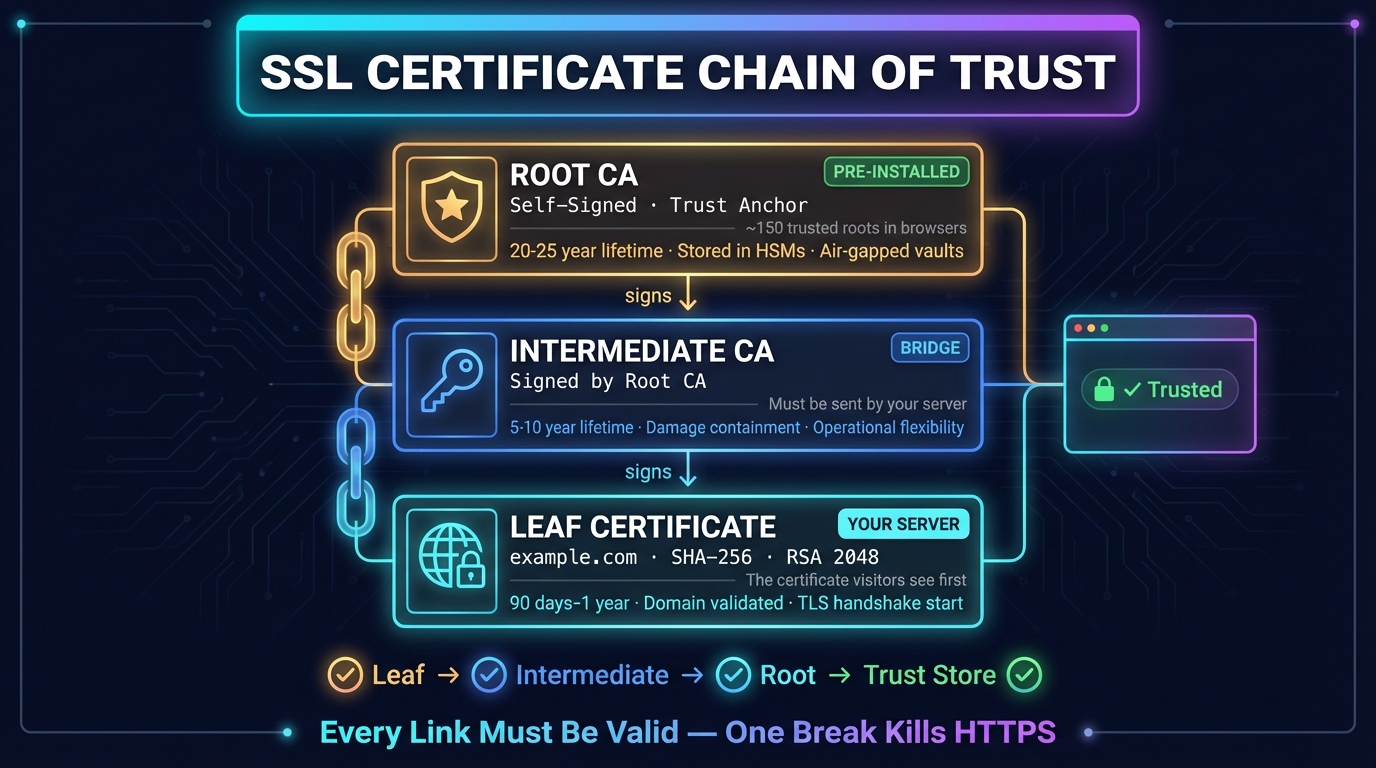
What Is an SSL Certificate Chain? Order, Check & Fix
An SSL certificate chain links a site's certificate to a root your browser trusts. How it works, the right order, how to check it, and how to fix chain errors.
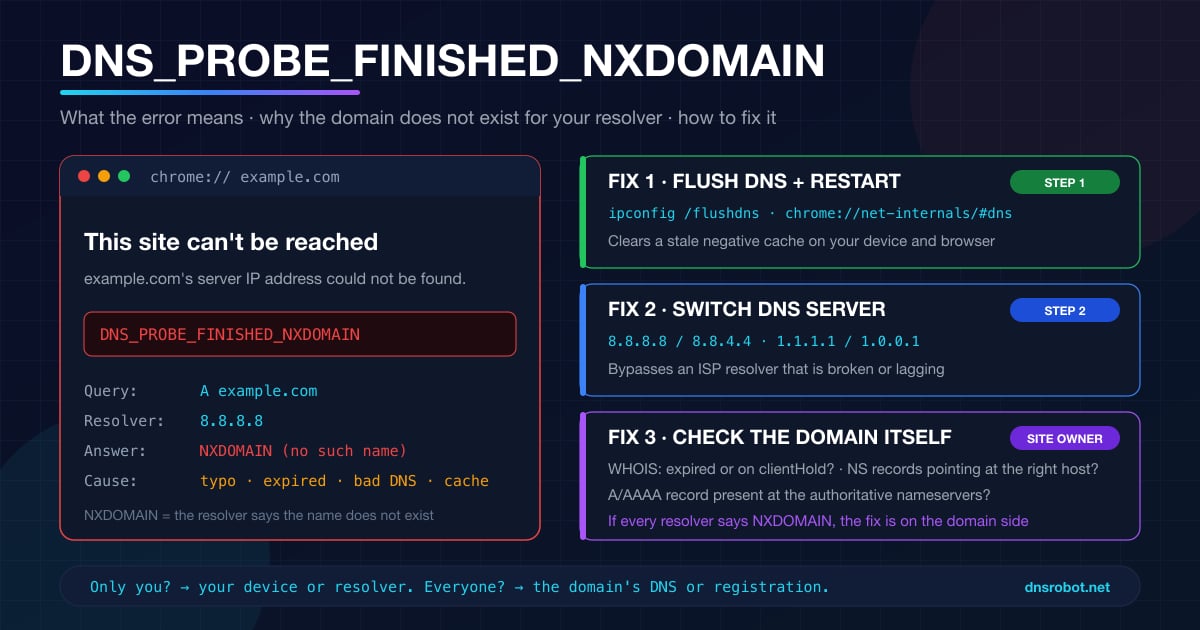
DNS_PROBE_FINISHED_NXDOMAIN: What It Means & How to Fix It
DNS_PROBE_FINISHED_NXDOMAIN means DNS says the domain doesn't exist. Find out in one test whether it's a typo, your DNS, a blocking filter or the site itself.

