What Is Traceroute?
Traceroute (also known as tracert on Windows) is a network diagnostic tool that maps the complete path packets take from a source to a destination host. Unlike pingwhich only tests the endpoint, traceroute reveals every router ("hop") along the way — showing their IP addresses, hostnames, and the round-trip time (RTT) at each step.
Our free online traceroute tool lets you trace route to any domain or IP address directly from your browser. It sends packets with incrementally increasing TTL (Time-to-Live) values, forcing each router along the path to identify itself. This makes it the go-to tool for diagnosing where network slowdowns, packet loss, or routing loops occur — essential for network administrators, developers, and anyone troubleshooting connectivity issues.

How Traceroute Works
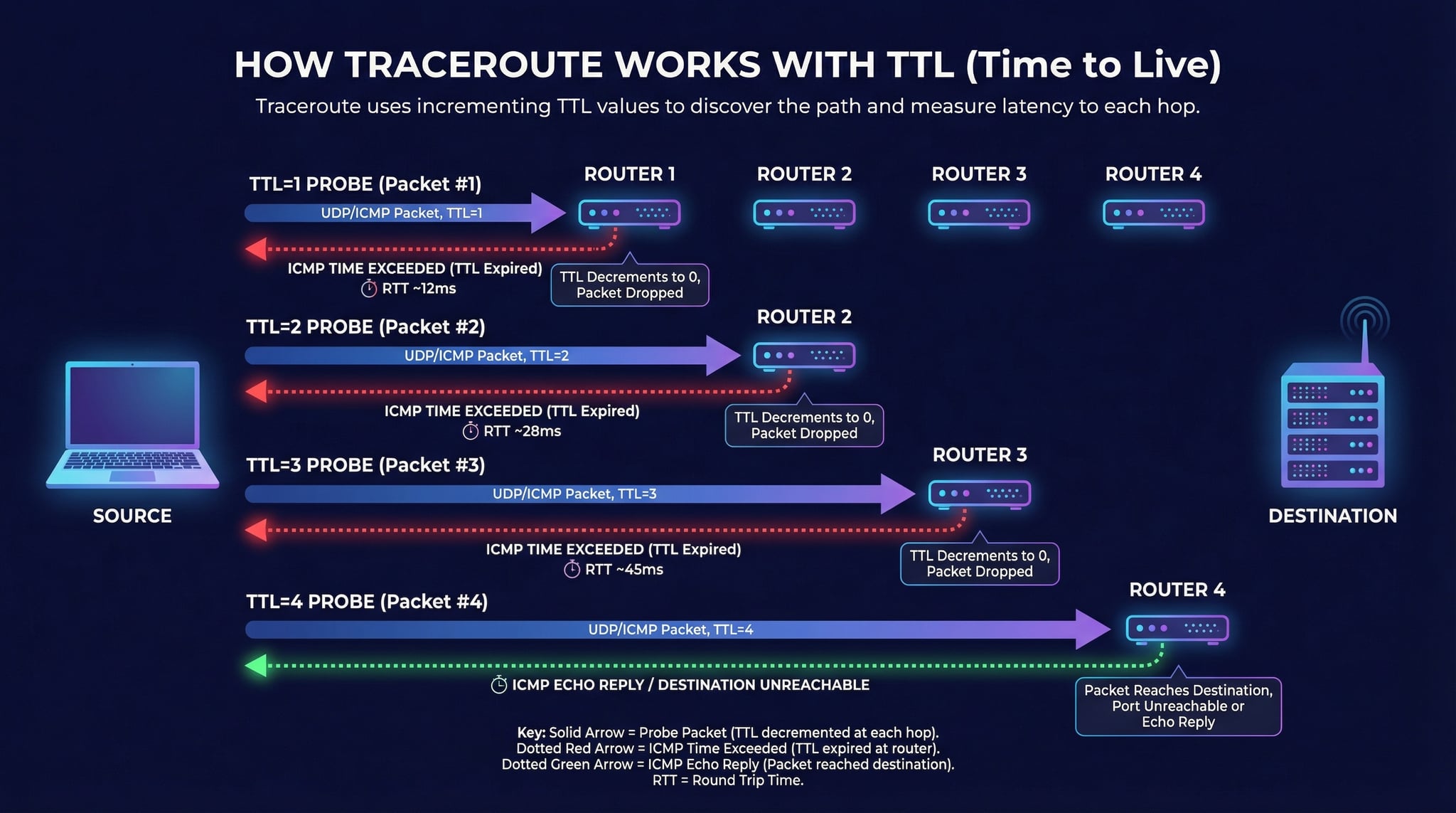
Traceroute exploits the TTL (Time-to-Live) field in IP packets to discover each router along the network path. Here's the step-by-step process:
The first packet is sent with TTL set to 1. The first router decrements it to 0 and sends back an ICMP "Time Exceeded" message, revealing its IP.
The next packet is sent with TTL=2. It passes the first router and the second router returns "Time Exceeded." This repeats for each hop.
For each TTL value, 3 probes are sent. The round-trip time of each probe is recorded, showing latency at each router along the path.
When the packet finally reaches the destination, it replies with an ICMP Echo Reply (or Port Unreachable), and the traceroute is complete.
Advertisement
Reading Traceroute Results
Each line of a tracerouteoutput represents one hop (router) in the network path. Here's what each column tells you:
The sequential position in the path. Hop 1 is your local gateway (router). The last hop is the destination or the closest responding node.
The router's reverse DNS hostname and IP address. Hostnames often reveal the ISP, city, or data center — e.g., ae-1.r01.snjsca04.us.bb.gin.ntt.net.
Three RTT measurements in milliseconds for each hop. Consistent values indicate a stable link. Large variation suggests congestion or instability at that hop.
Asterisks mean the router didn't respond. Many backbone routers silently drop ICMP probes for security — this doesn't always mean a problem.
Traceroute vs Tracert vs Ping
These three tools are the foundation of network diagnostics. Each serves a different purpose (for command syntax and options on each system, see our tracert command guide):
Traceroute (Linux/Mac)
- Sends UDP packets by default
- Maps full network path
- RTT at each hop
- Command:
traceroute
Tracert (Windows)
- Sends ICMP Echo Requests
- Same path mapping results
- RTT at each hop
- Command:
tracert
Ping
- Tests endpoint only
- Measures overall RTT
- Packet loss & jitter
- Use our ping tool
Advertisement
Common Traceroute Issues & What They Mean
When analyzing traceroute results, these patterns help identify where network problems are occurring:
A sudden RTT jump at one hop that persists through all subsequent hops indicates real congestion or a long physical link (e.g., undersea cable).
If one hop shows high latency but subsequent hops return to normal, the router is likely just slow at generating ICMP responses — not an actual bottleneck.
Consecutive timeouts in the middle of a route are normal — many ISP routers drop ICMP. But if the last hops all timeout, the destination may be blocking probes.
If the same IP appears multiple times in the path, packets are looping between routers. This is a routing misconfiguration that your ISP needs to fix.
A 50-100ms RTT increase between hops usually indicates a long-distance link — the packet is crossing an ocean or continent via fiber optic cable.
If the route ends before the destination and the last hop returns an error, a firewall is blocking traffic. Try port checker to test connectivity.
When to Use Traceroute
Trace route is most useful when pingtells you there's a problem but doesn't tell you where. Here are the key scenarios:
Diagnosing Slow Connections
When a website loads slowly or a server responds with high latency, traceroute reveals whether the delay is at your ISP, a transit provider, or the destination's network. Look for the hop where RTT suddenly increases and stays high.
Verifying Network Paths
Network engineers use traceroute to verify that traffic is following the expected path — especially after routing changes, BGP updates, or CDN migrations. Use IP lookup to identify the organization at each hop.
ISP Troubleshooting
When reporting issues to your ISP, traceroute output is invaluable evidence. It shows exactly which router in your ISP's network is causing packet loss or latency, making support tickets faster to resolve.
Server & CDN Verification
Traceroute confirms which CDN edge server or data center your traffic is reaching. Combined with DNS lookup and domain to IP, it maps the full request flow.
Advertisement
Related Network Tools
Traceroute works best in combination with other network diagnostic tools. Use these together for comprehensive troubleshooting:
Frequently Asked Questions about Traceroute
What is traceroute and what does it do?
Traceroute is a network diagnostic tool that maps the complete path packets take from the source to a destination host. It shows every router (hop) along the way, including their IP addresses, hostnames, and round-trip times (RTT). Unlike ping which only tests the final destination, traceroute reveals the entire route, making it essential for identifying where network problems occur.
What does a hop mean in traceroute?
A hop represents one router or gateway that a packet passes through on its way to the destination. Each hop is a network device that receives the packet and forwards it to the next router closer to the destination. The hop number indicates the position in the path — hop 1 is your local gateway (router), and the final hop is the destination server. More hops generally means higher latency.
How does traceroute work technically?
Traceroute works by sending packets with incrementally increasing Time-to-Live (TTL) values. Each router decrements the TTL by 1. When TTL reaches 0, the router sends back an ICMP Time Exceeded message, revealing its IP address. Traceroute starts with TTL=1 (first router responds), then TTL=2 (second router responds), and continues until the destination is reached or the maximum hop count is exceeded.
What causes high latency at a specific hop?
High latency at a specific hop can be caused by: network congestion at that router, geographic distance (e.g., an undersea cable crossing), the router being overloaded or under-provisioned, or the router deprioritizing ICMP responses. Important: if high latency appears at one hop but subsequent hops show normal latency, the router is likely just slow at generating ICMP responses, not actually causing delays in forwarding traffic.
What is the difference between traceroute and ping?
Ping tests connectivity and measures round-trip time to a single destination. Traceroute maps the entire network path, showing every router between you and the destination along with latency at each hop. Use ping for quick connectivity checks; use traceroute when you need to diagnose where along the path a problem occurs — such as high latency, packet loss, or routing loops.
What is the difference between traceroute and tracert?
Traceroute and tracert are the same tool on different operating systems. Linux and macOS use the 'traceroute' command, while Windows uses 'tracert'. Both map the network path hop-by-hop, but they differ in default behavior: traceroute on Linux sends UDP packets by default, while tracert on Windows sends ICMP Echo Request packets. Our online traceroute tool works from any browser regardless of your operating system.
Why do some hops show * * * (asterisks)?
Asterisks (* * *) in traceroute results mean the router at that hop did not respond within the timeout period. This happens when routers are configured to drop ICMP packets or rate-limit responses for security reasons. It does not necessarily mean the network is broken — many ISP and backbone routers silently forward traffic without responding to traceroute probes.
How many hops is normal in a traceroute?
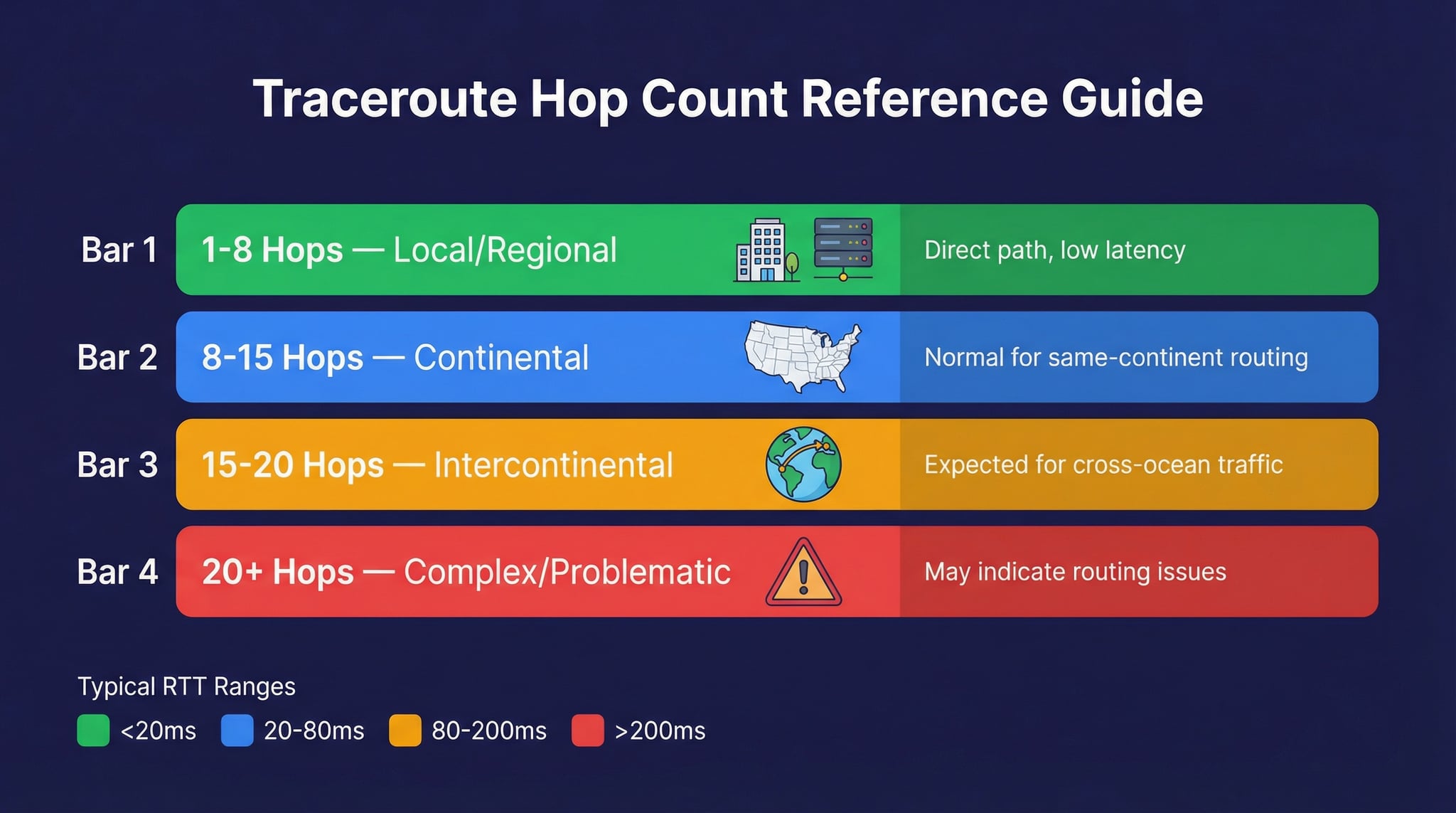
A typical traceroute completes in 10-15 hops for domestic destinations and 15-25 hops for international routes. Fewer hops generally means a more direct path with lower latency. More than 30 hops may indicate routing inefficiency. The maximum hop count is usually set to 30, though our tool uses 20 hops to keep results fast and relevant.
Can I traceroute any website?
You can attempt a traceroute to any domain or IP address, but some destinations may not respond to the final hop. Websites behind CDNs like Cloudflare will show the path to the nearest CDN edge server rather than the origin server. Some firewalls block ICMP traffic entirely, causing the last few hops to show timeouts even though the website is reachable via HTTP.
Is this online traceroute tool free?
Yes, our online traceroute tool is completely free with no registration required. You can trace routes to unlimited hosts, view hop-by-hop results with router IPs, hostnames, and RTTs, and copy results to clipboard — all without any cost or account creation.