











How to Fix DNS Server Not Responding (Step-by-Step)
 Shaik Vahid8 min read
Key takeaway
"DNS server not responding" means your device asked a DNS server to turn a website's name into an IP address and got no answer, so no site loads even if your connection is up. Flush the DNS cache, switch to a public DNS server such as 1.1.1.1 or 8.8.8.8, and restart the router and the device. If only one device fails, look at its VPN, security software or network adapter.
Check it now

Start reading
- What Does DNS Server Not Responding Mean?
- Common Causes of DNS Server Not Responding
- Fix 1: Flush Your DNS Cache
- Fix 2: Switch to a Public DNS Server
- Fix 3: Restart Your Router and Device
- Fix DNS Server Not Responding on Windows
- Fix DNS Server Not Responding on Mac
- Fix DNS Server Not Responding on Mobile
- Fix DNS Server Not Responding on Gaming Consoles
- Advanced Troubleshooting
- How to Verify DNS Is Working Again
- Frequently Asked Questions
What Does DNS Server Not Responding Mean?
DNS Server Not Responding is an error that appears when your device sends a request to a DNS server and gets no reply. DNS (Domain Name System) translates names like example.com into IP addresses like 203.0.113.10. Without a working DNS server, your browser can't find any website, even though your internet connection itself may be fine.
On Windows, Network Diagnostics reports it as "Your computer appears to be correctly configured, but the device or resource (DNS server) is not responding." Chrome shows DNS_PROBE_FINISHED_BAD_CONFIG (your DNS server failed while Google's answered) or DNS_PROBE_FINISHED_NO_INTERNET (neither answered), both DNS_PROBE codes, Safari "Safari Can't Find the Server", and Firefox "Hmm. We're having trouble finding that site."
It doesn't always mean your internet is down. Often only the DNS step is broken, and you can fix that yourself in a few minutes.
Which DNS servers answer fastest on your connection?
Common Causes of DNS Server Not Responding
Before jumping to fixes, understanding the root cause helps you pick the right solution. Here are the usual reasons this error appears.
- ISP DNS server is down — Your internet provider's DNS servers are overloaded or experiencing an outage
- Router glitch — A firmware bug or memory leak in your router is blocking DNS traffic
- Firewall or antivirus blocking DNS — Security software is interfering with DNS requests on port 53
- Wrong DNS settings — Manual DNS configuration with incorrect or unreachable server addresses
- Network adapter issue — Outdated driver or corrupted TCP/IP stack on your device
- WiFi connectivity problem — Weak signal or intermittent disconnects causing DNS timeouts
- VPN interference — Active VPN tunneling DNS queries through an unresponsive server
- Stale DNS cache — An old or failed entry your device cached; it breaks only the sites it covers, so it explains one site failing, not all of them
Fix 1: Flush Your DNS Cache
This takes ten seconds. Your system stores recent DNS answers in a cache, and flushing it clears any stored failure so the next lookup goes out fresh. (A stale entry affects only its own site; if nothing loads, also do Fixes 2 and 3.) See how to flush DNS for every system.
Open a terminal or command prompt and run the command for your operating system:
# Windows (Command Prompt)
ipconfig /flushdns

# macOS
sudo dscacheutil -flushcache; sudo killall -HUP mDNSResponder

# Linux (systemd-resolved)
sudo resolvectl flush-cachesFix 2: Switch to a Public DNS Server
If your ISP's DNS servers are slow or down, switching to a reliable public DNS resolver often fixes the problem instantly. Public DNS servers like Google and Cloudflare have global infrastructure with near-perfect uptime.
Here are the best free DNS servers to use:
| Provider | Primary DNS | Secondary DNS | Best For |
|---|---|---|---|
| Google Public DNS | 8.8.8.8 | 8.8.4.4 | Speed and reliability |
| Cloudflare | 1.1.1.1 | 1.0.0.1 | Privacy |
| Quad9 | 9.9.9.9 | 149.112.112.112 | Malware blocking |
| OpenDNS | 208.67.222.222 | 208.67.220.220 | Phishing blocking (family filter: 208.67.222.123) |
Fix 3: Restart Your Router and Device
A simple power cycle clears temporary glitches in your router's memory and forces it to re-establish DNS connections. This is especially effective when the DNS error affects every device on your network.
Follow these steps in order:
- Unplug your router from power (not just turn off — physically unplug it)
- Wait 30 seconds — this clears the router's RAM and resets all temporary state
- Plug it back in and wait 1-2 minutes for it to fully boot and reconnect to your ISP
- Restart your computer or phone to clear any device-level network state
- Test by visiting a website in your browser
Fix DNS Server Not Responding on Windows
If the three quick fixes above did not work, follow these Windows-specific steps. The DNS settings path below is Windows 11's; Windows 10 is covered right after it.
Reset Your Network Adapter
Open Command Prompt as Administrator and run these commands to fully reset your network stack:
netsh winsock reset
netsh int ip reset
ipconfig /release
ipconfig /renew
ipconfig /flushdns
Restart your computer after running these commands. This resets the Winsock catalog, TCP/IP stack, releases and renews your IP address, and flushes the DNS cache in one sequence.
Change DNS Settings on Windows
To manually set a public DNS server on Windows:
- Open Settings → Network & internet → Wi-Fi → Manage known networks → your network (for a cable: Ethernet → your network)
- Click Edit next to DNS server assignment
- Switch from Automatic to Manual and turn on IPv4
- Enter Preferred DNS
1.1.1.1and Alternate DNS1.0.0.1. If there's an IPv6 section, also enter2606:4700:4700::1111and2606:4700:4700::1001, or the device keeps asking your provider's IPv6 DNS. - Click Save and test by visiting a website
Windows 10 has no separate DNS option in Settings: press Win + R, run ncpa.cpl, right-click your adapter → Properties → Internet Protocol Version 4 (TCP/IPv4) → Properties → Use the following DNS server addresses.
Fix DNS Server Not Responding on Mac
macOS uses a different DNS management system. Here is how to fix it.
Change DNS Settings on macOS
To set a public DNS server on your Mac:
- Open System Settings → Network → Wi-Fi (or your active connection)
- Click Details next to your connected network
- Click DNS in the sidebar
- Click the + button and add
1.1.1.1 - Click + again and add
1.0.0.1(and2606:4700:4700::1111if you use IPv6) - Click OK
Flush DNS and Reset Network on Mac
Open Terminal and run:
# Flush DNS cache
sudo dscacheutil -flushcache
sudo killall -HUP mDNSResponder

# Renew DHCP lease (forces new DNS assignment)
sudo ipconfig set en0 DHCP
en0 is usually Wi-Fi on a MacBook; find yours with networksetup -listallhardwareports.
Fix DNS Server Not Responding on Mobile
DNS errors on phones and tablets are usually caused by your WiFi router's DNS settings or a stale cache on the device.
iPhone / iPad (iOS)
To change DNS on iOS:
- Open Settings → Wi-Fi → tap the (i) icon next to your connected network
- Tap Configure DNS → switch from Automatic to Manual
- Delete existing DNS servers and add
1.1.1.1and1.0.0.1(plus2606:4700:4700::1111and2606:4700:4700::1001for IPv6) - Tap Save and test your connection
Android
Android 9+ has a built-in Private DNS setting that applies to all networks:
- Open Settings → Network & internet → Private DNS (under Advanced on some phones; on Samsung, Connections → More connection settings)
- Select Private DNS provider hostname
- Enter
one.one.one.one(Cloudflare) ordns.google(Google), exactly as written - Tap Save — it applies on Wi-Fi and mobile data. A typo here breaks every lookup on the phone, and Android warns "Private DNS server cannot be accessed"
Fix DNS Server Not Responding on Gaming Consoles
DNS errors on gaming consoles prevent online multiplayer, game updates, and store access. Here is how to fix it on PlayStation and Xbox.
PlayStation (PS5 / PS4)
To change DNS on a PlayStation:
- PS5: Settings → Network → Settings → Set Up Internet Connection, highlight your network, press Options → Advanced Settings → DNS Settings: Manual
- PS4: Settings → Network → Set Up Internet Connection → Use Wi-Fi (or Use a LAN Cable) → Custom, keep the IP and DHCP defaults, then DNS Settings: Manual
- Enter Primary DNS
1.1.1.1and Secondary DNS1.0.0.1 - Save, then test the connection
Xbox (Series X/S / One)
To change DNS on Xbox:
- Go to Settings → General → Network settings → Advanced settings
- Select DNS settings → Manual
- Enter Primary DNS:
1.1.1.1and Secondary DNS:1.0.0.1 - Press B to save and restart the console to apply changes
Advanced Troubleshooting
If none of the above fixes worked, the problem may be deeper. Try these advanced steps.
Disable Firewall or Antivirus Temporarily
Some security software blocks DNS traffic. Temporarily disable your firewall and antivirus to test.
If the error disappears with the firewall off, add an exception for DNS traffic (port 53, UDP and TCP; for Android Private DNS, TCP 853, or UDP 443 when it points at Google's or Cloudflare's DNS, which Android 11 and later reach over DNS over HTTP/3 (Google)) in your security software settings. Do not leave your firewall permanently disabled.
Disable IPv6
If IPv6 on your network is half-working, DNS over IPv6 can fail while IPv4 works. Turning IPv6 off on the device is a quick test; if it helps, fix the router's IPv6 or set IPv6 DNS servers rather than leaving it off (Microsoft recommends against disabling IPv6 on Windows):
- Windows: Open Network adapter properties → uncheck "Internet Protocol Version 6 (TCP/IPv6)" → click OK
- Mac: System Settings → Network → Wi-Fi → Details → TCP/IP → set Configure IPv6 to "Link-Local Only"
- Linux: Run
sudo sysctl -w net.ipv6.conf.all.disable_ipv6=1
Boot in Safe Mode with Networking
Safe mode loads Windows with minimal drivers and services, eliminating interference from third-party software. If DNS works in safe mode, a startup program or driver is causing the conflict.
On Windows: hold Shift while clicking Restart, then choose Troubleshoot → Advanced Options → Startup Settings → Restart → press F5 for Safe Mode with Networking.
How to Verify DNS Is Working Again
After applying a fix, verify that DNS resolution is working properly. Don't just open a website: run these tests to confirm DNS answers again.
# Test DNS resolution directly
nslookup google.com

# Test with a specific DNS server
nslookup google.com 1.1.1.1

# Check your current DNS settings (Windows)
ipconfig /all | findstr "DNS"

# Check your current DNS settings
scutil --dns | head -20      # macOS
resolvectl status            # Linux with systemd-resolved
If nslookup returns an IP address, DNS is working. To compare with what DNS says elsewhere, look the domain up with DNS Lookup or the DNS Propagation Checker.
Test your DNS resolution now
DNS Robot's free DNS Lookup asks a domain's own name servers and Google's and Cloudflare's resolvers, so you can check the domain itself isn't the problem while you fix your own DNS.
Sources
- 1.1.1.1 setup (Android Private DNS hostname), Cloudflare
- Google Public DNS: get started, Google
- DNS-over-HTTP/3 in Android, Google
Frequently Asked Questions
What does DNS server not responding mean?
How do I fix DNS server not responding on Windows 10?
Why does my DNS keep failing on WiFi?
Can a VPN cause DNS server not responding?
What is the best DNS server for speed?
How do I fix DNS server not responding on PS5?
Does restarting the router fix DNS issues?
How do I flush DNS on Mac?
Is DNS server not responding a virus?
How long does it take to fix DNS server not responding?
About the author
Shaik VahidFounder of DNS Robot. Vahid spent years in web hosting support fixing domains, DNS records, SSL certificates and email delivery for customers. He builds DNS Robot's tools and writes these guides from the errors people actually hit.
Related Articles
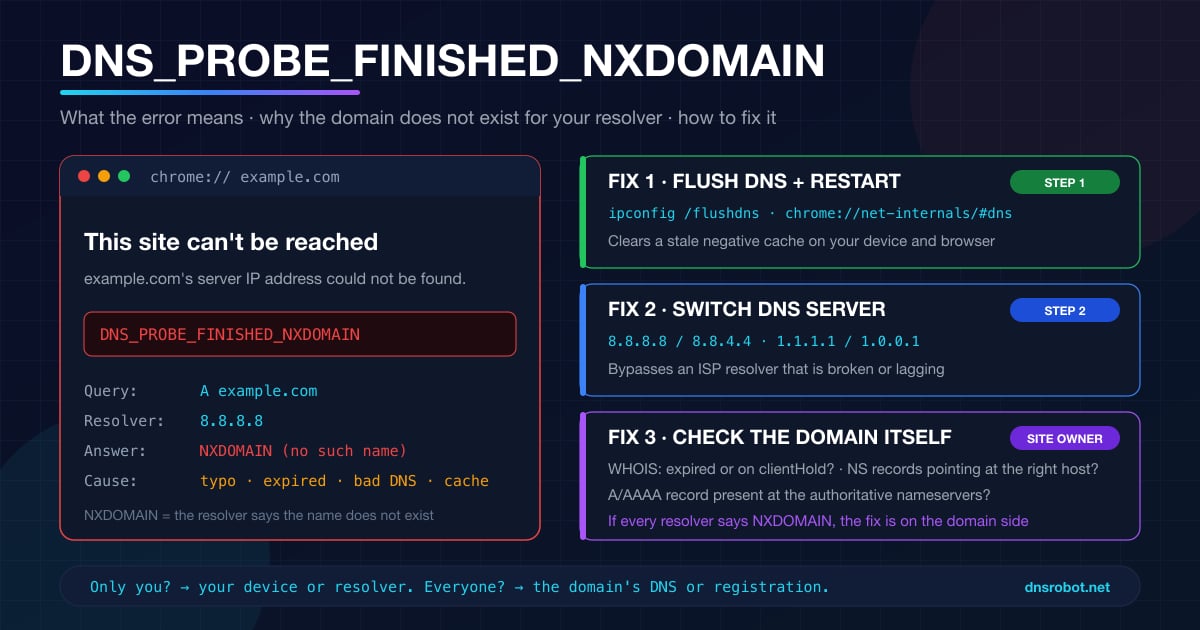
DNS_PROBE_FINISHED_NXDOMAIN: What It Means & How to Fix It
DNS_PROBE_FINISHED_NXDOMAIN means DNS says the domain doesn't exist. Find out in one test whether it's a typo, your DNS, a blocking filter or the site itself.
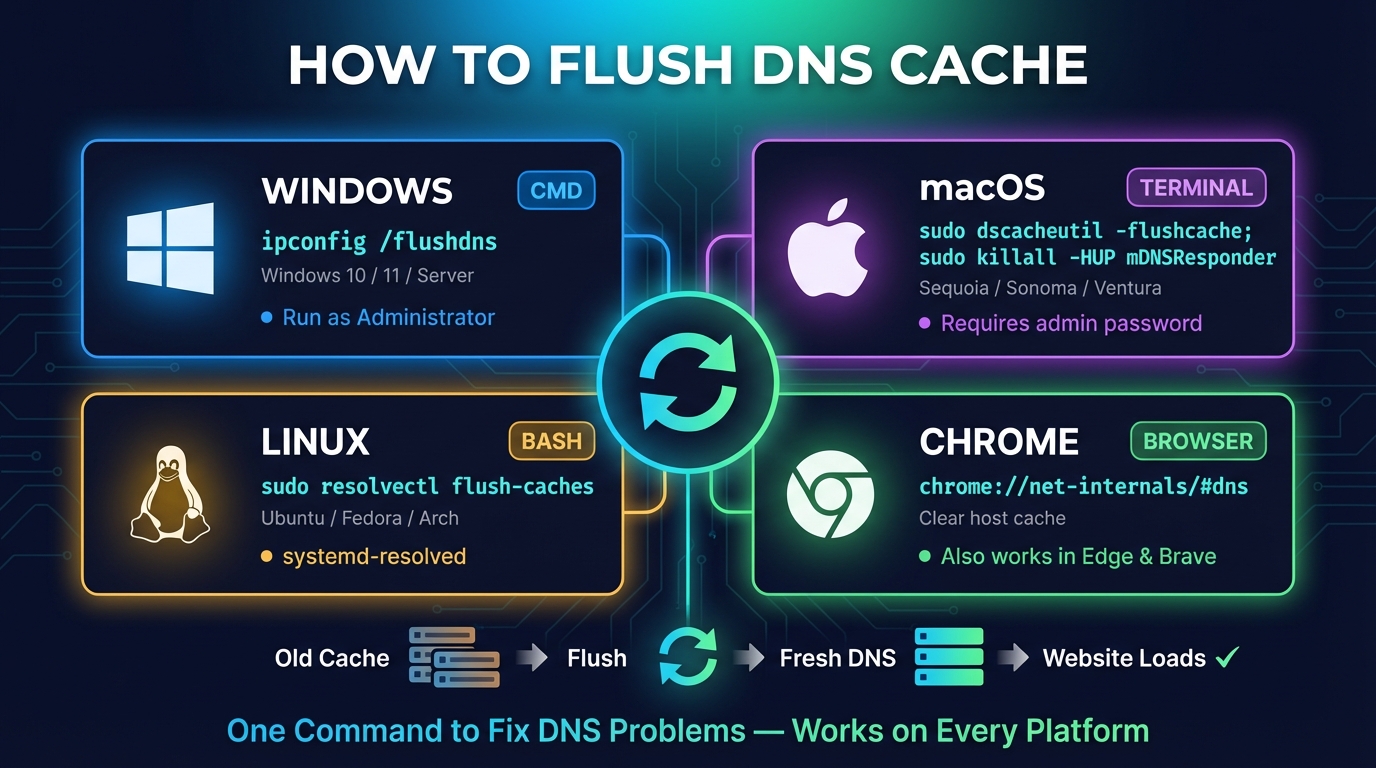
How to Flush DNS: Windows, Mac, Linux, Fedora & Chrome
How to flush DNS cache on Windows (ipconfig /flushdns), macOS, Linux and Fedora, Chrome, Firefox, phones and your router, and how to check that it worked.
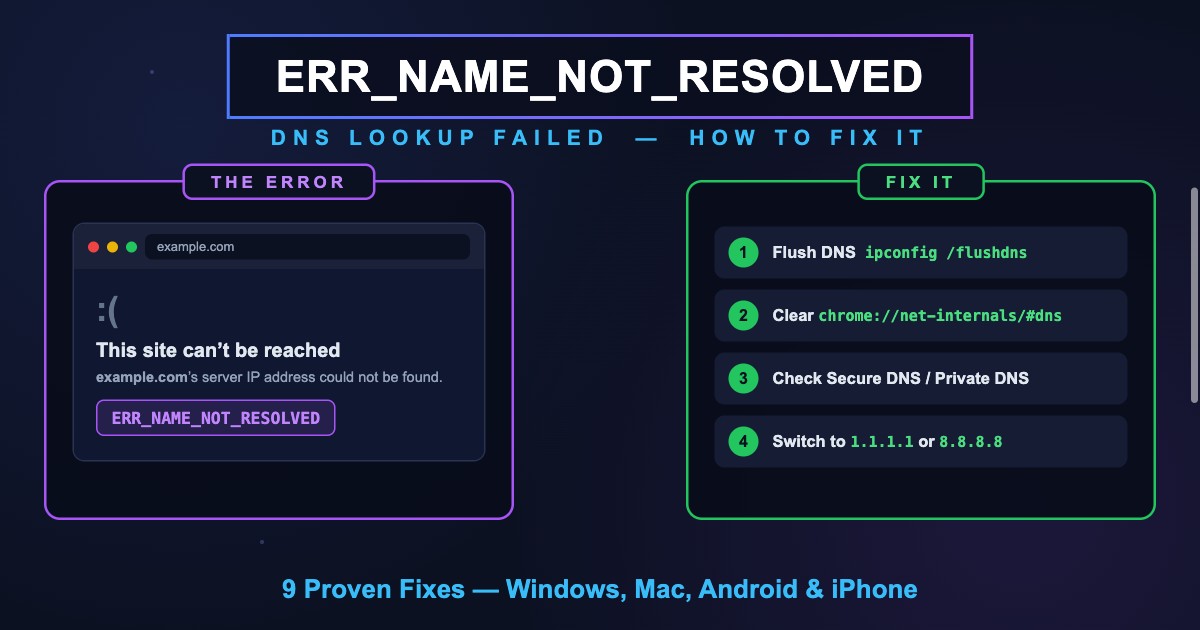
ERR_NAME_NOT_RESOLVED (-105): Meaning & Fix in Chrome
ERR_NAME_NOT_RESOLVED (-105) means Chrome couldn't find the site's IP address in DNS. What it means, why you see it instead of DNS_PROBE codes, and the fixes.


Related Tools
DNS Lookup
Every DNS record from the domain's own nameservers, beside Google's and Cloudflare's cache
Ping Test
Test your ping, jitter and packet loss, see your ping to 34 cloud regions, and ping any website or IP from 11 cities
Traceroute
Trace the route to any website or IP from 8 cities, hop by hop, each network named