How to Flush DNS Cache (Windows, Mac, Chrome, Linux)
Advertisement
What Is DNS Cache and Why Flush It?
DNS cache is a temporary database that stores the IP addresses of websites you have recently visited. When you type a domain like example.com, your operating system checks the DNS cache first before querying an external DNS server. This speeds up browsing by avoiding repeated DNS lookups — a cached response returns in under 1ms, while a fresh DNS query takes 20-120ms.
The problem is that DNS records change. A website might move to a new server, switch hosting providers, or update its IP address. When that happens, your cached entry becomes stale — it points to an old IP that may no longer work. Flushing DNS forces your system to discard all cached records and fetch fresh ones from the DNS server.
DNS cache exists at multiple levels: your operating system, your browser, and sometimes your router. To fully clear stale records, you may need to flush the cache at more than one level.
How DNS Cache Works: TTL, Cache Levels, and Expiration
Understanding how DNS caching works helps you decide when flushing is actually needed versus when it is unnecessary.
Every DNS record has a TTL (Time to Live) value set by the domain owner. TTL tells your system how many seconds to keep the cached record before discarding it. Common TTL values range from 300 seconds (5 minutes) for frequently changing records to 86,400 seconds (24 hours) for stable records like MX or TXT entries.
DNS caching happens at four distinct layers, each with its own cache:
Browser cache — Chrome, Firefox, and Edge each maintain their own DNS cache with a maximum of about 1,000 entries. Chrome's cache has a default TTL of 60 seconds, regardless of the DNS record's actual TTL
Operating system cache — Windows DNS Client service caches up to 1,000 entries by default. macOS uses mDNSResponder, and Linux uses systemd-resolved (if enabled). OS caches respect the TTL set by the DNS server
Router cache — Most home routers cache DNS responses for all connected devices. Cache size varies by router model but typically holds 500-1,000 entries
ISP resolver cache — Your ISP's DNS resolver caches records for all its users. This is the largest cache and you cannot flush it — you have to wait for the TTL to expire
When you flush DNS, you clear the browser and OS layers. You cannot flush the ISP resolver, but you can bypass it by switching to a public DNS server like Cloudflare (1.1.1.1) or Google (8.8.8.8). During normal browsing, your DNS cache hit ratio is typically 80-90%, meaning most lookups are served instantly from cache without querying a DNS server.
Advertisement
When Should You Flush DNS?
You do not need to flush DNS regularly — your OS handles cache expiration automatically using TTL values. However, there are specific situations where a manual flush solves real problems:
Website not loading — You see errors like DNS_PROBE_FINISHED_NXDOMAIN or DNS server not responding even though the site works for others
Seeing an old version of a website — The site recently migrated to a new server, but you still see the old one
Changed your DNS settings — You switched from ISP DNS to Google DNS (8.8.8.8) or Cloudflare (1.1.1.1) and want the change to take effect immediately
SSL certificate errors — You see connection not private warnings after a site renewed its certificate
Domain propagation — You updated DNS records (A, CNAME, MX) and want to see the changes right away instead of waiting for the TTL to expire. Use DNS Propagation Checker to see if changes have spread globally
Security concern — You suspect DNS cache poisoning or visited a site that has been compromised
How to Flush DNS on Windows 10 and Windows 11
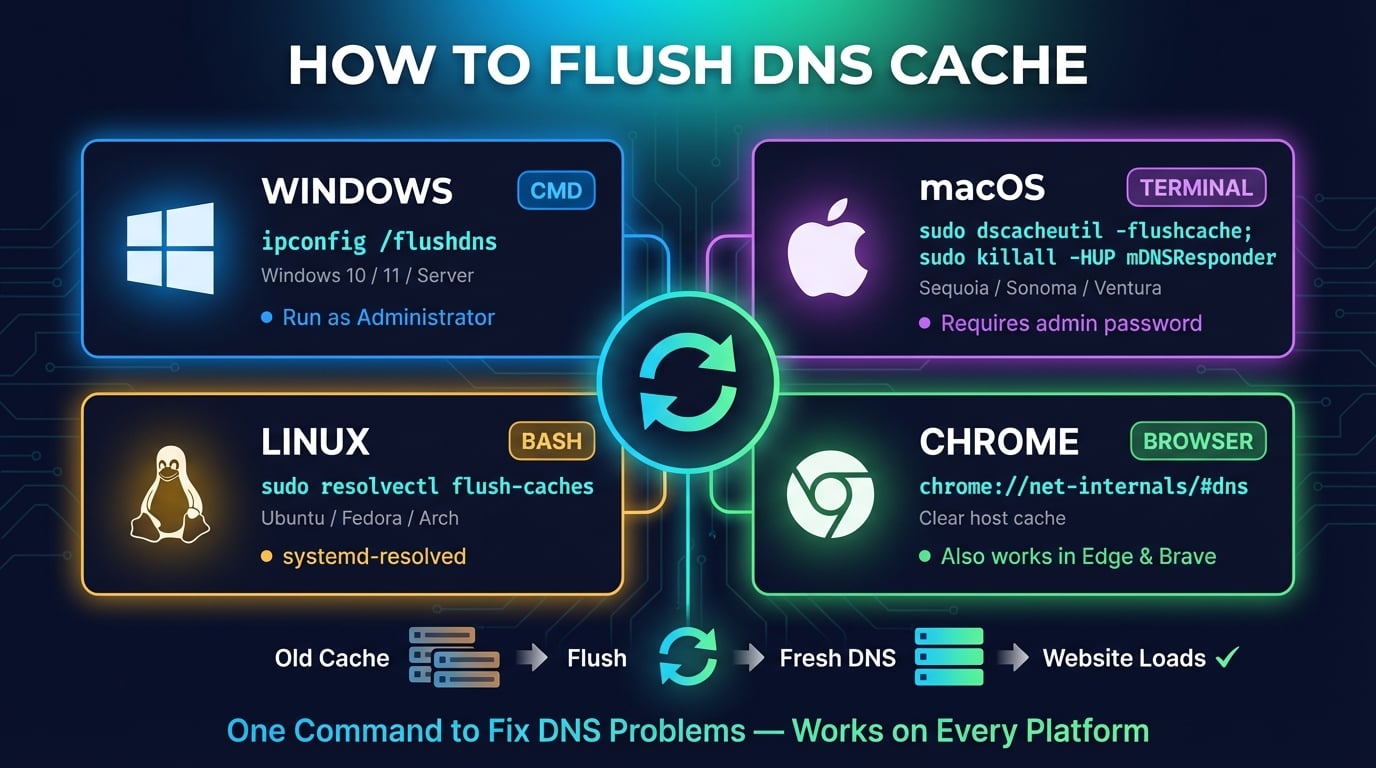
Windows provides two methods to flush DNS: Command Prompt and PowerShell. Both do the same thing — clear the Windows DNS Client service cache. The commands work on Windows 10, Windows 11, Windows Server, and older versions.
Advertisement
Method 1: Using Command Prompt
Step 1 — Press
Windows + Sto open search, typecmd, then right-click Command Prompt and select Run as administratorStep 2 — Type the following command and press Enter:
Step 3 — You should see the message: "Successfully flushed the DNS Resolver Cache."
ipconfig /flushdnsThat is all it takes. Your Windows DNS cache is now empty, and the next time you visit a website, Windows will query your configured DNS server for a fresh IP address. The ipconfig command is the standard Windows networking utility — /flushdns is just one of its many switches.
Method 2: Using PowerShell
PowerShell has its own DNS cmdlet that provides the same functionality with additional options:
# Flush the DNS cache
Clear-DnsClientCache

# Verify the cache is empty (should return very few entries)
Get-DnsClientCache

# View DNS cache statistics
Get-DnsClientCache | Measure-Object | Select-Object Count
Clear-DnsClientCache does exactly the same thing as ipconfig /flushdns. The advantage of PowerShell is the Get-DnsClientCache cmdlet, which shows cached entries in a table format that is easier to filter and export than ipconfig /displaydns.
How to Flush DNS on macOS (Sequoia, Sonoma, Ventura)
On macOS, flushing DNS requires a Terminal command. The same command works on macOS Sequoia (15), Sonoma (14), Ventura (13), and Monterey (12).
| macOS Version | Flush DNS Command |
|---|---|
| Sequoia (15) / Sonoma (14) / Ventura (13) / Monterey (12) | sudo dscacheutil -flushcache; sudo killall -HUP mDNSResponder |
| Big Sur (11) / Catalina (10.15) / Mojave (10.14) | sudo killall -HUP mDNSResponder |
| El Capitan (10.11) / Sierra (10.12) / High Sierra (10.13) | sudo killall -HUP mDNSResponder |
| Yosemite (10.10) | sudo discoveryutil mdnsflushcache; sudo discoveryutil udnsflushcaches |
| Lion (10.7) to Mavericks (10.9) | sudo killall -HUP mDNSResponder |
Step 1 — Press
Command + Spaceto open Spotlight, type Terminal, and press EnterStep 2 — Paste the following command and press Enter:
Step 3 — Enter your Mac password when prompted. The terminal will not show any output, but the DNS cache has been cleared
sudo dscacheutil -flushcache; sudo killall -HUP mDNSResponderThis command does two things: dscacheutil -flushcache clears the directory service cache, and killall -HUP mDNSResponder sends a hangup signal to restart the macOS DNS resolver process (mDNSResponder). Both are needed for a complete flush — running only one may leave stale entries in the other cache.
How to Flush DNS on Linux (Ubuntu, Debian, Fedora)
Linux handles DNS caching differently depending on the distribution and which DNS service is running. Most modern Linux distros (Ubuntu 22.04+, Fedora 33+, Arch) use systemd-resolved as the default DNS resolver.
Step 1 — Open Terminal with
Ctrl + Alt + TStep 2 — Run the flush command for your DNS service (see below)
Step 3 — Verify the cache is cleared by running the statistics command
# Ubuntu 22.04+ / Fedora / Arch (systemd-resolved)
sudo resolvectl flush-caches

# Verify it worked — cache sizes should show 0
sudo resolvectl statistics

# Ubuntu 20.04 and older
sudo systemd-resolve --flush-caches

# If using dnsmasq
sudo systemctl restart dnsmasq

# If using nscd
sudo systemctl restart nscdNot sure which DNS service you are running? Use sudo resolvectl status on systemd-based distros. If it returns your DNS configuration, you are using systemd-resolved. If the command is not found, check for dnsmasq or nscd with systemctl status dnsmasq or systemctl status nscd.
Advertisement
How to Flush DNS in Google Chrome
Google Chrome maintains its own internal DNS cache, separate from your operating system's cache. Chrome caches up to 1,000 DNS entries with a fixed 60-second TTL. Even after flushing your OS DNS cache, Chrome might still use its old cached records. Here is how to clear it:
Step 1 — Open a new tab in Chrome
Step 2 — Type
chrome://net-internals/#dnsin the address bar and press EnterStep 3 — Click the Clear host cache button
Step 4 — Also go to
chrome://net-internals/#socketsand click Flush socket pools to close stale TCP connections that may still be using old IP addresses
For a complete refresh, flush both your OS DNS cache and Chrome's internal cache. Chrome's DNS cache is rebuilt automatically as you browse, so clearing it has no lasting effect on performance.
How to Flush DNS in Firefox, Edge, and Safari
Every major browser has its own DNS cache. Here is how to clear it in each one:
| Browser | How to Clear DNS Cache |
|---|---|
| Microsoft Edge | Type edge://net-internals/#dns in the address bar, click 'Clear host cache'. Also flush sockets at edge://net-internals/#sockets |
| Firefox | Type about:networking#dns in the address bar, click 'Clear DNS Cache'. Firefox caches DNS entries for 60 seconds by default |
| Safari (Mac) | Go to Safari menu, then Develop, then Empty Caches. If Develop menu is not visible, enable it in Safari, Settings, Advanced, Show Develop menu |
| Brave / Opera / Vivaldi | Same as Chrome: chrome://net-internals/#dns, then 'Clear host cache' (all Chromium-based browsers use the same method) |
Advertisement
How to Flush DNS on Your Router
Your home router also caches DNS responses for all devices on the network. If you have flushed the DNS cache on your computer and browser but still see stale records, the router cache may be the culprit.
Most consumer routers do not have a dedicated DNS flush command. The simplest way to clear the router's DNS cache is to restart it:
Step 1 — Unplug your router's power cable (do not just press the reset button — that factory-resets the router)
Step 2 — Wait 30 seconds. This ensures the router's volatile memory (RAM) is fully cleared, including all cached DNS entries
Step 3 — Plug the power cable back in and wait 1-2 minutes for the router to fully boot
Step 4 — Reconnect to Wi-Fi if needed and verify the issue is resolved
Some advanced routers (Ubiquiti, pfSense, MikroTik) have CLI access where you can flush DNS directly. If your router runs dnsmasq, you can SSH in and run sudo systemctl restart dnsmasq to clear only the DNS cache without restarting the router.
For persistent DNS issues, consider changing your router's DNS settings to use Cloudflare (1.1.1.1) or Google (8.8.8.8) — this applies the faster DNS to all devices on your network without configuring each one. Check our guide to fixing slow DNS lookups for detailed instructions.
How to Verify Your DNS Cache Was Flushed
After flushing, you should confirm the cache is actually empty. Here are the verification commands for each platform:
# Windows — should return empty or very few entries
ipconfig /displaydns

# Windows PowerShell — count remaining entries
Get-DnsClientCache | Measure-Object | Select-Object Count

# macOS — send INFO signal to mDNSResponder
sudo killall -INFO mDNSResponder
# Then open Console.app and filter for mDNSResponder to see cache stats

# Linux (systemd-resolved) — cache sizes should show 0
sudo resolvectl statisticsYou can also test by visiting a website that was previously failing. If it loads correctly after the flush, the stale DNS cache was the problem. Use DNS Robot's DNS Lookup tool to compare the DNS records your system resolves against what the authoritative DNS servers report.
For a thorough check, run DNS Propagation Checker on the domain. This queries DNS servers in 30+ countries so you can confirm whether the issue is local (your cache) or global (the DNS records themselves have not updated yet).
What to Do If Flushing DNS Does Not Fix the Problem
Flushing DNS solves cache-related problems, but not all DNS issues are caused by stale cache entries. If the problem persists after flushing at all levels (OS + browser + router), try these steps:
Switch DNS servers — Your ISP's DNS may be down or returning incorrect records. Switch to Cloudflare (1.1.1.1) or Google (8.8.8.8). See our slow DNS lookup fix guide for step-by-step instructions
Check if the site is actually down — Use DNS Robot's Ping tool to check if the server responds. If ping fails from multiple locations, the site is down — not a DNS issue
Verify DNS records — Use DNS Lookup to check the A, AAAA, and CNAME records for the domain. If the records point to the wrong IP, the domain owner needs to fix them
Disable VPN or proxy — VPNs route DNS queries through their own servers, which may cache different records or block certain domains. Disconnect and test again
Check your hosts file — Your computer's hosts file overrides DNS for specific domains. On Windows, check
C:\Windows\System32\drivers\etc\hosts. On macOS/Linux, check/etc/hosts. Remove any entries for the affected domainWait for propagation — If DNS records were recently changed, it can take up to 48 hours for all DNS servers worldwide to update. Use DNS Propagation Checker to track the rollout
Check your DNS records now
Use DNS Robot's free DNS Lookup tool to verify DNS records for any domain. Compare what your local system resolves against authoritative DNS servers worldwide.
Try DNS LookupAdvertisement
Frequently Asked Questions
Flushing DNS clears your computer's cached domain name-to-IP address mappings. After a flush, your system fetches fresh DNS records from the DNS server on the next website visit instead of using potentially outdated cached data.