











How to Fix Slow DNS Lookup in Chrome, Windows & Mac
 Shaik Vahid9 min read
Key takeaway
A slow DNS lookup delays the start of every page and every new domain a page loads from. Measure first: run a DNS speed test or dig against your current resolver and a few public ones. On our own home line the router's DNS answered cached names in 3 ms, while 1.1.1.1 took 25 ms, and which public resolver was quickest for new names depended on where those names were hosted, so switching isn't automatically faster. If your resolver is slow, switch to the fastest one for your connection and keep page preloading on.
Check it now
Open DNS Speed Test
Start reading
- What Is DNS Lookup Time and Why Does It Matter?
- What Causes Slow DNS Lookups?
- How to Measure Your Current DNS Lookup Time
- Fix 1: Switch to a Faster DNS Server
- Fix 2: Flush Your DNS Cache
- Fix 3: Enable DNS Prefetching in Your Browser
- Fix 4: Clear Chrome's Own DNS Cache (Stale Answers Only)
- Fix 5: Configure DNS on Your Router
- Fix 6: Reduce CNAME Chains (For Website Owners)
- Fix 7: Increase TTL Values (For Website Owners)
- Public DNS Servers Compared
- How to Verify Your DNS Is Faster
- Frequently Asked Questions
What Is DNS Lookup Time and Why Does It Matter?
DNS lookup time is how long your device takes to turn a domain name (like example.com) into an IP address. Nothing else can start until it's done: no connection, no TLS, no download.
A cached answer takes a few milliseconds from your router's cache and roughly 10-30 ms from a nearby public resolver; a name the resolver has never seen takes tens of milliseconds or more, because it has to ask the domain's own name servers. A page that pulls files from many different domains pays that cost for each new one.
Which DNS server is fastest on your connection? Test it
What Causes Slow DNS Lookups?
The usual reasons lookups are slow on a device or network:
- A slow or overloaded resolver — your ISP's or router's DNS server takes long to answer, especially for names it hasn't cached. (If it doesn't answer at all, see DNS server not responding.)
- Distance — a resolver far away on the network adds a round trip to every lookup.
- A resolver with no cached answer — names nobody nearby has looked up lately have to be fetched from the domain's own name servers.
- Long CNAME chains (site owners) — each alias the resolver has to follow can add a lookup.
- Very low TTLs (site owners) — answers expire quickly, so resolvers ask the domain's servers more often.
- A VPN or proxy — it may send your lookups to a resolver far from you.
- Packet loss on Wi-Fi or a busy router — a lost DNS packet waits for a retry, which can add a second or more.
How to Measure Your Current DNS Lookup Time
Before fixing anything, measure your current DNS speed so you can compare after. Here are three quick ways to check your DNS lookup time.
Method 1: Using dig (Mac/Linux)
The dig command shows exact DNS query time in milliseconds:
# Query your current DNS server
dig google.com

# Look for "Query time" at the bottom:
# ;; Query time: 24 msec

# Test a specific DNS server
dig @1.1.1.1 google.com
dig @8.8.8.8 google.com
dig @9.9.9.9 google.comMethod 2: Using nslookup (Windows)
nslookup doesn't show query time, but PowerShell gives an approximate one. Add -Server and -Type A, run it a few times, and compare medians:
# Approximate lookup time in PowerShell (times the whole command)
Measure-Command { Resolve-DnsName example.com -Type A } | Select-Object TotalMilliseconds

# Against a specific DNS server (skips Windows' own cache)
Measure-Command { Resolve-DnsName example.com -Type A -Server 1.1.1.1 } | Select-Object TotalMilliseconds
Method 3: Using Chrome DevTools
Chrome shows DNS lookup time for every network request:
Open any website → press F12 to open DevTools → go to the Network tab → click on any request → look at the Timing section. The DNS Lookup row shows exactly how long the DNS resolution took for that domain.
If you see DNS lookup times consistently above 100ms, your DNS server is slow and the fixes below will help.
Fix 1: Switch to a Faster DNS Server
If your measurement shows your current resolver is slow, switching is the biggest single change. Pick the fastest resolver for your connection, not the one with the best global average. Here's how to change it on each platform:
Change DNS on Windows
- Open Settings → Network & internet → Wi-Fi → Manage known networks → your network (for a cable: Ethernet → your network)
- Click Edit next to DNS server assignment and switch to Manual
- Under IPv4, set Preferred DNS to
1.1.1.1and Alternate DNS to1.0.0.1; under IPv6,2606:4700:4700::1111and2606:4700:4700::1001 - Click Save and measure again with
digor PowerShell - Windows 10 has no separate DNS option in Settings: press Win + R, run
ncpa.cpl, right-click your adapter → Properties → Internet Protocol Version 4 (TCP/IPv4) → Properties → Use the following DNS server addresses
Change DNS on macOS
- Open System Settings → Network → Wi-Fi (or your active connection)
- Click Details next to your connected network
- Click DNS in the sidebar
- Remove existing entries and add
1.1.1.1and1.0.0.1(plus2606:4700:4700::1111if you use IPv6) - Click OK
Change DNS on Linux
On distributions that use systemd-resolved (Ubuntu and Fedora desktops, for example), set DNS per connection in NetworkManager, or with resolvectl until the next reconnect. Adding DNS= to /etc/systemd/resolved.conf isn't enough: those servers are asked alongside the ones your network hands out.
# NetworkManager: replace "Home Wi-Fi" with your connection name (nmcli con show)
nmcli con mod "Home Wi-Fi" ipv4.dns "1.1.1.1 1.0.0.1" ipv4.ignore-auto-dns yes \
  ipv6.dns "2606:4700:4700::1111 2606:4700:4700::1001" ipv6.ignore-auto-dns yes
nmcli con up "Home Wi-Fi"

# systemd-resolved, until the next reconnect (replace wlan0 with your interface)
sudo resolvectl dns wlan0 1.1.1.1 1.0.0.1
resolvectl status wlan0Fix 2: Flush Your DNS Cache
A cached failure or an outdated answer keeps costing you until it expires. Flushing clears every stored answer so the next lookups go out fresh (full guide: how to flush DNS).
Run the command for your operating system:
# Windows (Command Prompt)
ipconfig /flushdns

# macOS
sudo dscacheutil -flushcache; sudo killall -HUP mDNSResponder

# Linux (systemd-resolved)
sudo resolvectl flush-caches

# Verify cache is empty (Windows)
ipconfig /displaydnsFix 3: Enable DNS Prefetching in Your Browser
Browsers can look up a name before you need it: Firefox resolves the domains a page links to, Chrome (with Preload pages on) can resolve and connect to pages you're likely to open next, and sites can add dns-prefetch hints for domains they'll use. Chrome no longer prefetches every link's domain on its own; it does that automatically only on plain http: pages.
These settings are on by default, but they can get switched off. Here is how to check them.
Chrome DNS Prefetch Settings
In Chrome, DNS prefetching is part of page preloading:
- Open Chrome → Settings → Performance → Speed → Preload pages
- Turn it on (Standard preloading is the default)
- It lets Chrome resolve, connect to and sometimes load pages you're likely to open next
Firefox DNS Prefetch Settings
Firefox supports DNS prefetching but can be disabled accidentally:
- Type
about:configin the address bar and press Enter - Search for
network.dns.disablePrefetch - Make sure it's
false(false = prefetching on; it's the default) - Also check
network.dns.disablePrefetchFromHTTPS:false, the default, lets HTTPS pages prefetch too
Fix 4: Clear Chrome's Own DNS Cache (Stale Answers Only)
Chrome keeps its own DNS cache, separate from your operating system's. It doesn't make lookups slow, and clearing it has no lasting effect on speed, but if Chrome holds a stale or failed answer for one site, flushing the system cache alone won't fix that site in Chrome.
To clear Chrome's DNS cache:
- Open Chrome and type
chrome://net-internals/#dnsin the address bar - Click "Clear host cache" to flush Chrome's internal DNS entries
- Also visit
chrome://net-internals/#socketsand click "Flush socket pools" to close lingering connections - Restart Chrome for a completely fresh DNS state
Fix 5: Configure DNS on Your Router
Changing DNS on your router applies the faster DNS server to every device on your network — phones, tablets, smart TVs, gaming consoles — without configuring each one individually.
To change DNS on most routers:
- Open your router's admin page, usually
192.168.1.1or192.168.0.1; our router login guide lists the address and default password for 80+ routers and providers - Log in with your router's admin credentials (check the sticker on your router if you have not changed them)
- Find the DNS settings — usually under WAN settings, Internet settings, or DHCP settings
- Change Primary DNS to
1.1.1.1and Secondary DNS to1.0.0.1 - Save and reboot the router to apply the changes
Fix 6: Reduce CNAME Chains (For Website Owners)
This fix is for website owners and developers. Each alias (CNAME) can add a lookup when it isn't cached: the resolver must follow the chain until it reaches an A or AAAA record with the actual IP address.
A typical CNAME chain looks like this:
www.example.com   CNAME  example.com.cdn.example.net
example.com.cdn.example.net  CNAME  edge-123.cdn.example.net
edge-123.cdn.example.net     A      203.0.113.10

# Each alias may need its own lookup when it isn't cached,
# especially when the names sit on different DNS providers.
To shorten the chain at the top of your domain, use CNAME flattening (also called ALIAS records): the DNS provider follows the chain itself and returns the final IP address. Cloudflare (CNAME flattening) and DNSimple (ALIAS) do this for any target; Route 53's alias records do it only for AWS resources and records in the same hosted zone.
The CNAME Lookup follows the whole chain for any name and shows each hop.
Fix 7: Increase TTL Values (For Website Owners)
TTL (Time to Live) controls how long DNS resolvers cache your domain's records. With a 60-second TTL a resolver asks your name servers at most once a minute, and only when someone asks it for the name; with 3600 seconds (1 hour) it serves the cached answer for an hour.
A longer TTL means resolvers keep your answer longer and ask your name servers less often; the trade-off is that changes take longer to reach everyone.
| TTL Value | Cache Duration | Best For |
|---|---|---|
| 60 | 1 minute | Records that change frequently (failover, load balancing) |
| 300 | 5 minutes | Records that change occasionally |
| 3600 | 1 hour | Stable records |
| 86400 | 24 hours | Records that rarely change (MX, TXT) |
Public DNS Servers Compared
The big public resolvers, with global averages from DNSPerf (read on 4 October 2026) and what each says about logging. Your own results will differ, so measure.
| DNS provider | Primary | Secondary | DNSPerf global average | Logging | Extras |
|---|---|---|---|---|---|
| Cloudflare | 1.1.1.1 | 1.0.0.1 | 13.63 ms | IP not stored on disk (a tiny random sample excepted) | DNSSEC, DoH, DoT |
| Google Public DNS | 8.8.8.8 | 8.8.4.4 | 19.47 ms | Full IP kept 24-48 hours | DNSSEC, DoH, DoT |
| Quad9 | 9.9.9.9 | 149.112.112.112 | 21.62 ms | No IP addresses logged | DNSSEC, DoH, DoT, malware blocking |
| OpenDNS | 208.67.222.222 | 208.67.220.220 | — | Not published | Phishing blocking, filtering |
Full address lists and setup steps: our Cloudflare DNS servers guide and Google DNS servers guide.
To see which one is fastest where you are, run DNS Robot's DNS Speed Test in your browser, or compare dig @1.1.1.1 example.com and dig @8.8.8.8 example.com a few times each.
How to Verify Your DNS Is Faster
After applying the fixes above, measure your DNS speed again to confirm the improvement.
# Mac/Linux: Compare before and after
dig google.com      # Should show lower query time
dig amazon.com      # Test multiple domains
dig github.com

# Windows PowerShell
Measure-Command { Resolve-DnsName google.com } | Select-Object TotalMilliseconds

# Check Chrome DevTools
# Open any page → F12 → Network tab → look at DNS Lookup timing
Compare the new numbers with your first measurement. If they barely changed, your old resolver wasn't the problem: look at Wi-Fi packet loss, a VPN, or the sites themselves.
Which DNS server is fastest for you?
DNS Robot's free DNS Speed Test times Cloudflare, Google, Quad9 and nine other public resolvers from your own browser, ranks them by cached lookup time, and compares the winner with your current DNS.
Sources
- DNSPerf resolver ranking, DNSPerf
- Firefox prefs (network.dns.disablePrefetch), Mozilla
Frequently Asked Questions
What is a good DNS lookup time?
How do I fix slow DNS lookup in Chrome?
Is Cloudflare DNS (1.1.1.1) faster than Google DNS (8.8.8.8)?
Why is my DNS slow even after changing servers?
Does changing DNS make internet faster?
How do I check my DNS lookup time on Windows?
What causes slow DNS lookup in Chrome DevTools?
Should I change DNS on my router or on each device?
Does a VPN slow down DNS lookups?
How do I reduce DNS lookups on my website?
About the author
Shaik VahidFounder of DNS Robot. Vahid spent years in web hosting support fixing domains, DNS records, SSL certificates and email delivery for customers. He builds DNS Robot's tools and writes these guides from the errors people actually hit.
Related Articles
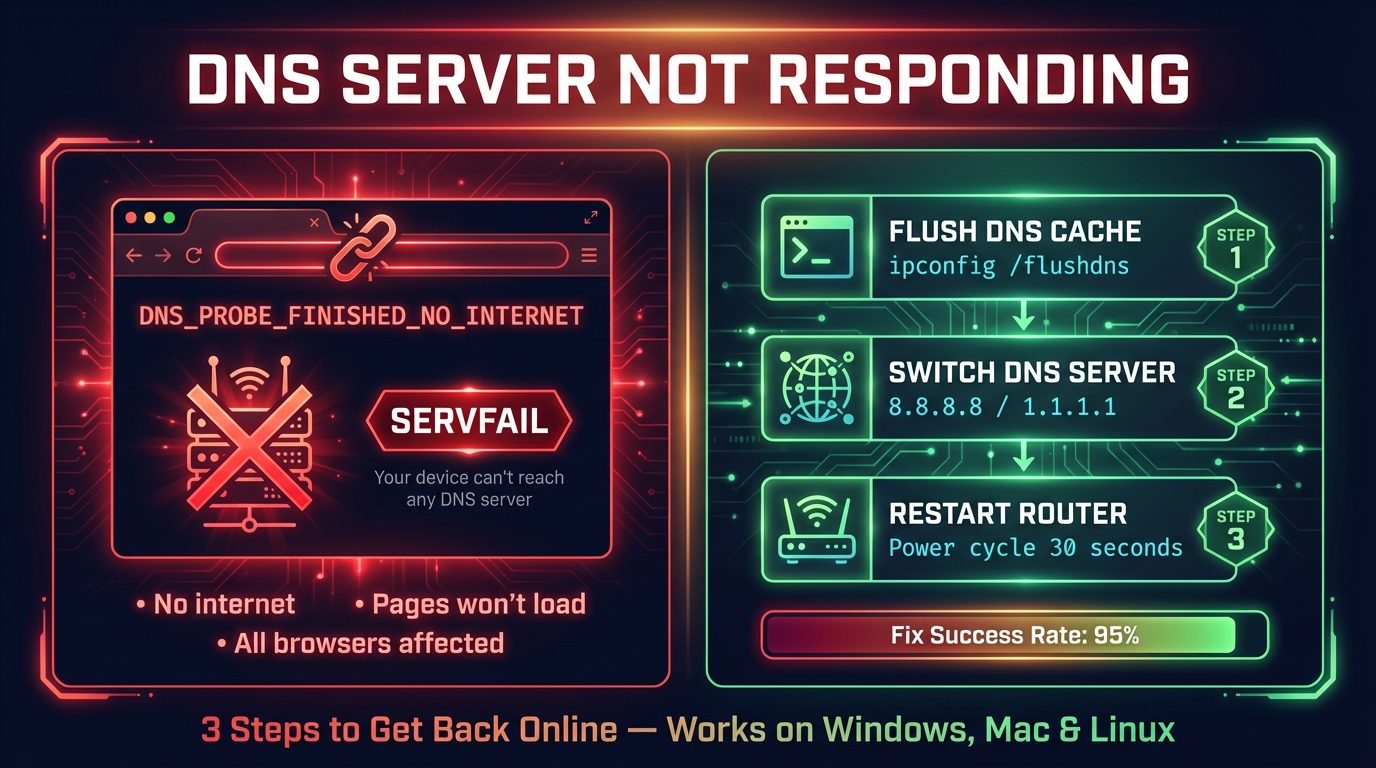
How to Fix DNS Server Not Responding (Step-by-Step)
Fix "DNS server not responding" on Windows, Mac, phones and consoles: what the message means, the quick fixes that work, and how to check DNS is back.
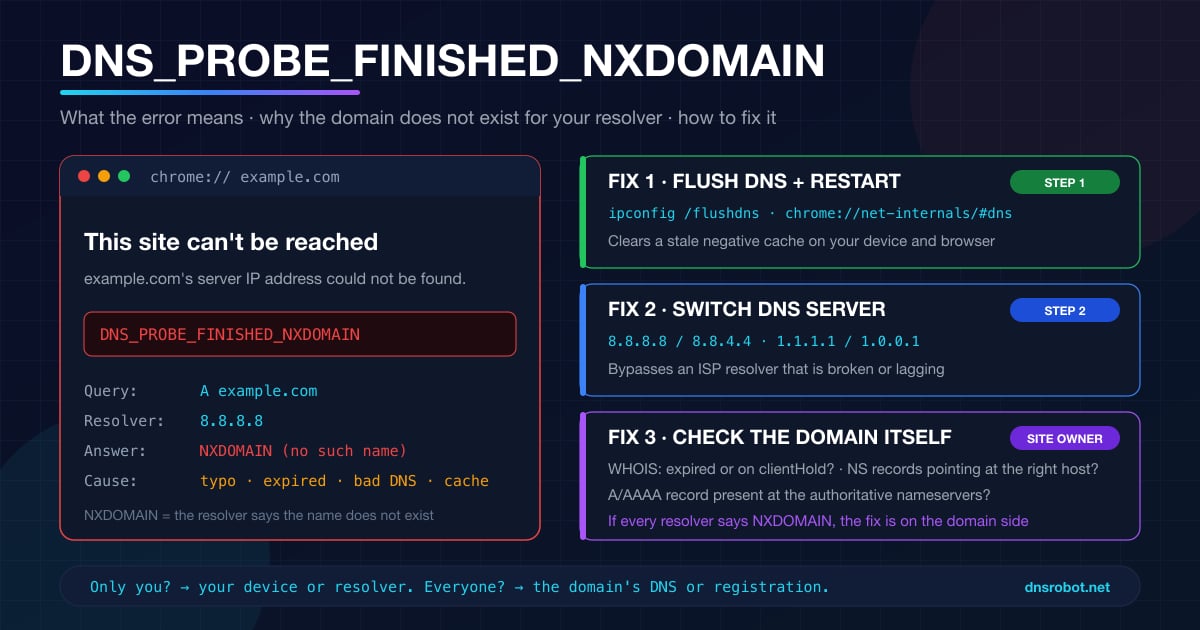
DNS_PROBE_FINISHED_NXDOMAIN: What It Means & How to Fix It
DNS_PROBE_FINISHED_NXDOMAIN means DNS says the domain doesn't exist. Find out in one test whether it's a typo, your DNS, a blocking filter or the site itself.
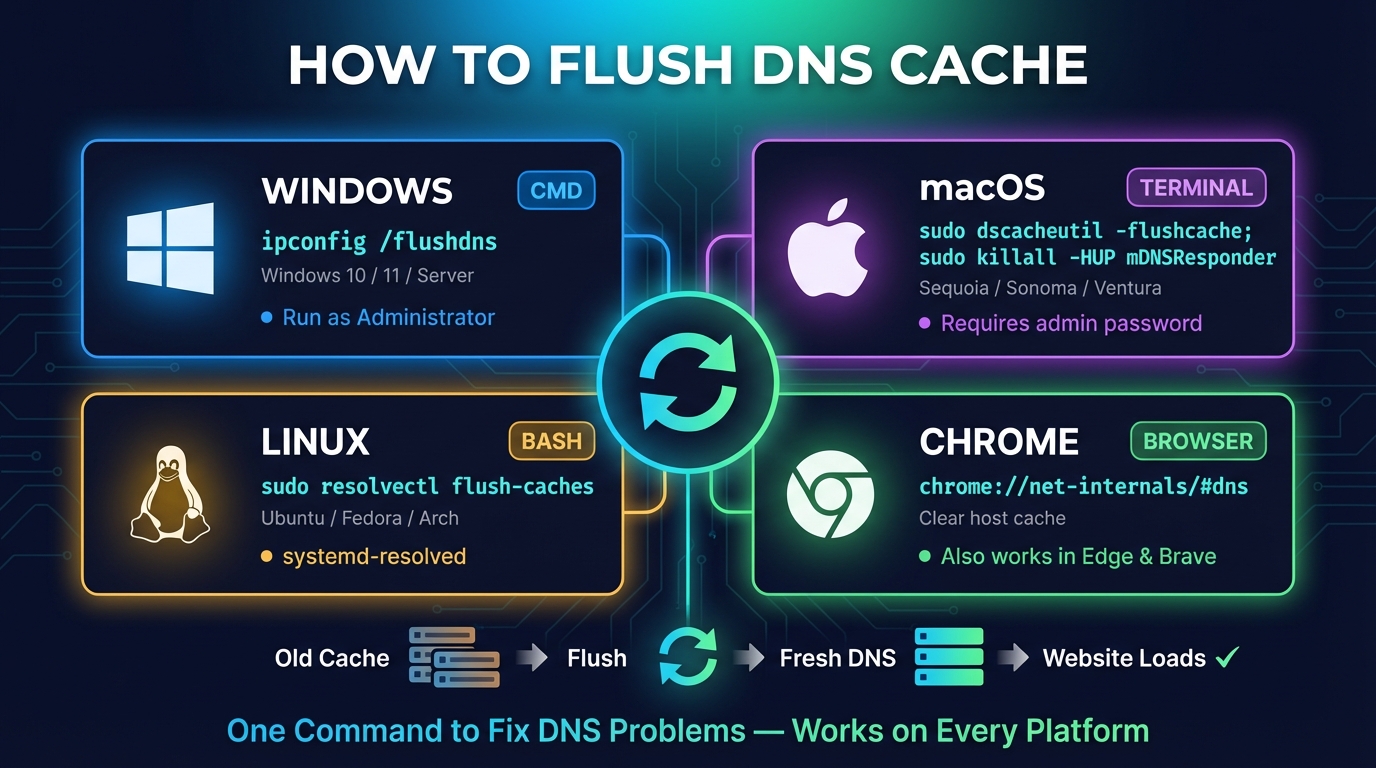
How to Flush DNS: Windows, Mac, Linux, Fedora & Chrome
How to flush DNS cache on Windows (ipconfig /flushdns), macOS, Linux and Fedora, Chrome, Firefox, phones and your router, and how to check that it worked.


