











503 Service Unavailable: What It Means & How to Fix It
 Shaik Vahid9 min read
Key takeaway
503 Service Unavailable means a server or a layer in front of it (a load balancer, CDN or proxy) can't handle your request right now: it's overloaded, in maintenance, rate-limiting, or has no healthy backend to send it to. It's meant to be temporary. Visitors can only wait and retry; site owners should read the exact message to see which layer answered (nginx, Apache, IIS, HAProxy, Varnish or Cloudflare), then check that layer's logs.
Check it now

Start reading
- What Is HTTP Error 503?
- What a 503 Error Looks Like
- Common Causes of HTTP Error 503
- Fix for Visitors: What You Can Do
- Fix 1: Find Which Layer Sent the 503
- Fix 2: Check Server Resources (CPU, RAM, Disk)
- Fix 3: Check Error Logs
- Fix 4: Disable Plugins and Themes (WordPress / CMS)
- Fix 5: Increase PHP and Server Limits
- Fix 6: Check Your CDN or Load Balancer
- Fix 7: Check for DDoS or Bot Attacks
- Fix 8: Fix Database Connection Issues
- Fix 9: Contact Your Hosting Provider
- 503 vs Other HTTP Errors
- How to Prevent 503 Errors
- Frequently Asked Questions
What Is HTTP Error 503?
503 Service Unavailable means the server, or something in front of it, can't handle your request right now: it's overloaded, in maintenance, rate-limiting, or has no healthy backend to pass it to. RFC 9110 defines it as a temporary condition that will likely clear after a delay.
The server may add a Retry-After header saying how long to wait. Unlike a 500, which means something broke, a 503 says "not now", which is why sites use it for planned maintenance.
Often it isn't your web server that answers at all, but a layer in front of it: a load balancer such as HAProxy, a cache such as Varnish, a CDN such as Cloudflare, or a Kubernetes ingress. The exact wording tells you which (see below).
Is the site down for everyone? Check now
What a 503 Error Looks Like
The message tells you which layer answered. These are the common ones, with the software that writes them:
| Message | Who sent it | What it usually means |
|---|---|---|
| 503 Service Temporarily Unavailable ("nginx" underneath) | nginx (incl. Kubernetes ingress-nginx) | A rate or connection limit, a maintenance rule, or (ingress) no ready pods for the service |
| Service Unavailable · The server is temporarily unable to service your request due to maintenance downtime or capacity problems | Apache | mod_proxy couldn't reach the backend, or a maintenance setup |
| HTTP Error 503. The service is unavailable. | IIS (HTTP.sys) | The site's application pool is stopped or its request queue is full (the HTTPERR log names the reason) |
| 503 Service Unavailable · No server is available to handle this request. | HAProxy | No backend server could take the request (all failed health checks, all full until the queue timed out, or connections refused) |
| Error 503 Backend fetch failed (Guru Meditation) | Varnish | Varnish couldn't fetch the page from the backend |
| 503 page mentioning "cloudflare" | Cloudflare | Cloudflare's own issue, or a Worker over its limits |
| Error 503 (Service Unavailable)!!1 | Google's servers | A Google service or Google-hosted app is overloaded |
| Briefly unavailable for scheduled maintenance. Check back in a minute. | WordPress | An update is running (WordPress ignores a leftover .maintenance file after 10 minutes) |
Whatever the wording, the answer is the same: this request can't be served right now, and the layer named above is where to look.
Common Causes of HTTP Error 503
The usual reasons a server or a layer in front of it returns 503:
- Overload — CPU, memory or connection limits hit during a traffic spike, a viral post or an aggressive crawler
- Planned maintenance — the site is deliberately offline for an update or migration; done right, with a Retry-After header
- No healthy backend — the load balancer, proxy or ingress has no working server to send the request to (crashed app, failed health checks, no ready pods)
- Rate or connection limits — nginx's
limit_reqandlimit_connanswer 503 by default, so a busy client or crawler can trigger it - A crashed or stopped application — PHP-FPM, Node.js or Python down behind a running web server; on IIS, a stopped application pool
- Hosting resource limits — shared hosting caps CPU, memory and processes per account
- A plugin, theme or update — on WordPress and other CMSs, a bad update can crash the app or leave the site stuck in maintenance mode
- An attack — a DDoS or bot flood exhausts the same resources a traffic spike would
Fix for Visitors: What You Can Do
If you're visiting someone else's site, the problem is on their end. What you can do:
- Wait and retry — a 503 is meant to be temporary; wait a minute and reload once. If the page shows a Retry-After time or a maintenance message, wait that long
- Check whether it's down for everyone — DNS Robot's Website Down Checker tests the site from outside your network
- Check the site's status page or social accounts — planned maintenance and outages are usually announced
- Try another network — if the site loads on mobile data, either a VPN or proxy on your usual network is answering with the 503, or the site is rate-limiting your IP address
Fix 1: Find Which Layer Sent the 503
Before restarting anything, look at the message and the response headers: they say which layer answered. Check from outside with DNS Robot's HTTP Header Checker or curl -sI, and look at the server header and the body (see the table above).
Then restart the layer that's failing, not just the web server:
# Restart Nginx
sudo systemctl restart nginx

# Restart Apache
sudo systemctl restart apache2      # Debian/Ubuntu
sudo systemctl restart httpd         # CentOS/RHEL

# Restart PHP-FPM
sudo systemctl restart php8.2-fpm    # Adjust version as needed

# Restart Node.js (PM2)
pm2 restart all

# Restart entire server (last resort)
sudo reboot
If the 503 returns within minutes of a restart, the cause is still there: move on to resources and logs.
Fix 2: Check Server Resources (CPU, RAM, Disk)
If the server is overloaded, restarting only provides temporary relief. Check what is consuming resources.
# Check CPU and memory usage
top -bn1 | head -20

# Check disk space
df -h

# Check memory in detail
free -m

# Check active connections
ss -s

# Find processes using the most memory
ps aux --sort=-%mem | head -10

# Find processes using the most CPU
ps aux --sort=-%cpu | head -10If CPU or RAM is at 90%+, you need to either optimize your application, kill runaway processes, or upgrade your server. If disk space is full, clear log files, old backups, or temporary files.
Fix 3: Check Error Logs
Logs tell you exactly why the 503 happened. Read the latest lines with the commands below, then search them for these:
# Nginx error log
tail -50 /var/log/nginx/error.log

# Apache error log
tail -50 /var/log/apache2/error.log      # Debian/Ubuntu
tail -50 /var/log/httpd/error_log         # CentOS/RHEL

# PHP-FPM log
tail -50 /var/log/php8.2-fpm.log

# WordPress debug log (if WP_DEBUG_LOG is enabled)
tail -50 /var/www/html/wp-content/debug.log

# System log
tail -50 /var/log/syslog
"limiting requests" or "limiting connections" (nginx) — limit_req or limit_conn rejected the request; it answers 503 unless you set limit_req_status or limit_conn_status.
"max_children" (PHP-FPM, e.g. "server reached pm.max_children setting") — every PHP worker is busy: Apache answers 503, while nginx answers 502 or 504.
"AH01114" / "failed to make connection to backend" (Apache mod_proxy) — Apache couldn't reach the backend and answered 503.
"Too many connections" (MySQL) — the database connection limit is exhausted.
nginx's "no live upstreams" and "upstream timed out" belong to 502 Bad Gateway and 504 Gateway Timeout, not 503.
Fix 4: Disable Plugins and Themes (WordPress / CMS)
On WordPress and other CMSs, a heavy plugin can exhaust PHP workers or your host's resource limits, which gives a 503 (a plugin that crashes gives a 500 instead). If the 503 started after a plugin update or installation, start with that plugin.
If you cannot access the WordPress admin dashboard, disable plugins via the file system or database.
# Disable all plugins by renaming the plugins folder
cd /var/www/html/wp-content
mv plugins plugins_disabled

# If the site loads, rename it back and re-enable plugins one by one
mv plugins_disabled plugins

# To disable a single plugin
mv plugins/problem-plugin plugins/problem-plugin.disabled
After identifying the faulty plugin, either update it, replace it with an alternative, or contact the plugin developer. Also check if your PHP version is compatible — some plugins break when the server upgrades PHP.
Stuck on "Briefly unavailable for scheduled maintenance"? WordPress creates a .maintenance file in the site's root during updates and ignores it once it's more than 10 minutes old. Delete it to come back sooner; if the message stays, look for a wp-content/maintenance.php file or a cached copy of the page.
Fix 5: Increase PHP and Server Limits
If your server runs out of PHP workers or hits memory limits, you need to increase the limits in your configuration.
; PHP-FPM pool (e.g. /etc/php/8.2/fpm/pool.d/www.conf); the default ships with pm.max_children = 5
pm = dynamic
pm.max_children = 50
pm.start_servers = 10
pm.min_spare_servers = 5
pm.max_spare_servers = 20
pm.max_requests = 500

; php.ini (defaults: memory_limit = 128M, max_execution_time = 30)
memory_limit = 256M
max_execution_time = 300Restart PHP-FPM afterwards (sudo systemctl restart php8.2-fpm, with your version) so the new limits load.
Fix 6: Check Your CDN or Load Balancer
If you use Cloudflare, another CDN or a load balancer, the 503 may come from it rather than your server.
Cloudflare's rule (its 503 guide):
- The page contains "cloudflare" or "cloudflare-nginx" — Cloudflare generated it: check for a Worker over its CPU or memory limits, then contact Cloudflare support with the output of
/cdn-cgi/trace - No Cloudflare marker — your origin returned the 503 and Cloudflare passed it on: check the origin's logs, and ask your host whether it rate-limits Cloudflare's IP addresses
For HAProxy, a cloud load balancer or a Kubernetes ingress, check the backends: a 503 there usually means no backend could take the request (for an AWS Application Load Balancer, that the target group has no registered targets). DNS Robot's DNS Lookup confirms your domain still points where you expect.
Fix 7: Check for DDoS or Bot Attacks
A sudden spike in traffic from bots or a DDoS attack can overwhelm your server. Check your access logs for suspicious patterns.
# Count requests per IP in the last 1000 lines
tail -1000 /var/log/nginx/access.log | awk '{print $1}' | sort | uniq -c | sort -rn | head -20

# Requests per minute (use -f1-4 for per second)
awk '{print $4}' /var/log/nginx/access.log | cut -d: -f1-3 | uniq -c | sort -rn | head -10

# Block an abusive IP (-I puts the rule first, before any ACCEPT rules)
sudo iptables -I INPUT -s 1.2.3.4 -j DROP

# Or in nginx's server block:
# deny 1.2.3.4;
If one address or a small range sends thousands of requests, block it at the firewall. Behind Cloudflare or another CDN, first make your logs show the real visitor IP (set_real_ip_from plus real_ip_header CF-Connecting-IP in nginx), or you'll block the CDN instead of the attacker. For a large attack, Cloudflare's "I'm Under Attack" mode or your host's DDoS protection filters traffic before it reaches you.
Fix 8: Fix Database Connection Issues
When the database runs out of connections or stops, the application in front of it can fail. Some apps answer 503; WordPress shows "Error establishing a database connection" instead. Check the database directly:
# Check if MySQL/MariaDB is running (the unit is mysqld on RHEL, mariadb for MariaDB)
sudo systemctl status mysql

# Restart MySQL
sudo systemctl restart mysql

# Check current connections vs limit
mysql -e "SHOW STATUS LIKE 'Threads_connected';"
mysql -e "SHOW VARIABLES LIKE 'max_connections';"

# Increase max connections (temporary)
mysql -e "SET GLOBAL max_connections = 200;"

# Check for long-running queries
mysql -e "SHOW PROCESSLIST;" | head -20
If you see many sleeping connections, your application is not closing database connections properly. If long-running queries are blocking others, optimize those queries or kill them to unblock the database.
Fix 9: Contact Your Hosting Provider
If you are on shared hosting, managed WordPress hosting, or a platform like Squarespace, Wix, or Shopify, you may not have access to server logs or the ability to restart services. In these cases, the 503 may be caused by the hosting provider's infrastructure.
Contact your hosting provider's support and provide:
- The exact URL that returns 503
- When the error started — note the date and time
- What changed — did you install a plugin, update a theme, or change DNS settings?
- Whether it is intermittent or constant — intermittent 503s suggest resource limits; constant 503s suggest a crash or misconfiguration
503 vs Other HTTP Errors
The 503 error is often confused with other server errors. Here is how they differ.
| Error Code | Name | Meaning | Temporary? |
|---|---|---|---|
| 500 | Internal Server Error | The server encountered an unexpected error (bug, crash, misconfiguration) | Maybe |
| 502 | Bad Gateway | A proxy/load balancer received an invalid response from the upstream server | Maybe |
| 503 | Service Unavailable | The server or a layer in front of it can't take requests right now (overload, maintenance, limits, no healthy backend) | Yes |
| 504 | Gateway Timeout | A proxy/load balancer did not receive a response from the upstream server in time | Maybe |
| 520-530 | Cloudflare Errors | Cloudflare-specific errors for origin connection issues | Varies |
The key difference: 503 is meant to be temporary, and a Retry-After header can say for how long. For crawling, Google treats 5xx and 429 errors alike: its crawlers slow down, and indexed URLs are kept for a while but eventually dropped if the errors continue (Google Search Central).
For the proxy-side errors, see 502 Bad Gateway and 504 Gateway Timeout; for rate limits, 429 Too Many Requests.
How to Prevent 503 Errors
Prevention is better than firefighting. Here are best practices to avoid 503 errors.
- Monitor server resources — Set up alerts for CPU > 80%, RAM > 85%, and disk > 90%. Tools like UptimeRobot, Pingdom, or Grafana provide instant notifications.
- Use a CDN — Cloudflare, Fastly, or AWS CloudFront cache static assets and absorb traffic spikes, reducing load on your origin server.
- Enable caching — Use Redis, Memcached, or Varnish to cache database queries and rendered pages. WordPress users: install a caching plugin like WP Super Cache or W3 Total Cache.
- Auto-scale — If you use cloud hosting (AWS, GCP, Azure, DigitalOcean), configure auto-scaling to add more servers during traffic spikes.
- Rate limit bots — Configure Nginx or Cloudflare to rate-limit aggressive crawlers and scrapers before they overload your server.
- Optimize database queries — slow queries hold connections and workers open. Add indexes, optimize joins, and cache results in Redis or Memcached.
- Use a proper maintenance page — During deployments, return 503 with a
Retry-Afterheader instead of letting the server crash. This preserves SEO and informs users. - Keep software updated — Update your CMS, plugins, PHP, and database to the latest stable versions to avoid known bugs and security issues.
Is the Site Down for Everyone?
Check any website from outside your network with DNS Robot's free Website Down Checker: status code, response time and whether it's down for everyone or just you.
Sources
- RFC 9110 §15.6.4: 503 Service Unavailable, IETF
- Error 503, Cloudflare
- How HTTP status codes affect Google's crawlers, Google Search Central
- ngx_http_limit_req_module (limit_req_status), nginx
Frequently Asked Questions
What does 503 Service Unavailable mean?
Is a 503 error temporary?
How do I fix a 503 error as a visitor?
What is the root cause of 503 Service Unavailable?
What causes 503 Service Temporarily Unavailable in nginx?
What does "HTTP Error 503. The service is unavailable." mean?
What does "No server is available to handle this request" mean?
Does a 503 error hurt SEO?
What is the difference between 502 and 503 errors?
How do I fix 503 on WordPress?
About the author
Shaik VahidFounder of DNS Robot. Vahid spent years in web hosting support fixing domains, DNS records, SSL certificates and email delivery for customers. He builds DNS Robot's tools and writes these guides from the errors people actually hit.
Related Articles
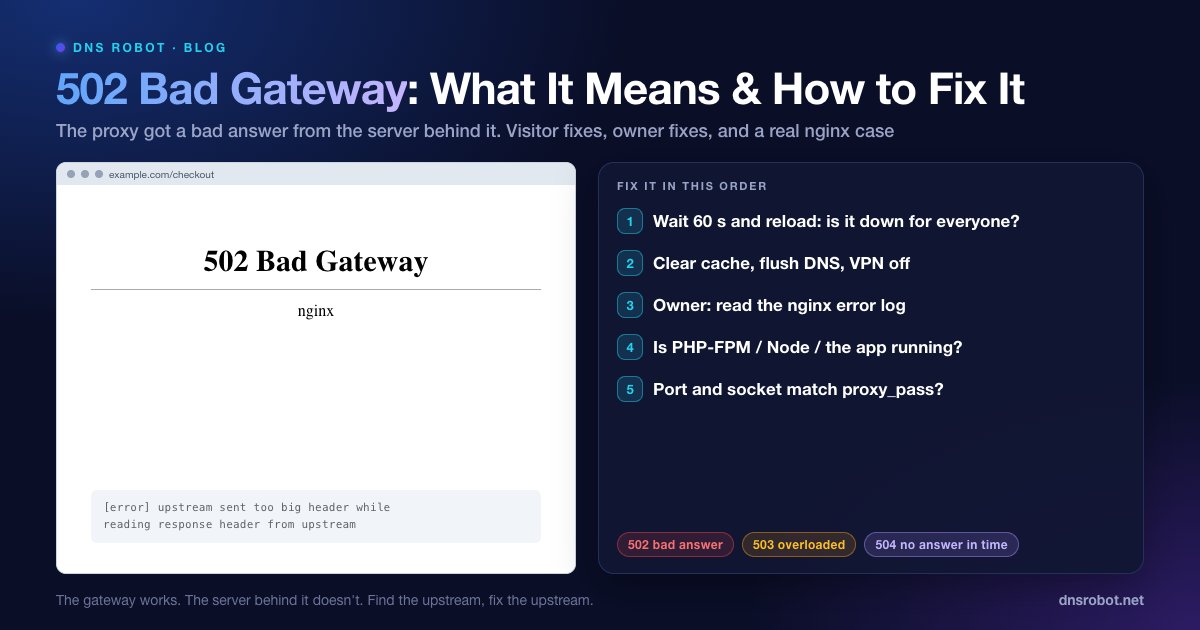
502 Bad Gateway: What It Means & How to Fix It
502 Bad Gateway means a proxy got a bad reply from the server behind it. What visitors can do, and how site owners fix it with nginx, PHP-FPM and Node logs.
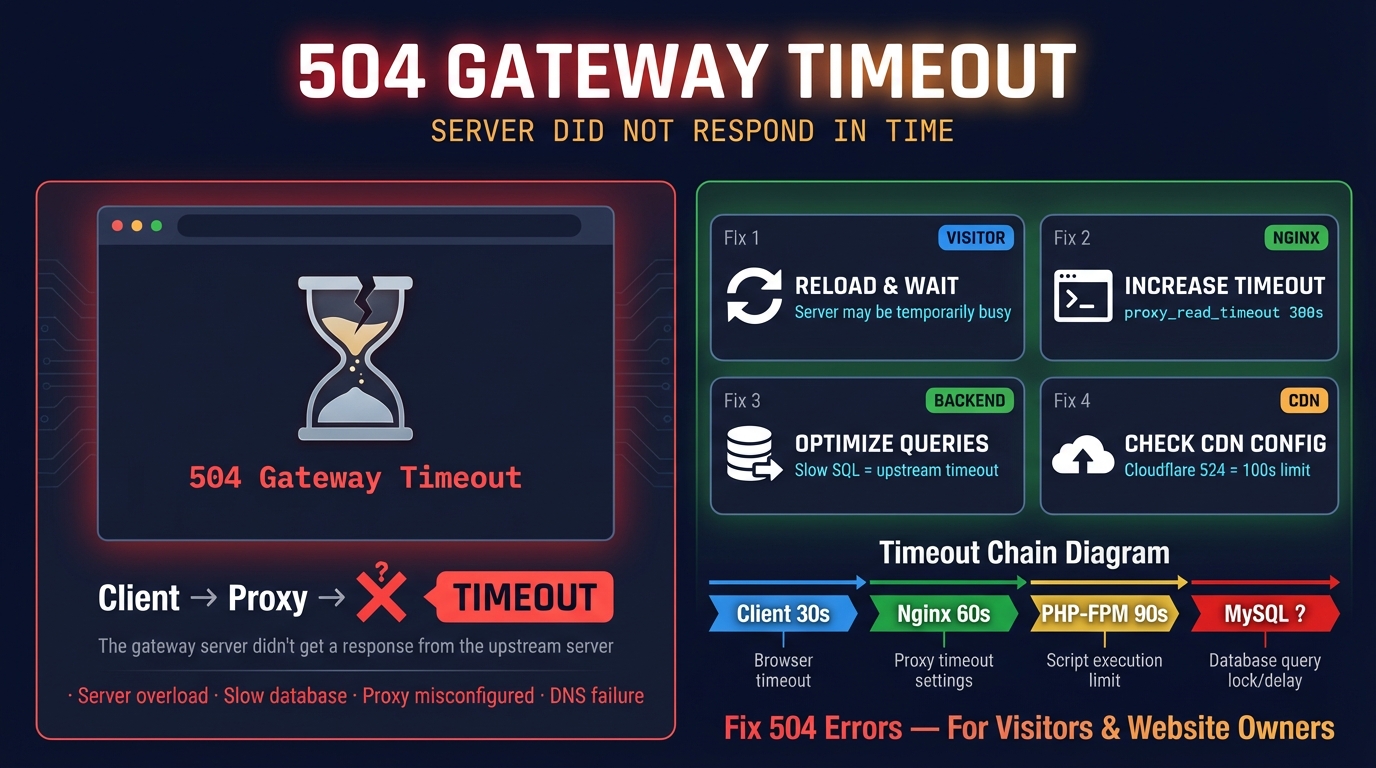
504 Gateway Time-out: What It Means & How to Fix It
504 Gateway Time-out means a proxy (nginx, Cloudflare, a load balancer) waited too long for the server behind it. Causes, every default timeout, and fixes.
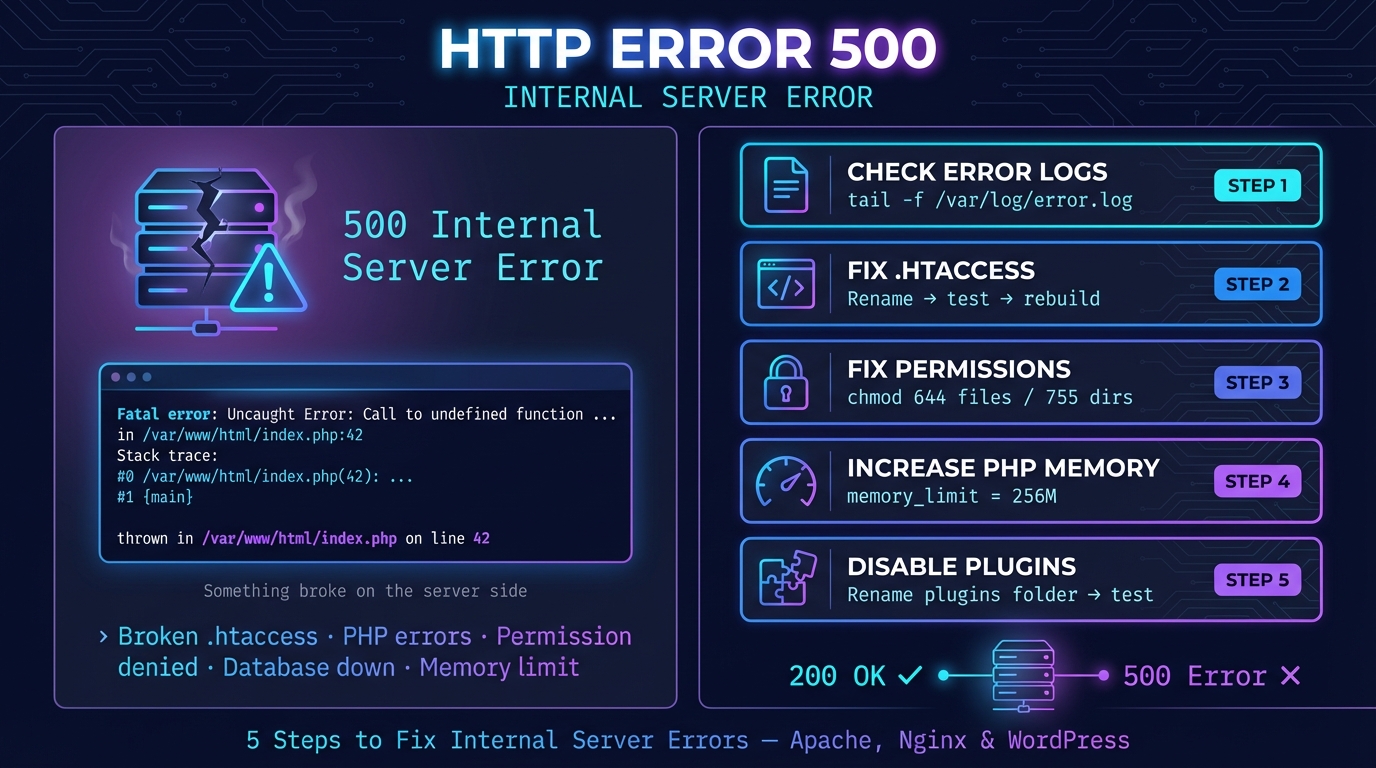
HTTP 500 Internal Server Error: Causes & Fix (nginx, Apache)
HTTP 500 means the server hit an unexpected error. What it means (RFC 9110), what visitors can do, and how to find the cause on nginx, Apache, PHP, WordPress.


Related Tools
Website Down Checker
Is it down for everyone or just you? Check any site from 11 places and your own connection, with a live screenshot
HTTP Header Checker
Response headers exactly as sent, with a Mozilla Observatory security grade
DNS Lookup
Every DNS record from the domain's own nameservers, beside Google's and Cloudflare's cache