400 Bad Request: What It Means & How to Fix It
Advertisement
What Is a 400 Bad Request Error?
400 Bad Request is an HTTP status code that means the server got your request but won't process it because something about the request itself looks wrong. The HTTP standard (RFC 9110, section 15.5.1) defines it as the server being unable or unwilling to process a request "due to something that is perceived to be a client error", such as malformed syntax, invalid message framing or deceptive request routing.
Unlike a 500 error, which means the server broke, a 400 points the finger at the request: the URL, the headers, the cookies or the data your browser or app sent. The website is usually working fine for everyone else.
That's good news for visitors, because the fix is usually on your side and takes a minute: a mistyped link or a corrupted cookie is behind most 400 errors.
What a 400 Error Looks Like
The message depends on the server software, and the extra text is often the best clue to the cause:
| Server | What the page says | Usual cause |
|---|---|---|
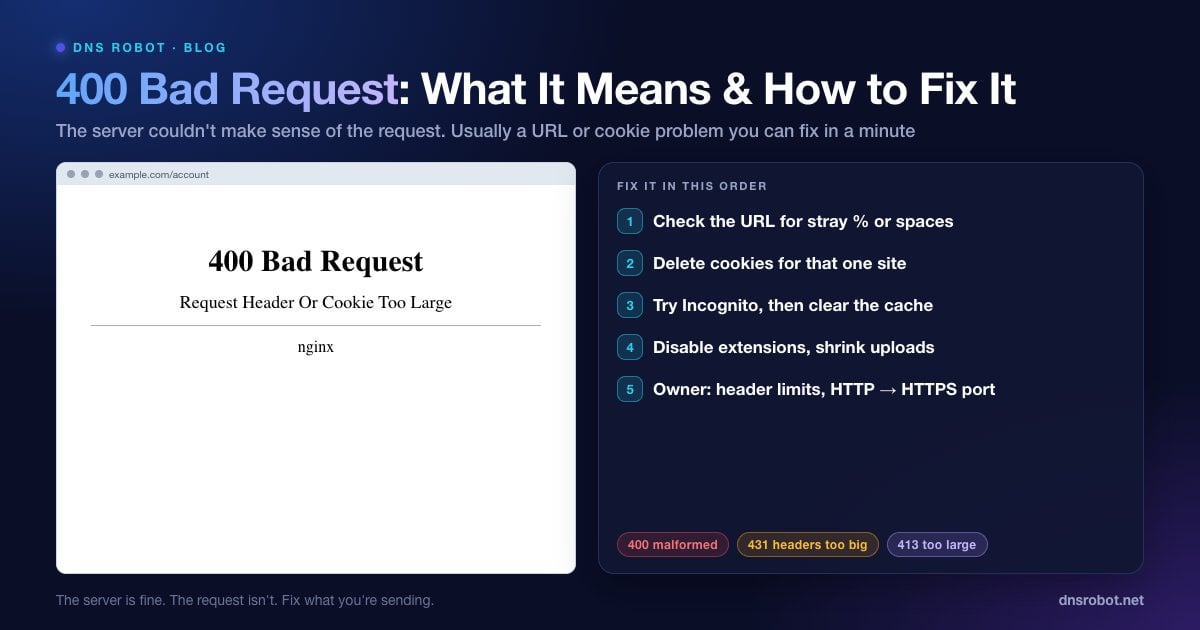
| nginx | 400 Bad Request: Request Header Or Cookie Too Large | Cookies or headers over nginx's limit |
| nginx | 400 Bad Request: The plain HTTP request was sent to HTTPS port | HTTP sent to a port that expects HTTPS |
| Apache | Bad Request: Your browser sent a request that this server could not understand. | Malformed request or an oversized header field |
| IIS (HTTP.sys) | Bad Request - Invalid URL. HTTP Error 400. The request URL is invalid. | Illegal or badly encoded characters in the URL |
| IIS (HTTP.sys) | Bad Request - Request Too Long. The size of the request headers is too long. | Too many or too large cookies |
| 400. That's an error. Your client has issued a malformed or illegal request. | Broken URL or corrupted cookies |
Advertisement
What Causes a 400 Bad Request?
A malformed URL. A stray
%sign, a space, a character that should have been encoded, or a link that was cut off or pasted twice.Corrupted or oversized cookies. Sites that set many cookies (logins, A/B tests, analytics) can push the Cookie header past the server's limit. A cookie damaged during an update can also be rejected.
Too-large request headers. Besides cookies, long authentication tokens or headers added by extensions and proxies add up.
Invalid data sent to an API. Missing required fields, malformed JSON, or the wrong
Content-Typeheader.HTTP sent to an HTTPS port. Common behind load balancers and reverse proxies.
A file that's too large. Many servers reply 413 Content Too Large, but some apps and frameworks return 400 instead.
Fix 1: Check the URL
Look closely at the address bar. Problems to watch for:
A
%that isn't followed by two hexadecimal characters (%20is fine,%2or%zzisn't).Spaces,
{ },|,\or other unusual characters, especially in links copied from emails, PDFs or chat apps.A link that was pasted twice (
https://example.com/https://example.com/...) or cut off partway.A very long URL with tracking parameters. Delete everything from the
?onwards and try again.
If you followed a link from another site, go to the site's homepage and navigate to the page from there instead.
Advertisement
Fix 2: Clear Cookies for That One Site
This fixes most 400 errors on sites you've used before, especially messages mentioning cookies or headers that are "too large" or "too long". You don't need to wipe cookies for every site, just this one:
Chrome / Edge: click the icon at the left of the address bar → Cookies and site data (or Site settings) → delete the data for the site, then reload.
Firefox: click the padlock → Clear cookies and site data…
Safari (Mac): Safari → Settings → Privacy → Manage Website Data… → search for the site → Remove.
iPhone: Settings → Apps → Safari → Advanced → Website Data → swipe left on the site to delete.
Fix 3: Try Incognito, Then Clear the Cache
Open the page in an Incognito/Private window (Ctrl + Shift + N in Chrome and Edge, Ctrl + Shift + P in Firefox, Cmd + Shift + N in Safari). Private windows start with no cookies and no extensions, so if the page works there, Fix 2 or Fix 4 will solve it permanently.
If Incognito also fails, clear the browser cache (Ctrl + Shift + Delete → Cached images and files), and as a last step flush your DNS cache. DNS is rarely the cause of a 400, but after a site moves servers an outdated address can land you on a server that rejects your request.
Advertisement
Fix 4: Disable Extensions and Check File Sizes
Extensions that modify requests, such as privacy tools, header editors, coupon finders and some ad blockers, can add or change headers in ways a server rejects. Disable them all, reload, then turn them back on one at a time to find the culprit.
If the error appears when uploading, try a smaller file. Compress images or split large files. That tells you whether the server is rejecting the size, even if it reports it as a 400 instead of 413.
For Website Owners: Finding the Cause of 400 Errors
If users report 400 errors on your site, start with the exact message they see and your server logs. nginx and Apache log the reason at the info level, so raise the error log level temporarily if you don't see it, and the access log shows which URLs return 400. DNS Robot's HTTP Headers tool shows the status code, the server software and every Set-Cookie header a page sends, which helps you spot cookies that keep growing.
# Which requests get 400? (nginx combined log format)
sudo awk '$9 == 400 {print $7}' /var/log/nginx/access.log | sort | uniq -c | sort -rn | head

# The reasons nginx logged (needs error_log ... info;)
sudo grep -i "client sent\|too large\|bad request" /var/log/nginx/error.log | tail -20
Advertisement
"Request Header Or Cookie Too Large"
nginx reads request headers into buffers set by large_client_header_buffers, by default 4 buffers of 8 KB. A single header line, usually the Cookie header, that doesn't fit in one buffer triggers this 400. Apache's equivalent limit is LimitRequestFieldSize, 8,190 bytes by default.
The proper fix is to send less: remove cookies you no longer need, keep session cookies small, and scope cookies to the paths and subdomains that use them. If you really need bigger headers, for example for large single sign-on tokens, raise the limit:
# nginx (http or server block)
large_client_header_buffers 4 16k;

# Apache equivalent (httpd.conf / vhost)
# LimitRequestFieldSize 16380"The plain HTTP request was sent to HTTPS port"
nginx returns this 400 when something sends plain HTTP to a port where nginx expects TLS, usually 443. Typical causes are a load balancer or proxy forwarding http:// traffic to port 443, a link with http://example.com:443, or an old ssl on; setting that makes a port expect TLS when it shouldn't.
Make sure each listen line matches what arrives on it: listen 443 ssl; for HTTPS and listen 80; for plain HTTP, with a redirect from 80 to 443. Also make sure the proxy in front talks HTTPS to 443 (or HTTP to 80).
400 Errors From APIs
APIs use 400 for requests that fail validation. If you're calling an API, read the response body, because most APIs explain which field is wrong. Then check that you send valid JSON, the right Content-Type: application/json header, and every required parameter.
If you're building an API, return a body that names the problem (for example, {"error": "email is required"}), and consider 422 Unprocessable Content for requests that are well-formed but semantically invalid, keeping 400 for requests that can't be parsed at all.
400 vs 401, 403, 404, 413, 429 and 431
| Code | Name | Meaning |
|---|---|---|
| 400 | Bad Request | The request is malformed or invalid |
| 401 | Unauthorized | You need to log in or send valid credentials |
| 403 | Forbidden | The server understood you but won't allow access |
| 404 | Not Found | Nothing exists at that URL |
| 413 | Content Too Large | The upload or request body is too big |
| 429 | Too Many Requests | You hit a rate limit |
| 431 | Request Header Fields Too Large | Headers, usually cookies, are too big (a more specific 400) |
Our guides to the neighbours: 403 Forbidden, 401 Unauthorized and 429 Too Many Requests. For redirects that loop instead of failing, see ERR_TOO_MANY_REDIRECTS, and the Redirect Checker shows every hop.
If the server accepts the request format but not the HTTP method, you get 405 Method Not Allowed instead.
See exactly what a page returns
DNS Robot's HTTP Headers checker shows the status code, the server software and every Set-Cookie header for any URL, so you can confirm a 400 and spot cookies that grow too large.
Try HTTP Headers CheckerAdvertisement
Frequently Asked Questions
It means the server received your request but refused to process it because something in the request looked malformed or invalid, such as a broken URL, oversized or corrupted cookies, headers that are too large, or invalid data sent to an API.