403 Forbidden Error: What It Means & How to Fix It
Advertisement
What Is a 403 Forbidden Error?
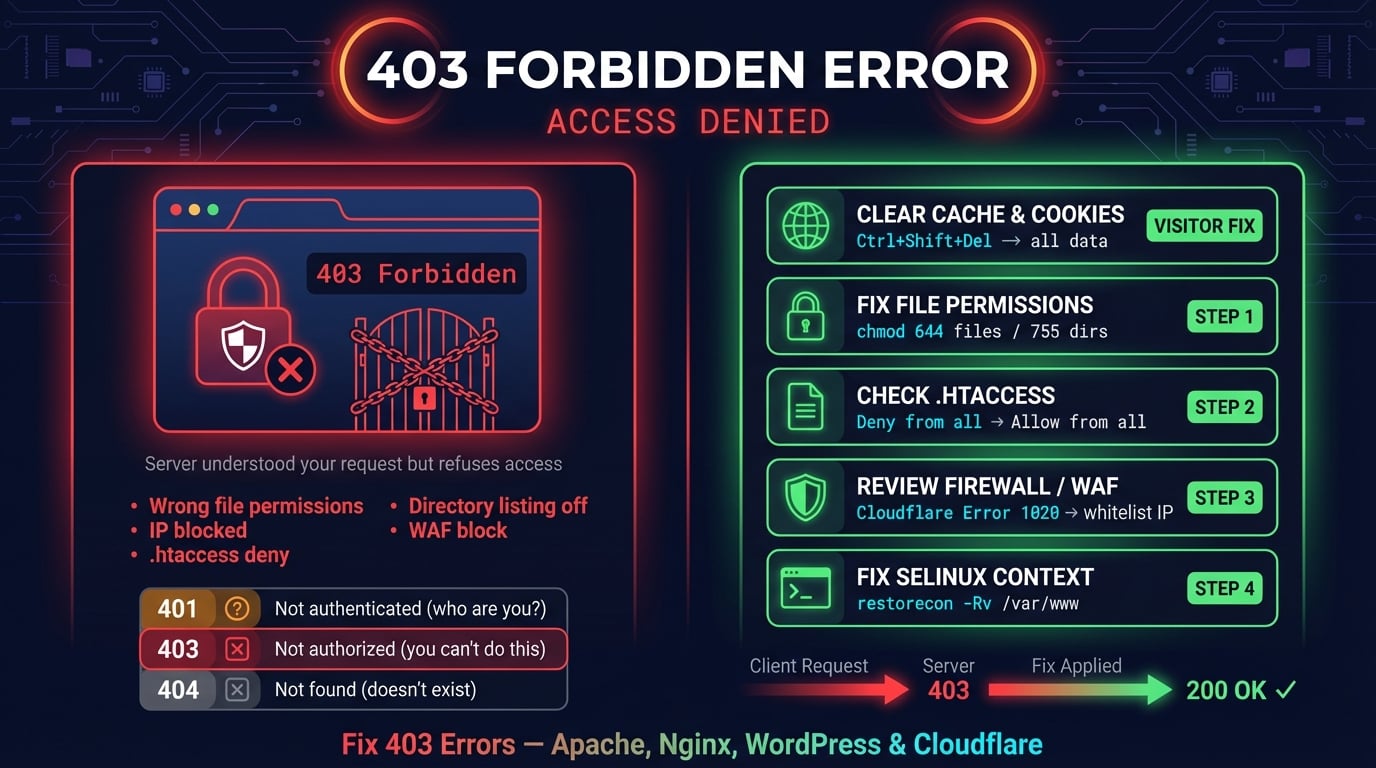
A 403 Forbidden error is an HTTP status code that means the server understood your request but is deliberately refusing to fulfill it. Unlike a 404 (page not found), the server knows exactly what you asked for — it just will not give it to you.
The HTTP specification (RFC 9110, Section 15.5.4) defines it as: the server understood the request but refuses to authorize it. If authentication credentials were provided, the server considers them insufficient. Repeating the same request will produce the same result.
In simple terms: the door exists, but you are not allowed through it. The server has decided that you — or anyone in your situation — should not access this resource.
What a 403 Error Looks Like
The 403 error appears differently depending on the server, browser, and hosting provider. Here are the most common messages you will encounter.
403 Forbidden — the standard message
HTTP Error 403 – Forbidden — common in IIS servers
403 — Forbidden: Access is denied — Windows/IIS variant
Error 403 — short form in browser address bars
Forbidden: You don't have permission to access this resource — Apache default
Access Denied — generic message without the status code
nginx 403 forbidden — Nginx's default error page
Error 1020: Access Denied — Cloudflare's firewall block (wraps a 403)
Regardless of the exact wording, the meaning is always the same: the server will not let you access the requested page or file.
Advertisement
403 vs 401 vs 404: What's the Difference?
These three error codes are often confused. Here is how they differ.
| Status Code | Meaning | Can You Fix It? | Example |
|---|---|---|---|
| 401 Unauthorized | You need to log in first | Yes — provide valid credentials | Accessing an admin panel without logging in |
| 403 Forbidden | You are logged in but not allowed | Depends — server is blocking you | Trying to access another user's files |
| 404 Not Found | The page does not exist | Check the URL spelling | Visiting a deleted or mistyped page |
The critical distinction: a 401 error tells you to authenticate. A 403 error tells you that authentication will not help — the server has already decided you cannot access this resource. A 404 means the resource does not exist at all.
If the server rejects the request itself as malformed, for example because of oversized cookies or a broken URL, you get 400 Bad Request instead.
Common Causes of 403 Forbidden Errors
Understanding why a 403 occurs helps you fix it faster. Here are the most common causes, split by whether you are a visitor or a site owner.
Incorrect file permissions — files set to 600 or folders to 700 block public access
Misconfigured .htaccess rules — deny directives or mod_rewrite rules blocking requests
Missing index file — no index.html or index.php, and directory listing is disabled
IP blocking — server or firewall rules blocking your IP address or country
VPN or proxy interference — your VPN's IP may be on a blocklist
Hotlink protection — the server blocks direct linking to images or files from other domains
WordPress plugin conflicts — security plugins like Wordfence or iThemes blocking requests
Web Application Firewall (WAF) — Cloudflare, Sucuri, or ModSecurity flagging your request
SSL certificate issues — expired or misconfigured certificates can trigger access blocks
Rate limiting — too many requests from your IP in a short period
Advertisement
How to Fix 403 as a Visitor
If you are seeing a 403 error on a website you do not own, here are the steps to try. These are listed in order — start from the top.
1. Check the URL
The simplest fix is often the right one. Make sure you are visiting a page URL, not a directory URL. Many servers block directory browsing by default.
For example, visiting https://example.com/images/ (a folder) will return 403 on most servers, while https://example.com/images/logo.png (a specific file) works fine. Double-check for typos and ensure the URL points to an actual page.
2. Clear Browser Cache and Cookies
Your browser may be sending outdated cookies or cached authentication tokens that the server is rejecting. Clearing them forces a fresh request.
Chrome:  Settings → Privacy → Clear browsing data → Cookies + Cached images
Firefox: Settings → Privacy → Clear Data → Cookies + Cache
Safari:  Settings → Privacy → Manage Website Data → Remove All
Edge:    Settings → Privacy → Clear browsing data → Cookies + Cache
After clearing, close and reopen your browser, then try the URL again.
3. Disable Your VPN or Proxy
VPNs and proxy servers route your traffic through shared IP addresses. If another user on the same VPN abused the site, your shared IP may be blocklisted.
Disconnect your VPN temporarily and try the site again. If it works, the issue is IP-based blocking. You can try switching to a different VPN server or contacting the site owner.
4. Try a Different Network or Device
If the 403 persists, switch to a different network (mobile data instead of Wi-Fi, or vice versa). This helps determine if your IP address is being blocked.
You can also try a different device or browser. If the page loads on one browser but not another, the issue is likely related to cached data or browser extensions, not an IP block.
How to Fix 403 as a Site Owner
If visitors are reporting 403 errors on your site — or you are seeing them yourself — the fix is almost always in your server configuration. Work through these checks in order.
Advertisement
5. Fix File and Directory Permissions
Incorrect file permissions are the number one cause of 403 errors on web servers. The standard permissions for a web server are 755 for directories and 644 for files.
Here is what those numbers mean: the first digit is the owner's permission, the second is the group, and the third is everyone else. 7 = read + write + execute, 5 = read + execute, 4 = read only.
# Fix directory permissions (755 = owner rwx, group rx, others rx)
find /var/www/html -type d -exec chmod 755 {} \;

# Fix file permissions (644 = owner rw, group r, others r)
find /var/www/html -type f -exec chmod 644 {} \;

# Verify ownership (should match your web server user)
ls -la /var/www/html/

# Change ownership to web server user if needed
chown -R www-data:www-data /var/www/html/6. Review .htaccess Rules
On Apache servers, the .htaccess file controls access rules. A single misconfigured line can block all visitors. Check for Deny from all directives or overly restrictive Require rules.
The fastest way to test: rename .htaccess to .htaccess.bak temporarily. If the 403 disappears, the problem is in that file.
# Temporarily rename .htaccess to test
mv /var/www/html/.htaccess /var/www/html/.htaccess.bak

# If 403 goes away, check the file for deny rules:
grep -i 'deny\|require\|allow' /var/www/html/.htaccess.bak

# Common problematic lines:
# Deny from all
# Require all denied
# Order deny,allow
If the site works without .htaccess, review it line by line. Look for Deny from all or Require all denied directives that may be blocking legitimate traffic. Replace them with specific rules that only block what you intend to block.
7. Add a Default Index File
When a visitor requests a directory URL (like example.com/blog/) without specifying a file, the server looks for a default index file. If none exists and directory listing is disabled, you get a 403.
The fix: create an index.html or index.php file in every publicly accessible directory. You can also configure the server to allow directory listing, but this is generally a security risk.
# In .htaccess or Apache config — set default index files
DirectoryIndex index.html index.php index.htm

# If you want to allow directory listing (not recommended for production):
Options +Indexes
8. Disable WordPress Plugins
Security plugins like Wordfence, iThemes Security, Sucuri, and All In One WP Security can trigger 403 errors by blocking requests they consider suspicious. This often happens after a plugin update or rule change.
To test, rename the plugins folder via FTP or SSH to disable all plugins at once.
# Disable all plugins by renaming the folder
mv /var/www/html/wp-content/plugins /var/www/html/wp-content/plugins.bak

# If 403 goes away, re-enable plugins one by one:
mv /var/www/html/wp-content/plugins.bak /var/www/html/wp-content/plugins
# Then deactivate/reactivate each plugin from WordPress admin
If the 403 disappears, re-enable plugins one at a time to find the culprit. Check the plugin's firewall or security logs for blocked requests.
9. Check IP Blocking and Firewall Rules
Your server's firewall or hosting control panel may be blocking specific IP addresses, ranges, or entire countries. This is common with fail2ban, CSF (ConfigServer Security & Firewall), or hosting-level IP blocklists.
Check your firewall rules and server logs to see if legitimate IPs are being blocked.
# Check if an IP is blocked by iptables
iptables -L -n | grep "203.0.113.50"

# Check fail2ban jail status
fail2ban-client status

# Unban a specific IP
fail2ban-client set <jail-name> unbanip 203.0.113.50

# Check Apache deny rules in server config
grep -r 'Deny from\|Require not ip' /etc/apache2/
10. Verify Your SSL Certificate
An expired or misconfigured SSL certificate can cause 403 errors, especially when your server requires client certificates or when HTTPS is enforced but the certificate is invalid.
Use DNS Robot's SSL Checker to verify your certificate is valid, properly chained, and not expired. If you are using Let's Encrypt, check that auto-renewal is working.
# Check SSL certificate expiry from terminal
openssl s_client -connect example.com:443 -servername example.com 2>/dev/null | openssl x509 -noout -dates

# Renew Let's Encrypt certificate
sudo certbot renew --force-renewal

# Restart web server after renewal
sudo systemctl restart nginx  # or apache2
11. Fix Cloudflare 403 / Error 1020
If your site is behind Cloudflare, 403 errors may come from Cloudflare's firewall rules, not your origin server. Cloudflare shows these as Error 1020: Access Denied with a Ray ID.
Check the Cloudflare dashboard under Security → Events to see what rule triggered the block. Common triggers include Bot Fight Mode, WAF managed rules, or custom firewall rules that are too aggressive.
Security → WAF — review custom rules, check if legitimate paths are being blocked
Security → Events — find the specific Ray ID and see what rule triggered the block
Security → Bots — Bot Fight Mode can block legitimate crawlers and API clients
Security Level — if set to 'I'm Under Attack', all visitors see a challenge page
IP Access Rules — check if your IP or country is accidentally blocked
12. Fix Nginx 403 Forbidden
Nginx returns 403 for several specific configuration issues. The most common: the Nginx worker process does not have read permission on the files, or the autoindex directive is off for a directory without an index file.
# Check Nginx error log for the exact cause
tail -f /var/log/nginx/error.log

# Common Nginx 403 causes and fixes:

# 1. Permission denied — Nginx runs as 'nginx' or 'www-data' user
# Fix: ensure the user running Nginx can read the files
chown -R nginx:nginx /var/www/html/

# 2. No index file in directory — add to server block:
location / {
    index index.html index.php;
}

# 3. SELinux blocking access (CentOS/RHEL)
setsebool -P httpd_read_user_content 1
# Or set proper context:
chcon -R -t httpd_sys_content_t /var/www/html/
SELinux is a frequently overlooked cause of Nginx 403 errors on CentOS and RHEL systems. Even if file permissions are correct, SELinux may block the Nginx process from reading files. The chcon command above fixes this.
Debugging 403 Errors with HTTP Headers
When you cannot pinpoint the cause, inspect the server's HTTP response headers. They often contain clues about why the request was blocked.
Use DNS Robot's HTTP Headers tool or curl from the terminal to see the full response.
# Check response headers for a 403 page
curl -I https://example.com/restricted-page

# Look for these headers:
# X-Blocked-By: Wordfence        → WordPress security plugin
# cf-ray: abc123-LAX             → Cloudflare blocked it
# server: cloudflare              → Cloudflare is in the path
# X-Sucuri-Block: 1              → Sucuri firewall
# X-WAF-Status: blocked          → Web Application Firewall
Headers like X-Blocked-By, cf-ray, and custom X-WAF headers tell you exactly which system is blocking the request. This narrows down your troubleshooting to the specific firewall, CDN, or security plugin responsible.
Does a 403 Error Affect SEO?
Yes, 403 errors can hurt your search rankings if they affect crawlable pages. When Googlebot encounters a 403, it treats the page as blocked and will eventually drop it from the index.
A few 403 errors on intentionally restricted pages (admin panels, private files) are normal and will not affect your SEO. But if public-facing content returns 403, Google will stop ranking those pages within days.
Check Google Search Console under Pages → Not indexed → Blocked by 403 to see if Googlebot is being blocked from important pages.
Advertisement
How to Prevent 403 Errors
Prevention is easier than troubleshooting. Follow these practices to avoid 403 errors on your site.
Set correct permissions from the start — 755 for directories, 644 for files, never 777
Always have an index file — every public directory needs index.html or index.php
Test .htaccess changes — back up the file before modifying, test one rule at a time
Monitor your WAF rules — review Cloudflare, Sucuri, or ModSecurity logs weekly
Whitelist your own IPs — ensure your office, home, and deployment server IPs are whitelisted
Use [HTTP Headers tool](/http-headers) — regularly check your pages return 200, not 403
Set up monitoring — use uptime monitoring to get alerts when pages start returning 403
Check your HTTP response headers
Use DNS Robot's free HTTP Headers tool to inspect any URL's response status, headers, and server information instantly.
Try HTTP HeadersAdvertisement
Frequently Asked Questions
A 403 Forbidden error means the server understood your request but is refusing to grant access. The resource exists, but the server has decided you are not authorized to view it — even if you are logged in.