HTTP Error 500 Internal Server Error: Causes & How to Fix
Advertisement
What Is HTTP Error 500?
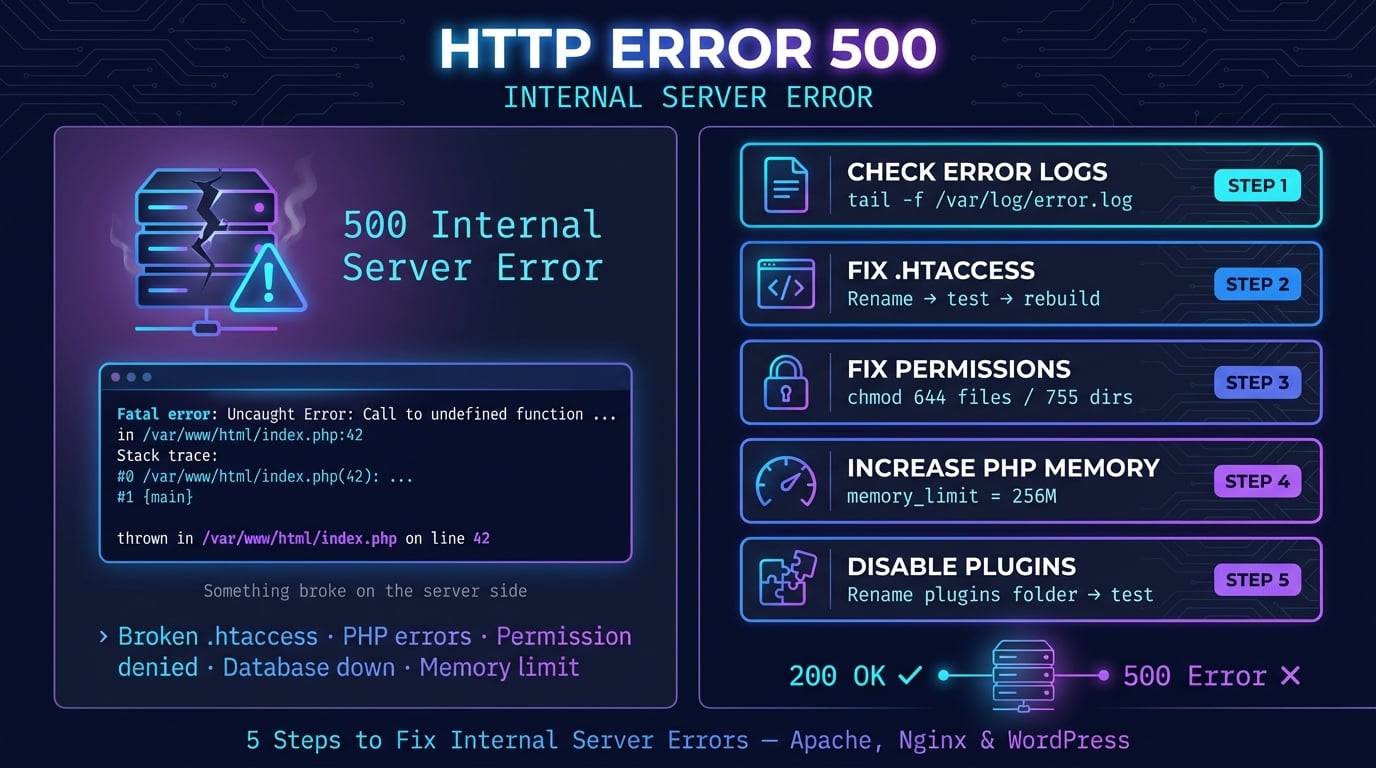
HTTP error 500 (Internal Server Error) is a server-side status code that means the web server encountered an unexpected condition that prevented it from fulfilling your request. It is the most generic server error — the server's way of saying 'something broke, but I don't know exactly what.'
According to the HTTP specification (RFC 9110, Section 15.6.1), a 500 response should be used when the server cannot find a more specific 5xx status code to describe the problem. Unlike a 503 error (which signals a temporary condition), a 500 gives no indication of whether the issue is temporary or permanent.
The key difference is that a 500 error is almost always caused by a bug, misconfiguration, or crash in the server-side code — not by anything the visitor did wrong. The fix must come from the website owner or server administrator.
What a 500 Error Looks Like
The 500 error appears differently depending on the web server, hosting provider, and CMS. Here are the most common messages you will encounter.
500 Internal Server Error — the standard message
HTTP Error 500 — common in browser address bars
Internal Server Error — the generic text without a status code
The server encountered an internal error or misconfiguration — Apache's default message
500 Internal Server Error – nginx — Nginx's minimal error page
There has been a critical error on this website — WordPress (since version 5.2)
HTTP Error 500.19 – Internal Server Error — IIS with sub-status codes
500. That's an error. — Google's own error page
Advertisement
Common Causes of HTTP Error 500
A 500 error can be triggered by dozens of different server-side problems. Here are the most common causes, ranked by how frequently they occur.
Corrupted .htaccess file — A single misplaced character or invalid directive in .htaccess will crash Apache immediately. This is the #1 cause on shared hosting.
PHP fatal errors — Syntax errors, uncaught exceptions, or calling undefined functions halt script execution and produce a 500.
PHP memory limit exhaustion — Scripts that exceed the memory_limit (default 128M) crash without warning. Large image processing and complex database queries are common triggers.
Incorrect file permissions — Files should be 644, directories 755. Overly restrictive (or dangerously open 777) permissions both cause problems.
Plugin or theme conflicts — A newly updated or incompatible plugin can crash the entire application. This is the most common WordPress-specific cause.
Database connection failure — Wrong credentials, a crashed database server, or exceeded connection limits prevent the application from running.
Script timeout — Long-running scripts exceed max_execution_time (default 30 seconds) and get killed by the server.
Corrupted CMS core files — Failed updates or interrupted file transfers leave critical files incomplete.
PHP-FPM process crashes — Worker processes dying from memory issues or hitting pm.max_children limits cause Nginx to return 500.
Server misconfiguration — Wrong PHP version, invalid virtual host settings, or bad Nginx server blocks all trigger 500 errors.
Disk space full — When the server runs out of disk space, it cannot write logs or temporary files, causing crashes.
CGI/Perl script errors — Wrong file mode (binary vs ASCII), incorrect line endings, or missing modules.
How to Fix a 500 Error (As a Visitor)
If you see a 500 error on someone else's website, the problem is on the server side — not yours. However, there are a few things you can try before giving up.
Reload the page — Wait 30 seconds, then press F5 or Ctrl+R (Cmd+R on Mac). Many 500 errors are caused by momentary server hiccups that resolve themselves.
Hard refresh — Press Ctrl+Shift+R (Cmd+Shift+R on Mac) to bypass your browser cache and fetch a completely fresh copy.
Clear browser cache and cookies — Go to your browser settings and clear cached files. Corrupted cached data can occasionally cause display issues.
Try incognito mode — Open a private/incognito window to rule out browser extensions or cached state causing problems.
Check if the site is down for everyone — Use tools like DNS Robot's HTTP Headers Checker to verify the server response status code.
Try again later — Since the problem is server-side, the website owner needs to fix it. Give it 15-30 minutes and check again.
Contact the website owner — If the error persists for hours, notify them through their contact page or social media.
Advertisement
Fix 1: Check Server Error Logs
Error logs are the single most important debugging tool for 500 errors. They tell you exactly what went wrong, including the file path, line number, and error message. Always check logs first before trying anything else.
# Apache error log
tail -100 /var/log/apache2/error.log

# Nginx error log
tail -100 /var/log/nginx/error.log

# PHP-FPM error log
tail -100 /var/log/php-fpm/error.log

# WordPress debug log (if WP_DEBUG_LOG enabled)
tail -100 /path/to/wordpress/wp-content/debug.logFix 2: Test and Repair .htaccess
A corrupted or misconfigured .htaccess file is the most common cause of 500 errors on Apache servers. A single typo, an unsupported directive, or a bad RewriteRule can take down the entire site.
The quickest test is to temporarily rename the file. If the site loads after renaming it, the .htaccess was the problem.
# Rename to disable .htaccess
mv .htaccess .htaccess_backup

# If site loads, regenerate a clean .htaccess
# For WordPress, go to Settings > Permalinks and click SaveAdvertisement
Fix 3: Fix File Permissions
Incorrect file permissions prevent the web server from reading or executing files. The standard permissions are 644 for files and 755 for directories. Never set permissions to 777 — it is a security risk and many hosting providers block it.
# Set correct directory permissions
find /path/to/webroot -type d -exec chmod 755 {} \;

# Set correct file permissions
find /path/to/webroot -type f -exec chmod 644 {} \;

# WordPress wp-config.php (extra security)
chmod 440 wp-config.php
Fix 4: Increase PHP Memory and Execution Limits
PHP scripts that exceed the memory limit or maximum execution time are silently killed by the server, resulting in a 500 error. The default memory_limit of 128M and max_execution_time of 30 seconds are often too low for complex applications.
You can increase these limits in several ways depending on your server setup.
# Option 1: php.ini (best method)
memory_limit = 256M
max_execution_time = 300

# Option 2: .htaccess (Apache only)
php_value memory_limit 256M
php_value max_execution_time 300

# Option 3: .user.ini (FastCGI/Nginx)
memory_limit = 256M

# Option 4: wp-config.php (WordPress)
define( 'WP_MEMORY_LIMIT', '256M' );
Advertisement
Fix 5: Disable Plugins and Theme (CMS)
If you are running WordPress, Joomla, or another CMS, a faulty plugin or theme is one of the most common causes of 500 errors. The fastest way to test is to disable all plugins at once, then re-enable them one by one.
# Disable all WordPress plugins (via file system)
cd /path/to/wordpress/wp-content
mv plugins plugins_disabled

# Or use WP-CLI
wp plugin deactivate --all

# Switch to default theme
wp theme activate twentytwentyfourFix 6: Check Database Connection and Repair
A 500 error can occur when the application cannot connect to its database. This happens when credentials are wrong, the database server is down, or tables are corrupted.
First verify your database credentials in your config file (wp-config.php for WordPress, .env for Laravel). Then test the connection and repair corrupted tables if needed.
# Test MySQL connection
mysql -u username -p -h localhost database_name -e "SELECT 1;"

# Repair and optimize all tables
mysqlcheck -u username -p --auto-repair --optimize database_name

# WordPress: add to wp-config.php, then visit /wp-admin/maint/repair.php
define( 'WP_ALLOW_REPAIR', true );
Fix 7: Check PHP Version Compatibility
Running code written for an older PHP version on a newer PHP release (or vice versa) triggers fatal errors. Deprecated functions, changed default behaviors, and removed features are common culprits after a PHP upgrade.
Check your current PHP version and compare it with your application's requirements.
# Check PHP version
php -v

# List loaded PHP modules
php -m

# Check current memory limit
php -i | grep memory_limitFix 8: Check Disk Space
When a server runs out of disk space, it cannot write log files, temporary files, or session data — which causes 500 errors. This is often overlooked but surprisingly common, especially when log files grow unchecked.
# Check disk usage
df -h

# Find large files eating disk space
du -sh /var/log
du -sh /tmp

# Clear old log files if needed
truncate -s 0 /var/log/nginx/error.log
500 vs 502 vs 503 vs 504: What's the Difference?
The key distinction: 500 = the server broke internally. 502 = the proxy got garbage back from the backend. 503 = the server is alive but busy. 504 = the proxy gave up waiting. You can check the exact status code your server returns using DNS Robot's HTTP Headers Checker.
When the error is a 502 instead, the application may be fine and the problem sits between the proxy and the app. Our 502 Bad Gateway guide covers that case.
| Code | Name | What It Means | Common Cause |
|---|---|---|---|
| 500 | Internal Server Error | The server itself crashed or threw an unhandled exception | PHP fatal error, bad .htaccess, memory exhaustion |
| 502 | Bad Gateway | A proxy received an invalid response from the backend | PHP-FPM crashed, backend not running, socket closed |
| 503 | Service Unavailable | Server is temporarily overloaded or in maintenance | Traffic spike, planned maintenance, resource limits |
| 504 | Gateway Timeout | A proxy timed out waiting for the backend to respond | Slow database query, long-running script, unresponsive upstream |
How 500 Errors Affect SEO
500 errors have a more severe SEO impact than most other HTTP errors. Here is what you need to know.
Deindexing can start within 2 days. Google's John Mueller has confirmed that persistent 500 errors can cause URLs to be dropped from the index in as little as two days. This is faster than 503 errors, which Google treats as temporary.
500 errors burn crawl budget. Unlike 404 errors (which Google eventually stops recrawling), 500 errors are ambiguous — the page might come back — so Googlebot keeps retrying aggressively. This wastes crawl budget on pages that deliver nothing.
Rankings drop quickly but recover. Once you fix the issue, Google typically restores crawling within days. However, ranking recovery can take weeks — the rankings do not snap back immediately.
Use 503 for planned maintenance, never 500. A properly configured 503 response with a Retry-After header tells Google to come back later without removing the page. A 500 sends no such signal.
How to Prevent 500 Errors
Prevention is always better than debugging. Follow these best practices to minimize the risk of 500 errors on your website.
Set up uptime monitoring — Use tools like UptimeRobot or Pingdom to check your site every 1-5 minutes. Get instant alerts when a 500 error occurs.
Always test changes in staging — Never deploy directly to production. Test plugin updates, PHP upgrades, and config changes in a staging environment first.
Use version control (Git) — Commit every change so you can instantly revert a bad deploy with a single command.
Implement proper error handling — Wrap database queries and API calls in try-catch blocks. Log full stack traces server-side for every error.
Monitor disk space and server resources — Set up alerts for disk usage above 80%, high CPU, and memory pressure.
Keep software updated — Outdated CMS versions, plugins, and server software contain known bugs that cause crashes.
Maintain automated backups — Test your restore procedure regularly. A backup you have never tested is not a backup.
Set PHP limits appropriately — Configure memory_limit and max_execution_time based on your actual workload, not default values.
Use CI/CD pipelines — Automate testing before deployment. If tests fail, the deploy should not proceed.
Check Your Server Response
Use DNS Robot's HTTP Headers Checker to verify what status code your server returns and inspect all response headers.
Try HTTP Headers CheckerAdvertisement
Frequently Asked Questions
HTTP error 500 (Internal Server Error) means the web server encountered an unexpected condition that prevented it from completing your request. It is a generic catch-all error indicating something crashed server-side, but the server cannot pinpoint the exact cause.