ERR_SSL_PROTOCOL_ERROR: How to Fix It (Chrome, Edge, All Browsers)
Advertisement
What Is ERR_SSL_PROTOCOL_ERROR?
ERR_SSL_PROTOCOL_ERROR is a browser error that occurs when the SSL/TLS handshake between your browser and the web server fails. The browser cannot establish a secure encrypted connection, so it blocks the page entirely to protect you from transmitting data over an insecure channel.
Every HTTPS connection begins with a TLS handshake — a negotiation where the browser and server agree on an encryption protocol (TLS 1.2 or 1.3), exchange certificates, and verify each other's identity. ERR_SSL_PROTOCOL_ERROR means this negotiation broke down before it completed.
The error is not a server-side HTTP status code — it happens inside your browser before any HTTP request is sent. The underlying Chromium error code is net::ERR_SSL_PROTOCOL_ERROR (error code -107), defined in the Chromium source as a failure to negotiate an acceptable set of security parameters.
What ERR_SSL_PROTOCOL_ERROR Looks Like
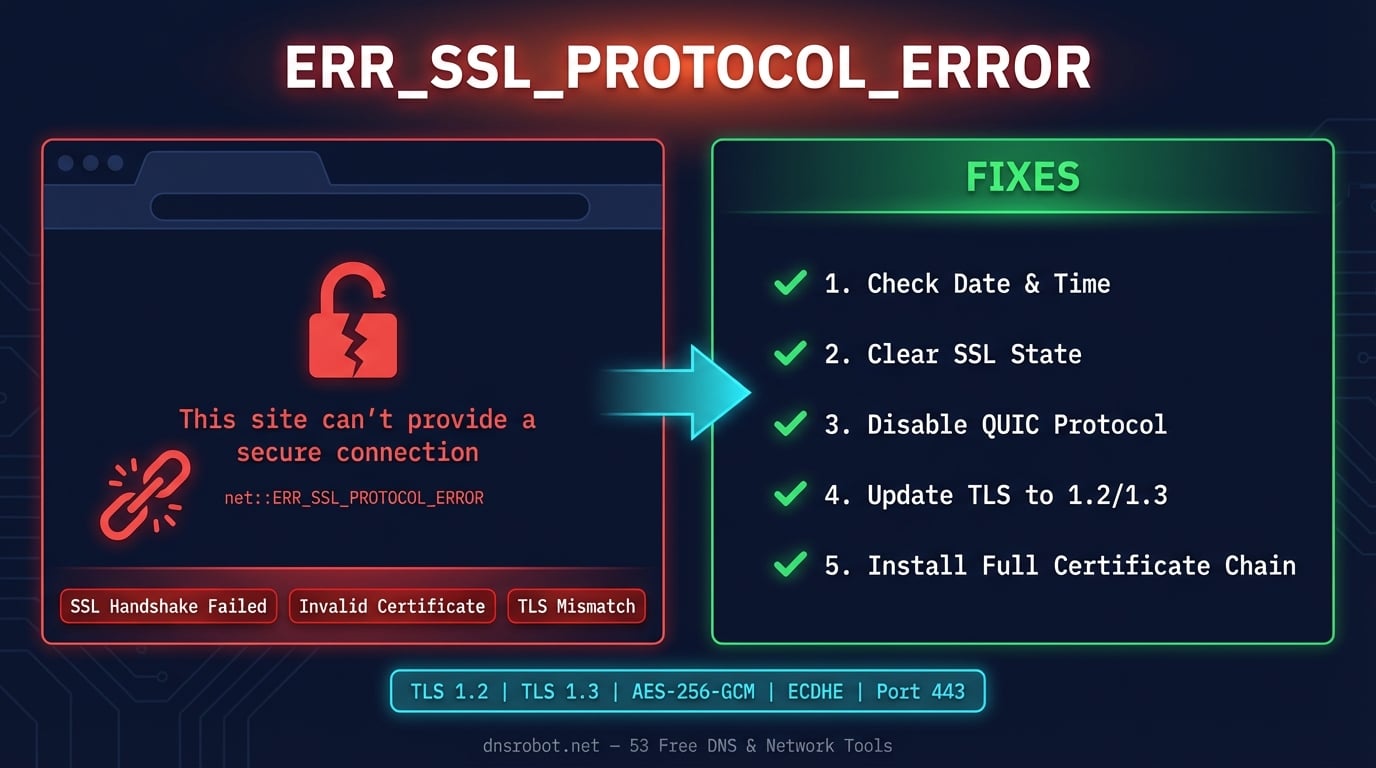
Chrome and other Chromium-based browsers display this error as a full-page warning with the message "This site can't provide a secure connection." Below it, you will see the specific error code. Here are the common variations you might encounter.
ERR_SSL_PROTOCOL_ERROR — the standard error code in Chrome's address bar
net::ERR_SSL_PROTOCOL_ERROR — the full internal error code shown in Chrome DevTools console
This site can't provide a secure connection — the user-facing headline message in Chrome
[domain] sent an invalid response — the detailed error text Chrome displays below the headline
ERR_SSL_PROTOCOL_ERROR on all browsers — when the error appears across Chrome, Edge, Brave, and Opera simultaneously (indicates a server-side or system-wide issue, not a browser-specific bug)
Advertisement
What Causes ERR_SSL_PROTOCOL_ERROR?
This error has both client-side (your device) and server-side (the website) causes. Identifying which side the problem is on is the first step to fixing it. If the error appears on every website, the problem is on your side. If it only appears on one specific website, the problem is likely server-side.
Incorrect system date/time — The #1 user-side cause. SSL certificates are time-sensitive — if your computer's clock is wrong by even a few minutes, certificate validation fails and the TLS handshake breaks down.
Expired or invalid SSL certificate — The website's SSL certificate has expired, is self-signed, or was issued for a different domain. You can check any certificate instantly with our SSL Checker.
Outdated TLS protocol — The server only supports deprecated protocols (SSL 3.0, TLS 1.0, TLS 1.1) that modern browsers refuse to use. Chrome, Edge, and Firefox all dropped TLS 1.0/1.1 support in 2020.
Corrupted browser SSL state — Your browser has cached old SSL session data, HSTS preferences, or certificate information that conflicts with the current connection attempt.
QUIC protocol conflict — Chrome's experimental QUIC protocol (HTTP/3) can sometimes interfere with TLS negotiation on servers that don't properly support it.
Antivirus SSL/HTTPS scanning — Security software that intercepts HTTPS traffic (Avast, Kaspersky, Bitdefender, ESET) can break the TLS handshake by inserting its own certificate into the connection.
Incomplete certificate chain — The server sends its SSL certificate but not the intermediate certificates needed to verify the chain of trust back to the root certificate authority.
VPN or proxy interference — VPNs and corporate proxies that inspect HTTPS traffic can corrupt the TLS handshake, especially when switching between networks.
Browser extensions — Privacy extensions, ad blockers, and security add-ons that modify HTTPS requests can interfere with the SSL handshake.
Firewall blocking port 443 — A network firewall or router is blocking the standard HTTPS port (443), preventing the TLS handshake from completing.
How to Fix ERR_SSL_PROTOCOL_ERROR (For Users)
If you see this error while browsing, start with the simplest fixes first. Most cases are resolved by the first three fixes below.
Advertisement
Fix 1: Check Your System Date and Time
An incorrect system clock is the most common cause of ERR_SSL_PROTOCOL_ERROR. SSL certificates have a validity period (Not Before / Not After dates), and if your system time falls outside this range, the handshake fails. Even being a few minutes off can cause issues with strict certificate validation.
Make sure your computer is set to sync time automatically.
Windows: Settings → Time & Language → Date & Time → Toggle on "Set time automatically" and "Set time zone automatically"
Mac: System Settings → General → Date & Time → Toggle on "Set date and time automatically"
Linux: Run
sudo timedatectl set-ntp trueto enable NTP sync
Fix 2: Clear SSL State (Windows)
Windows maintains its own SSL certificate cache separate from the browser. Stale or corrupted entries in this cache can cause persistent ERR_SSL_PROTOCOL_ERROR even after clearing the browser cache.
To clear the SSL state on Windows: open Internet Options (search for it in Start menu or type inetcpl.cpl in Run dialog) → click the Content tab → click Clear SSL state → click OK. Then restart your browser.
Fix 3: Clear Browser Cache and Cookies
Corrupted cached data or stale HSTS (HTTP Strict Transport Security) entries can force your browser to attempt connections with outdated parameters, triggering the SSL protocol error.
Step 1: Open Chrome Settings → Privacy and Security → Clear browsing data (or press
Ctrl+Shift+Delete)Step 2: Switch to the Advanced tab
Step 3: Set time range to All time
Step 4: Check Cached images and files, Cookies and other site data, and Hosted app data
Step 5: Click Clear data and restart Chrome
For a single site, you can also clear just that site's data: go to chrome://settings/content/all → search for the domain → click the trash icon.
Fix 4: Disable QUIC Protocol
Chrome uses the QUIC protocol (HTTP/3 over UDP) by default for faster connections. However, some servers, firewalls, and network equipment don't properly handle QUIC, which can cause SSL handshake failures. Disabling QUIC forces Chrome to use standard TCP-based TLS connections.
Step 1: Type
chrome://flags/#enable-quicin the address barStep 2: Find Experimental QUIC protocol
Step 3: Change it from Default to Disabled
Step 4: Click Relaunch to restart Chrome
If the error disappears after disabling QUIC, the issue is with the server's HTTP/3 implementation or your network blocking UDP port 443. You can leave QUIC disabled without any negative effects — pages will load over standard HTTPS (HTTP/2 over TCP).
Fix 5: Disable Browser Extensions
Extensions that intercept or modify web traffic — ad blockers, VPN extensions, privacy shields, and HTTPS Everywhere — can interfere with the TLS handshake. Some extensions inject their own certificates or modify request headers in ways that break SSL negotiation.
Go to chrome://extensions/, disable all extensions, and reload the page. If the error disappears, re-enable extensions one at a time to find the culprit. The most common offenders are: uBlock Origin (rarely), Avast Online Security, Norton Safe Web, and HTTPS Everywhere.
Fix 6: Disable Antivirus SSL/HTTPS Scanning
Many antivirus programs (Avast, Kaspersky, Bitdefender, ESET, Norton) include an "HTTPS scanning" or "SSL inspection" feature that intercepts encrypted connections by acting as a man-in-the-middle proxy. This can break TLS handshakes, especially with sites using certificate pinning or newer TLS 1.3 features.
Look for settings named Web Shield, HTTPS Scanning, SSL Scanning, or Encrypted connections scanning in your antivirus and temporarily disable it. If the error resolves, you can add the affected domain to your antivirus exclusion list.
Fix 7: Update Your Browser
Older browser versions may not support the TLS protocols or cipher suites required by modern websites. Chrome regularly updates its security requirements — for example, Chrome 98 dropped support for TLS 1.0 and 1.1 entirely.
Update Chrome: go to chrome://settings/help or Menu → Help → About Google Chrome. Chrome auto-downloads updates but requires a restart to apply them. For Edge: edge://settings/help. For Firefox: Menu → Help → About Firefox.
Fix 8: Flush DNS Cache
Stale DNS records can point your browser to the wrong server or an outdated IP address that no longer has a valid SSL certificate. Flushing your DNS cache forces a fresh DNS lookup.
# Windows (Command Prompt as Admin)
ipconfig /flushdns

# macOS
sudo dscacheutil -flushcache && sudo killall -HUP mDNSResponder

# Linux
sudo systemd-resolve --flush-caches

# Chrome internal DNS cache
# Visit chrome://net-internals/#dns → Click "Clear host cache"
After flushing, verify that the domain resolves to the correct IP using DNS Robot's DNS Lookup tool. If the IP address looks wrong, the website may have changed hosting providers and DNS hasn't fully propagated yet.
Fix 9: Try Incognito / Private Mode
Incognito mode starts with a clean browser state — no cached data, no cookies, no extensions (unless you explicitly allowed them in incognito). If the website loads in incognito but not in normal mode, the problem is caused by a browser extension, cached data, or corrupted browser profile.
Open an incognito window: Ctrl+Shift+N (Chrome/Edge) or Ctrl+Shift+P (Firefox). Navigate to the same website. If it loads, clear your browser cache (Fix 3) or check extensions (Fix 5).
Fix 10: Disable VPN or Proxy
VPNs and HTTP proxies sit between your browser and the web server. Some VPNs inspect HTTPS traffic, inject their own certificates, or route connections through servers with misconfigured SSL. Corporate proxies often use SSL interception (similar to antivirus HTTPS scanning) that can break TLS handshakes.
Temporarily disconnect your VPN and try loading the website. If it works without the VPN, the issue is with how your VPN handles SSL connections. Try a different VPN server or contact your VPN provider.
Fix 11: Reset Network Settings (Last Resort)
If nothing else works, reset your network stack. This clears all custom network configurations and returns everything to default — including DNS settings, proxy configurations, and socket connections.
# Windows (Command Prompt as Admin)
netsh winsock reset
netsh int ip reset
ipconfig /release
ipconfig /renew
ipconfig /flushdns

# Then restart your computer

# macOS — reset DNS settings
sudo dscacheutil -flushcache
sudo killall -HUP mDNSResponder

# Linux — restart NetworkManager
sudo systemctl restart NetworkManagerHow to Fix ERR_SSL_PROTOCOL_ERROR (For Website Owners)
If multiple users report ERR_SSL_PROTOCOL_ERROR on your website, the problem is on the server side. The most common server-side causes are expired certificates, missing intermediate certificates, and outdated TLS configurations.
Check Your SSL Certificate
The first step is to verify that your SSL certificate is valid, properly installed, and not expired. Use DNS Robot's SSL Checker to instantly check your certificate status, expiration date, issuer, and certificate chain.
Common certificate problems that cause ERR_SSL_PROTOCOL_ERROR:
Expired certificate — Let's Encrypt certificates expire every 90 days. If auto-renewal failed (certbot cron not running, DNS challenge broken), your certificate silently expires.
Wrong domain — The certificate was issued for
example.combut the site is served atwww.example.com(or vice versa). The certificate must match the exact domain or include a wildcard (*.example.com).Self-signed certificate — Development certificates are not trusted by browsers in production.
Revoked certificate — The certificate authority revoked the certificate (due to key compromise, mis-issuance, or domain ownership change).
# Check certificate from command line
openssl s_client -connect yourdomain.com:443 -servername yourdomain.com 2>/dev/null | openssl x509 -noout -dates -subject -issuer

# Check certificate chain completeness
openssl s_client -connect yourdomain.com:443 -servername yourdomain.com 2>/dev/null | grep -E "(depth|verify)"

# Renew Let's Encrypt certificate
sudo certbot renew --force-renewal
Enable TLS 1.2 and TLS 1.3
All modern browsers require at least TLS 1.2. If your server only supports TLS 1.0 or 1.1, browsers will refuse to connect and show ERR_SSL_PROTOCOL_ERROR. TLS 1.3 is the latest standard and significantly faster than TLS 1.2 — enable both for maximum compatibility and performance.
# Nginx — ssl_protocols in nginx.conf or site config
ssl_protocols TLSv1.2 TLSv1.3;
ssl_ciphers 'ECDHE-ECDSA-AES128-GCM-SHA256:ECDHE-RSA-AES128-GCM-SHA256:ECDHE-ECDSA-AES256-GCM-SHA384:ECDHE-RSA-AES256-GCM-SHA384';
ssl_prefer_server_ciphers on;

# Apache — in httpd.conf or ssl.conf
SSLProtocol -all +TLSv1.2 +TLSv1.3
SSLCipherSuite ECDHE-ECDSA-AES128-GCM-SHA256:ECDHE-RSA-AES128-GCM-SHA256
SSLHonorCipherOrder on
After updating your TLS configuration, restart your web server (sudo systemctl restart nginx or sudo systemctl restart apache2) and test with DNS Robot's SSL Checker to verify the protocols are active.
Install the Complete Certificate Chain
An incomplete certificate chain is a common but hard-to-diagnose cause of ERR_SSL_PROTOCOL_ERROR. Your server must send not just your SSL certificate, but also the intermediate certificates that connect your certificate to the trusted root certificate authority. Without them, some browsers and devices cannot verify the certificate.
Most certificate authorities provide a "CA bundle" or "full chain" file. For Let's Encrypt, use fullchain.pem (not just cert.pem). For other CAs, download the intermediate certificate from their documentation and concatenate it with your certificate.
# Nginx — use fullchain, not just cert
ssl_certificate /etc/letsencrypt/live/yourdomain.com/fullchain.pem;
ssl_certificate_key /etc/letsencrypt/live/yourdomain.com/privkey.pem;

# Apache
SSLCertificateFile /etc/letsencrypt/live/yourdomain.com/fullchain.pem
SSLCertificateKeyFile /etc/letsencrypt/live/yourdomain.com/privkey.pem
Check HSTS Configuration
HSTS (HTTP Strict Transport Security) tells browsers to always use HTTPS for your domain. If your HSTS policy has a long max-age and your SSL certificate later breaks, browsers will refuse to connect — they cannot fall back to HTTP, and the broken HTTPS triggers ERR_SSL_PROTOCOL_ERROR.
Check your HSTS header with DNS Robot's HTTP Headers tool. If you set a very long max-age (like 2 years) and your certificate expired, users who previously visited your site are locked into HTTPS with no fallback. To fix this, first fix your SSL certificate, then browsers will connect normally again.
Verify Server Configuration
Misconfigured web servers can cause ERR_SSL_PROTOCOL_ERROR even with a valid certificate. Common server misconfigurations include:
Wrong port — SSL/TLS should be on port 443. If your server listens on a different port, browsers may fail to handshake.
Mixed HTTP/HTTPS — Serving some resources over HTTP on an HTTPS page triggers mixed content warnings and can break the handshake for subresources.
SNI (Server Name Indication) not configured — If multiple domains share one IP address, the server must support SNI to serve the correct certificate for each domain.
Cipher suite mismatch — The server only supports cipher suites that the browser does not accept. Use strong modern ciphers like AES-GCM and ChaCha20.
Use DNS Robot's HTTP Headers Checker to inspect your server's response headers and verify your SSL configuration is sending the correct headers.
ERR_SSL_PROTOCOL_ERROR on Android
Android users encounter ERR_SSL_PROTOCOL_ERROR in both Chrome for Android and in WebView-based apps. The fixes differ slightly from desktop because Android manages certificates and network settings differently.
Check date and time — Settings → System → Date & time → Enable "Automatic date & time" and "Automatic time zone"
Clear Chrome data — Settings → Apps → Chrome → Storage → Clear Cache (then Clear Data if cache didn't help)
Update Chrome — Open Google Play Store → My Apps → Update Chrome to the latest version
Clear network credentials — Settings → Security → Clear credentials (this removes all user-installed certificates)
Reset network settings — Settings → System → Reset options → Reset Wi-Fi, mobile & Bluetooth
For WebView apps — Developers should ensure
android:usesCleartextTraffic="false"is set and that the network security config trusts the correct certificate authorities
Advertisement
ERR_SSL_PROTOCOL_ERROR in Other Browsers
ERR_SSL_PROTOCOL_ERROR is a Chromium-specific error code. Other browsers display different error messages for the same underlying SSL handshake failure.
| Browser | Error Message | Error Code |
|---|---|---|
| Chrome / Edge / Brave / Opera | This site can't provide a secure connection | ERR_SSL_PROTOCOL_ERROR |
| Firefox | Secure Connection Failed | SSL_ERROR_RX_MALFORMED_HANDSHAKE |
| Safari | Safari can't establish a secure connection | No specific code shown |
| Internet Explorer | This page can't be displayed | Turn on TLS 1.0, 1.1, 1.2 in Internet Options |
If the error appears in all browsers simultaneously, the problem is either system-wide (wrong date/time, antivirus, network) or server-side (expired certificate, TLS misconfiguration). If it only appears in one browser, the issue is browser-specific — try clearing that browser's cache and SSL state.
ERR_SSL_PROTOCOL_ERROR on Localhost (Developers)
Developers frequently encounter localhost sent an invalid response. ERR_SSL_PROTOCOL_ERROR when running local development servers. This happens because your browser expects a valid SSL certificate for HTTPS connections, but localhost uses a self-signed or no certificate.
Use HTTP for local development — Change
https://localhost:3000tohttp://localhost:3000unless you specifically need HTTPSGenerate a local certificate — Use mkcert to create locally-trusted SSL certificates:
mkcert -install && mkcert localhost 127.0.0.1Node.js — Set
NODE_TLS_REJECT_UNAUTHORIZED=0for development only (never in production)Chrome flag — Type
chrome://flags/#allow-insecure-localhostand enable "Allow invalid certificates for resources loaded from localhost"Next.js / Vite / Webpack — These frameworks support
--httpsflags that auto-generate development certificates
Advertisement
Related SSL/TLS Error Codes
Chrome has several SSL-related error codes. They all indicate different TLS handshake or certificate problems.
| Error Code | What It Means | Common Cause |
|---|---|---|
| ERR_SSL_PROTOCOL_ERROR | TLS handshake failed entirely | Wrong date/time, TLS version mismatch, QUIC conflict |
| ERR_SSL_VERSION_OR_CIPHER_MISMATCH | No shared TLS version or cipher suite | Server uses deprecated TLS 1.0/1.1, weak ciphers |
| ERR_CERT_AUTHORITY_INVALID | Certificate not signed by trusted CA | Self-signed cert, missing intermediate, expired root |
| ERR_CERT_DATE_INVALID | Certificate expired or not yet valid | Certificate expired, system clock wrong |
| ERR_CERT_COMMON_NAME_INVALID | Certificate domain doesn't match URL | Cert for example.com, site at www.example.com |
| ERR_SSL_PINNED_KEY_NOT_IN_CERT_CHAIN | Certificate pinning validation failed | Site uses HPKP and certificate changed |
For all SSL errors, you can quickly diagnose the issue using DNS Robot's SSL Checker — it shows the certificate status, chain completeness, TLS versions supported, and expiration date in one scan.
If the page instead says "The connection was closed", the handshake was cut off rather than broken. See ERR_CONNECTION_CLOSED for that case.
Check Your SSL Certificate Now
Use DNS Robot's free SSL Checker to instantly verify your certificate status, expiration date, certificate chain, and TLS protocol support. Diagnose ERR_SSL_PROTOCOL_ERROR in seconds.
Try SSL CheckerAdvertisement
Frequently Asked Questions
ERR_SSL_PROTOCOL_ERROR means your browser failed to establish a secure TLS/SSL connection with the website. The TLS handshake — where the browser and server negotiate encryption — broke down before completing. This is a client-side error, not a server HTTP status code.