What Is Private DNS? How It Works & How to Set It Up
Advertisement
What Is Private DNS?
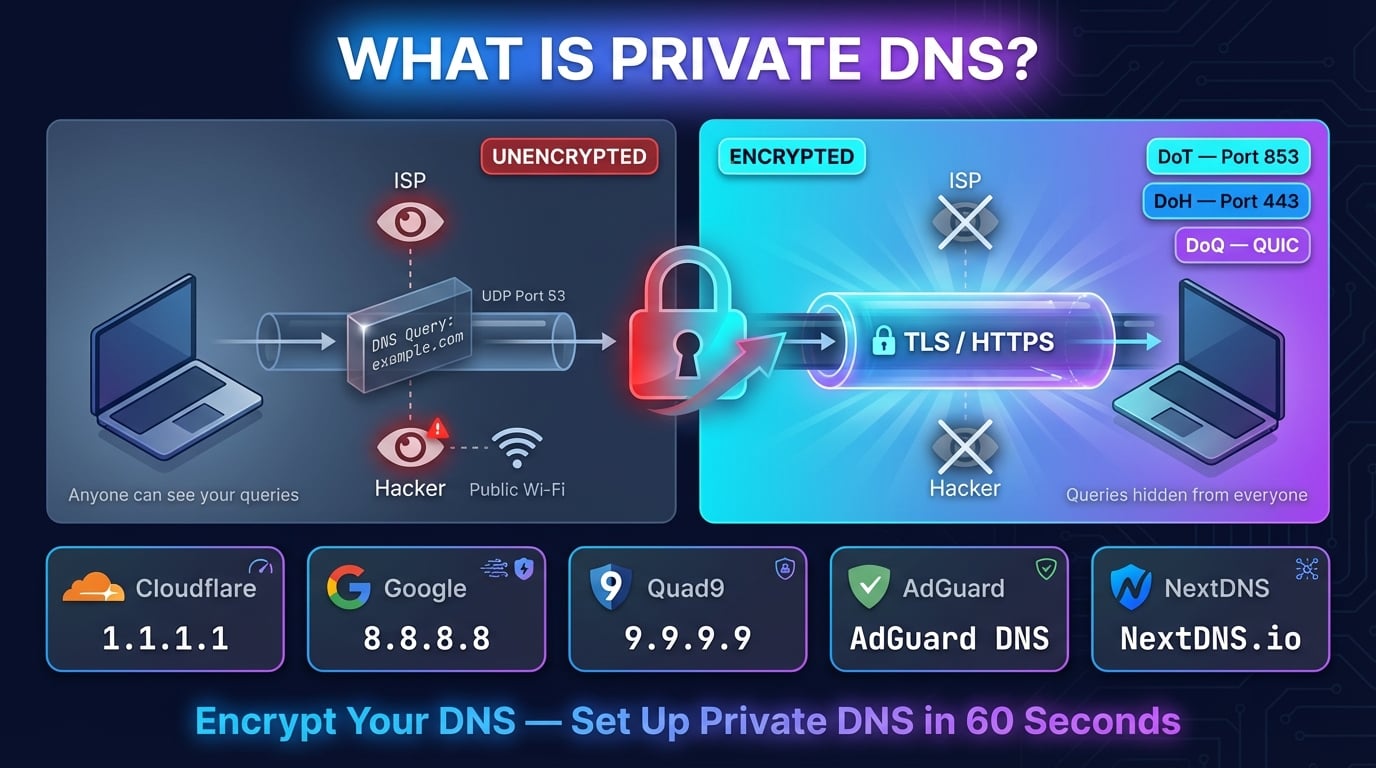
Private DNS is a feature that encrypts your DNS queries so that no one between your device and the DNS server can see which websites you are looking up. It uses protocols like DNS over TLS (DoT) or DNS over HTTPS (DoH) to wrap your queries in an encrypted tunnel.
Without private DNS, every domain name you type into your browser is sent as plaintext over the internet. Your ISP, anyone on your Wi-Fi network, and any middlebox on the network path can read and even modify those queries. Private DNS stops this by encrypting the connection between your device and the DNS resolver.
The term 'private DNS' is most commonly associated with the Android setting introduced in Android 9 Pie (2018), but the underlying technology — encrypted DNS — is available on every major platform including iOS, Windows, macOS, and Linux.
How Regular DNS Works (And Why It's a Problem)
Traditional DNS has been sending queries in plaintext since 1987. When you type a domain name into your browser, your device sends a DNS query over UDP port 53 to a DNS resolver (usually your ISP's server). The resolver responds with the IP address — all completely unencrypted.
This means anyone on your network path can see every domain you visit. Your ISP can build a complete browsing profile. Attackers on public Wi-Fi can intercept your queries. Some ISPs even hijack DNS responses to redirect you to their own search or ad pages.
DNS is also vulnerable to cache poisoning and spoofing attacks where an attacker sends forged responses, redirecting you to malicious websites without your knowledge. Traditional DNS has no built-in way to verify that the response actually came from the real DNS server.
Advertisement
How Private DNS Works
Private DNS wraps your DNS queries inside an encrypted connection. Instead of sending a plaintext query on UDP port 53, your device establishes an encrypted session with the DNS resolver first, then sends the query through that secure tunnel.
The DNS resolver decrypts your query, resolves the domain name to an IP address, encrypts the response, and sends it back. The entire exchange is invisible to anyone monitoring the network — they can see that you are communicating with a DNS server, but they cannot see which domains you are querying.
There are three encrypted DNS protocols in use today: DNS over TLS (DoT), DNS over HTTPS (DoH), and DNS over QUIC (DoQ). Each takes a different approach to encrypting the same underlying DNS query.
DNS over TLS vs DNS over HTTPS vs DNS over QUIC
DoT is the most commonly used protocol for system-level private DNS (Android, Linux). It uses a dedicated port (853), making it easy for network administrators to identify and block.
DoH is favored by web browsers because it blends in with regular HTTPS traffic on port 443, making it nearly impossible to block without breaking the entire web. Chrome, Firefox, and Edge all support DoH natively.
DoQ is the newest protocol (2022) and the fastest. It uses QUIC transport with built-in TLS 1.3 encryption and can establish connections with zero round trips (0-RTT). Android 13+ supports DoQ, and providers like AdGuard plan to make it their default.
| Feature | DNS over TLS (DoT) | DNS over HTTPS (DoH) | DNS over QUIC (DoQ) |
|---|---|---|---|
| RFC | RFC 7858 (2016) | RFC 8484 (2018) | RFC 9250 (2022) |
| Port | TCP 853 (dedicated) | TCP 443 (shared with HTTPS) | UDP 853 |
| Transport | TLS over TCP | HTTP/2 or HTTP/3 over TLS | QUIC (TLS 1.3 built-in) |
| Blockable? | Easy — just block port 853 | Very hard — same port as all HTTPS | Moderate — UDP 853 |
| Latency | Low | Slightly higher (HTTP overhead) | Lowest (0-RTT possible) |
| Used by | Android Private DNS, system-level | Browsers (Chrome, Firefox, Edge) | AdGuard, NextDNS, Cloudflare |
| Adoption | Widespread | Widespread | Growing |
Advertisement
How to Enable Private DNS on Android
Android has built-in Private DNS support since Android 9 Pie (2018). It uses DNS over TLS and applies system-wide to all apps.
Step 1: Open Settings > Network & Internet (or Connections on Samsung)
Step 2: Tap Private DNS (you may need to tap 'Advanced' or 'More connection settings' first)
Step 3: Select Private DNS provider hostname
Step 4: Enter a DoT hostname. Examples:
1dot1dot1dot1.cloudflare-dns.com(Cloudflare),dns.google(Google),dns.quad9.net(Quad9),dns.adguard-dns.com(AdGuard)Step 5: Tap Save. Android will verify the connection — if it fails, it will show an error
How to Enable Private DNS on iPhone and iPad
Apple does not have a simple toggle like Android. Encrypted DNS on iOS requires installing a configuration profile or using a DNS app.
Method 1: DNS App — Install the 1.1.1.1 (Cloudflare), NextDNS, or AdGuard app from the App Store. Open the app and enable encrypted DNS. It will appear under Settings > General > VPN, DNS & Device Management.
Method 2: Configuration Profile — Download a
.mobileconfigfile from a trusted source (such as thepaulmillr/encrypted-dnsGitHub repository). Go to Settings > General > VPN, DNS & Device Management, select the downloaded profile, and tap Install.Method 3: Per-Network DNS — Go to Settings > Wi-Fi, tap the (i) next to your network, tap Configure DNS, select Manual, and add DNS server IPs (e.g., 1.1.1.1, 1.0.0.1). Note: this does NOT encrypt DNS — it only changes the resolver.
Advertisement
How to Enable DNS over HTTPS on Windows 11
Windows 11 supports DNS over HTTPS natively. It ships with a list of recognized DoH providers including Cloudflare, Google, and Quad9.
Step 1: Open Settings > Network & Internet > Wi-Fi (or Ethernet)
Step 2: Click Hardware properties for your connection
Step 3: Click Edit next to DNS server assignment
Step 4: Select Manual, enable IPv4
Step 5: Enter a primary DNS server (e.g.,
1.1.1.1), set DNS over HTTPS to On (automatic template)Step 6: Enter a secondary DNS server (e.g.,
1.0.0.1), set DoH to On as wellStep 7: Click Save. The DNS entry should now show an Encrypted label
# View pre-configured DoH providers in Windows 11
netsh dns show encryption

# Add a custom DoH provider via PowerShell
Add-DnsClientDohServerAddress -ServerAddress '1.1.1.1' -DohTemplate 'https://cloudflare-dns.com/dns-query' -AllowFallbackToUdp $False -AutoUpgrade $True
How to Enable Private DNS on macOS
macOS supports encrypted DNS through configuration profiles (same as iOS) or through DNS apps.
Method 1: DNS App — Install the Cloudflare 1.1.1.1 app (or similar) and enable it. The app configures DoH or DoT at the system level.
Method 2: Configuration Profile — Download a
.mobileconfigfile, double-click to install, then approve it in System Settings > Privacy & Security > Profiles.Method 3: Terminal (advanced) — Use
networksetupto change DNS servers, but note that command-line DNS changes alone do NOT enable encryption. You still need a profile or app for encrypted DNS.
Advertisement
Best Private DNS Providers (2026)
Cloudflare 1.1.1.1 is the fastest public DNS resolver and supports all three encrypted protocols (DoT, DoH, DoQ). It offers family-safe variants: security.cloudflare-dns.com (malware blocking) and family.cloudflare-dns.com (malware + adult content blocking). Cloudflare commits to not logging your IP address and is audited annually.
Google Public DNS is the most widely used public resolver. It supports DoT and DoH but logs temporary data for 24-48 hours before anonymizing. If absolute privacy is your priority, Cloudflare or Quad9 are better choices.
Quad9 operates under Swiss jurisdiction with strict no-IP-logging policies. It automatically blocks known malicious domains using threat intelligence from over 25 cybersecurity companies — making it the best choice for security-focused users.
AdGuard DNS blocks ads and trackers at the DNS level, meaning ads are blocked across your entire device without installing an ad blocker. It was an early adopter of DNS over QUIC and plans to make DoQ its default protocol.
NextDNS gives you the most control. You get a custom hostname, configurable blocklists, per-device analytics, parental controls, and a dashboard to see exactly what is being blocked. Free tier includes 300,000 queries per month.
Speed varies by location, so don't pick blind: run a free DNS speed test to benchmark Cloudflare, Google and Quad9 over encrypted DNS-over-HTTPS from your own network, then enable Private DNS with the provider that actually wins for you.
| Provider | DoT Hostname | IPv4 | Best For |
|---|---|---|---|
| Cloudflare | 1dot1dot1dot1.cloudflare-dns.com | 1.1.1.1 / 1.0.0.1 | Speed — fastest public resolver globally (~5ms average) |
| dns.google | 8.8.8.8 / 8.8.4.4 | Reliability — massive global infrastructure | |
| Quad9 | dns.quad9.net | 9.9.9.9 / 149.112.112.112 | Security — blocks malicious domains using 25+ threat intel feeds |
| AdGuard | dns.adguard-dns.com | 94.140.14.14 / 94.140.15.15 | Ad-blocking — blocks ads and trackers at the DNS level |
| NextDNS | <YOUR-ID>.dns.nextdns.io | Custom | Customization — fully configurable blocklists and analytics |
Private DNS Hostname (Code): What to Type in the Android Box
The private DNS hostname — sometimes called the *private DNS code* — is the address you type into Settings → Network & Internet → Private DNS → "Private DNS provider hostname" on Android. It must be a hostname, not an IP address: Android uses the name to validate the resolver's TLS certificate, so 1.1.1.1 won't work but one.one.one.one will.
Copy any of these into the box — they're the official hostnames of the major providers:
| Provider | Private DNS hostname | Filtering |
|---|---|---|
| Cloudflare | one.one.one.one | None — pure speed and privacy |
| Cloudflare Security | security.cloudflare-dns.com | Blocks malware domains |
| Cloudflare Family | family.cloudflare-dns.com | Blocks malware + adult content |
| dns.google | None | |
| Quad9 | dns.quad9.net | Blocks known malicious domains |
| AdGuard DNS | dns.adguard-dns.com | Blocks ads + trackers |
| AdGuard Family | family.adguard-dns.com | Blocks ads + adult content |
| NextDNS | <your-id>.dns.nextdns.io | Fully custom (requires free account) |
After saving, verify it took effect: run a DNS speed test or visit the provider's check page — and if the setting silently fails on your network, the section on blocked encrypted DNS below explains why.
Public vs Private DNS: The Enterprise Meaning
Confusingly, "private DNS" has a second meaning in corporate and cloud environments — and it has nothing to do with the encrypted DNS setting on your phone.
In that world, private DNS means private DNS zones: internal name records like intranet.corp.local or db1.internal hosted on servers that are only reachable inside a company network or a cloud VPC. AWS calls these Route 53 *private hosted zones*, Azure has *Azure Private DNS*, and Oracle and Google Cloud offer equivalents. The records are never published to the public internet — public resolvers simply cannot see them.
The quick test: if you're typing a hostname into a phone or laptop setting, you're dealing with encrypted DNS (this article). If your IT team or a cloud console mentions private DNS, they mean internal zones. You can check what the public internet sees for any name with a DNS lookup — records that live in a private zone won't appear at all.
Benefits of Using Private DNS
Enabling private DNS on your devices provides immediate security and privacy improvements.
Stops ISP snooping — Your ISP can no longer see which domains you query or build a browsing profile from your DNS traffic
Prevents DNS spoofing — TLS authentication verifies you are talking to the real DNS server, not an attacker
Protects on public Wi-Fi — Other users on the same network cannot intercept your DNS queries
Blocks DNS hijacking — Your queries cannot be silently redirected by a compromised router or malicious network
Bypasses transparent DNS proxies — Some ISPs intercept DNS on port 53 even when you use third-party servers. Encrypted DNS uses different ports, bypassing these proxies
Optional ad and malware blocking — Providers like AdGuard, NextDNS, and Quad9 can block ads, trackers, and malicious domains at the DNS level
Works system-wide — Once enabled, private DNS protects all apps on your device, not just your browser
Potential Downsides of Private DNS
Private DNS is not perfect. Here are the trade-offs you should be aware of.
Slight latency on first query — The TLS handshake adds approximately 15-35ms to the first DNS query. After that, the connection is reused and subsequent queries are just as fast.
Captive portals may break — Hotel, airport, and coffee shop Wi-Fi networks that require a login page often need unencrypted DNS to redirect you. Private DNS can prevent these portals from loading.
Corporate networks may block it — IT departments need DNS visibility for security monitoring. Many enterprise networks intentionally block encrypted DNS to external resolvers.
Centralization concern — Encrypted DNS encourages use of a few large resolvers (Cloudflare, Google), concentrating DNS traffic with fewer companies.
Does not encrypt everything — Private DNS encrypts domain queries, but your ISP can still see the IP addresses you connect to via SNI in the TLS handshake (unless you also use ECH).
Split-horizon DNS issues — Organizations using different internal vs. external DNS may have problems when devices bypass the internal resolver.
'This Network Is Blocking Encrypted DNS Traffic' — What It Means
If you see this warning on your iPhone or Mac, it means the network you are connected to is preventing your encrypted DNS queries from reaching their destination. Your DNS queries are being sent in plaintext, and anyone on the network can see which domains you visit.
This warning commonly appears on corporate networks, school Wi-Fi, hotel and airport networks with captive portals, and networks with older router firmware that does not support encrypted DNS.
Restart your device and router — This resets network processes and often resolves temporary issues
Forget the Wi-Fi network and reconnect — Go to Wi-Fi settings, forget the network, then rejoin it
Update your router firmware — Older firmware may not handle encrypted DNS traffic properly
Use a VPN — A VPN encrypts all traffic including DNS, bypassing any network-level DNS blocking
Accept it on managed networks — On corporate or school networks, encrypted DNS blocking is often intentional for security monitoring. You may not be able to bypass it
How to Verify Private DNS Is Working
After enabling private DNS, you should verify that your queries are actually being encrypted and routed through your chosen provider.
Cloudflare diagnostic page — Visit 1.1.1.1/help to see if you are using DoH, DoT, or plaintext DNS, and which resolver is handling your queries
DNS leak test — Visit dnsleaktest.com and run the extended test. If you see only your chosen provider's servers (not your ISP's), your encrypted DNS is working correctly
Use our DNS Lookup tool — DNS Robot's DNS Lookup lets you query specific DNS servers to verify they are responding as expected
Browser leak test — Visit browserleaks.com/dns to check which DNS servers your browser is using
# Test DNS over TLS with kdig
kdig -d @1.1.1.1 +tls-ca +tls-host=cloudflare-dns.com example.com

# Check which resolver is responding
dig whoami.cloudflare.com TXT @1.1.1.1

# Test DNS over HTTPS with curl
curl -s -H 'accept: application/dns-json' \
  'https://cloudflare-dns.com/dns-query?name=example.com&type=A'
Check Your DNS Configuration
Use DNS Robot's DNS Lookup tool to verify your DNS settings, check which nameservers are responding, and troubleshoot DNS issues.
Try DNS LookupAdvertisement
Frequently Asked Questions
Private DNS on Android is a built-in feature (since Android 9) that encrypts your DNS queries using DNS over TLS. When enabled, all apps on your device send DNS queries through an encrypted tunnel, preventing your ISP and network operators from seeing which websites you visit.