What Does chmod Do?
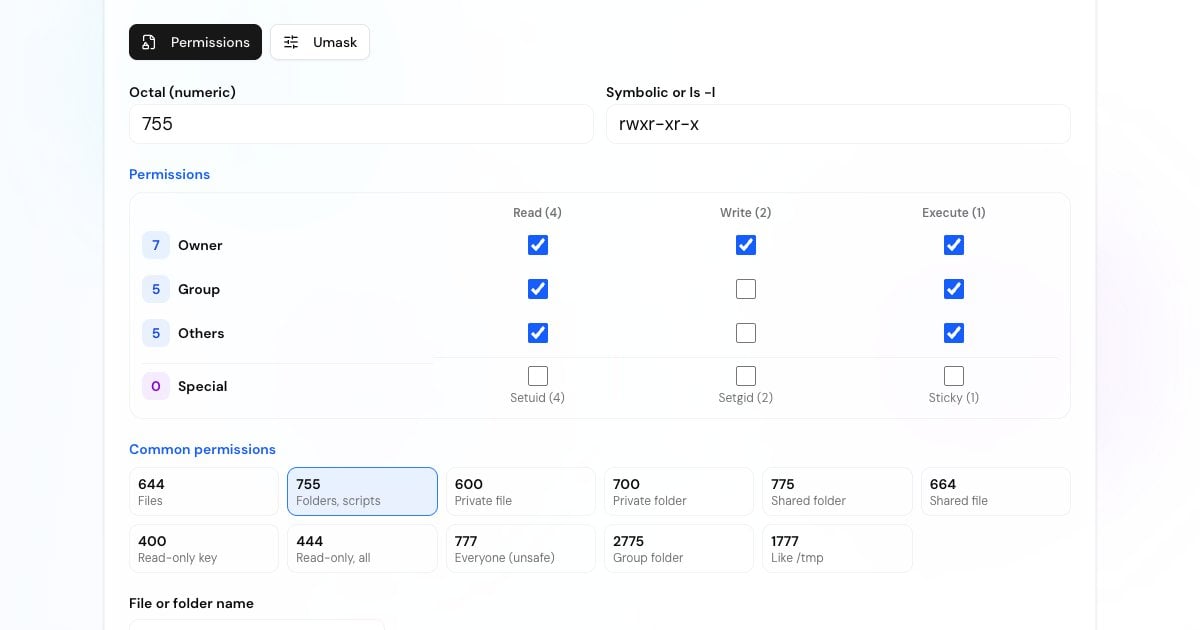
chmod (change mode) is the Linux and Unix command that sets who can read, write and execute a file or folder. Every file has three sets of permissions: one for its owner, one for its group and one for everyone else (others). The calculator above turns those nine checkboxes into the number or letters chmod expects, and back again.
You can give chmod a mode in two ways: as an octal number, such as chmod 755 script.sh, or in symbolic form, such as chmod u+x script.sh. Only the file's owner or root can change its permissions.
How Linux File Permissions Work
Each permission has a value: read = 4, write = 2 and execute = 1. Add them up for each class to get one digit from 0 to 7, then write the three digits in order: owner, group, others. So rwx is 4+2+1 = 7, r-x is 4+0+1 = 5, and rwxr-xr-x is 755.
Run ls -l and you see the same thing as letters, for example -rwxr-xr-x. The first character is the file type (- for a regular file, d for a directory, l for a symbolic link), followed by three groups of rwx for owner, group and others. A dash means that permission is off.
The letters mean slightly different things on files and on folders:
File: open it and read its contents. Folder: list the names inside it with ls.
File: change its contents. Folder: create, delete and rename files inside it (this also needs execute on the folder). Deleting a file depends on the folder's write permission, not the file's.
File: run it as a program or script. Folder: enter it with cd and open the files inside by name. With read but no execute you can list a folder's names but not open anything in it.
u is the file's owner, g its group and o everyone else. Linux uses only the first class that matches you: if you're the owner, the group and others permissions don't apply to you, even when they allow more.
Advertisement
Common chmod Permissions and When to Use Them
These modes cover almost every real-world case. Most of them are also preset buttons in the calculator.
The default for most files: web pages, images and config files that aren't secret. The owner can edit, everyone else can only read.
The default for directories and for programs or scripts that everyone may run. Only the owner can change them.
Only the owner can read or write. Use it for SSH private keys, .env files, API tokens and anything else with a password in it.
Only the owner can open or list the folder. The standard for ~/.ssh and personal script folders.
The owner edits, one group (for example the web server's group) reads, and nobody else can see the file.
The owner has full access, the group can open and read the folder, and others are locked out.
The owner and the group can both edit. Common on team servers where several users share a group.
The owner and the group can create and delete files inside; others can only look.
Only the owner can read and nobody can write. AWS tells you to run chmod 400 on a downloaded .pem key pair before using it with SSH.
Every user and process on the machine can read, change and run it. Almost never the right fix, as the next section explains.
chmod 755 vs 644 vs 777
755 and 644 differ only in the execute bit: 755 lets everyone run the file or open the folder, 644 doesn't. That's why the usual rule is folders 755, files 644: folders need execute so people can get into them, while most files should never be run.
777 gives write access to every account on the machine, including the web server's user. If any site or script on the server is compromised, the attacker can then change or replace your files, inject malware into your pages or plant a backdoor. When something fails with "Permission denied", the real fix is usually the right owner (chown) or group, not 777.
Recommended permissions for the most common cases:
Website files (HTML, PHP, images):
644. Website folders:755. This is what WordPress and most hosting control panels recommend.wp-config.php and other files with database passwords: WordPress suggests
440or400so other users on the server can't read it.600or640also keep it private while letting the owner edit it.Upload or cache folders the web server must write to: give the web server's group write access (
775) or make the web server's user the owner, instead of using777.~/.ssh folder:
700. Private keys (id_ed25519,id_rsa):600or400. authorized_keys:600. Public keys (.pub):644.Shell scripts you want to run:
755, or700if only you should run them.chmod +x script.shadds execute without touching the other bits.
Advertisement
Fixing "Permissions 0644 are too open" for SSH keys
SSH ignores a private key that other users can read and prints WARNING: UNPROTECTED PRIVATE KEY FILE! followed by Permissions 0644 for '/home/you/.ssh/id_rsa' are too open. Run chmod 600 ~/.ssh/id_rsa (or chmod 400) and connect again. On the server side, with the default StrictModes yes setting, the SSH daemon also ignores authorized_keys if that file, ~/.ssh or your home folder is writable by the group or others.
If the permissions are right and the connection still fails, check that port 22 is open on the server.
Special Permissions: Setuid, Setgid and Sticky Bit
A fourth, leading digit adds three special bits: 4 = setuid, 2 = setgid and 1 = sticky. They add up like the others, so 6755 is setuid plus setgid. In ls -l they take the place of the execute letter: s in the owner or group position, t in the others position.
One Linux quirk: GNU chmod 755 dir (and chmod 0755 dir) leaves an existing setuid or setgid bit on a directory in place. To clear it, say so explicitly with chmod g-s dir (or chmod a-s dir for both bits), or use five digits: chmod 00755 dir.
A program with setuid runs with its owner's privileges instead of yours. /usr/bin/passwd is 4755 (-rwsr-xr-x) on most Linux systems, so normal users can update the root-owned password file. Linux ignores setuid on shell scripts and on directories.
On a program, it runs with the file's group. On a folder it's more useful: new files created inside get the folder's group, and new subfolders inherit setgid. 2775 is the classic mode for a shared team folder.
On a folder, only a file's owner, the folder's owner or root can delete or rename files in it, even if everyone can write there. That's why /tmp is 1777 (drwxrwxrwt). Linux ignores the sticky bit on files.
An uppercase S or T in ls -l means the special bit is set but the execute bit in that same position is not. For example, 4644 shows as rwSr--r-- and 1666 as rw-rw-rwT.
Advertisement
Symbolic Mode: u, g, o, a With +, - and =
Symbolic mode changes permissions relative to what's already there, which a plain octal number can't do. It has three parts: who (u owner, g group, o others, a all), an operator (+ add, - remove, = set exactly) and the permissions (r, w, x, plus s and t). Separate several changes with commas and no spaces.
chmod +x file with no who letter means all three classes, minus anything your umask blocks. With the usual umask 022 that's the same as a+x.
chmod u+x deploy.sh: let the owner run the script and change nothing else.chmod go-w report.txt: remove write permission from the group and others.chmod o= secrets.txt: take every permission away from others.chmod a+r index.html: everyone can read the file.chmod u=rwx,g=rx,o=rx app: the symbolic way to write 755. The calculator shows this form for any mode.chmod -R u=rwX,go=rX public_html: capital X adds execute only to folders and to files that are already executable, so folders end up 755 and ordinary files 644.
umask: Default Permissions for New Files
The umask decides what permissions new files and folders get. Most programs create files with 666 (rw-rw-rw-) and folders with 777, and every bit set in the umask is switched off. With the common umask 022, new files come out as 644 and new folders as 755.
It's a bitwise mask, not subtraction. With umask 027, files get 640; subtracting 027 from 666 digit by digit doesn't even give a valid mode. Open the Umask tab in the calculator to see the result for any value.
022: files 644, folders 755. The usual default.002: files 664, folders 775. Lets your group edit what you create; common where every user has a private group.027: files 640, folders 750. Nothing for others, a good choice on servers.077: files 600, folders 700. Completely private.Run
umaskto see yours,umask -Sto see it as letters andumask 027to change it for the current shell. Add the command to~/.bashrcor~/.profileto keep it.
Advertisement
How to Use the Chmod Calculator
Tick Read, Write and Execute for the owner, group and others, or click a preset such as 644 or 755. Each row shows its digit as you go.
Type an octal number like 750 or 2775, or paste a symbolic string like rwxr-x---. A full ls -l string such as drwxr-sr-x works too, and the file type is shown.
Tick Setuid, Setgid or Sticky to get the 4-digit mode. A warning appears when a mode lets anyone write without the sticky bit.
Enter your file or folder name, tick Recursive for a whole directory tree and copy the numeric or symbolic chmod command. The page address keeps the mode (for example ?mode=750), so you can bookmark or share it.
chmod Command Examples
Run these in a Linux or macOS terminal. Put sudo in front when the file belongs to another user or to root.
chmod +x deploy.sh     # add execute
chmod 755 deploy.sh    # or set the full mode
./deploy.shfind /var/www/html -type d -exec chmod 755 {} +
find /var/www/html -type f -exec chmod 644 {} +chmod -R 755 folder # files become executable too
chmod -R u=rwX,go=rX folder # folders 755, files 644chmod 700 ~/.ssh
chmod 600 ~/.ssh/id_ed25519 ~/.ssh/authorized_keys
chmod 644 ~/.ssh/id_ed25519.pubstat -c '%a %n' file # Linux: 644 file
stat -f '%Lp %N' file # macOS: 644 file
stat -f '%Mp%Lp %N' file # macOS with special bits: 0644 filechgrp developers /srv/project
chmod 2775 /srv/project # new files get the developers groupMore Developer Tools
Other free tools for developers and system admins, all in your browser. Need unique IDs for files or records? Try the UUID generator.