What Is a WebRTC Leak?
WebRTC (Web Real-Time Communication) is the browser technology behind video calls, voice chat and file sharing in sites like Google Meet and Discord. To connect two people directly, it collects the device's network addresses and asks a STUN server for its public IP address.
A WebRTC leak happens when those addresses reveal more than you intended. The classic case is a VPN: websites see the VPN's IP, but WebRTC asks the STUN server outside the tunnel and reports your real public IP, the one your ISP gave you. Any website can trigger this with a few lines of JavaScript and no permission prompt.
How This WebRTC Leak Test Works
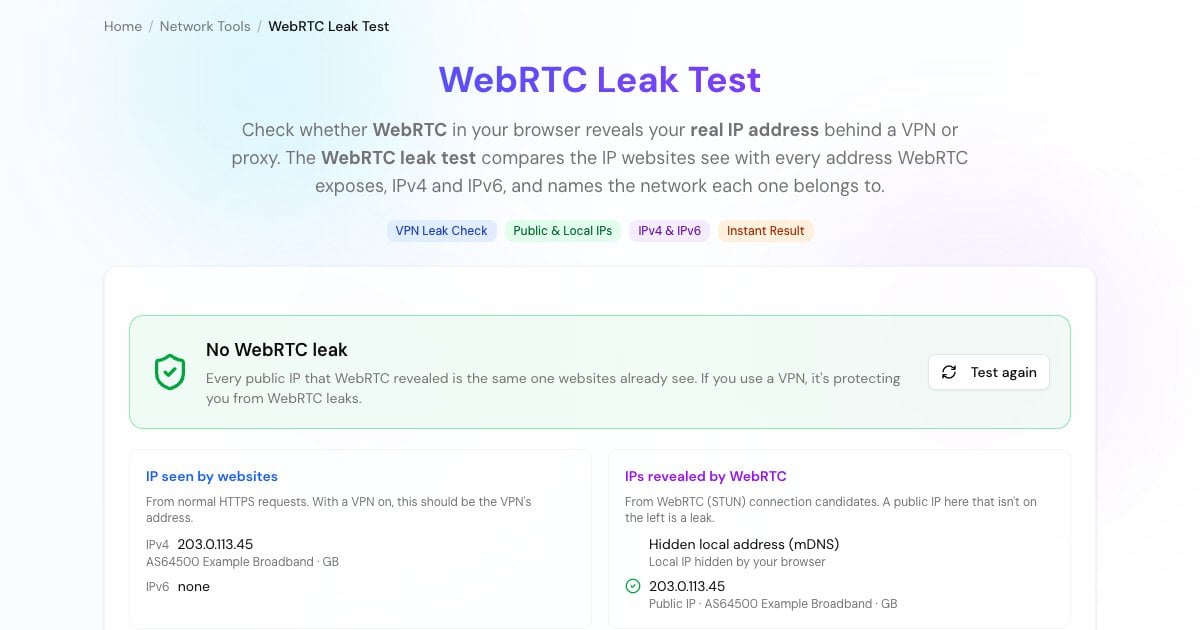
Your browser makes ordinary HTTPS requests to IPv4-only and IPv6-only servers. Those addresses are what every website sees.
The test opens a WebRTC connection that's never used for anything, just to collect its candidates: local addresses, plus the public IP Google's STUN servers report back.
If WebRTC reveals a public IP that isn't your browsing IP, that's a leak. The test names the network behind each IP so you can spot your real ISP next to your VPN.
Apply one of the fixes below, then press Test again to confirm the leak is gone.
Advertisement
What Your Result Means
WebRTC only revealed the IP websites already see. Your VPN or browser is handling WebRTC correctly.
WebRTC revealed a different public IP, usually your real one. Anyone running a script on a page you visit can read it.
Your browser or an extension blocks WebRTC completely. Nothing can leak, but browser-based video calls won't work.
Older browsers show local addresses like 192.168.1.20. Modern Chrome, Edge, Firefox and Safari hide them, usually behind random mDNS names ending in .local.
How to Stop a WebRTC Leak
Use your VPN's leak protection. Most reputable VPN apps have a WebRTC or "leak protection" setting, or route all traffic through the tunnel so STUN requests go through it too. Turn it on, then test again.
Chrome and Edge: neither has a built-in switch. Install Google's official WebRTC Network Limiter extension from the Chrome Web Store. It stops WebRTC from using your ISP address while you browse through a VPN.
Firefox: open
about:configand setmedia.peerconnection.enabledtofalse. This turns WebRTC off completely, so in-browser video calls stop working.Brave: go to Settings → Privacy and security → WebRTC IP handling policy and choose Disable non-proxied UDP.
On your phone: mobile browsers have fewer settings, so rely on a VPN app that blocks WebRTC leaks.
Advertisement
Do I Need to Worry Without a VPN?
Usually not. Without a VPN or proxy, the public IP WebRTC reveals is the same one every website already sees from your normal connection, so nothing new leaks. A WebRTC leak matters when you're deliberately hiding your IP: with a VPN, a proxy or Tor-like setups.
Local addresses are a smaller privacy issue. A local IP like 192.168.1.20 doesn't identify you on the internet, but it can help with browser fingerprinting, which is why modern browsers now replace it with a random .local name.
WebRTC Leaks, DNS Leaks and IPv6 Leaks
A VPN can leak your identity in three main ways, and each needs its own check:
The browser reveals your real IP through STUN requests that bypass the tunnel.
The VPN only tunnels IPv4, so IPv6 traffic goes out through your ISP. Check it with our IPv6 test while the VPN is connected.
Your DNS lookups still go to your ISP's resolver, revealing every site you visit. Turn on your VPN app's DNS leak protection. Our DNS lookup shows how a domain resolves, but it isn't a DNS leak test.
Advertisement
More Privacy and IP Tools
More free tools to see what your connection reveals: