How to Log In to Your Router
Every home router has a small website built in, the admin page, where you change the Wi-Fi name and password, see connected devices and update the firmware. You open it in a browser with the router's local IP address. It only works from a device connected to that router.
Join its Wi-Fi or plug in a network cable. Turn off mobile data on a phone so the browser uses Wi-Fi.
It is printed on the label under the router, and your device shows it as the default gateway. The tool above lists the steps for every system.
Type it into the address bar, not the search box, for example http://192.168.1.1, or use the Open button above.
Use the login from the label or the brand table above. If someone changed it and nobody remembers it, a factory reset restores the default.
Default logins are public. Set your own admin password, then check that Wi-Fi uses WPA2 or WPA3.
Common Router IP Addresses and Who Uses Them
Router makers and internet providers each pick a default address. These six cover most homes; the full table is in the tool above.
192.168.1.1
The most common default: Linksys, NETGEAR, older ASUS, many TP-Link models, Verizon Fios and ISP-supplied ZTE fiber and DSL routers.
192.168.0.1
TP-Link, D-Link, Tenda, some NETGEAR models and the Virgin Media Hub.
10.0.0.1
Xfinity (Comcast) gateways in the US, and the portal of Piso WiFi vending machines in the Philippines: see the 10.0.0.1 Piso WiFi guide.
192.168.100.1
Cable modems such as ARRIS SURFboard and NETGEAR, and many ISP fiber ONTs (Huawei). This is the modem, not your Wi-Fi router.
192.168.1.254
AT&T gateways in the US and the BT Smart Hub in the UK. Both print the admin password on the device.
192.168.8.1
Huawei 4G/5G mobile routers and GL.iNet travel routers.
Advertisement
192.168.l.l, 10.0.0.0.1 and Other Address Typos
Millions of searches each month are for addresses that cannot work, such as 192.168.l.l (with the letter L) or 10.0.0.0.1 (one zero too many). An IP address has exactly four numbers from 0 to 255 separated by dots, and no letters. Browsers treat anything else as a search, so the admin page never opens.
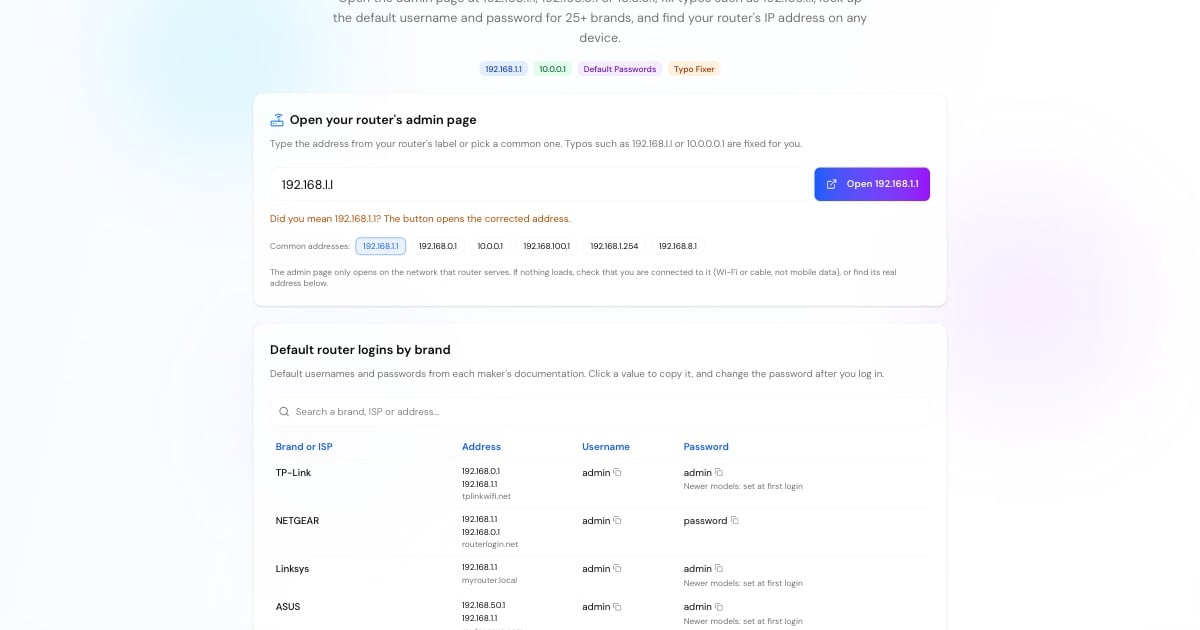
The tool above fixes these automatically and shows the address it will open. The most common mix-ups:
192.168.l.lor192.168.1.l→ 192.168.1.1 (letter l instead of the digit 1)192.168.o.1→ 192.168.0.1 (letter o instead of the digit 0)10.0.0.0.1,1.0.0.0.1or10001→ 10.0.0.1 (extra or missing dots)192.168.11→ 192.168.1.1 (missing dot)https://192.168.1.1→ try http:// first: most routers serve the admin page without HTTPS
Can't Open the Router Login Page?
When the admin page does not load, the cause is almost always one of these. Work down the list:
You are not on the router's network. Connect to its Wi-Fi or plug in a cable, and turn off mobile data.
Wrong address. Your router may not use 192.168.1.1. Check the default gateway with the steps in the tool above.
It went into the search box. Type the address into the browser's address bar with
http://in front.A VPN or iCloud Private Relay is on. Pause it; it can send the request away from your local network.
Your Wi-Fi is a mesh system. Google Nest Wifi and eero are managed only in their apps, not in a browser.
The router is stuck. Unplug it for 30 seconds and try again.
Forgotten password. Hold the reset button for about 10 seconds to restore the factory login. This also erases your Wi-Fi name, password and other settings.
Advertisement
What to Do After You Log In
Once you are in, a few minutes of changes make the network faster and much harder to break into:
Change the admin password. The default is published for every model, including in the table above.
Update the firmware. Most routers have a Check for updates button under Administration or System.
Use WPA2 or WPA3 for Wi-Fi with a long password, and turn off WPS.
Turn off remote management unless you need it, so the admin page is not exposed to the internet.
Pick faster DNS servers. The DNS speed test shows which public resolver answers quickest from your connection.
Check port forwarding. After opening a port for a game or camera, confirm it from outside with the port checker.
Router IP Address vs Public IP Address
Your router has two addresses. The local (private) address, such as 192.168.1.1, is used only inside your home and is the one you log in to. Private addresses come from three reserved ranges: 10.0.0.0/8, 172.16.0.0/12 and 192.168.0.0/16. Millions of homes use the same ones, and they cannot be reached from the internet.
The public address is the one your internet provider gives the router, and it is what websites see. What Is My IP shows it, and IP Lookup shows who owns any public address. To work out the range of a local network, use the subnet calculator.
Advertisement
More Network Tools
Useful next steps once you can reach your router: