











192.168.31.1 Login: Xiaomi Router and Mesh Admin (router.miwifi.com)
192.168.31.1 login: open your Xiaomi router's admin page at router.miwifi.com, find out which password it takes, and change your Wi-Fi.

A common router address
Or an admin hostname:28 more
Page didn't open? Try these fixes
- 1
Connect to the router's Wi-Fi or cable, and turn off mobile data. The admin page only works inside that network.
- 2
Use http://, not https://. Most routers have no certificate, so https:// fails or shows a warning.
- 3
Try the other common addresses above. Your router may use 192.168.0.1, 10.0.0.1 or 192.168.100.1 instead.
- 4
Look up your router's real address (the default gateway) with the steps at the bottom of this tool.
- 5
Turn off VPN, proxy and private DNS apps, or try another browser.
- 6
Still nothing? Restart the router, wait two minutes and try again. As a last resort, hold the reset button for 10 seconds (this erases your settings).
What Is 192.168.31.1?
192.168.31.1 is the default admin address of Xiaomi routers and Xiaomi Mesh systems, sold worldwide: models such as the Xiaomi Router AC1200, AX1500, AX3000T and BE3600, the Mi Router 3C, the Mi Router 4A Gigabit Edition and the Xiaomi Mesh System AC1200.
The same page opens by name at router.miwifi.com (Xiaomi's current guides) or miwifi.com (older guides). There is no factory password: you set one in the setup wizard, and unless you chose a separate admin password, it is the same as your Wi-Fi password.
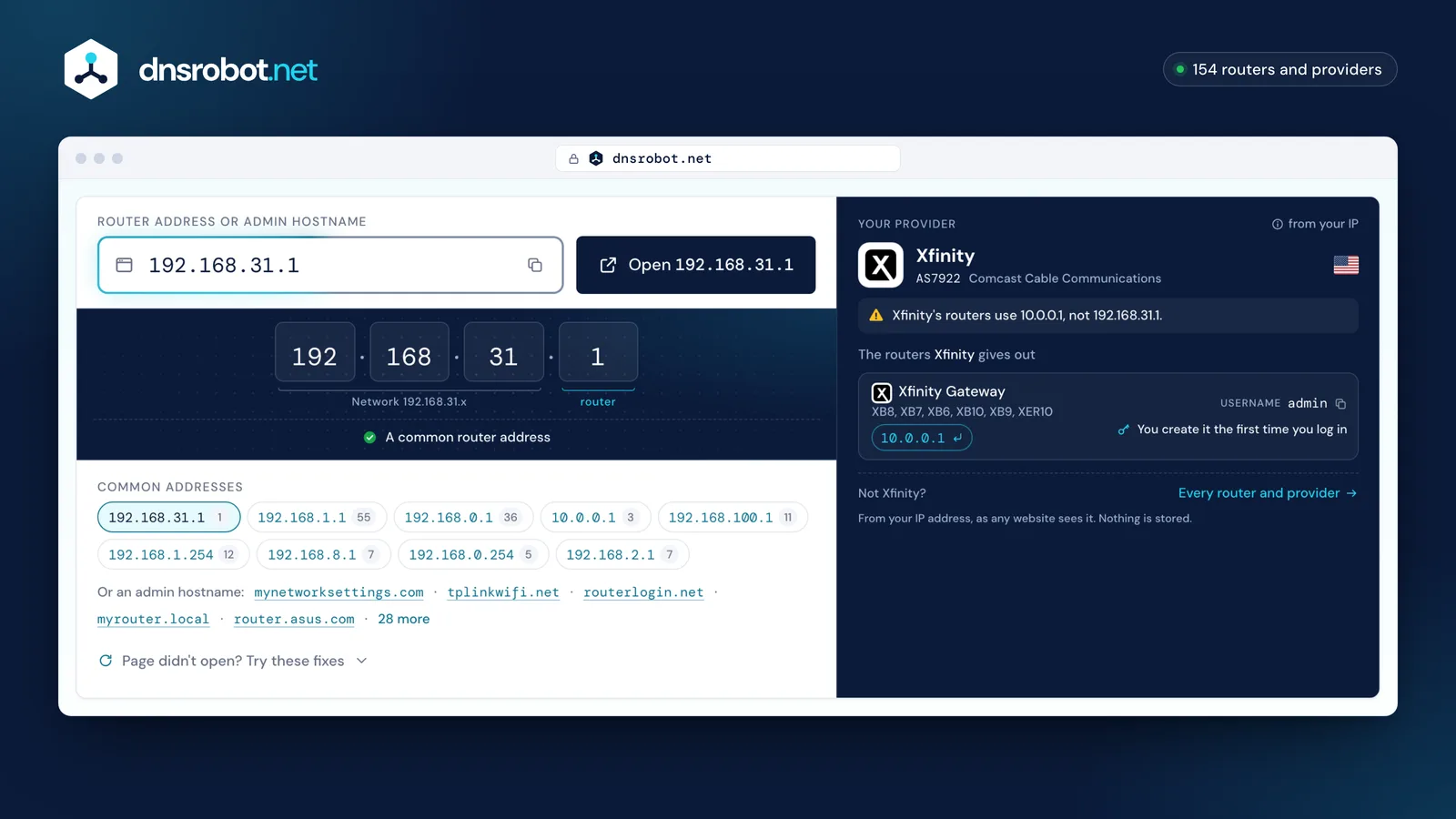
 Router addressType the address from your router's label, or pick a common one. Typos are fixed for you, and admin names like tplinkwifi.net work too.Open 192.168.31.1The most common router addressDid you mean 192.168.1.1? The button opens the corrected address.The most common router addressYour providerFrom your IP address, as any website sees it. Nothing is stored.
How does router login work?
Your router has two addresses. The local (private) address, such as 192.168.1.1, is used only inside your home and is the one you log in to. Private addresses come from three reserved ranges: 10.0.0.0/8, 172.16.0.0/12 and 192.168.0.0/16. Millions of homes use the same ones, and they cannot be reached from the internet.
- Your phone or laptop
- Reaches the admin page only through the router's own Wi-Fi or a cable
- Your router
- Serves the admin page on its private address; the internet sees only its public one
- The internet
- Has no route to 192.168.x.x or 10.x.x.x: those addresses exist inside each home
Who uses 192.168.31.1?
Default usernames and passwords from each maker's documentation. Click a value to copy it, and change the password after you log in.
1 login: what it looks like
- Set at first login1
Sold worldwide1
- Wi-Fi password is under
- Common Settings›Wi-Fi Settings Change the Wi-Fi password
- Note
- If no separate admin password was set, your Wi-Fi password logs in.
- Source
- mi.com
No brand matches that search.
How to Log In to 192.168.31.1
- 1
Connect to the router
Join its Wi-Fi or plug in a network cable, and turn off mobile data on a phone. A new router's network, xiaomi_XXXX, has no password.
- 2
Open the address
Type
http://192.168.31.1orhttp://router.miwifi.comin the browser's address bar, or tap the button above. A router that hasn't been set up opens its setup wizard. - 3
Sign in
Enter the admin password set in the wizard. If you ticked the box to use your Wi-Fi password, or never set a separate one, it is your Wi-Fi password.
- 4
Open the Wi-Fi settings
On current firmware go to Common Settings → Wi-Fi Settings; older firmware calls it Settings → Wi-Fi Settings.
192.168.31.1 Admin Password
Xiaomi routers have no factory admin password. Which one yours takes:
- A new router: the Wi-Fi network is open, and the setup wizard asks you to set a Wi-Fi password and an admin password.
- Same as the Wi-Fi password: the wizard has a box to use your Wi-Fi password as the admin password. If you didn't set a separate one, your Wi-Fi password logs in.
- A separate admin password: if you left the box unticked, the wizard showed a second page for the management password, and that password logs in.
- Forgotten password: try your Wi-Fi password first. If that fails, reset the router to factory settings and run the setup wizard again; the reset also erases your Wi-Fi name, password and internet settings.
Change Your Xiaomi Wi-Fi Password
Log in at 192.168.31.1 and open Common Settings → Wi-Fi Settings; on older firmware the menu is Settings → Wi-Fi Settings. Change the password for your network, save, and reconnect every device with the new password.
In the Xiaomi Home app (also called Mi Home), open your router, then Network Settings → Wi-Fi Settings. Older models were managed in the Mi Wi-Fi app instead, and the newer Xiaomi Router BE3600 works only with Xiaomi Home.
On a phone it is often easier: Xiaomi Home can change the Wi-Fi name and password too.
Change the router's admin password as well, so nobody on your Wi-Fi can open its settings.
- 1
Log in to the admin page
Open router.miwifi.com and log in.Open 192.168.31.1Default login:You create it the first time you log inIf no separate admin password was set, your Wi-Fi password logs in.
- 2
Open the Wi-Fi settings
Open this menu: Common Settings›Wi-Fi Settings - 3
Type a new password
Type the new password in the Wi-Fi password field. Use 12 or more characters and WPA2 or WPA3 security.The Wi-Fi name (SSID) is on the same page if you want to change it too.
- 4
Save and reconnect
Click Save or Apply. Every device disconnects and has to join again with the new password.
router.miwifi.com, miwifi.com and the Xiaomi Home App
router.miwifi.com and miwifi.com are names for the same admin page as 192.168.31.1. Xiaomi's current pages use router.miwifi.com, and newer routers show it on the back; older Xiaomi guides and internet providers' guides use miwifi.com. Both work only from a device connected to the router.
On a phone, Xiaomi now uses the Xiaomi Home app (Mi Home). The Xiaomi Router BE3600 can be added only to Xiaomi Home, not to the older Mi Wi-Fi app that guides for models such as the Mi Router 3C still mention.
Internet providers publish their own guides for customers with a Xiaomi router: Briz and Maxnet in Ukraine and Ufanet in Russia all point to 192.168.31.1 or miwifi.com, and Ufanet notes that a new Xiaomi router's Wi-Fi has no password.
192.168.31.1 Not Opening?
If the page doesn't load, check these in order:
What do you see?
You're not on the router's network
What to do
Join its Wi-Fi (on a new router, the open xiaomi_XXXX network) or plug in a cable, and turn off mobile data on your phone.
The address went into a search box or lost a digit
What to do
Type http://192.168.31.1 in the address bar, with the 31: 192.168.3.1 is a different address, used by Huawei routers.
router.miwifi.com doesn't load
What to do
Use the number, http://192.168.31.1, and turn off VPN and Private DNS apps while you log in.
Your router isn't a Xiaomi
What to do
Other routers use other addresses; your device's default gateway shows the one to open (steps in the tool above).
The page opens but the password is refused
What to do
Try your Wi-Fi password; if that fails too, reset the router and set it up again.
Find your router's IP address
Your router's address is your device's default gateway. Here is where each system shows it.
Press Windows + R, type cmd and press Enter. Run ipconfig and read the Default Gateway line under your Wi-Fi or Ethernet adapter.
Common Router IP Addresses and Who Uses Them
192.168.31.1 FAQ
How do I log in to 192.168.31.1?
What is the default password for 192.168.31.1?
I forgot my Xiaomi router's admin password. What can I do?
What is router.miwifi.com?
Which routers use 192.168.31.1?
Why is 192.168.31.1 not opening?
How do I change the Wi-Fi password on a Xiaomi router?
Can I use the Mi Wi-Fi app with my Xiaomi router?
Does a new Xiaomi router have a Wi-Fi password?
Is 192.168.31.1 the same as 192.168.3.1?
Missing something?Suggest a feature or a new tool
More Router and Network Tools
What Is My IP
Your public IPv4 and IPv6 at once, with the network, location and a VPN check
MAC Address Lookup
Identify device vendor from MAC address using IEEE database
DNS Speed Test
Time Cloudflare 1.1.1.1, Google 8.8.8.8 and more public DNS servers from your own browser, against your current DNS, and find the fastest for you
Port Checker
Test port connectivity and service availability
What Is My ISP
Discover your ISP, ASN, and connection details
Subnet Calculator
Network, broadcast, usable hosts and masks for any IPv4 or IPv6 block, plus VLSM, splits and cloud subnets