










DNS Leak Test
See which DNS servers really answer your lookups and whether your VPN leaks them to your internet provider. This DNS leak check runs as the page opens and names every server, with a plain verdict.
The DNS servers that ask our nameserver appear here, one row each, as they arrive.
Check from the command line
1Your system's DNS
The DNS server your apps use. Compare it with the rows above.
C:\> nslookup -type=txt whoami.leak.dnsrobot.net- The answer is the address of the DNS server that asked us.
- A different answer means your browser and your apps take different paths, for example the browser's Secure DNS.
- Running your own resolver (Pi-hole with Unbound)? The answer is your home address: don't post it publicly.
2The hijack test
Asks Cloudflare (1.1.1.1) directly.
C:\> nslookup -type=txt whoami.leak.dnsrobot.net 1.1.1.1- A Cloudflare address (AS13335): your lookup reached Cloudflare as asked.
- Any other network's address: a strong sign something reroutes your DNS: your VPN app (some do it on purpose), security software, your router or your provider.
The text stays on this page; only the address is looked up on our server to name its network.
Our nameserver keeps each test's sightings for 10 minutes in memory, then forgets them. Your last result stays only in this browser, for the before/after.
What does my DNS leak test result mean?
It depends on two things: which DNS servers asked our nameserver, and whether you're on a VPN. Your internet provider's DNS is normal without a VPN and a leak with one; a public DNS such as Cloudflare or Google is never a leak by itself.
A DNS leak means your provider's DNS servers answered while you were on a VPN, so your provider sees the sites you look up despite the tunnel. Partner or hosting companies that run your VPN's DNS are not a leak: Proton VPN draws the same line.
The test sorts each server by kind (your VPN's DNS, a public DNS, your ISP's DNS, a hosting network or your own resolver) and writes the verdict from the mix, with the brand named. Your VPN's DNS plus your provider's is a partial leak: some lookups escape now and then.
Nothing arrived is never a pass: something stopped the test's lookups before they reached the internet. And a DNS server in another country isn't a leak either.
What asked our nameserver × are you on a VPN?the six verdicts
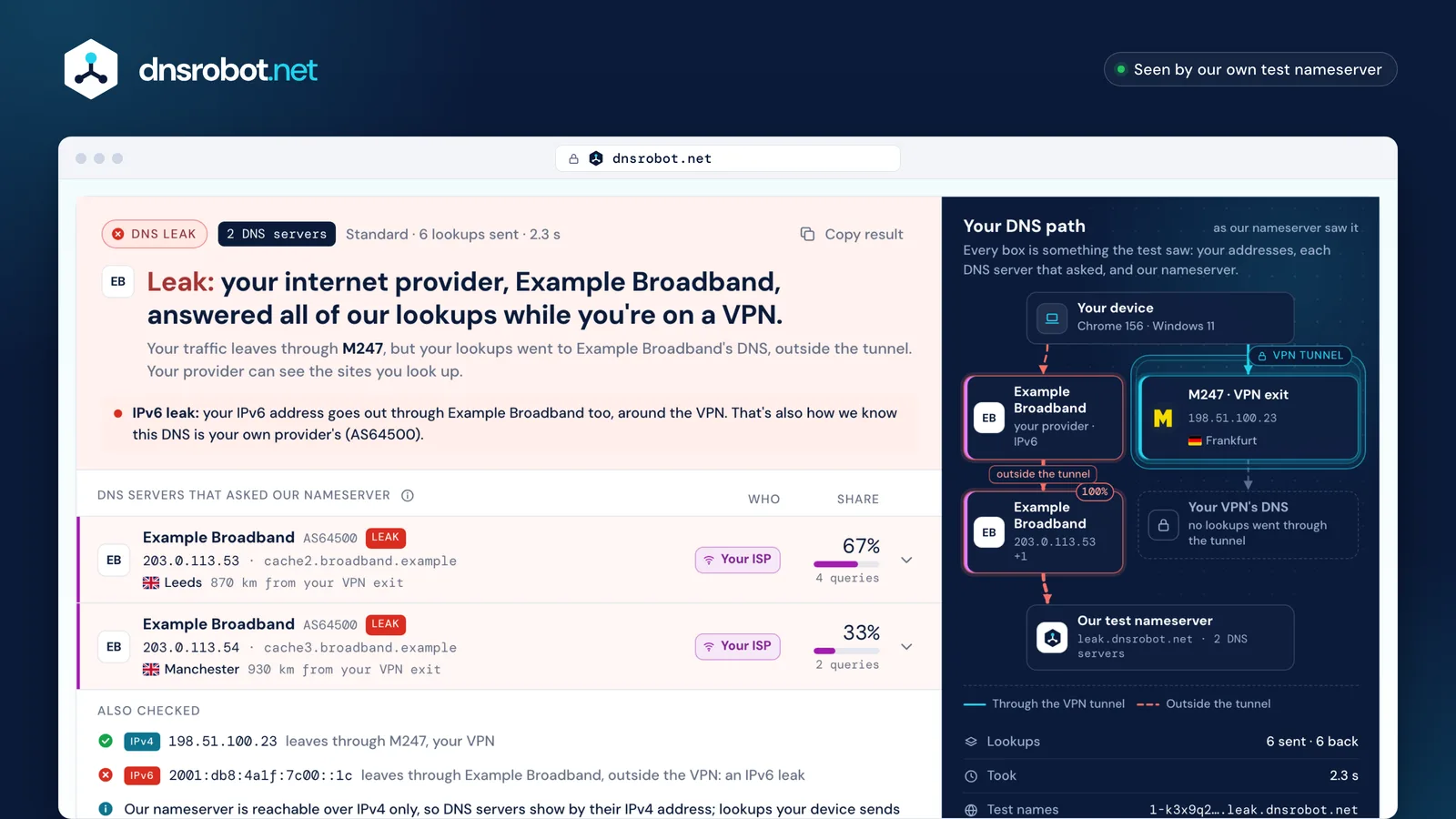
 The verdictOne sentence that names who answers your lookups and whether that's a leak, with what to do next.A DNS serverEach server that asked our nameserver: its brand or network, IPv4 address, location, kind and share of the queries.Also checkedWhere your IPv6 address leaves from, plus a note when iCloud Private Relay or Tor carries your traffic.Your DNS pathYour device, the VPN tunnel and the DNS servers that asked, with a leak drawn as a lookup outside the tunnel.
How does a DNS leak test work?
This DNS leak checker makes your browser look up names that have never existed, such as 1-k3x9q2mfp7c1vn4a.leak.dnsrobot.net. No DNS server has them cached, so whichever server handles your lookups must ask our nameserver, which notes its address and answers "no such name".
The page then asks our nameserver which DNS servers came asking for this test's names. Those are the servers your browser really uses, whatever your settings say; a home router usually just passes lookups on, so the server it forwards to is the one that shows. Each name is used once, and our nameserver forgets the test after 10 minutes.
The standard test makes 6 lookups, usually enough to spot a leak. The extended test makes 36, in batches of 6, to catch a DNS server that answers only now and then, such as Windows trying every adapter when the VPN's DNS is slow to reply.
If a DNS server passes on part of your address (EDNS Client Subnet), its row shows that subnet to you alone. It's never logged.
One lookup, followeda test run, addresses replaced
Why do Google, Cloudflare or another country show up?
Because the address you set isn't the address that asks. Public DNS services answer at 1.1.1.1 or 8.8.8.8 from many sites at once (anycast), and each site asks other nameservers from its own pool of addresses, sometimes in a partner's network.
From one connection we tested, only Cloudflare, Google and OpenDNS reached our nameserver from their own networks; Quad9 came through Equinix, AdGuard through Datacamp and NextDNS through Vultr. None of that is a leak. A public DNS in your result means your browser, device or VPN sends lookups there, and from a VPN they arrive from the VPN's address, not yours.
So the test doesn't trust a table: it asks each public DNS service from your browser which address it uses for you, and checks Google against the ranges Google publishes. A server it can't confirm is shown as likely that service, or as a server on a hosting network, never as a leak.
Countries mislead too: registry data gives the country where a network is registered, not where the server stands (1.1.1.1 itself is registered in Australia). A leak is about who sees your lookups, not where they are.
You set · what asked us · its networkone recorded run, addresses replaced
 Recorded on a fibre line in India, Oct 24, 2026
- Cloudflare
1.1.1.1192.0.2.10its own network, AS13335 registry country: United StatesNot a leak
 - Google
8.8.8.8192.0.2.12,192.0.2.13its own network, AS15169registry country: United Statestwo addresses for two lookupsNot a leak - Quad9
9.9.9.9192.0.2.11via Equinix, AS15830 registry country: Netherlandsa partner's networkNot a leak
 - AdGuard
94.140.14.14192.0.2.30via Datacamp (CDN77), AS60068a hosting partner (it also carries DNS4EU)Not a leak - NextDNSyour config
192.0.2.41via Vultr, AS20473a hosting partner (it also carries CleanBrowsing)Not a leak




What causes a DNS leak?
Usually your device sending lookups somewhere other than the VPN: the VPN app doesn't set its own DNS, Windows asks every network adapter, or IPv6 goes around a tunnel that only carries IPv4.
Windows can send each lookup on Wi-Fi and the VPN at the same time to answer faster (smart multi-homed name resolution). Many VPNs carry only IPv4, leaving IPv6 traffic, and DNS sent over it, outside the tunnel (RFC 7359). A custom DNS set on the system can override the VPN app's protection too.
Each cause leaves its own pattern in the result. A custom Secure DNS provider in the browser shows as that public DNS, past the VPN's own. Chrome's automatic mode keeps your current provider, though, and Firefox's default steps aside for a VPN.
Something that reroutes DNS on port 53, such as a provider's transparent proxy, shows your provider even when you set 1.1.1.1. A VPN that drops without a kill switch leaks only for a moment, so one test can miss it: test again after the VPN reconnects.
Six causes, and what this test shows for eachthe card's last line
The VPN doesn't set its own DNS
Traffic goes through the tunnel, but the system keeps the DNS servers it had before, usually your provider's.
DNS leakyour ISP's DNS on a VPN
A custom Secure DNS in the browser
Set to a custom provider, the browser sends lookups to it over HTTPS, past the VPN's DNS. Chrome's automatic mode keeps your current provider, and Firefox's default steps aside when it sees a VPN.
No leaka public DNS, not your VPN's
Windows asks every adapter
With smart multi-homed name resolution, Windows sends lookups on every network at once: the VPN and Wi-Fi alike.
Partial leakyour VPN's DNS + your ISP's DNS
IPv6 goes around the tunnel
Many VPNs carry IPv4 only. IPv6 traffic, and any DNS sent over it, leaves through your provider.
IPv6 leakits own line under the result
Something reroutes DNS
A router, security software or the provider (or a VPN app, on purpose) catches lookups on port 53 and answers them, even ones meant for 1.1.1.1.
Your ISP's DNS“Not Cloudflare 1.1.1.1: your ISP answered”
The VPN drops, with no kill switch
If the tunnel is interrupted, lookups can go to the system's default DNS, probably your provider's, until it's back.
Partial leakonly now and then: the extended test catches it more often
How do I fix a DNS leak?
Turn on your VPN app's DNS leak protection, IPv6 leak protection and kill switch, then test again. Leak protection keeps DNS inside the VPN with firewall rules; the kill switch covers the moments when the tunnel drops.
If the leak stays, fix the system. On Windows, block-outside-dns in an OpenVPN profile keeps lookups off every other adapter, and a WireGuard tunnel that routes everything (0.0.0.0/0) with a DNS = line lets port 53 reach only the tunnel's DNS. Turning off smart multi-homed name resolution only stops the parallel lookups; it isn't the fix.
On Linux with systemd-resolved, give the VPN link the ~. routing domain so no other link is asked. Let the VPN app carry or block IPv6 rather than turning IPv6 off, which Microsoft advises against. Remove a custom Secure DNS provider from the browser and a custom DNS from the system while you use the VPN.
On Android, set Private DNS to Off while on the VPN, as Proton VPN and Mullvad advise: a Private DNS hostname sends every lookup to that provider. Then run the test again: the before and after shows which DNS servers went away.
The switches that matterper system
VPN app · Settings
OpenVPN profile (.ovpn)
WireGuard (.conf)
Windows 11 · Settings

SettingsNetwork & internetWi-FiManage known networks
Leave IPv6 on: Microsoft advises against turning it off. Use the VPN app's IPv6 leak protection.
Group Policy
registry value
Check the system's DNS
macOS · System Settings

Apple menuSystem SettingsNetworkWi-FiDetailsDNS
An encrypted DNS profile or app you turned on applies to the whole system, and a VPN app can't redirect it.
With a VPN on, iCloud Private Relay steps aside.
Check the system's DNS
Linux

~. routing domain/etc/resolv.conf after connecting.Check the system's DNS
Android · Settings

SettingsNetwork & internetPrivate DNS
Samsung: SettingsConnectionsMore connection settingsPrivate DNS
- Off
- Automatic
- Private DNS provider hostname
- VPN makers say to choose Off while you use the VPN.
- A hostname sends every lookup to that provider, past the VPN's DNS.
iPhone · Settings
SettingsWi-FiⓘConfigure DNS
- Automatic
- Manual
A DNS you type in applies to that Wi-Fi network only, and can override the VPN's.
- An encrypted DNS profile or app you turned on applies system-wide, and a VPN app can't redirect it.
- With a VPN on, iCloud Private Relay steps aside.
Chrome · Settings

SettingsPrivacy and securitySecurityAdvanced
- your current service provider
- a custom service provider
Edge: the same choices, underSettingsPrivacy, search, and services

- Automatic mode only upgrades your current provider to encrypted DNS.
- A custom provider sends lookups past the VPN, where the VPN app can't redirect them.
- VPN makers go further and say to turn it off.
Firefox · Settings

DNS over HTTPS
- Default Protection
- Increased Protection
- Max Protection
- Off
- Default Protection turns DNS over HTTPS off when it detects a VPN.
- Increased and Max keep your chosen provider, past the VPN's DNS.
- On by default only in United States, Canada, Russia, and Ukraine.
Is your custom DNS working? Check 1.1.1.1, NextDNS, AdGuard or Pi-hole
Pick what you set up under What are you checking? and run the test: the verdict says whether that service really answers. A working setup shows only that service, often from a partner's or host's network rather than its own, as the table shows. Once it works, the DNS Speed Test times it against other resolvers from your connection.
A Pi-hole forwards to its upstream DNS, so the test shows that upstream (Cloudflare, for example), not the Pi-hole. With Unbound it looks names up itself, so your own home address shows: normal without a VPN. Cloudflare and NextDNS confirm their own services too, on Cloudflare's check page and test.nextdns.io.
If your provider shows up instead, a router, an app or the browser is overriding your choice, or something reroutes port 53; some routers even misroute 1.1.1.1 itself. The command-line check narrows down which.
What each service should showone connection's example
| Service | You set | This test should show | Often arrives from |
|---|---|---|---|
| Cloudflare | 1.1.1.1 | Public DNS Cloudflare | its own network · AS13335 |
| Google Public DNS | 8.8.8.8 | Public DNS Google | its own published ranges · AS15169 +3 more |
| Quad9 | 9.9.9.9 | Public DNS Quad9 | a partner, such as Equinix · AS15830 |
| NextDNS | your config ID | Hosting NextDNS likely | a host, such as Vultr · AS20473 |
| AdGuard DNS | 94.140.14.14 | Hosting AdGuard likely | a host, such as Datacamp (CDN77) · AS60068 |
| Control D | 76.76.2.0 | Public DNS Control D | a regional host · AS146943 |
| Pi-hole | your Pi-hole's address | Public DNS your Pi-hole's upstream, or Your own with Unbound | your upstream's network, or your own address |


How do I check for DNS leaks from the command line?
Run nslookup -type=txt whoami.leak.dnsrobot.net: our nameserver answers with the address of the DNS server that asked, your system's default. On a Mac use dns-sd -q whoami.leak.dnsrobot.net TXT (stop it with Ctrl-C), because dig sees only the primary DNS setting there; on Linux, resolvectl query --type=TXT whoami.leak.dnsrobot.net. The command panel copies each one.
This test sees the DNS your browser uses, and apps may take a different path: a custom Secure DNS provider in Chrome or Firefox gets the browser's lookups instead of the system's DNS. If the browser and the command disagree, the leak is in one of them only.
Add 1.1.1.1 at the end to ask Cloudflare directly (dig @1.1.1.1 TXT whoami.leak.dnsrobot.net +short on a Mac or Linux). The answer should be an address in Cloudflare's network. Any other network's address is a strong sign that something answers DNS meant for 1.1.1.1: your VPN app (some do it on purpose), security software, your router or your provider.
If you run your own resolver, such as Pi-hole with Unbound, the answer is your own home address: keep that in mind before you paste it anywhere.
Two checks from a terminalWindows nslookup, real output shape
C:\> nslookup -type=txt whoami.leak.dnsrobot.net
Server:  cache2.broadband.example
Address:  203.0.113.53

Non-authoritative answer:
whoami.leak.dnsrobot.net        text =

        "203.0.113.53"
Example Broadband's DNS: the same server as the browser test, so here the browser and the system take the same path.
Running your own resolver (Pi-hole with Unbound)? Then the answer is your own public address.
C:\> nslookup -type=txt whoami.leak.dnsrobot.net 1.1.1.1
Server:  one.one.one.one
Address:  1.1.1.1

Non-authoritative answer:
whoami.leak.dnsrobot.net        text =

        "192.0.2.10"
A Cloudflare address (AS13335): your lookup reached Cloudflare, as asked. That alone doesn't prove nothing is in between: a proxy can pass lookups on to 1.1.1.1.
Had it said "203.0.113.53": a strong sign something reroutes your DNS: your VPN app (some do it on purpose), security software, your router or your provider.
DNS leaks, IPv6 leaks and WebRTC leaks: what's the difference?
They're three different roads around a VPN. A DNS leak shows your provider the names you look up; an IPv6 leak sends IPv6 traffic out with your real address; a WebRTC leak lets a website read your address through the browser's real-time calling feature. A full VPN leak test, or IP leak test, looks at all three.
This page checks the first two in one run: the DNS servers that ask, and where your IPv6 address leaves from, on its own line under the result. WebRTC never touches DNS, so it has its own WebRTC leak test; the addresses websites see are on What Is My IP, and whether you reach IPv6 sites at all on the IPv6 test.
It also works as an IPv6 DNS leak test, with one limit: our nameserver is reachable over IPv4 only, so every DNS server is shown by its IPv4 address. A lookup your device sends over IPv6 is still caught, because the DNS server it reaches has to ask us over IPv4; a rare IPv6-only DNS server can't reach us and shows as nothing arrived.
Three roads past a VPNone connection, three checks
- DNS leakThe DNS servers that asked: this test's rows.
- WebRTC leakThe addresses your browser can share with websites: the WebRTC leak test checks them.
- IPv6 leakWhere your IPv6 traffic leaves: its own line under this test's result.
What should a VPN show on a DNS leak test?
Only the VPN's own DNS: a server in the VPN's network or its partner's, usually near the server you connected to. Your internet provider's name should never appear while the VPN is on; What Is My ISP shows which network websites see instead, and the VPN test checks that address, WebRTC and this DNS test in one run.
The vendors describe it differently. Surfshark says a Surfshark DNS leak test should show one DNS server with the same address as your VPN; Proton VPN and Windscribe say the address differs but sits in the same place. Mullvad uses the DNS server on the VPN server you're connected to, ExpressVPN runs its own encrypted DNS on every server, and NordVPN publishes its two DNS addresses.
So an ExpressVPN, Mullvad or NordVPN DNS leak test, like any VPN DNS leak test, passes when no DNS server sits in your provider's network, whatever the address: this test never compares addresses. Mullvad's own rule is stricter: any DNS server that isn't Mullvad's counts as a leak there.
A custom DNS in the VPN app changes the picture: PIA's "Use Existing DNS" and Mullvad's custom DNS option send lookups past the VPN's own DNS, so that server shows instead. The table lists what each VPN's own help pages say; it isn't a ranking or a recommendation.
What seven VPNs say you should seefrom their own help pages
| VPN | Own DNS by default | What this test shows | DNS address it publishes |
|---|---|---|---|
| Mullvad | yes | The DNS server on the Mullvad server you're connected to | not published |
| Proton VPN | yes | A DNS server in the same data centre as your VPN server, on a different address; it may belong to a partner | 10.2.0.1 |
| NordVPN | yes | NordVPN's own DNS servers | 103.86.96.100103.86.99.100 |
| Surfshark | yes | One DNS server from the same location; Surfshark says your IP and DNS addresses match | not published |
| ExpressVPN | yes | ExpressVPN's own encrypted DNS, which runs on every one of its servers | not published |
| Private Internet Access | yes | PIA's DNS, the app's default | 10.0.0.24210.0.0.243 |
| Windscribe | yes | Its own DNS in the same country, usually not your exact VPN address | 10.255.255.x |




DNS leak test: questions
What is a DNS leak, and is it bad?
Can my ISP see my browsing if DNS leaks?
Does a VPN fix DNS leaks?
Why does the test show a DNS server in another country?
Why do I see Google or Cloudflare when I didn't set them?
The test found no DNS servers. Does that mean there's no leak?
*.leak.dnsrobot.net and run the test again, or try the extended test. An empty result is never treated as a pass.Is this DNS leak test private?
What is an IPv6 leak, and does this test check it?
Does DNS over HTTPS stop DNS leaks?
Can I have a DNS leak without a VPN?
How do I fix a DNS leak on Android or iPhone?
How often should I test for DNS leaks?
Missing something?Suggest a feature or a new tool
More DNS and network tools
VPN Test
Check whether your VPN is on and whether DNS, WebRTC or your other address family leaks around it, in one run
DNS Speed Test
Time Cloudflare 1.1.1.1, Google 8.8.8.8 and more public DNS servers from your own browser, against your current DNS, and find the fastest for you
WebRTC Leak Test
Check whether WebRTC in your browser reveals your real IP address behind a VPN or proxy, plus any local IPs it exposes
What Is My IP
Your public IPv4 and IPv6 at once, with the network, location and a VPN check
What Is My ISP
Discover your ISP, ASN, and connection details
IPv6 Test
Test if your IPv6 works, which family your browser picks and if a site has IPv6