








CSR Generator
Make a certificate signing request and the private key that goes with it, here on this page. The key pair is generated by your browser's own Web Crypto and never leaves your computer: nothing you type and no key is sent to our server or anyone else's.
One per line. The first also becomes the common name.
The sensible default: as strong as RSA 3072, and far smaller.
Your organisation's legal name, as it is registered.
Write it out in full rather than abbreviating it.
Two letters, the ISO 3166-1 code.
Two letters, the ISO 3166-1 code.
What to ask forA public CA sets these from its own profile. A private CA may want them asked for.
Only if your CA asked for one. SCEP enrolment uses it; a web certificate order does not.
The pair is made by your browser and never sent anywhere.
What you are about to sendECDSA P-256 · SHA-256
Type a name or try an example, and this column shows what a certificate authority would do with the request — before it is made.
The key pair is made by your browser's Web Crypto, in a frame that cannot connect anywhere, and is never sent. Open your network panel and watch.
What is a CSR generator?
It makes two files: a certificate signing request to send to a certificate authority, and the private key that stays with you. The request carries your public key and the names you want certified, signed by the private key.
The format is PKCS#10, defined in RFC 2986. Inside the request are a subject name, your public key, a set of attributes carrying the alternative names, and a signature made with your private key over all of it. That self-signature is the proof of possession: it shows the sender holds the key the certificate will be issued against.
The two files are not interchangeable. The request is meant to be sent — to a CA, in a support ticket, anywhere. The private key is not, ever. On this page the key is made and kept in your browser. You still have to trust the page's code, as with any web tool, but you can check what it sends: open your network panel and watch while you generate one.
The private keyKeep this
-----BEGIN PRIVATE KEY------ The private halfSigns the request now, and every connection to your server later
- Its public halfCopied into the request
One copy, on your computer
The certificate signing requestSend this
-----BEGIN CERTIFICATE REQUEST------ Subject name108 bytesOptional for most certificates
- Your public key294 bytesThe one field a certificate authority is certain to use
- The names you asked for60 bytesThe alternative names, carried as an attribute
- The signature261 bytesMade by the private key, over everything above it
It carries no secret
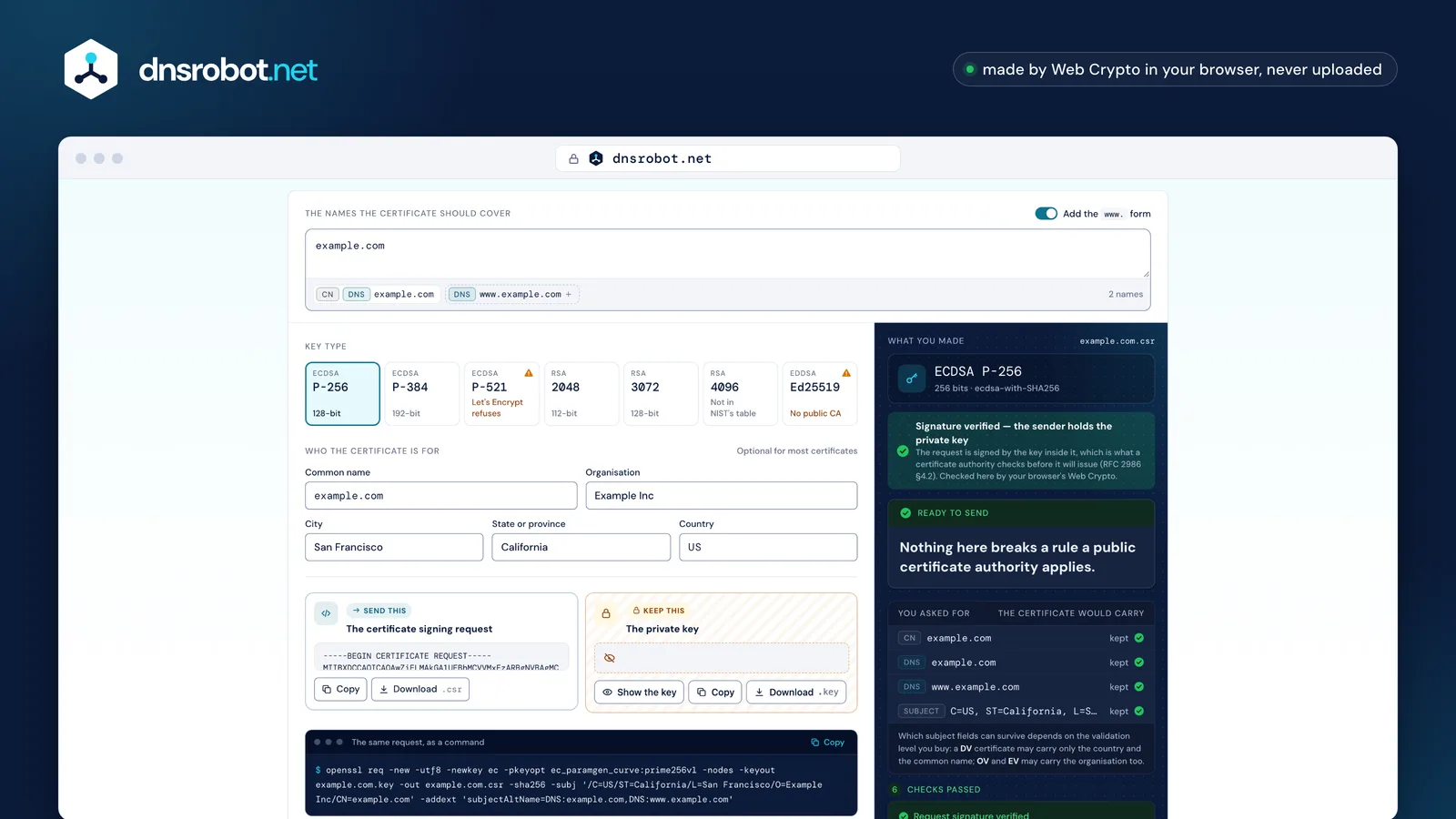
 The namesThe host names the certificate should cover. The first one becomes the common name; the rest join it.The keyRSA or an elliptic curve. The pair is made by your browser, in front of you.Who you areThe subject fields. A public CA validates these itself, so only a few of them survive.The two filesThe request to send, and the private key to keep. The key exists only in your browser until you save it.The same, as a commandThe OpenSSL line that makes exactly this request, for when you would rather do it yourself.
Why generate the key in your browser?
Because a private key that reaches someone else's server meets the industry's own definition of a compromised key — whatever that server then does with it.
The CA/Browser Forum's Baseline Requirements define it without room for argument: "A Private Key is said to be compromised if its value has been disclosed to an unauthorized person, or an unauthorized person has had access to it." No misuse is required. Arrival is enough.
That is not theoretical. In 2020 DigiCert found 337 private keys that customers had pasted in alongside their requests, revoked every certificate involved, and reported it publicly: "by sending the private key to DigiCert along with the CSR, the customer has compromised the private key", adding that "the only part of a CSR we use is the public key". A generator that makes the key on its own server and hands you a copy has, by that definition, already compromised it. This page cannot do that: crypto.subtle.generateKey runs in your browser, inside a sandboxed frame that is not allowed to connect anywhere, and the page around it only ever sees the public key.
This page
- Web Crypto makes the key pair
crypto.subtle.generateKey - The key signs the request
- You save both files
The key has only ever existed on your computer
A generator that makes the key on its server
- Your names and details go to the server
- The server makes the key pair
- The private key is sent back to you
Compromised by definition, before anything is installed
“A Private Key is said to be compromised if its value has been disclosed to an unauthorized person, or an unauthorized person has had access to it.”
It has already happenedIn 2020 one certificate authority found 337 private keys sent in beside requestsEvery certificate involved was revoked

How to create a CSR
Type the host names, pick a key type and press the button. Everything else is optional — a modern certificate is identified by its alternative names, not by its subject.
Put every name the certificate should cover in the names field: example.com, www.example.com, a wildcard such as *.api.example.com, or an IP address. The first becomes the common name as well: when a certificate has a common name at all, the Baseline Requirements require it to repeat one of the alternative names exactly.
The country, organisation and locality matter only for an organisation-validated or extended-validation certificate, and even then the CA has to validate them itself before they go into a certificate. For a domain-validated certificate — the kind Let's Encrypt issues — the only subject fields the rules allow are the country and the common name. The generator marks the two fields a public CA strips or forbids, the organisational unit and the email address, and the column beside the form shows what would change.
Type the names
Every host the certificate should cover; the first becomes the common namePick a key type
P-256 unless something old has to read itMake the request
Your browser makes the key and signs the request with itTake the two files
Send the request to your certificate authority; keep the key
Which key type should I choose?
ECDSA P-256 for anything new: it is as strong as a 3072-bit RSA key, much smaller, and allowed by the rules every public certificate authority follows. RSA 2048 when an older device has to read the key.
NIST puts P-256 and RSA-3072 at the same 128-bit security strength, and gives RSA-4096 no strength of its own at all — the next step in its table is 7680 bits. So 4096 costs every visitor extra handshake work for no documented gain. P-384 is the 192-bit step, and the Baseline Requirements allow P-521 too, but Let's Encrypt refuses P-521: a request can be perfectly legal and still fail at the CA you meant to use.
Ed25519 is offered here because it is excellent for SSH, for signing and for a private CA — but no public certificate authority will issue a TLS certificate against it. The rules list RSA and the three NIST curves and then say "no other algorithms or key sizes are permitted". The same goes for post-quantum ML-DSA: the ballot that would have allowed it in public TLS was closed unmerged in October 2026. The generator says so beside each choice rather than letting you find out from a rejection email.
| 112-bit | 128-bit | 192-bit | 256-bit | |
|---|---|---|---|---|
| RSA | 2048 | 3072 | 7680 | 15360 |
| RSA 4096 | 4096 | |||
| ECDSA | — | P-256 | P-384 | P-521 |

4096 bits: no step of its own The table goes from one size straight to the next, so the extra handshake work buys nothing written down
Ed25519No public certificate authority issues against it
ML-DSAPost-quantum: the ballot that would have allowed it was closed unmerged in October 2026
- The same strength
- Offered here
- In the table, not offered here
- Accepted byLet's Encrypt
What to put in each field
Names: every host the certificate covers. Country: two letters. Organisation: your legal name, for an OV or EV certificate. Everything else is optional, and some of it is now forbidden.
Organisational unit is prohibited. Under CA/Browser Forum ballot SC047, no public TLS certificate issued since 1 September 2022 may carry OU; a CA strips it rather than refuse the order. An email address in the subject is not permitted on a domain-validated certificate either, and discouraged on the others. This generator still offers both fields, for private CAs, and marks them.
The country is an ISO 3166-1 alpha-2 code — US, DE, GB, IN — not a country name, and not three letters. The state or province should be written out in full rather than abbreviated. For an extended-validation certificate you also need the jurisdiction of incorporation and the registration number, which this generator offers.
| In your request | DVDomain validated | OVOrganisation validated | EVExtended validation |
|---|---|---|---|
Common nameCN | |||
CountryC | |||
OrganisationO | |||
City, state or provinceL, ST | |||
Street, postcodestreet, postalCode | |||
Organisational unitOUBanned since September 1, 2022 | |||
Email addressemailAddress | |||
Registration number, business category, jurisdictionserialNumber, businessCategory, jurisdictionC |
- On the certificate, as the CA validated it
- Allowed, but discouraged
- Not on this kind of certificate
- Never allowed
Can I reuse a key or a CSR?
You can — nothing forbids it — but a fresh key for each certificate costs a second and limits what one leaked key can reach.
The Baseline Requirements are explicit that "one certificate request MAY suffice for multiple Certificates to be issued to the same Applicant", so reusing a request to renew is allowed. The cost appears when something goes wrong. If that key is ever compromised, every certificate carrying it must be revoked within 24 hours, not just the one you were worried about.
And a compromised key is burned permanently: a CA "SHALL reject a certificate request" if it has been told the key suffered a key compromise, so that key can never be certified again by any CA that has heard. With certificate lifetimes falling to 47 days in 2029, a reused key would be signing for years across dozens of renewals. Generating a new one takes a second.
One key, reused
www.example.comapi.example.commail.example.com
3 certificates revoked within 24 hours
And the key can never be certified again by a CA that has been told
A new key for each
www.example.comapi.example.comUntouchedmail.example.comUntouched
1 certificate revoked within 24 hours
What happens after you send the CSR
The CA validates the names, ignores most of the rest, and sends back a certificate. Keep the private key — you cannot install the certificate without it.
Validation is about the names, not the file: a DNS record, a file on the web server, or an email to an address at the domain. Once that passes, the certificate comes back and the request has no further use — it is not needed to install, renew or revoke anything. What you must keep is the private key, because the certificate is useless without it. Paste the certificate into the CSR decoder and add the private key beside it to check they match before you restart anything.
The certificate's lifetime will be short. A public TLS certificate issued today may not exceed 200 days, falling to 100 on 15 March 2027 and 47 on 15 March 2029. At those lengths renewal has to be automatic, which means ACME — and an ACME client makes the request for you, so this page is for the cases a client cannot cover: a device, an appliance, a CA that wants a request by hand.
- Your computerYou send the request
- The certificate authorityIt checks that you control each nameA DNS recordA file on the web serverAn email to an address at the domain
- The certificate authorityIt signs the certificate and sends it back
- Your computerYou install it beside the keyAfter this the request has no further use
- 398 daysIn force today
- 200 daysfrom March 15, 2026
- 100 daysfrom March 15, 2027
- 47 daysfrom March 15, 2029
The same thing with OpenSSL
openssl req -new -newkey ec -pkeyopt ec_paramgen_curve:prime256v1 -nodes -keyout example.com.key -out example.com.csr makes the key and the request in one step.
The generator writes the command for whatever you have filled in, including the alternative names and every extension, and our tests run it through OpenSSL to check it makes the same subject and extensions as the page. Add -subj "/CN=example.com" to skip the questions, -addext "subjectAltName=DNS:example.com,DNS:www.example.com" for the names, and -utf8 so an accented name survives. -nodes leaves the key unencrypted: OpenSSL 3 prefers the newer spelling -noenc but still accepts -nodes, which is the only spelling the LibreSSL built into macOS knows. That LibreSSL cannot make an Ed25519 key at all; use OpenSSL 1.1.1 or later for one.
To check what you made: openssl req -in example.com.csr -text -verify -noout prints every field and verifies the self-signature, stopping before it prints anything if the signature fails. To confirm the key belongs to the request, compare openssl req -in example.com.csr -pubkey -noout with openssl pkey -in example.com.key -pubout. No standard assigns a CSR a file extension, so .csr, .pem, .req and .txt are all correct.
1openssl req -new 2-utf8 3-newkey ec 4-pkeyopt ec_paramgen_curve:prime256v1 5-nodes 6-keyout example.com.key 7-out example.com.csr 8-sha256 9-subj '/CN=example.com' 10-addext 'subjectAltName=DNS:example.com,DNS:www.example.com'
openssl req -newMake a certificate signing request-utf8Read the subject as UTF-8, so an accented name survives-newkey…and a new key pair with it-pkeyoptOn the P-256 curve-nodesLeave the key file unencrypted (OpenSSL 3.0 also spells it -noenc)-keyoutWhere the private key is written-outWhere the request is written-sha256The hash the request is signed with-subjThe subject, so it asks no questions-addextThe alternative names
Read it back and verify its own signatureopenssl req -in example.com.csr -text -verify -noout
Does the key belong to the request? The two outputs must be identicalopenssl req -in example.com.csr -pubkey -nooutopenssl pkey -in example.com.key -pubout
Making a CSR on Windows, IIS and macOS
Windows has certreq and an .inf file; macOS has Keychain Access. Both have a trap worth knowing before you start.
On Windows, certreq -new request.inf request.req reads a file whose [NewRequest] section sets the subject and key length, and whose alternative names go in [Extensions] under OID 2.5.29.17 with _continue_ lines — there is no SAN= key, an easy mistake to make. Microsoft's own reference page carries a warning that its example uses SHA-1, and Let's Encrypt refuses a SHA-1-signed request, so set the hash yourself.
On a Mac, Keychain Access > Certificate Assistant > Request a Certificate From a Certificate Authority writes one; the key type and size are behind the "Let me specify key pair information" checkbox, and RSA keys below 2048 bits are no longer offered. Neither route makes alternative names easy, which is why a command is often the easier route.
certreqWindows Server and IIS
certreq reads a plain text file and writes the request
certreq -new request.inf request.req[NewRequest]Subject = "CN=example.com"KeyAlgorithm = RSAKeyLength = 2048HashAlgorithm = sha256RequestType = PKCS10[Extensions]2.5.29.17 = "{text}"_continue_ = "DNS=example.com&"_continue_ = "DNS=www.example.com"The alternative names: an extension named by its OID, one name per line
Set the hash yourself: Microsoft's own example is written around SHA-1, which a certificate authority refuses
There is no SAN= keyKeychain AccessmacOS
Keychain Access writes one from the Certificate AssistantYour Mac names these menus in its own language
Let me specify key pair information
The key type and size are behind this checkboxRSA up to 4096; below 2048 is no longer offeredIs an online CSR generator safe?
It depends entirely on where the key is made. A page that makes it in your browser is safe; a page that makes it on its server has had access to your private key.
The test is simple and you can run it yourself: open your browser's network panel, generate a request, and watch. If the key is made on the page, neither it nor anything you typed goes out: here the only requests are for the page itself and two public name lists, the same for every visitor. If a request goes out and a key comes back, that key existed somewhere else first, and by the industry's own definition it is compromised before you have even installed it.
This page does all of its work in the browser: the key pair comes from crypto.subtle.generateKey inside a sandboxed frame that is not allowed to connect anywhere, the page writes the request around the public key, and the frame signs it once with the private key, which never leaves it. The two files appear in your browser and nowhere else. If you would rather not trust any web page with this, the OpenSSL command on this page does the same thing on your own machine — we show it for exactly that reason.
This page
tlds.jsonThe list of top-level domains — the same for every visitorsuffixes.jsonThe public suffix list — the same for every visitorNothing you typed, and no key, leaves the page
A generator that makes the key on its server
…/generateYour names and details-----BEGIN PRIVATE KEY-----A private key, made somewhere elseA key comes back over the network: it existed somewhere else first
CSR generator: questions and answers
How do I create a CSR?
Is it safe to generate a CSR online?
Which key type should I pick?
Can I use an Ed25519 key for a public certificate?
What is the private key file for?
Do I need to fill in the organisation and country?
Why does the organisational unit field warn me?
OU is prohibited in a public TLS certificate. Under CA/Browser Forum ballot SC047, no public TLS certificate issued since 1 September 2022 may carry it, so certificate authorities strip it from the order rather than refuse it. This generator still offers the field, for private CAs, and tells you what a public one will do.Can I put more than one domain in a CSR?
www form if you want it. You can mix wildcards and plain names, and add IP addresses, though not every CA sells certificates for an address.Can I reuse a CSR or a key for the next certificate?
What is a challenge password?
Does this work for a wildcard certificate?
*.example.com in the names, and add example.com as well if you want the bare domain covered — a wildcard replaces exactly one label and does not match the name it sits under. The asterisk must be the whole left-most label, and no CA will issue a wildcard over a public suffix such as *.co.uk.What do I do with the files afterwards?
Missing something?Suggest a feature or a new tool
Related tools
SSL Converter
Convert PFX to PEM, PEM to PFX, P7B, DER, CRT and CER: the files your server needs, in order, and your private key never leaves your browser
PGP Key Generator
Create an OpenPGP key pair in your browser: Ed25519 or RSA, a passphrase, an expiry date and a revocation certificate, with which apps accept it
CSR & Certificate Decoder
Decode a CSR or SSL certificate: subject, SANs, key size, validity, issuer, fingerprint, signature check and CSR-to-certificate match
SSL Certificate Check
Verify SSL certificate validity and security details
DKIM Record Generator
Create a DKIM key pair in your browser and get the selector._domainkey TXT record to publish
Password Generator
Strong random passwords, passphrases and PINs made in your browser, each with its exact bits and crack time