











Bufferbloat Test
See how much your ping rises when your line is busy: real UDP packets, the way games and calls send them, timed idle, downloading and uploading.
Before you start: pause downloads and backups on your network, and use a cable if your line is fast.
On a fast line this test moves up to 1 GB down and 400 MB up. On mobile data, run it on Wi-Fi instead.
Every packet, as it landedExample: 1 min on a fibre line
- On time 2,995
- Late 0
- Lost 4
- Out of order 1
- Duplicate 0
How does this bufferbloat test work?
The test sends small UDP packets through Cloudflare's nearest data centre and back, about 64 a second, for three equal parts: idle, then while your line downloads, then while it uploads.
Your grade comes from the average latency of each part: the rise of the worse loaded part over idle, graded on Waveform's published scale. A+ is under 5 ms added, A under 30, B under 60, C under 200, D under 400, and F is 400 ms or more.
The loads are real downloads and uploads from Cloudflare's speed test servers. They are capped, so a very fast line may carry load for only part of each phase: the result shows how many seconds really did, and warns you when that was too short to grade.
Every packet is timed on one clock and drawn on the strip, so you can see when the queue built and whether packets were lost while it did. The test also measures packet loss and jitter in each part.
CAdded latency = the worse of (64 − 22) and (193 − 22) = 172 ms → grade C
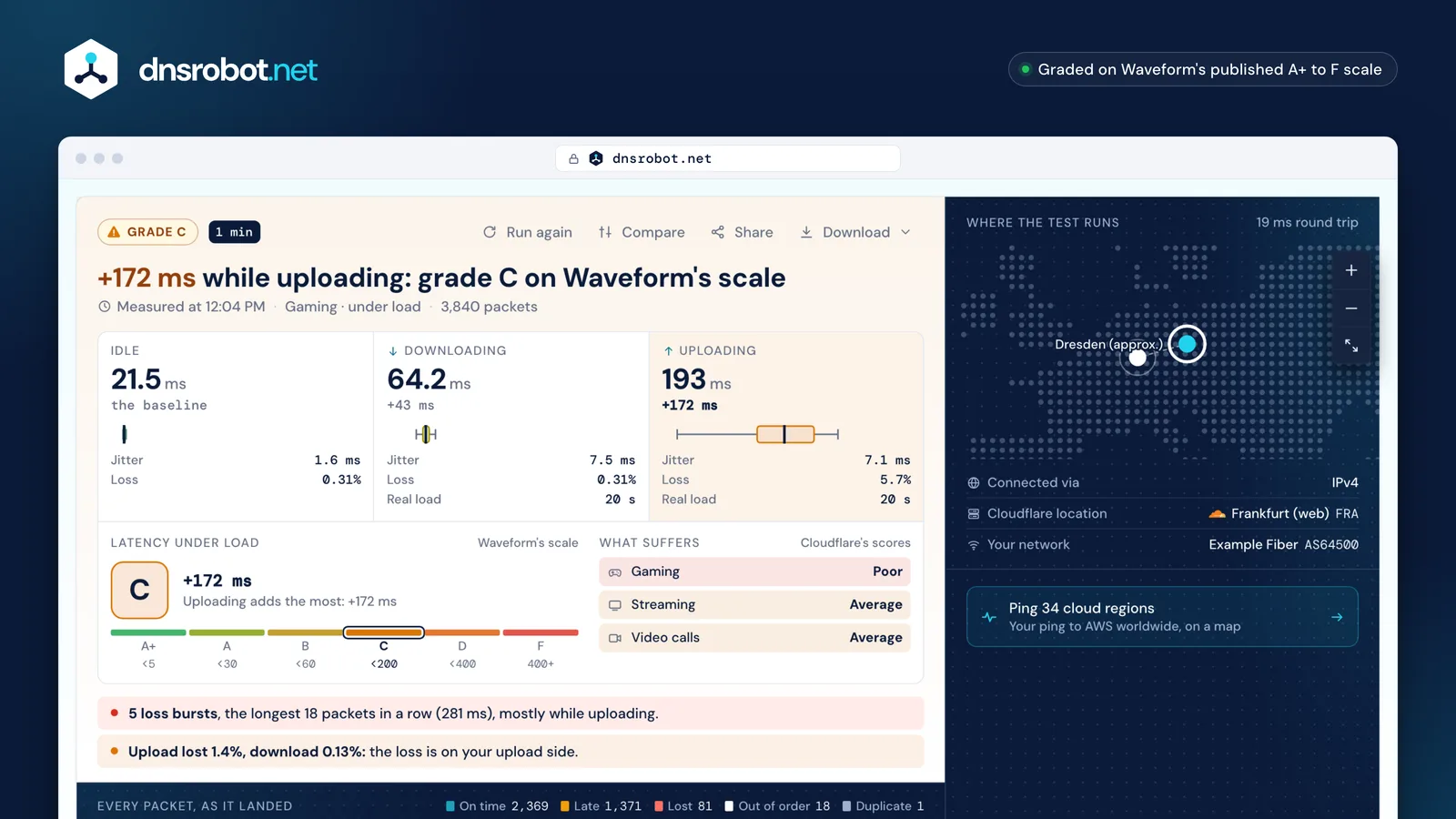
 The gradeThe added latency of the worse loaded phase, graded on Waveform's scale from A+ to F.Three phasesThe average latency idle, while downloading and while uploading, with the rise against idle on the loaded two.Under loadJitter, loss and how many seconds each loaded phase really carried load, so a grade from a short load is flagged.What suffersCloudflare's scores for gaming, streaming and video calls, worked out from the same run.
What is bufferbloat?
Bufferbloat is the extra delay your connection adds when it's busy: a router, modem or other equipment buffers too much data, so every packet waits in line behind a download or an upload.
On an idle line your ping stays low. Start a large upload, a cloud backup or a video stream, and the queue in front of the slowest link fills: a game's or a call's small packets now wait behind hundreds of bulk packets. When the queue is full, the router drops the next packets in bursts.
Netflix's Fast.com reports both: unloaded latency, with no other traffic on your network, and loaded latency, while something heavy runs. Netflix says that when someone else streams or backs up, your game's response follows the loaded number.
 Waveform
- A+<5
- A<30
- B<60
- C<200
- D<400
- F400+
Bufferbloat grades explained: what is a good grade?
The grade only says how much your ping rises under load: A+ is under 5 ms added, A under 30, B under 60, C under 200, D under 400, and F is 400 ms or more. bufferbloat.net suggests fixing anything graded lower than B.
The grade is Waveform's: the added latency of the worse direction, using averages. We use the same six bands, so a grade here means the same as a grade there, though the two tests measure in different ways and can differ by a band.
Cloudflare's AIM scores use the same idea differently: the loaded latency increase is one input with its own points, added to latency, jitter, loss and speed for gaming, streaming and video calls.
Why do games lag when someone streams or uploads?
Because a plain router keeps one queue for everything. A game's packet that arrives behind 30 large upload packets has to wait until all of them have gone out.
The wait is simple arithmetic: 30 packets of 1,500 bytes on a 10 Mbps upload take 36 ms to send, before the game's packet even leaves your home. Make the queue a few hundred packets long and the wait runs into hundreds of milliseconds.
FQ-CoDel gives each flow its own queue and serves flows that don't build a queue, like a game's, before the ones that do. CoDel then keeps each queue short: RFC 8289 tolerates at most 5 ms of standing queue, measured over a 100 ms interval.
How to fix bufferbloat: turn on SQM
Turn on smart queue management (SQM) on your router, with CAKE or FQ-CoDel and the speed set a little below what your line delivers. Then run this test again.
The shaper has to be the slowest link, or the queue just moves back to the modem. OpenWrt's guide sets it to 90% of the speed you measured. Lower it if the grade stays poor, and raise it again once it's good.
Not every router has SQM. The table lists where each one keeps its setting, and what its maker says it does. If yours only offers priority rules, an SQM-capable router in front of it can do the job. Use Router Login to reach the admin page.
Fixing it with SQM, step by step
- 1
Test with SQM off
Note your download and upload speed and the grade.
- 2
Set the shaper below the line
About 90% of the speed you measured, as OpenWrt's guide says.
- 3
Pick CAKE or FQ-CoDel
CAKE where your router offers it; FQ-CoDel on slower routers.
- 4
Test again
The grade should rise; if it doesn't, lower the shaper a little.
| Router or firmware | Where to find it | What it does to the queue | Speed to enter | The maker's caveat |
|---|---|---|---|---|
| OpenWrt | Network → SQM QoS (install luci-app-sqm), interface: your WAN | CAKE with piece_of_cake.qos; fq_codel is lighter | 90% of what you measured | Runs on the router's CPU; not with hardware flow offloading |
| pfSense | Firewall > Traffic Shaper > Limiters, one for download and one for upload | FQ_CODEL scheduler, Tail Drop, ECN on | Your WAN speed, confirmed by a speed test | Queue length 1000 for about 100 Mbit/s, 3000–5000 at 1 Gbit/s; reset states after |
| OPNsense | Firewall ‣ Shaper (advanced): pipes, queues and rules | FQ_CoDel | Start at 85% of the advertised speed, raise until latency rises, then back off | Changing the flows count needs a reboot |
| UniFi | Smart Queues on a UniFi Gateway or Cloud Gateway | Limits clients to the speeds you enter (algorithm not named) | Your upload and download speeds | Not recommended at 300 Mbps or more; with Threat Management, up to 30% less throughput |
| eero | eero app: Settings → Advanced networking → Network services → SQM | A switch (algorithm not named) | None to enter | Some devices may see slower performance |
| GL.iNet (firmware 4.9+) | FLOW CONTROL → SQM | cake (recommended) or fq_codel; Cake Autorate from 4.11 | Typed, or Run Speedtest from 4.11 | Turns off Network Acceleration; may reduce peak throughput on fast lines |
| Asuswrt-Merlin | QoS: Traditional QoS or Bandwidth Limiter; Cake QoS on HND models | fq_codel (since 386.1); CAKE (since 386.2); hardware AQM for upload (3006.102.9) | – | CAKE skips hardware acceleration, so it may not be usable above about 350 Mbps |
| ASUS (stock firmware) | Adaptive QoS, Traditional QoS or Bandwidth Limiter; Adaptive QoE on newer models | Priority by application or device; no queue management named | – | None of these pages names fq_codel, CAKE or SQM |
| NETGEAR Nighthawk | Dynamic QoS, with its Speedtest button | Priority by application and device | From its built-in speed test | Helps at 250 Mbps or less; not needed at 300 Mbps or faster |
| NETGEAR XR (DumaOS) | QoS: Anti-Bufferbloat (XR500) or Congestion Control (XR1000) | Caps the share of the bandwidth heavy devices may use | A percentage, for example 70% | "Always" reduces your total speed |
| TP-Link Archer and Deco | Advanced > QoS; Deco app: More > QoS | Priority for chosen devices or applications | Your total bandwidth | None of these pages mentions SQM, fq_codel or CAKE |
| FRITZ!Box | Internet → Filter → Prioritization | Three categories you assign: real-time, prioritized and background | None to enter | "Prioritized" may use up to 90% of the upload |
| Starlink | Nothing to set | fq_codel in the Starlink Wi-Fi router, and buffers sized to reduce bufferbloat | None to enter | Starlink's own claim: a game isn't slowed when someone else downloads |
| Cable modems (DOCSIS 3.1) | In the modem, for upload only | DOCSIS-PIE, required in 3.1 and recommended in 3.0, aiming at 10 ms | None to enter | For downloads, the cable operator's equipment manages the queue |


Wi-Fi or Ethernet: where is the queue?
The queue forms at the slowest link between you and the internet. On a fast line that's often your Wi-Fi, not your router's connection to the provider.
Run the test once on a cable and once on Wi-Fi. If the grade is good on the cable and poor on Wi-Fi, the queue is in the wireless link: move closer to the router, use 5 GHz, or check your router's own Wi-Fi settings.
If both are poor, the queue is in the router or the modem, and SQM is the fix. If both are good while games still lag, look further out: the ping test and traceroute show the path beyond your home.
Bufferbloat test vs speed test vs packet loss test
A speed test asks how much your line can carry. A bufferbloat test asks how much slower it gets while it carries that much. A packet loss test asks how many packets never arrive.
| Bufferbloat test | Packet Loss Test | Ping test | Speed test | |
|---|---|---|---|---|
| Measures | Latency idle and under load | Lost, late and out-of-order packets | Round trip to regions | Throughput |
| Protocol | UDP packets | UDP packets | UDP and TCP | HTTP downloads |
| Sees packet loss | Yes, per phase | Yes, split up and down | Yes | Rarely |
| Grades latency under load | Yes, A+ to F | Yes, in its column | No | Some do |
Bufferbloat test: questions and answers
What is a good bufferbloat grade?
How do I fix bufferbloat?
Why do my games lag when someone else is streaming or uploading?
Does a faster internet plan fix bufferbloat?
Should I test bufferbloat over Wi-Fi or Ethernet?
Why is my grade different from Waveform's or Cloudflare's test?
Does SQM slow down my internet?
How much data does the bufferbloat test use?
Missing something?Suggest a feature or a new tool
Related tools
Packet Loss Test
Real UDP packet loss, jitter and bufferbloat to Cloudflare's nearest data centre, split into upload and download
Ping Test
Test your ping, jitter and packet loss, see your ping to 34 cloud regions, and ping any website or IP from 11 cities
Router Login
Open your router's admin page, fix address typos and find default logins by brand
What Is My ISP
Discover your ISP, ASN, and connection details
DNS Speed Test
Time Cloudflare 1.1.1.1, Google 8.8.8.8 and more public DNS servers from your own browser, against your current DNS, and find the fastest for you
Traceroute
Trace the route to any website or IP from 8 cities, hop by hop, each network named