ERR_QUIC_PROTOCOL_ERROR: What It Means & How to Fix It
Advertisement
What Is ERR_QUIC_PROTOCOL_ERROR?
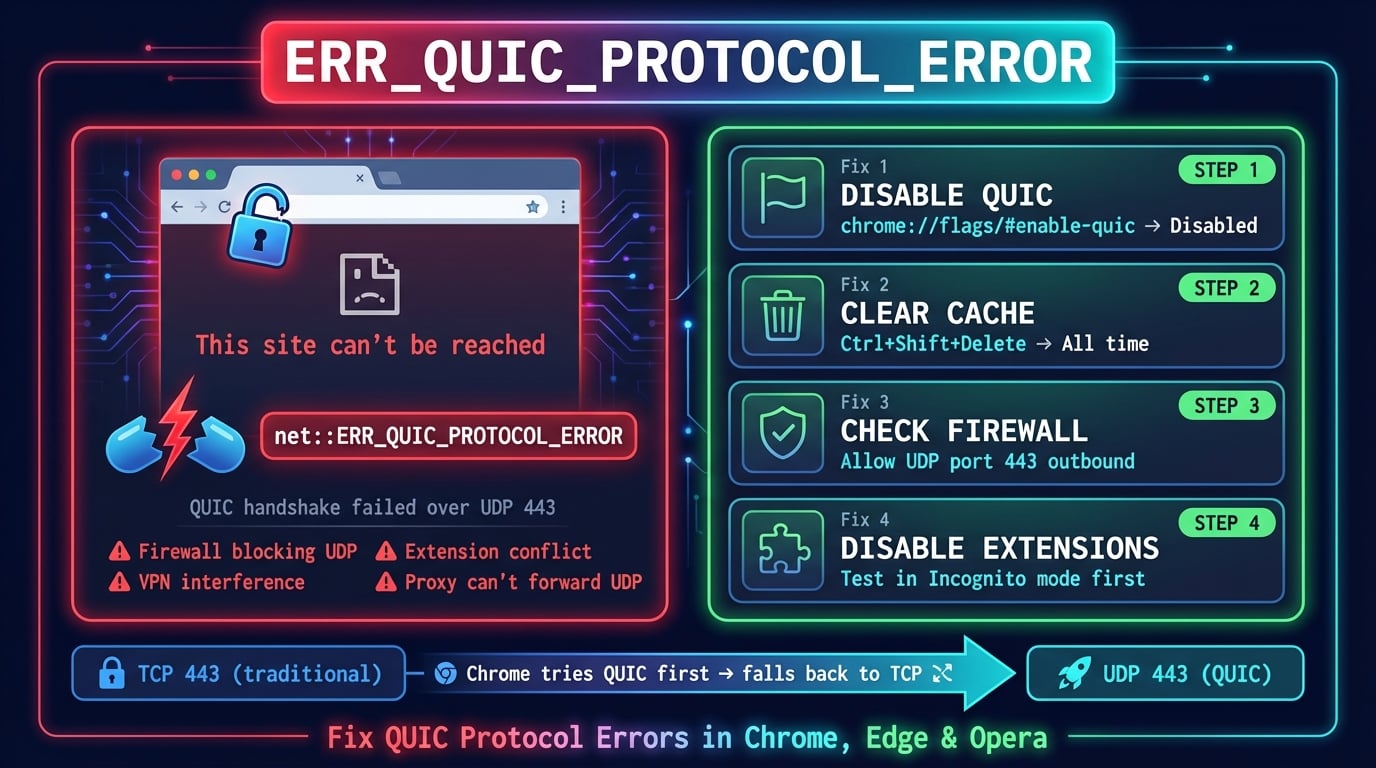
ERR_QUIC_PROTOCOL_ERROR is a Chromium browser error that appears when the QUIC (Quick UDP Internet Connections) protocol fails during communication between your browser and a web server. Chrome displays "This site can't be reached" along with the error code ERR_QUIC_PROTOCOL_ERROR or net::ERR_QUIC_PROTOCOL_ERROR.
This error is specific to Chromium-based browsers — Google Chrome, Microsoft Edge, Opera, Brave, and Vivaldi. Firefox and Safari do not use QUIC in the same way and will not show this error. The error is not caused by the website itself in most cases — it is a transport-layer issue between your browser and the server.
The error occurs because Chrome tries to connect using QUIC (over UDP port 443) before falling back to traditional TCP. When something interferes with the UDP connection — a firewall, VPN, or proxy — Chrome may fail to fall back gracefully and shows this error instead.
What Is QUIC and Why Does Chrome Use It?
QUIC is a transport protocol originally developed by Google in 2012 and standardized by the IETF as RFC 9000 in 2021. It replaces the traditional TCP+TLS stack with a single protocol built on top of UDP. QUIC is the transport layer behind HTTP/3, the latest version of the HTTP protocol.
Traditional HTTPS connections require multiple round trips: a TCP handshake (1 RTT), then a TLS handshake (1-2 RTTs), then the HTTP request. QUIC combines all of these into a single round trip — or even zero round trips (0-RTT) for repeat connections. This can reduce page load times by 100-300ms on average.
Chrome has shipped QUIC support since version 29 (2013) and enabled it by default since version 93 (2021). Today, QUIC handles connections to most Google services (YouTube, Gmail, Google Search) and over 8% of all internet traffic uses the protocol. Major CDNs like Cloudflare, Akamai, and Fastly also support QUIC.
| Feature | TCP + TLS 1.3 | QUIC |
|---|---|---|
| Transport layer | TCP (kernel) | UDP (userspace) |
| Connection setup | 2-3 round trips | 1 round trip (0-RTT resumption) |
| Head-of-line blocking | Yes — one lost packet blocks all streams | No — streams are independent |
| Connection migration | No — new IP = new connection | Yes — survives Wi-Fi ↔ mobile switch |
| Encryption | TLS 1.3 on top | TLS 1.3 built-in (always encrypted) |
| Port | TCP 443 | UDP 443 |
Advertisement
What Causes ERR_QUIC_PROTOCOL_ERROR?
The error triggers when Chrome's QUIC connection fails and the browser does not successfully fall back to TCP. Here are the most common causes, ordered by frequency.
Firewall or router blocking UDP port 443 — Many corporate and home firewalls only allow TCP traffic on port 443. Since QUIC uses UDP on the same port, the packets get silently dropped. This is the #1 cause, especially on managed networks.
VPN interference — VPNs tunnel traffic through their own protocol stack and often do not support UDP passthrough for QUIC. The VPN encrypts and reroutes the UDP packets, causing QUIC handshake failures.
Browser extensions — Ad blockers, privacy extensions, and security add-ons can intercept network requests and block or modify QUIC connections. Extensions that proxy traffic through their own servers are especially problematic.
Proxy server misconfiguration — Corporate proxy servers typically only handle TCP connections. When Chrome tries QUIC (UDP), the proxy cannot forward the traffic, and the connection fails.
Antivirus software with HTTPS inspection — Security software that performs deep packet inspection on HTTPS traffic often cannot inspect QUIC's encrypted UDP packets and blocks them instead.
Corrupted browser cache or state — Stale QUIC session data in Chrome's cache can cause connection failures when the server's QUIC configuration has changed.
Server-side QUIC issues — The website's server may have a misconfigured QUIC implementation, an expired TLS certificate, or may have recently disabled QUIC support while Chrome still tries to use it.
Fix 1: Disable the QUIC Protocol in Chrome
The fastest and most reliable fix is to disable QUIC entirely. This forces Chrome to use traditional TCP+TLS connections, which bypasses the issue completely. This is not a permanent workaround — it is a valid configuration used by many IT departments.
Advertisement
Disable QUIC in Google Chrome
Follow these steps to disable QUIC in Chrome on Windows, Mac, or Linux.
1. Open Chrome and type in the address bar:
   chrome://flags/#enable-quic

2. Find "Experimental QUIC protocol"

3. Change the dropdown from "Default" to "Disabled"

4. Click "Relaunch" at the bottom to restart Chrome

5. Verify: visit the website that showed the errorDisable QUIC in Microsoft Edge
Since Edge is Chromium-based, the process is almost identical.
1. Open Edge and type in the address bar:
   edge://flags/#enable-quic

2. Find "Experimental QUIC protocol"

3. Change to "Disabled"

4. Click "Restart" to apply
Disable QUIC in Opera & Brave
Opera and Brave use the same Chromium flags system.
Opera:  opera://flags/#enable-quic → Disabled → Restart
Brave:  brave://flags/#enable-quic → Disabled → Restart
Fix 2: Clear Browser Cache and QUIC Data
Corrupted QUIC session tokens or stale cached data can cause persistent connection failures. Clearing your browser data forces Chrome to establish fresh connections.
Clear Cache in Chrome
Follow these steps to clear your cache and browsing data in Chrome.
1. Press Ctrl+Shift+Delete (Windows/Linux) or Cmd+Shift+Delete (Mac)

2. Set time range to "All time"

3. Check these boxes:
   ✓ Cached images and files
   ✓ Cookies and other site data

4. Click "Delete data"

5. Restart Chrome and try the website againFlush DNS Cache
Flushing your system DNS cache can also help resolve connection issues. Open your terminal or command prompt and run the appropriate command for your operating system.
# Windows (Command Prompt as Administrator)
ipconfig /flushdns

# macOS
sudo dscacheutil -flushcache; sudo killall -HUP mDNSResponder

# Linux (systemd-resolved)
sudo systemd-resolve --flush-caches

# Chrome internal DNS cache
# Visit: chrome://net-internals/#dns → Click "Clear host cache"
Fix 3: Disable Browser Extensions
Browser extensions — especially ad blockers, VPN extensions, and privacy tools — can interfere with QUIC connections. Extensions that modify network requests or route traffic through proxy servers are the most common culprits.
To test if an extension is causing the issue, open Chrome in Incognito mode (Ctrl+Shift+N). Incognito disables all extensions by default. If the website loads correctly in Incognito, an extension is the problem.
1. Go to chrome://extensions/

2. Disable ALL extensions (toggle each one off)

3. Restart Chrome and try the website

4. If the error is gone, re-enable extensions one by one
   to find the culprit

5. Common culprits:
   - uBlock Origin (rare, but check custom filter lists)
   - Privacy Badger
   - VPN browser extensions (NordVPN, ExpressVPN, etc.)
   - Hola VPN
- HTTPS Everywhere (now built into Chrome)Advertisement
Fix 4: Check Firewall and Antivirus Settings
Firewalls are the most common cause of ERR_QUIC_PROTOCOL_ERROR on corporate and managed networks. QUIC uses UDP port 443, which many firewalls block because they only allow TCP on that port. Your firewall may be silently dropping QUIC packets without any visible error.
If you control your firewall, you need to allow outbound UDP traffic on port 443. Here is how to check and configure the most common setups.
Windows Firewall
Check if Windows Defender Firewall is blocking UDP port 443.
# Check if UDP 443 outbound is blocked
Get-NetFirewallRule | Where-Object {
  $_.Direction -eq 'Outbound' -and $_.Action -eq 'Block'
} | Get-NetFirewallPortFilter | Where-Object {
  $_.LocalPort -eq 443 -and $_.Protocol -eq 'UDP'
}

# Allow UDP 443 outbound (run as Administrator)
New-NetFirewallRule -DisplayName "Allow QUIC (UDP 443)" `
  -Direction Outbound -Protocol UDP -LocalPort 443 `
  -Action Allow -Profile Any
macOS Firewall
macOS's built-in firewall is application-based rather than port-based. If you are using a third-party firewall like Little Snitch or LuLu, check if Chrome's UDP traffic is being blocked.
# Check macOS firewall status
sudo /usr/libexec/ApplicationFirewall/socketfilterfw --getglobalstate

# List blocked applications
sudo /usr/libexec/ApplicationFirewall/socketfilterfw --listapps

# Allow Chrome through the firewall
sudo /usr/libexec/ApplicationFirewall/socketfilterfw --add \
  /Applications/Google\ Chrome.app/Contents/MacOS/Google\ Chrome
Router-Level Firewalls
Some routers have built-in firewalls that block UDP traffic on port 443. This is common on ISP-provided routers. To test if your router is the issue, try connecting through your mobile hotspot — if the error disappears, your router's firewall is likely the cause.
Log into your router's admin panel (usually 192.168.1.1 or 192.168.0.1) and look for firewall or security settings. Ensure UDP port 443 outbound is not blocked.
Fix 5: Disable VPN or Configure QUIC Passthrough
VPNs are the second most common cause of ERR_QUIC_PROTOCOL_ERROR. Most VPN protocols tunnel traffic over TCP, and QUIC's UDP packets either get dropped, repackaged incorrectly, or blocked entirely by the VPN's network stack.
To test if your VPN is causing the issue, disconnect from the VPN and try loading the website again. If the error disappears, your VPN is the problem.
WireGuard-based VPNs — Generally handle UDP well since WireGuard itself is UDP-based. QUIC usually works through WireGuard tunnels.
OpenVPN (UDP mode) — May work with QUIC, but performance can suffer due to UDP-over-UDP encapsulation overhead.
OpenVPN (TCP mode) — Almost always breaks QUIC. UDP packets cannot pass through a TCP tunnel reliably.
IKEv2/IPSec VPNs — Usually handle QUIC traffic correctly since they operate at the network layer.
Corporate VPNs (Cisco AnyConnect, Palo Alto GlobalProtect) — Most enterprise VPNs explicitly block QUIC to force traffic through their HTTPS inspection gateways.
Advertisement
Fix 6: Check Proxy Settings
Proxy servers handle TCP traffic but almost never support QUIC's UDP connections. If you are behind a proxy (manually configured or set by your organization), Chrome's QUIC requests will fail because the proxy cannot forward UDP packets.
Check your proxy settings and either disable the proxy or disable QUIC to resolve the conflict.
Check Proxy on Windows
1. Press Win+I → Network & Internet → Proxy

2. Under "Manual proxy setup":
   - If "Use a proxy server" is ON and you didn't set it,
     turn it OFF

3. Under "Automatic proxy setup":
   - If "Use setup script" has an unexpected URL,
     turn it OFF

4. Alternative: Open Command Prompt and run:
   netsh winhttp show proxy

   To reset:
   netsh winhttp reset proxy
Check Proxy on macOS
# Check current proxy settings
networksetup -getwebproxy Wi-Fi
networksetup -getsecurewebproxy Wi-Fi

# Disable proxy if set
networksetup -setwebproxystate Wi-Fi off
networksetup -setsecurewebproxystate Wi-Fi off

# Or via GUI:
# System Settings → Network → Wi-Fi → Details → Proxies
# Uncheck all proxy typesFix 7: Update Chrome to the Latest Version
Google regularly fixes QUIC-related bugs in Chrome updates. Chrome 93 (2021) enabled QUIC by default, and subsequent releases have improved QUIC's TCP fallback logic. If you are running an older version, updating may resolve the error.
Chrome also periodically updates its QUIC implementation to match the latest IETF standards — older versions may use deprecated QUIC handshake mechanisms that servers no longer accept.
1. Open Chrome → click ⋮ (three dots) → Help → About Google Chrome

2. Chrome will automatically check for updates

3. If an update is available, click "Relaunch" to apply

4. After updating, verify your Chrome version:
   chrome://version

Look for the version number (e.g., Chrome 133.x.x.x)Server-Side QUIC Issues (For Website Owners)
If you are a website owner and your visitors report ERR_QUIC_PROTOCOL_ERROR, the issue may be on your server. Here are the most common server-side causes.
Cloudflare HTTP/3 misconfiguration — If you use Cloudflare, verify HTTP/3 is properly enabled in Speed → Optimization → Protocol Optimization. A partial or broken configuration can cause intermittent QUIC errors for visitors.
Expired or mismatched TLS certificate — QUIC requires a valid TLS certificate. If your certificate is expired, self-signed, or does not match the domain, QUIC connections will fail. Use DNS Robot's SSL Checker to verify your certificate.
Nginx/LiteSpeed QUIC module issues — If you run your own server with QUIC support (via nginx-quic or LiteSpeed), ensure the QUIC module is compiled correctly and the UDP listener is bound to port 443.
Load balancer dropping UDP — AWS ALB, Azure Application Gateway, and some load balancers only forward TCP. You need a network load balancer (L4) or a QUIC-aware proxy to pass UDP traffic.
# Test if your server responds to QUIC (requires curl with HTTP/3)
curl --http3 -I https://your-domain.com

# Check if UDP 443 is open on your server
ss -ulnp | grep 443

# Verify Alt-Svc header (tells browsers QUIC is available)
curl -sI https://your-domain.com | grep -i alt-svc
# Expected: alt-svc: h3=":443"; ma=86400Should You Keep QUIC Enabled or Disable It?
Disabling QUIC is a quick fix, but you lose real performance benefits. Here is a practical decision framework.
Keep QUIC enabled if you are on an unrestricted network (home, mobile hotspot), not using a VPN, and not behind a corporate firewall. QUIC reduces connection setup time by 100-300ms and eliminates head-of-line blocking, making page loads noticeably faster — especially on mobile networks.
Disable QUIC if you are on a corporate network, using a non-WireGuard VPN, or behind a strict firewall. In these environments, QUIC packets get dropped silently, and Chrome's fallback to TCP is not always reliable. Disabling QUIC eliminates the error entirely with minimal performance impact — the difference is typically under 200ms per page load on broadband connections.
When the same kind of failure happens over HTTP/2 instead of QUIC, Chrome shows ERR_HTTP2_PROTOCOL_ERROR, which has its own causes and fixes.
| Scenario | Recommendation | Reason |
|---|---|---|
| Home network, no VPN | Keep QUIC enabled | Full performance benefits, no interference |
| Mobile network (4G/5G) | Keep QUIC enabled | QUIC's connection migration handles network switches |
| Corporate network | Disable QUIC | Firewalls typically block UDP 443 |
| Using VPN (non-WireGuard) | Disable QUIC | Most VPNs break QUIC's UDP tunnel |
| Using VPN (WireGuard) | Keep QUIC enabled | WireGuard handles UDP natively |
| Behind a proxy server | Disable QUIC | Proxies cannot forward UDP traffic |
Check your connection and DNS settings
Use DNS Robot's free HTTP Headers Checker to verify your server's QUIC (HTTP/3) configuration and Alt-Svc headers.
Try HTTP Headers CheckerAdvertisement
Frequently Asked Questions
ERR_QUIC_PROTOCOL_ERROR means Chrome tried to connect to a website using the QUIC protocol (over UDP port 443) and the connection failed. It is a browser-side transport error — not a problem with the website's content or your internet connection.