"This Network Is Blocking Encrypted DNS Traffic" — How to Fix It
Advertisement
What Does "This Network Is Blocking Encrypted DNS Traffic" Mean?
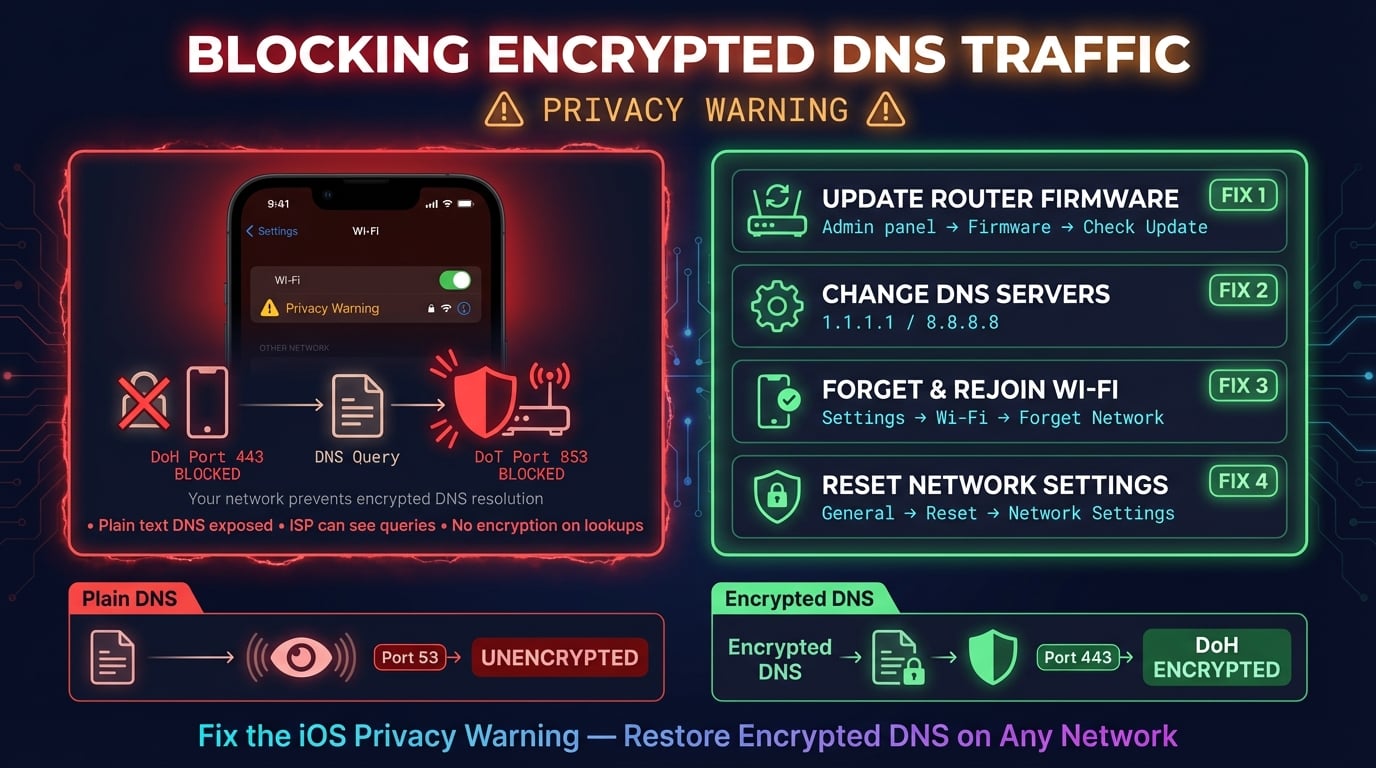
When you see "This network is blocking encrypted DNS traffic" in your Wi-Fi settings, it means your device tried to send DNS queries through an encrypted channel but the network prevented it. Your device falls back to sending DNS queries in plain text, which means anyone on the same network could potentially see which websites you visit.
Apple introduced this privacy warning in iOS 14 (released September 2020) and the corresponding macOS Big Sur. It appears under Settings > Wi-Fi > [network name] as a "Privacy Warning" on iPhone and iPad, or in System Settings > Wi-Fi > Details on Mac.
The warning itself does not break your internet connection. Your device still resolves domain names and loads websites normally — it just does so without the extra privacy layer that encrypted DNS provides.
What Is Encrypted DNS Traffic?
Every time you visit a website, your device sends a DNS query to translate the domain name (like dnsrobot.net) into an IP address. Traditional DNS sends these queries in plain text over port 53 — completely unencrypted. This means your ISP, network administrator, or anyone on the same Wi-Fi can see every domain you look up.
Encrypted DNS wraps these queries in encryption, just like HTTPS protects web traffic. Instead of sending dns-query: dnsrobot.net as plain text, your device encrypts the query so only the DNS server can read it.
There are two main encrypted DNS protocols that Apple devices support:
DNS-over-HTTPS (DoH) — Sends DNS queries over HTTPS on port 443, making them indistinguishable from regular web traffic
DNS-over-TLS (DoT) — Sends DNS queries over a TLS connection on dedicated port 853, providing encryption with a clear protocol boundary
According to Cloudflare's radar data, encrypted DNS adoption has grown significantly since 2020, with DoH accounting for over 25% of all DNS queries handled by major public resolvers as of 2025. Apple, Google, and Mozilla have all pushed encrypted DNS as a default in their ecosystems.
Advertisement
DoH vs DoT: How They Differ
Both protocols encrypt your DNS queries, but they work differently under the hood. Understanding the difference helps you choose the right solution when fixing the blocking issue.
| Feature | DNS-over-HTTPS (DoH) | DNS-over-TLS (DoT) |
|---|---|---|
| Port | 443 (shared with HTTPS) | 853 (dedicated) |
| Visibility | Blends with web traffic — hard to detect | Uses distinct port — easy to identify |
| Blocking difficulty | Very hard to block without breaking HTTPS | Easy to block by filtering port 853 |
| Browser support | Chrome, Firefox, Safari, Edge | Limited browser support |
| OS support | iOS 14+, macOS Big Sur+, Android 9+, Windows 11 | iOS 14+, macOS Big Sur+, Android 9+ |
| Speed | Slightly slower (HTTPS overhead) | Slightly faster (lighter TLS wrapper) |
| Best for | Bypassing network restrictions | Dedicated DNS encryption |
When a network blocks encrypted DNS, it typically blocks DoT first because port 853 is easy to identify and filter. DoH is harder to block because it uses the same port 443 as all HTTPS traffic — blocking it would break every secure website. Some networks block both by using deep packet inspection (DPI) to detect and drop DNS queries regardless of port.
Why Do Networks Block Encrypted DNS?
Not all encrypted DNS blocking is malicious. There are several legitimate reasons a network might block or interfere with encrypted DNS traffic:
Corporate/enterprise networks — IT departments block encrypted DNS to enforce security policies, content filtering, and threat detection. They need visibility into DNS queries to block malware domains and prevent data exfiltration
Parental control routers — Routers with built-in parental controls (like Netgear Armor or ASUS AiProtection) intercept DNS queries to filter content categories. Encrypted DNS bypasses these filters
ISP content filtering — Some ISPs use DNS-based filtering to comply with government regulations or to block known malicious sites. Encrypted DNS prevents this filtering from working
Public Wi-Fi captive portals — Hotels, airports, and coffee shops use DNS interception to redirect you to their login page. Encrypted DNS breaks this redirect mechanism
Outdated router firmware — Older routers may not understand encrypted DNS packets and drop them as malformed traffic, even without intentionally blocking them
Pi-hole and AdGuard Home — DNS-based ad blockers need to see your DNS queries to filter ads. They block encrypted DNS to external servers so all queries route through the local filter
The most common cause for home users is simply an outdated router that does not properly handle encrypted DNS packets. A firmware update often resolves the issue without any other changes.
Advertisement
How to Fix on iPhone & iPad (iOS/iPadOS)
These fixes are listed in order from simplest to most thorough. Start with Fix 1 and work your way down until the warning disappears.
Fix 1: Restart Your Device and Router
A simple restart clears cached network states on both your device and router. This resolves the warning in roughly 30–40% of cases, especially after a router firmware auto-update or ISP maintenance.
iPhone/iPad: Hold the side button + volume button > slide to power off > wait 30 seconds > power on
Router: Unplug the power cable > wait 30 seconds > plug back in > wait 2 minutes for full boot
After both devices restart, go to Settings > Wi-Fi and tap your network name. Check if the "Privacy Warning" message is still present.
Fix 2: Forget and Rejoin the Wi-Fi Network
Forgetting the network removes all saved configuration (including any cached DNS settings) and forces your device to negotiate a fresh connection.
# iOS path:
Settings > Wi-Fi > tap (i) next to network name > Forget This Network > Confirm

# Then reconnect:
Settings > Wi-Fi > select your network > enter passwordFix 3: Update iOS/iPadOS to the Latest Version
Apple regularly improves encrypted DNS handling in iOS updates. Earlier versions (iOS 14.0–14.3) had known issues with false positive warnings and inconsistent DoH/DoT negotiation.
Go to Settings > General > Software Update and install any available update. As of March 2026, iOS 18 includes improved encrypted DNS fallback behavior and better compatibility with enterprise networks.
Fix 4: Manually Configure DNS Servers
If your router's DNS does not support encryption, you can override it at the device level by setting a public encrypted DNS provider.
# iOS DNS configuration path:
Settings > Wi-Fi > tap (i) next to network > Configure DNS > Manual

# Delete existing DNS servers, then add:
# For Cloudflare (fastest, privacy-focused):
1.1.1.1
1.0.0.1

# For Google (reliable, global coverage):
8.8.8.8
8.8.4.4

# For Quad9 (malware blocking built-in):
9.9.9.9
149.112.112.112This tells your iPhone to send DNS queries to the specified servers instead of whatever the network assigns via DHCP. Note that this setting is per-network — you need to configure it for each Wi-Fi network separately.
Fix 5: Reset Network Settings
If none of the above fixes work, resetting network settings clears all saved Wi-Fi networks, VPN configurations, and cellular settings, giving your device a completely clean networking state.
# iOS 16+:
Settings > General > Transfer or Reset iPhone > Reset > Reset Network Settings

# iOS 15 and earlier:
Settings > General > Reset > Reset Network SettingsAfter the reset, your device restarts. You will need to reconnect to all Wi-Fi networks and re-enter passwords. VPN profiles will also need to be reconfigured.
How to Fix on Mac (macOS)
The same warning appears on Mac in System Settings > Wi-Fi > Details (macOS Ventura and later) or System Preferences > Network > Wi-Fi > Advanced (earlier versions). Mac users have additional options beyond what iOS offers.
Advertisement
Change DNS on Mac via System Settings
macOS lets you set DNS servers globally, which applies to all networks.
# macOS Ventura+ (System Settings):
System Settings > Wi-Fi > Details (next to network) > DNS tab
Remove existing servers, add: 1.1.1.1 and 1.0.0.1

# Alternatively, use Terminal:
sudo networksetup -setdnsservers Wi-Fi 1.1.1.1 1.0.0.1

# Verify the change:
networksetup -getdnsservers Wi-Fi
# Expected output:
# 1.1.1.1
# 1.0.0.1
Flush DNS Cache on Mac
After changing DNS servers, flush the local DNS cache to ensure your Mac uses the new servers immediately.
# macOS Ventura / Sonoma / Sequoia:
sudo dscacheutil -flushcache; sudo killall -HUP mDNSResponder

# Verify DNS resolution is working:
nslookup dnsrobot.net 1.1.1.1
# Should return: Address: 195.250.20.4How to Fix on Your Router
Fixing the issue at the router level is the best long-term solution because it applies to every device on your network. Here are the two most effective router-level fixes.
Update Router Firmware
Outdated firmware is the most common cause of encrypted DNS blocking on home networks. Router manufacturers have released firmware updates to properly handle DoH and DoT traffic.
ASUS: Router admin panel (192.168.1.1) > Administration > Firmware Upgrade > Check for update
TP-Link: tplinkwifi.net > System Tools > Firmware Upgrade (or use the Tether app)
Netgear: routerlogin.net > Administration > Firmware Update > Check Online
Linksys: 192.168.1.1 > Connectivity > Router Firmware Update
Change DNS Servers on Your Router
Changing DNS at the router level means every device on your network (phones, laptops, smart TVs, IoT devices) automatically uses the faster, encrypted DNS servers.
# Typical router DNS configuration:
# 1. Open router admin panel: http://192.168.1.1 or http://192.168.0.1
# 2. Navigate to: WAN Settings > DNS Configuration
# 3. Change from "Get from ISP" to "Manual"
# 4. Enter DNS servers:

Primary DNS:   1.1.1.1     (Cloudflare)
Secondary DNS: 8.8.8.8     (Google)

# Alternative: Quad9 with malware blocking
Primary DNS:   9.9.9.9
Secondary DNS: 149.112.112.112

# 5. Save and reboot router
After changing the router's DNS, all devices on the network will use the new servers. The encrypted DNS warning should disappear on your Apple devices within a few minutes of reconnecting.
Best DNS Servers That Support Encryption
Not all DNS servers support DoH or DoT. If you are switching DNS to fix the encrypted DNS warning, choose a provider that supports encryption natively.
| Provider | IPv4 Primary | IPv4 Secondary | DoH | DoT | Extras |
|---|---|---|---|---|---|
| Cloudflare | 1.1.1.1 | 1.0.0.1 | Yes | Yes | Fastest (11ms avg), privacy-first |
| Google Public DNS | 8.8.8.8 | 8.8.4.4 | Yes | Yes | Most reliable, global anycast |
| Quad9 | 9.9.9.9 | 149.112.112.112 | Yes | Yes | Malware blocking, non-profit |
| Cloudflare Family | 1.1.1.3 | 1.0.0.3 | Yes | Yes | Blocks malware + adult content |
| AdGuard DNS | 94.140.14.14 | 94.140.15.15 | Yes | Yes | Blocks ads + trackers |
| NextDNS | Custom | Custom | Yes | Yes | Customizable filtering, analytics |
All of the providers above support both DoH and DoT, meaning Apple devices will automatically use encrypted DNS when configured with these servers. Cloudflare and Google are the safest choices for maximum compatibility.
Advertisement
How to Verify Encrypted DNS Is Working
After applying fixes, verify that your DNS queries are actually being encrypted. Here are methods for each platform.
Verify on iPhone/iPad
On iOS, the simplest check is the warning itself:
Go to Settings > Wi-Fi and tap the (i) next to your network name
If the "Privacy Warning" / "This network is blocking encrypted DNS traffic" message is gone, encryption is working
You can also visit 1.1.1.1/help in Safari — it shows whether you are using DoH/DoT and which DNS resolver is handling your queries
Verify on Mac
On macOS, you can use Terminal to verify DNS resolution and check if encryption is active.
# Check which DNS servers are active:
scutil --dns | grep nameserver

# Test DNS resolution through Cloudflare DoH:
curl -s -H 'accept: application/dns-json' 'https://1.1.1.1/dns-query?name=dnsrobot.net&type=A' | python3 -m json.tool

# Check if DoH is working via Cloudflare's test page:
open https://1.1.1.1/helpWhen This Warning Is Normal (and Safe to Ignore)
The encrypted DNS warning is not always a problem that needs fixing. In some situations, the network is intentionally blocking encrypted DNS for valid security reasons.
Corporate/office networks — Your company's IT team blocks encrypted DNS to monitor for malware and enforce security policies. This is standard practice and does not mean your data is at risk — the network itself is managed and secured
School/university networks — Educational institutions block encrypted DNS to enforce content filtering required by regulations like CIPA (Children's Internet Protection Act)
Pi-hole or AdGuard Home users — If you run a local DNS-based ad blocker, it intentionally blocks encrypted DNS to external servers so it can filter ads. This is by design
Hotel and airport Wi-Fi — These networks use captive portals that require DNS interception to redirect you to their login page. The warning will appear until you authenticate
In these cases, you can safely continue using the network. Your DNS queries are unencrypted, but the network itself provides a level of management and security that compensates for it. The main risk of unencrypted DNS is on untrusted public networks where someone could snoop on your queries.
Frequently Asked Questions
Check your DNS configuration now
Use DNS Robot's free DNS Lookup tool to verify your DNS records, check propagation status, and confirm your DNS servers are responding correctly.
Try DNS LookupAdvertisement
Frequently Asked Questions
It means your Wi-Fi network is preventing your Apple device from using DNS-over-HTTPS (DoH) or DNS-over-TLS (DoT) to encrypt DNS queries. Your internet still works, but DNS lookups are sent in plain text, which means others on the network could see which websites you visit.