NET::ERR_CERT_AUTHORITY_INVALID: How to Fix (Chrome, Edge, Firefox)
Advertisement
What Is NET::ERR_CERT_AUTHORITY_INVALID?
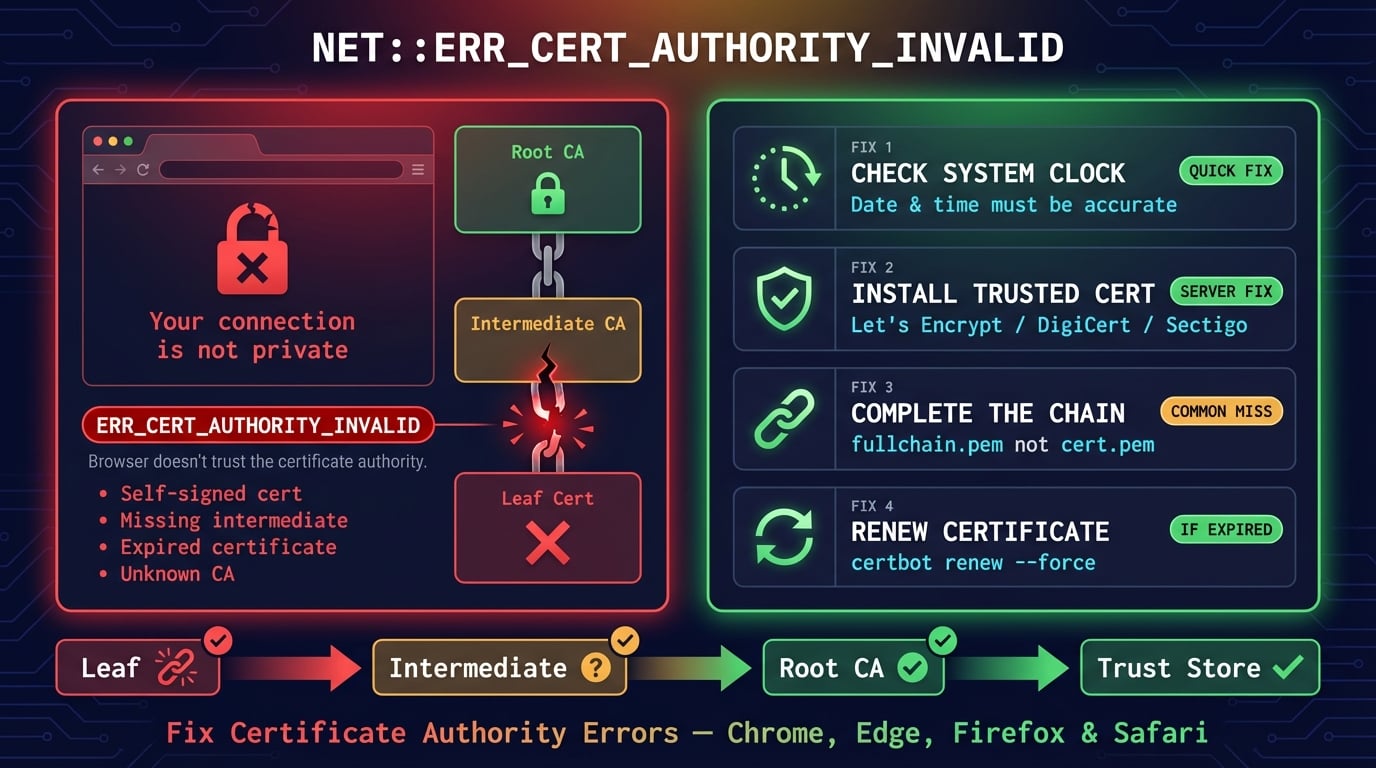
NET::ERR_CERT_AUTHORITY_INVALID is a browser security error that appears when Chrome, Edge, or another Chromium-based browser does not trust the certificate authority (CA) that signed the website's SSL certificate. The browser blocks the connection and shows a "Your connection is not private" warning to protect you from potentially fraudulent websites.
Unlike ERR_SSL_PROTOCOL_ERROR, which means the TLS handshake itself failed, ERR_CERT_AUTHORITY_INVALID means the handshake completed but the certificate validation step failed. The browser received the certificate, inspected it, and decided it was not trustworthy.
The internal Chromium error code is net::ERR_CERT_AUTHORITY_INVALID (error code -202). It belongs to the certificate error family, which includes related errors like ERR_CERT_DATE_INVALID and ERR_SSL_VERSION_OR_CIPHER_MISMATCH.
What ERR_CERT_AUTHORITY_INVALID Looks Like in Each Browser
Different browsers display different error messages for the same underlying problem. Knowing what to look for helps you diagnose whether you are dealing with a certificate authority issue or a different SSL error.
| Browser | Error Page Title | Error Code |
|---|---|---|
| Chrome | Your connection is not private | NET::ERR_CERT_AUTHORITY_INVALID |
| Edge | Your connection isn't private | NET::ERR_CERT_AUTHORITY_INVALID |
| Firefox | Warning: Potential Security Risk Ahead | SEC_ERROR_UNKNOWN_ISSUER or MOZILLA_PKIX_ERROR_SELF_SIGNED_CERT |
| Safari | This Connection Is Not Private | No specific error code shown |
| Opera | Your connection is not private | NET::ERR_CERT_AUTHORITY_INVALID |
| Brave | Your connection is not private | NET::ERR_CERT_AUTHORITY_INVALID |
Advertisement
How SSL Certificate Trust Works (Chain of Trust)
To understand why this error happens, you need to know how browsers verify SSL certificates. Every certificate is part of a chain of trust that leads back to a root certificate authority (CA).
When your browser connects to a website over HTTPS, the server sends its SSL certificate along with any intermediate certificates. The browser then walks the chain: it checks that the leaf certificate (the website's cert) was signed by an intermediate CA, and that the intermediate CA was signed by a root CA that the browser already trusts. Modern browsers and operating systems ship with approximately 150 pre-installed root CA certificates from organizations like DigiCert, Let's Encrypt (ISRG Root), Sectigo, and GlobalSign.
If any link in this chain is broken — the root CA is missing, an intermediate certificate is not included, or the signing CA is unrecognized — the browser throws ERR_CERT_AUTHORITY_INVALID. For a deeper explanation, see our guide on what is an SSL certificate chain.
Root CA — self-signed, pre-installed in your OS/browser trust store (~150 trusted roots)
Intermediate CA — signed by the root CA, must be sent by the server during the TLS handshake
Leaf certificate — your website's certificate, signed by the intermediate CA
Validation — the browser walks the chain from leaf to root; every signature must verify
What Causes NET::ERR_CERT_AUTHORITY_INVALID?
This error has both server-side causes (the website's problem) and client-side causes (your device's problem). If the error appears on one website only, the issue is almost certainly server-side. If it appears on multiple or all HTTPS websites, the issue is on your end.
| Cause | Side | How Common | Quick Check |
|---|---|---|---|
| Self-signed certificate | Server | Very common | Check certificate issuer in browser padlock |
| Missing intermediate certificate | Server | Common | Use DNS Robot's SSL Checker to verify chain |
| Expired SSL certificate | Server | Common | Check cert dates in browser or SSL Checker |
| Certificate issued for wrong domain | Server | Occasional | Compare cert CN/SAN with the URL domain |
| Incorrect system date/time | Client | Common | Check your device clock |
| Outdated OS or browser | Client | Common | Missing new root CAs like ISRG Root X1 |
| Antivirus SSL interception | Client | Moderate | Antivirus replaces cert with its own CA |
| Corporate proxy/firewall | Client | Moderate | MITM proxy injects untrusted certificate |
| Cached stale certificate | Client | Occasional | Old cert in browser SSL cache |
| Browser extension interference | Client | Rare | VPN or security extensions modify traffic |
Advertisement
Fixes for Website Visitors (Client-Side)
If you are seeing NET::ERR_CERT_AUTHORITY_INVALID while browsing a website you don't control, try these fixes in order. Start with the quickest checks first — the problem is often simpler than you think.
Fix 1: Check Your System Date and Time
An incorrect system clock is one of the most overlooked causes of certificate errors. SSL certificates have a validity window (Not Before and Not After dates). If your device thinks it is 2020 when it is actually 2026, a certificate issued in 2025 appears "not yet valid" and the browser rejects it.
This fix takes 10 seconds and resolves the issue more often than people expect — especially after a BIOS battery failure, virtual machine snapshot restore, or dual-boot time drift.
# Windows — check and sync system time
w32tm /query /status
w32tm /resync

# macOS — enable automatic time sync
sudo sntp -sS time.apple.com

# Linux — sync with NTP
sudo timedatectl set-ntp true
timedatectl statusFix 2: Try Incognito/Private Browsing Mode
Opening the website in an incognito window rules out browser cache, cookies, and extension interference all at once. If the site loads fine in incognito, the problem is a cached certificate state or a misbehaving extension — not the website itself.
To open incognito mode: press Ctrl+Shift+N in Chrome or Edge, or Ctrl+Shift+P in Firefox.
Fix 3: Clear Browser Cache and Cookies
Browsers cache SSL certificate information to speed up subsequent connections. If a website recently renewed or replaced its certificate, your browser might still hold the old (invalid) certificate in its cache, causing the ERR_CERT_AUTHORITY_INVALID error even though the server now has a valid certificate.
# Chrome: Clear cache via keyboard shortcut
# Windows/Linux: Ctrl+Shift+Delete
# macOS: Cmd+Shift+Delete
# Select "Cached images and files" and "Cookies" → Clear data

# Firefox: Clear cache
# Ctrl+Shift+Delete → select "Cache" and "Cookies" → Clear Now
Fix 4: Clear SSL State (Windows)
Windows maintains a separate SSL certificate cache at the OS level, independent of browser caches. Clearing this cache forces Windows to re-fetch and re-validate certificates from scratch.
# Method 1: Via Internet Options
# Open Internet Options (inetcpl.cpl) → Content tab → "Clear SSL State" button

# Method 2: Via command line
# Open Command Prompt as Administrator:
certutil -URLcache * deleteFix 5: Disable Browser Extensions
Security extensions, VPN extensions, ad blockers, and privacy tools can interfere with SSL connections. Some extensions act as a local proxy, intercepting HTTPS traffic and replacing certificates — which triggers ERR_CERT_AUTHORITY_INVALID.
Temporarily disable all extensions to test: go to chrome://extensions/ and toggle each one off, then reload the website. If the error disappears, re-enable extensions one by one to find the culprit.
Fix 6: Update Your OS and Browser
Root CA certificates are distributed through OS and browser updates. If your operating system is outdated, your trust store may not include newer root CAs. For example, the ISRG Root X1 certificate (used by Let's Encrypt) was only added to older Android and Windows versions through updates. Devices running Android 7.0 or earlier may lack this root entirely.
Chrome and Edge rely on the OS trust store on Windows and macOS, while Firefox ships its own. Keeping both your OS and browser updated ensures you have the latest trusted root certificates.
Fix 7: Disable Antivirus SSL/HTTPS Scanning
Antivirus software like Kaspersky, Avast, ESET, and Bitdefender often include an "HTTPS scanning" or "SSL interception" feature. This feature works by acting as a man-in-the-middle: it decrypts your HTTPS traffic with its own certificate, scans it, and re-encrypts it. If the antivirus CA certificate is not installed in your browser's trust store, every HTTPS site shows ERR_CERT_AUTHORITY_INVALID.
To test: temporarily disable the HTTPS scanning feature in your antivirus settings (not the entire antivirus — just the SSL/web scanning component). If the error disappears, you can either keep scanning disabled or re-install the antivirus root certificate into your browser.
Fix 8: Flush DNS Cache
In rare cases, a stale DNS cache can point your browser to the wrong IP address — one that serves a different (invalid) SSL certificate. Flushing DNS ensures your device resolves the domain to the correct server. For a complete guide, see how to flush DNS cache.
# Windows
ipconfig /flushdns

# macOS
sudo dscacheutil -flushcache && sudo killall -HUP mDNSResponder

# Linux
sudo systemd-resolve --flush-caches

# Chrome internal DNS cache
# Navigate to: chrome://net-internals/#dns → "Clear host cache"
Fix 9: Try a Different Network
Corporate networks, school Wi-Fi, and some public hotspots use transparent proxies that intercept HTTPS connections. These proxies replace the website's SSL certificate with their own, causing ERR_CERT_AUTHORITY_INVALID. Switching to mobile data or a different Wi-Fi network confirms whether the network is the problem.
If the error only appears on your work or school network, contact the network administrator — they may need to install the proxy's root certificate on your device, or whitelist the domain from SSL inspection.
Fixes for Website Owners (Server-Side)
If visitors are reporting ERR_CERT_AUTHORITY_INVALID on your website, the problem is with your SSL certificate configuration. Here are the server-side fixes, ordered from most to least common.
Advertisement
Fix 1: Install a Certificate from a Trusted CA
Self-signed certificates are the #1 cause of ERR_CERT_AUTHORITY_INVALID for website owners. If you generated your own certificate using OpenSSL or a similar tool, browsers will never trust it — the signing authority (you) is not in any browser's trust store.
The fix is to install a certificate from a publicly trusted certificate authority. Let's Encrypt provides free, automated certificates trusted by all major browsers. For commercial sites, paid certificates from DigiCert, Sectigo, or GlobalSign offer extended validation (EV) and longer validity periods.
# Install Let's Encrypt certificate with Certbot (Nginx)
sudo certbot --nginx -d example.com -d www.example.com

# Install Let's Encrypt certificate with Certbot (Apache)
sudo certbot --apache -d example.com -d www.example.com

# Verify the installed certificate
sudo certbot certificatesFix 2: Install the Complete Certificate Chain
A missing intermediate certificate is the second most common server-side cause. Your SSL certificate may be perfectly valid, but if the server does not send the intermediate CA certificate along with it, the browser cannot verify the chain of trust and throws ERR_CERT_AUTHORITY_INVALID.
Use DNS Robot's SSL Checker to verify your certificate chain. A healthy chain shows three certificates: Root CA > Intermediate CA > Your Certificate. If the intermediate is missing, you need to configure your server to send the full chain.
# Check your certificate chain with OpenSSL
openssl s_client -connect example.com:443 -showcerts 2>/dev/null | grep -E 's:|i:'

# Expected output (3 certificates in chain):
# s:CN = example.com          (your cert)
# i:CN = R11                   (intermediate - Let's Encrypt)
# s:CN = R11
# i:CN = ISRG Root X1          (root CA)

# Nginx — configure full chain
# ssl_certificate should point to the fullchain file, not just the cert:
ssl_certificate /etc/letsencrypt/live/example.com/fullchain.pem;
ssl_certificate_key /etc/letsencrypt/live/example.com/privkey.pem;

# Apache — configure full chain
SSLCertificateFile /etc/letsencrypt/live/example.com/fullchain.pem
SSLCertificateKeyFile /etc/letsencrypt/live/example.com/privkey.pemFix 3: Renew an Expired Certificate
Expired certificates are rejected immediately by all browsers. Chrome specifically shows ERR_CERT_AUTHORITY_INVALID (not ERR_CERT_DATE_INVALID) in some cases when the expired certificate's CA has also rotated its intermediate. Check your certificate expiry date with the SSL Checker or via the command line.
# Check certificate expiry date
openssl s_client -connect example.com:443 2>/dev/null | openssl x509 -noout -dates
# Output:
# notBefore=Jan  1 00:00:00 2026 GMT
# notAfter=Apr  1 00:00:00 2026 GMT

# Force renewal with Certbot
sudo certbot renew --force-renewal

# Restart web server after renewal
sudo systemctl reload nginx    # Nginx
sudo systemctl reload apache2  # Apache
Fix 4: Ensure the Certificate Matches Your Domain
An SSL certificate is issued for specific domain names listed in the Common Name (CN) and Subject Alternative Name (SAN) fields. If your website is accessed via www.example.com but the certificate only covers example.com, or if you access a subdomain not included in the SAN, Chrome may show ERR_CERT_AUTHORITY_INVALID.
Wildcard certificates (*.example.com) cover all subdomains but not the root domain unless it is explicitly listed as a SAN. Always include both example.com and *.example.com when generating a wildcard certificate.
Fix 5: Check Server TLS Configuration
Misconfigured TLS settings can cause certificate trust issues even with a valid certificate. Ensure your server supports TLS 1.2 and TLS 1.3 — older protocols like TLS 1.0 and 1.1 have been deprecated by all major browsers since 2020. Also verify that your server sends certificates in the correct order (leaf first, then intermediates).
# Nginx recommended TLS configuration
ssl_protocols TLSv1.2 TLSv1.3;
ssl_prefer_server_ciphers on;
ssl_ciphers 'ECDHE-ECDSA-AES128-GCM-SHA256:ECDHE-RSA-AES128-GCM-SHA256:ECDHE-ECDSA-AES256-GCM-SHA384:ECDHE-RSA-AES256-GCM-SHA384';

# Test your TLS configuration
openssl s_client -connect example.com:443 -tls1_2
openssl s_client -connect example.com:443 -tls1_3
ERR_CERT_AUTHORITY_INVALID on Localhost (Developers)
Developers frequently encounter this error when running local HTTPS servers for development. Since localhost certificates are always self-signed, Chrome blocks them by default. There are several ways to handle this.
mkcert — the easiest solution. Install
mkcert, runmkcert -installto add a local CA to your trust store, then generate certs:mkcert localhost 127.0.0.1 ::1. Trusted automatically in Chrome, Firefox, and EdgeChrome bypass — type
thisisunsafeon the error page (no input field — just type on the keyboard). This bypasses the warning for the current session onlyChrome flag — navigate to
chrome://flags/#allow-insecure-localhostand enable it. This suppresses certificate errors forlocalhostonlyVite/Next.js/Webpack — most dev servers support
--httpsflags that generate self-signed certs. Combine with mkcert for a trusted local setup
# Install mkcert (macOS)
brew install mkcert
mkcert -install

# Generate localhost certificate
mkcert localhost 127.0.0.1 ::1
# Creates: localhost+2.pem and localhost+2-key.pem

# Use with Node.js
const https = require('https');
const fs = require('fs');
https.createServer({
  cert: fs.readFileSync('localhost+2.pem'),
  key: fs.readFileSync('localhost+2-key.pem')
}, app).listen(3000);Related SSL Certificate Errors
NET::ERR_CERT_AUTHORITY_INVALID is just one of several SSL certificate errors you might encounter. Each error points to a different problem in the certificate validation process.
| Error Code | What It Means | DNS Robot Guide |
|---|---|---|
| ERR_CERT_AUTHORITY_INVALID | Certificate not signed by a trusted CA | This article |
| ERR_SSL_PROTOCOL_ERROR | TLS handshake failed before certificate check | Fix guide |
| ERR_SSL_VERSION_OR_CIPHER_MISMATCH | No shared TLS version or cipher suite | Fix guide |
| ERR_CERT_DATE_INVALID | Certificate expired or not yet valid | Check certificate dates |
| ERR_CERT_COMMON_NAME_INVALID | Certificate domain doesn't match URL | Check SAN/CN fields |
| NET::ERR_CERT_REVOKED | Certificate was revoked by the issuing CA | Reissue certificate |
Check your SSL certificate chain now
Use DNS Robot's free SSL Checker to verify your certificate chain, expiry dates, and TLS configuration. Instantly detect missing intermediates, expired certs, and domain mismatches.
Try SSL CheckerAdvertisement
Frequently Asked Questions
It means your browser does not trust the certificate authority that signed the website's SSL certificate. The certificate might be self-signed, issued by an unknown CA, or missing its intermediate certificate chain.