ERR_SSL_VERSION_OR_CIPHER_MISMATCH: How to Fix It (All Browsers)
Advertisement
What Is ERR_SSL_VERSION_OR_CIPHER_MISMATCH?
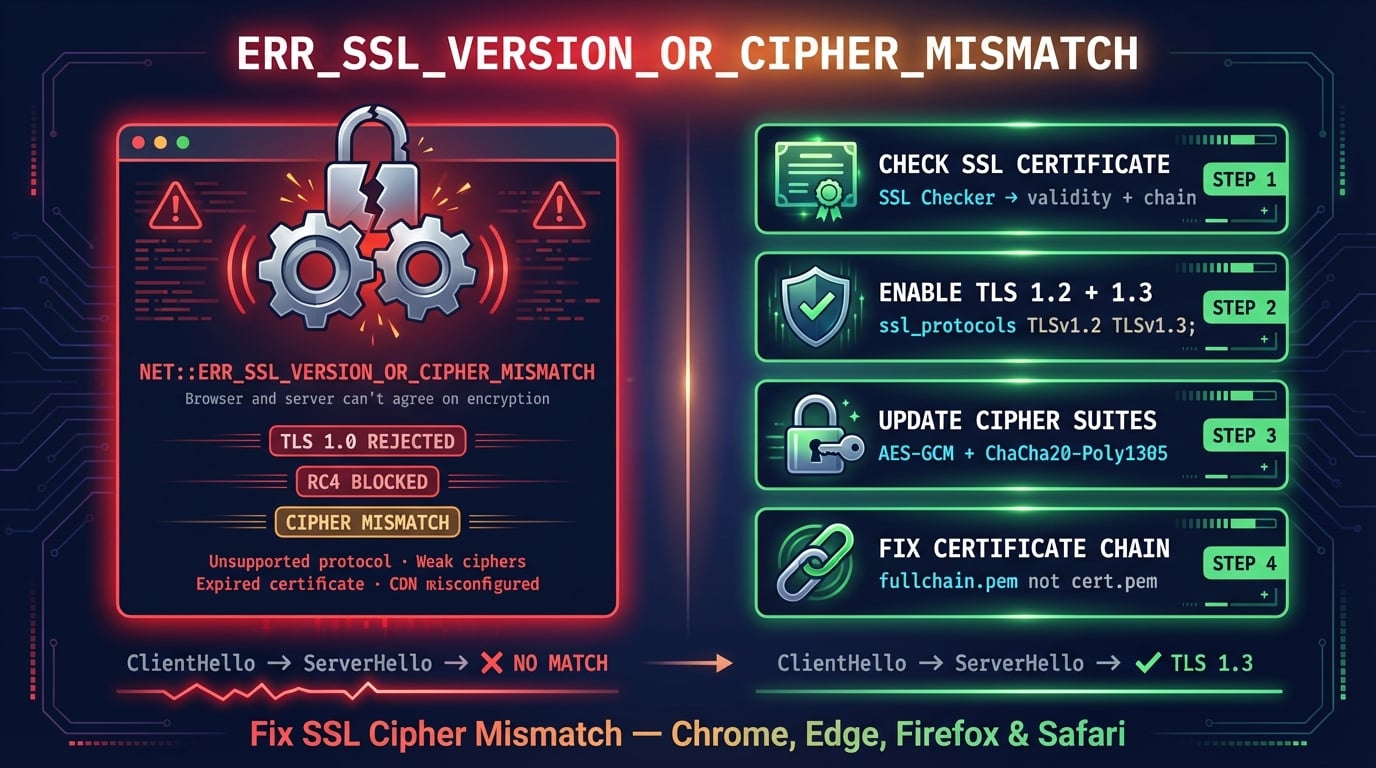
ERR_SSL_VERSION_OR_CIPHER_MISMATCH is a browser error that appears when your browser and the web server cannot agree on a shared TLS protocol version or encryption cipher suite during the SSL/TLS handshake. The browser blocks the connection entirely because no secure channel can be established.
Every HTTPS connection starts with a TLS handshake. During this handshake, the browser sends a list of TLS versions and cipher suites it supports (called the ClientHello). The server picks one that it also supports and responds (ServerHello). If there is zero overlap — the server only offers protocols or ciphers that the browser has deprecated or doesn't recognize — the handshake fails immediately with this error.
The underlying Chromium error code is net::ERR_SSL_VERSION_OR_CIPHER_MISMATCH. In Firefox, the same failure appears as SSL_ERROR_NO_CYPHER_OVERLAP. Both mean the same thing: the client and server have no common ground for a secure connection.
What the Error Looks Like in Each Browser
Different browsers display different error messages for the same underlying TLS negotiation failure. The full Chrome error message reads: "This site can't provide a secure connection. [domain] uses an unsupported protocol."
| Browser | Error Message | Error Code |
|---|---|---|
| Chrome / Edge / Brave / Opera | This site can't provide a secure connection — uses an unsupported protocol | ERR_SSL_VERSION_OR_CIPHER_MISMATCH |
| Firefox | Secure Connection Failed — Cannot communicate securely with peer: no common encryption algorithm(s) | SSL_ERROR_NO_CYPHER_OVERLAP |
| Safari | Safari can't open the page because Safari can't establish a secure connection to the server | No specific code |
| cURL / OpenSSL | no protocols available / no ciphers available | SSL routines error |
Advertisement
What Causes ERR_SSL_VERSION_OR_CIPHER_MISMATCH?
This error has both server-side and client-side causes. If the error appears on one specific website, the problem is almost certainly on the server. If it appears on many websites, something on your device or network is interfering.
Server uses deprecated TLS 1.0 or TLS 1.1 — Chrome, Edge, Firefox, and Safari all dropped support for TLS 1.0 and 1.1 in 2020. If a server only offers these old protocols, modern browsers refuse to connect. This is the #1 server-side cause.
Weak or deprecated cipher suites — Cipher suites like RC4 (removed from Chrome 48 in 2016), 3DES, and export-grade ciphers are blocked by all modern browsers. If the server only offers these, the handshake fails.
SHA-1 signed certificate — Browsers stopped trusting SHA-1 certificates in 2017. If your certificate uses SHA-1 instead of SHA-256, it will be rejected.
Expired SSL certificate — An expired certificate can trigger this error in some browsers instead of the more common ERR_CERT_DATE_INVALID, especially when combined with other misconfigurations.
Certificate name mismatch — The SSL certificate was issued for
example.combut the site is accessed atwww.example.com(or a subdomain not covered by the cert).Incomplete certificate chain — Missing intermediate certificates prevent the browser from verifying the chain of trust. Learn more in our SSL certificate chain guide.
Cloudflare/CDN misconfiguration — If your site uses Cloudflare, the SSL certificate may not be active yet (takes up to 24 hours), the DNS record may be set to DNS-only instead of Proxied, or a multi-level subdomain isn't covered by the Universal certificate.
Old operating system — Windows XP, Android 4.x, and other legacy OS versions don't support TLS 1.2 or modern cipher suites, so they can't connect to servers that require them.
Antivirus HTTPS scanning — Security software like Avast, Kaspersky, or Bitdefender intercepts HTTPS connections with their own certificates, which can cause cipher mismatches.
Browser or device needs update — Very old browser versions may lack support for cipher suites that the server requires.
How to Fix ERR_SSL_VERSION_OR_CIPHER_MISMATCH (For Users)
If you see this error while browsing, the website likely has a server-side SSL problem. However, there are several things you can try on your end first. If the error appears on just one site, skip to the website owner fixes — the problem is their server. If it appears on multiple sites, try these user fixes.
Advertisement
Fix 1: Clear SSL State (Windows)
Windows caches SSL certificates and session data separately from the browser. Stale or corrupted entries in this system-level cache can cause persistent cipher mismatch errors even after clearing the browser cache.
Open the Start menu and search for Internet Options (or press Win+R and type inetcpl.cpl). Go to the Content tab and click Clear SSL state. Click OK and restart your browser.
Fix 2: Clear Browser Cache and Cookies
Cached HSTS (HTTP Strict Transport Security) policies or old SSL session tickets can force your browser to attempt connections with outdated parameters.
Chrome/Edge: Press
Ctrl+Shift+Delete→ set to All time → check Cached images and files and Cookies → click Clear dataFirefox: Press
Ctrl+Shift+Delete→ set to Everything → check Cache and Cookies → click Clear NowSafari: Safari menu → Settings → Privacy → Manage Website Data → Remove All
For a single domain, you can also clear its HSTS entry in Chrome: go to chrome://net-internals/#hsts → under "Delete domain security policies" → enter the domain → click Delete.
Fix 3: Disable QUIC Protocol
Chrome's QUIC protocol (HTTP/3 over UDP) can sometimes interfere with TLS negotiation on servers that don't properly support it, or when network equipment blocks UDP on port 443.
Step 1: Type
chrome://flags/#enable-quicin the address barStep 2: Set Experimental QUIC protocol to Disabled
Step 3: Click Relaunch to restart Chrome
If the error disappears, the issue was a QUIC/HTTP/3 conflict. You can leave QUIC disabled — pages will load over standard HTTPS (HTTP/2 over TCP) with no visible difference.
Fix 4: Update Your Browser and Operating System
Older browsers and operating systems may not support the TLS versions or cipher suites that modern websites require. This is a common cause on legacy systems.
Update Chrome at chrome://settings/help. Update Edge at edge://settings/help. For your operating system, ensure you're running at least Windows 10, macOS 10.15, or a recent Linux distribution. Windows XP and Windows Vista do not support TLS 1.2 natively and will hit this error on almost every modern website.
Fix 5: Disable Antivirus HTTPS Scanning
Antivirus programs that scan HTTPS traffic (Avast, Kaspersky, Bitdefender, ESET, Norton) act as a man-in-the-middle proxy — they intercept the TLS handshake and present their own certificate to the browser. This can cause cipher mismatches when the antivirus doesn't support the same ciphers as the original server.
Look for settings named HTTPS Scanning, SSL Scanning, Web Shield, or Encrypted Connection Scanning in your antivirus and disable it temporarily. If the error resolves, add the affected domain to the antivirus exclusion list rather than leaving the feature disabled.
Fix 6: Try Incognito / Private Mode
Incognito mode uses a clean browser state with no cached data, cookies, or extensions. If the website loads in incognito but not in normal mode, a browser extension, cached data, or corrupted profile is causing the error.
Open incognito with Ctrl+Shift+N (Chrome/Edge) or Ctrl+Shift+P (Firefox). If the site works, go back and clear your cache (Fix 2) or disable extensions one by one to find the culprit.
Fix 7: Disable VPN or Proxy
VPNs and HTTP proxies sit between your browser and the web server. Some VPNs perform SSL inspection or route connections through servers with limited cipher support. Corporate proxies often use SSL interception that can trigger cipher mismatches.
Temporarily disconnect your VPN and try loading the website directly. If it works without the VPN, try switching to a different VPN server location or contact your VPN provider about their TLS compatibility.
How to Fix ERR_SSL_VERSION_OR_CIPHER_MISMATCH (For Website Owners)
If users report this error on your website, the problem is in your server's SSL/TLS configuration. The fixes below address the root causes — from certificate issues to protocol and cipher settings.
Fix 1: Check Your SSL Certificate
Start by verifying your SSL certificate is valid, not expired, and covers the correct domain. Use DNS Robot's SSL Checker to instantly scan your certificate status, expiration date, issuer, and chain completeness.
Common certificate problems that cause this error:
Expired certificate — Let's Encrypt certificates expire every 90 days. If auto-renewal failed, your certificate silently expires and browsers refuse to connect.
Wrong domain — The certificate covers
example.combut the site is served atwww.example.comor a subdomain. The certificate must match the exact domain or include a wildcard (*.example.com).SHA-1 certificate — All major browsers rejected SHA-1 certificates in 2017. If your certificate still uses SHA-1, reissue it with SHA-256.
Self-signed certificate — Only trusted in development. Production sites need a certificate from a recognized Certificate Authority.
# Check certificate details from command line
openssl s_client -connect yourdomain.com:443 -servername yourdomain.com 2>/dev/null | openssl x509 -noout -dates -subject -issuer -fingerprint -sha256

# Check which TLS versions the server supports
nmap --script ssl-enum-ciphers -p 443 yourdomain.com

# Renew Let's Encrypt certificate
sudo certbot renew --force-renewal
Fix 2: Enable TLS 1.2 and TLS 1.3
All modern browsers require at least TLS 1.2. If your server only offers TLS 1.0 or 1.1, browsers will show ERR_SSL_VERSION_OR_CIPHER_MISMATCH. Enable both TLS 1.2 and TLS 1.3 — disable everything older.
# Nginx — in nginx.conf or site config
ssl_protocols TLSv1.2 TLSv1.3;
ssl_prefer_server_ciphers on;

# Apache — in httpd.conf or ssl.conf
SSLProtocol -all +TLSv1.2 +TLSv1.3
SSLHonorCipherOrder on

# After changing, restart your web server:
sudo systemctl restart nginx    # or apache2
After updating, test with DNS Robot's SSL Checker or Qualys SSL Labs to verify that only TLS 1.2 and 1.3 are active.
Fix 3: Update Your Cipher Suites
Even with TLS 1.2 enabled, using deprecated cipher suites causes the same error. Browsers block RC4 (since 2016), 3DES, export-grade ciphers, and NULL ciphers. Your server must offer modern AEAD ciphers like AES-GCM or ChaCha20-Poly1305.
# Nginx — modern cipher configuration
ssl_ciphers 'ECDHE-ECDSA-AES128-GCM-SHA256:ECDHE-RSA-AES128-GCM-SHA256:ECDHE-ECDSA-AES256-GCM-SHA384:ECDHE-RSA-AES256-GCM-SHA384:ECDHE-ECDSA-CHACHA20-POLY1305:ECDHE-RSA-CHACHA20-POLY1305';
ssl_prefer_server_ciphers off;  # Let client choose (TLS 1.3 best practice)

# Apache — modern cipher configuration
SSLCipherSuite ECDHE-ECDSA-AES128-GCM-SHA256:ECDHE-RSA-AES128-GCM-SHA256:ECDHE-ECDSA-AES256-GCM-SHA384:ECDHE-RSA-AES256-GCM-SHA384
SSLHonorCipherOrder offFix 4: Install the Complete Certificate Chain
An incomplete certificate chain — where the server sends its own certificate but not the intermediate certificates — can trigger ERR_SSL_VERSION_OR_CIPHER_MISMATCH on some browsers and devices. The server must send the full chain from leaf certificate to intermediate CA.
For Let's Encrypt, always use fullchain.pem (not cert.pem). For other CAs, download the intermediate certificate from your CA's documentation and concatenate it with your certificate.
# Nginx — use fullchain, not just cert
ssl_certificate /etc/letsencrypt/live/yourdomain.com/fullchain.pem;
ssl_certificate_key /etc/letsencrypt/live/yourdomain.com/privkey.pem;

# Apache
SSLCertificateFile /etc/letsencrypt/live/yourdomain.com/fullchain.pem
SSLCertificateKeyFile /etc/letsencrypt/live/yourdomain.com/privkey.pem

# Verify chain is complete
openssl s_client -connect yourdomain.com:443 -servername yourdomain.com 2>/dev/null | grep -E "(depth|verify|Certificate chain)"
Fix 5: Fix Certificate Name Mismatch
If your SSL certificate doesn't cover the exact domain or subdomain being accessed, the TLS handshake can fail with a cipher mismatch error. This commonly happens when:
www vs non-www — Certificate covers
example.combut notwww.example.com. Solution: use a certificate that covers both, or get a wildcard cert (*.example.com).Subdomain not covered — Certificate covers
example.combut the user visitsapp.example.com. A wildcard certificate covers first-level subdomains, but not multi-level ones likestaging.app.example.com.Wrong domain entirely — The server is presenting a certificate for a different domain (common on shared hosting or misconfigured virtual hosts).
Check which domain your certificate covers using DNS Robot's SSL Checker — it displays the Subject Alternative Names (SANs) list showing every domain and subdomain covered by the certificate.
Fix 6: Cloudflare-Specific Fixes
If your site uses Cloudflare and visitors see ERR_SSL_VERSION_OR_CIPHER_MISMATCH, the issue is usually with how Cloudflare's SSL proxy is configured.
Certificate not yet active — Cloudflare's Universal SSL takes 15 minutes to 24 hours to activate after you add a domain. Check the certificate status in Cloudflare Dashboard → SSL/TLS → Edge Certificates. It must show "Active".
DNS record set to DNS-only — The DNS record must be set to Proxied (orange cloud) for Cloudflare to serve its SSL certificate. If it's set to DNS-only (gray cloud), Cloudflare doesn't proxy the connection and your origin server's certificate is used instead.
Multi-level subdomain — Cloudflare's Universal certificate only covers
example.comand*.example.com(one level). Forsub.sub.example.com, you need an Advanced Certificate, Total TLS, or a custom certificate.SSL/TLS mode mismatch — In Cloudflare Dashboard → SSL/TLS, set the encryption mode to Full (Strict) if your origin has a valid certificate, or Full if using a Cloudflare Origin Certificate.
Fix 7: Check CDN SSL Configuration
If your site uses a CDN (CloudFront, Fastly, Akamai, or any reverse proxy), the CDN terminates the TLS connection with the visitor. SSL misconfigurations at the CDN level cause this error even if your origin server's SSL is perfect.
CDN certificate expired or missing — Ensure the CDN has a valid SSL certificate for your domain. On AWS CloudFront, this means an ACM certificate. On other CDNs, verify your custom certificate is uploaded and active.
CDN TLS version too old — Some CDN configurations default to allowing TLS 1.0. Update your CDN's minimum TLS version to 1.2.
SNI not supported — If the CDN serves multiple domains from one IP, it must support Server Name Indication (SNI) to present the correct certificate for each domain.
How to Test Your SSL Configuration
After making changes, verify your SSL setup is correct. These tools help you catch problems before your visitors do.
[DNS Robot SSL Checker](/ssl-checker) — Quick check of certificate status, expiration, chain completeness, and issuer. Results in seconds.
Qualys SSL Labs — Deep scan of TLS versions, cipher suites, protocol support, and known vulnerabilities. Gives a letter grade (aim for A or A+).
OpenSSL CLI — Test from the command line with
openssl s_client -connect domain.com:443to see the raw handshake, certificate chain, and negotiated cipher.Chrome DevTools — Open DevTools (F12) → Security tab → shows the TLS version, cipher suite, and certificate details for the current connection.
# Quick OpenSSL check — shows protocol, cipher, and certificate
openssl s_client -connect yourdomain.com:443 -servername yourdomain.com 2>/dev/null | grep -E "(Protocol|Cipher|subject|issuer|Not After)"

# Test specific TLS version support
openssl s_client -connect yourdomain.com:443 -tls1_2 2>/dev/null | head -5  # Test TLS 1.2
openssl s_client -connect yourdomain.com:443 -tls1_3 2>/dev/null | head -5  # Test TLS 1.3
Advertisement
Related SSL/TLS Errors
Chrome has several SSL-related error codes. They all indicate different stages of TLS failure.
| Error Code | What It Means | Common Cause |
|---|---|---|
| ERR_SSL_VERSION_OR_CIPHER_MISMATCH | No shared TLS version or cipher suite | Server uses TLS 1.0/1.1, RC4 ciphers, or SHA-1 cert |
| ERR_SSL_PROTOCOL_ERROR | General TLS handshake failure | Wrong date/time, QUIC conflict, corrupted SSL state |
| ERR_CERT_AUTHORITY_INVALID | Certificate not trusted | Self-signed cert, missing intermediate, untrusted CA |
| ERR_CERT_DATE_INVALID | Certificate expired or not yet valid | Expired certificate, system clock wrong |
| ERR_CERT_COMMON_NAME_INVALID | Certificate domain mismatch | Cert for example.com, accessed at www.example.com |
For any of these SSL errors, start by checking the certificate with DNS Robot's SSL Checker. It shows the certificate status, chain, expiration, and supported protocols in one scan. You can also read our guides on ERR_SSL_PROTOCOL_ERROR and Your Connection Is Not Private for detailed fixes.
Check Your SSL Certificate Now
Use DNS Robot's free SSL Checker to verify your certificate status, expiration date, certificate chain, and TLS configuration. Diagnose ERR_SSL_VERSION_OR_CIPHER_MISMATCH in seconds.
Try SSL CheckerAdvertisement
Frequently Asked Questions
ERR_SSL_VERSION_OR_CIPHER_MISMATCH means your browser and the web server cannot agree on a common TLS protocol version or encryption cipher suite. The browser sends a list of supported options during the TLS handshake, and the server has none that match. This prevents any secure connection from being established.