ERR_NAME_NOT_RESOLVED: What It Means & How to Fix It
Advertisement
What Is ERR_NAME_NOT_RESOLVED?
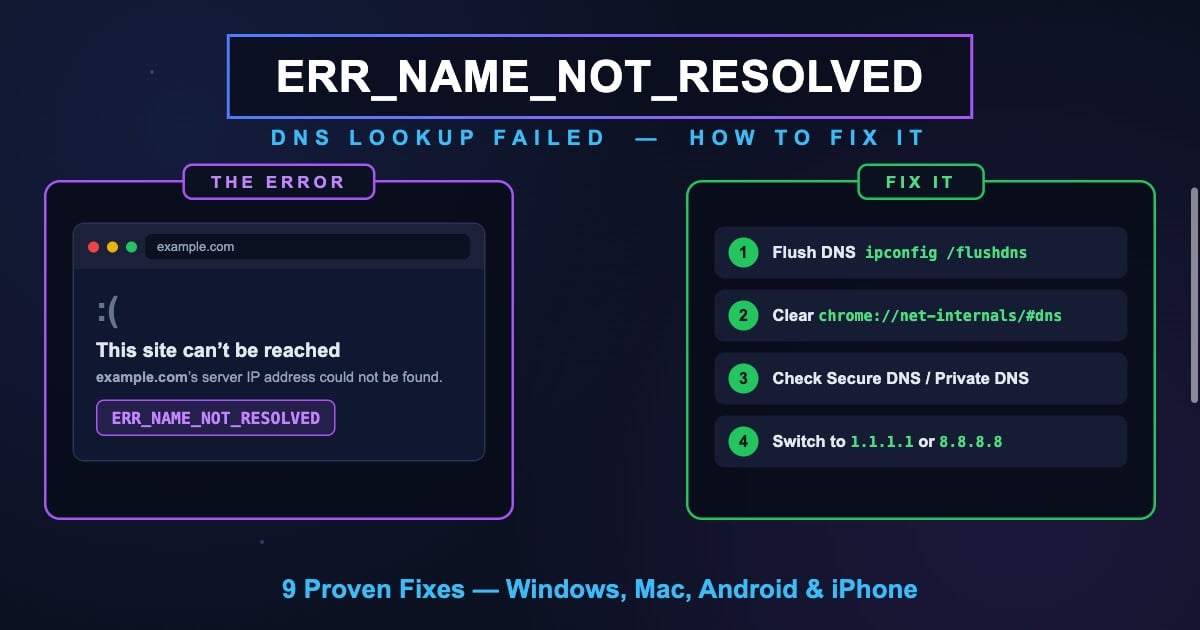
ERR_NAME_NOT_RESOLVED is a Chrome error meaning the browser could not resolve the website's domain name into an IP address. Chrome shows it as "This site can't be reached — [site]'s server IP address could not be found." The DNS lookup — the very first step of loading any website — failed, so no connection was ever attempted.
When you enter a URL, your device asks a DNS resolver to translate the domain (like example.com) into an IP address (like 93.184.215.14). ERR_NAME_NOT_RESOLVED means that translation failed: the resolver didn't answer, answered with an error, or your device couldn't reach any resolver at all.
Because DNS sits at the base of every request, this error can affect a single website (a problem with that domain's DNS records or your cached entry for it) or every website at once (a problem with your DNS resolver, network, or device settings). The fixes below cover both situations.
ERR_NAME_NOT_RESOLVED vs DNS_PROBE_FINISHED_NXDOMAIN
Chrome has two look-alike DNS errors, and they point to different failures:
| Error | What Happened | Typical Cause |
|---|---|---|
| ERR_NAME_NOT_RESOLVED | The DNS lookup failed — no usable answer was obtained | Resolver unreachable or misconfigured, broken Secure DNS/Private DNS, local network issues |
| DNS_PROBE_FINISHED_NXDOMAIN | DNS answered definitively: this domain does not exist | Typo in the domain, expired/unregistered domain, wrong DNS records |
In short: NXDOMAIN is a confident "no" from the DNS system, while NAME_NOT_RESOLVED is a failed conversation with it. If you're seeing NXDOMAIN instead, follow our dedicated guide: DNS_PROBE_FINISHED_NXDOMAIN: What It Means & How to Fix It.
Both errors share several fixes (flushing DNS, changing resolver), but NAME_NOT_RESOLVED is more often caused by your resolver settings — especially Chrome's Secure DNS and Android's Private DNS, covered below.
Advertisement
Common Causes of ERR_NAME_NOT_RESOLVED
These are the most frequent causes, roughly ordered from most to least common.
No working DNS resolver — Your device's configured DNS server is down, unreachable, or blocked by the network you're on.
Misconfigured Secure DNS (DoH) — Chrome's "Use secure DNS" setting points at a custom provider URL that's broken or mistyped, so every lookup fails.
Android Private DNS typo — A wrong Private DNS hostname (e.g., dns.gogle instead of dns.google) silently breaks all resolution on the device.
Stale or corrupted DNS cache — Your OS or Chrome cached a failed lookup and keeps serving it.
Router problems — The router's DNS forwarder glitched; devices can't resolve anything until it's restarted.
Typo in the domain — A misspelled or incomplete domain can produce NAME_NOT_RESOLVED as well as NXDOMAIN.
VPN, firewall, or antivirus interference — Security software intercepts DNS queries and fails, or a VPN tunnel is up but its DNS server isn't answering.
Hosts file or parental controls — Local overrides or filtering software block resolution for specific domains.
The domain's DNS is genuinely broken — Missing A/AAAA records or misconfigured nameservers on the website's side.
Fix 1: Check the URL and Try Another Site
First, rule out the trivial causes. Check the address for typos — a single wrong character means you're asking DNS for a name that can't resolve.
Then open two or three other websites. If only one site fails, the problem is that domain's DNS or your cached entry for it — jump to flushing DNS below, and check whether the domain actually resolves globally with DNS Robot's DNS Lookup. If every site fails, the problem is your resolver or network — continue with the connection and DNS-server fixes.
Advertisement
Fix 2: Check Your Internet Connection
ERR_NAME_NOT_RESOLVED often appears when the network connection itself is half-broken: you're connected to Wi-Fi, but the network has no working route to the internet or to a DNS server.
Toggle Wi-Fi off and back on (or unplug/replug Ethernet). On a phone, switch between Wi-Fi and mobile data to see which path works. If you're on a captive-portal network (hotel, airport, café), open a new tab and try to trigger the login page — DNS often fails until you've signed in.
Fix 3: Flush DNS and Renew Your IP
A corrupted DNS cache is the most common self-inflicted cause. Flushing it clears every stored lookup — including cached failures — and renewing your IP lease refreshes the DNS servers your device was assigned.
# Windows (Command Prompt as Administrator)
ipconfig /flushdns
ipconfig /release
ipconfig /renew
netsh winsock reset   # then restart the PC

# macOS
sudo dscacheutil -flushcache; sudo killall -HUP mDNSResponder

# Linux (systemd-resolved)
sudo resolvectl flush-caches
The netsh winsock reset command on Windows repairs the network stack itself — worth running if flushing alone doesn't help, but it requires a restart. For a deeper walkthrough of every platform, see How to Flush DNS on Windows, Mac, Linux & Chrome.
Advertisement
Fix 4: Clear Chrome's Internal DNS Cache
Chrome keeps its own DNS cache, separate from your operating system's. A failed lookup cached inside Chrome survives an OS-level flush — so clear both.
Type
chrome://net-internals/#dnsin the address bar and click Clear host cacheThen open
chrome://net-internals/#socketsand click Flush socket poolsRestart Chrome and try the site again
Fix 5: Check Chrome's Secure DNS Setting
Chrome can encrypt DNS lookups using DNS-over-HTTPS (DoH) — the "Use secure DNS" setting. When it's set to a custom provider whose URL is mistyped, discontinued, or blocked on your network, every lookup in Chrome fails with ERR_NAME_NOT_RESOLVED while other apps work fine. This is one of the most overlooked causes.
To check it:
Open
chrome://settings/securityin the address barScroll to Advanced → find Use secure DNS
If a custom provider is selected, verify the URL — or switch to With your current service provider / a known provider like Google or Cloudflare
Or turn it off temporarily to confirm it's the cause, then re-enable it with a working provider
Restart Chrome and test
Advertisement
Fix 6: Switch to a Public DNS Server
If your ISP's DNS resolver is slow, flaky, or down, switching your device to a public resolver fixes resolution immediately and usually speeds up browsing too.
| Provider | Primary DNS | Secondary DNS | Best For |
|---|---|---|---|
| Cloudflare | 1.1.1.1 | 1.0.0.1 | Speed and privacy |
| Google Public DNS | 8.8.8.8 | 8.8.4.4 | Reliability |
| Quad9 | 9.9.9.9 | 149.112.112.112 | Malware blocking |
| OpenDNS | 208.67.222.222 | 208.67.220.220 | Content filtering |
Windows: Settings → Network & Internet → your connection → Edit next to DNS server assignment → Manual → IPv4 on → Preferred 1.1.1.1, Alternate 1.0.0.1 → Save.
macOS: System Settings → Network → Wi-Fi → Details → DNS → remove old entries and add 1.1.1.1 and 1.0.0.1 → OK.
iPhone: Settings → Wi-Fi → tap the (i) next to your network → Configure DNS → Manual → add 1.1.1.1 and 1.0.0.1.
Unsure which resolver is fastest where you live? Benchmark them from your own connection with DNS Robot's DNS Speed Test.
Fix 7: Restart Your Router
Most home devices send DNS queries to the router, which forwards them to the ISP. When the router's DNS forwarder glitches, every device on the network starts throwing ERR_NAME_NOT_RESOLVED even though Wi-Fi looks connected.
Unplug the router (and modem) for 30 seconds, plug it back in, and wait 2–3 minutes. If resolution fails again within days, set your devices to a public DNS server directly (Fix 6) so they stop depending on the router's forwarder — or update the router's own DNS settings to 1.1.1.1 / 8.8.8.8.
Fix 8: Check Private DNS on Android
Android's Private DNS feature (Android 9+) encrypts DNS using DNS-over-TLS. It's a great feature with one sharp edge: if the hostname is mistyped — dns.gogle, one.one.one.one1, or a provider that shut down — every app on the phone fails to resolve anything, on both Wi-Fi and mobile data.
To check it:
Open Settings → Network & Internet → Private DNS (sometimes under More connection settings)
If "Private DNS provider hostname" is selected, verify it's exactly
one.one.one.one(Cloudflare) ordns.google(Google)Or select Automatic to let the phone decide, and test again
Also clear Chrome's cache: Chrome → Settings → Privacy and security → Clear browsing data
Fix 9: Check Hosts File, VPN, and Antivirus
Three local interceptors can break name resolution for specific sites or all of them:
Hosts file — Manual entries override DNS entirely. Open it (C:\Windows\System32\drivers\etc\hosts on Windows, /etc/hosts on Mac/Linux) and remove any line mentioning the domain you can't reach.
VPN — When a VPN tunnel is connected but its DNS server stops answering, all resolution dies. Disconnect the VPN and test; if that fixes it, switch VPN servers or set the VPN app to use a public DNS.
Antivirus / parental controls — Web-filtering modules resolve names on your behalf and can fail or deliberately block categories of sites. Temporarily disable the web-protection module to test, then re-enable it.
For Website Owners: Your Domain Doesn't Resolve
If visitors report ERR_NAME_NOT_RESOLVED for your domain, your DNS configuration is the suspect. Check these in order:
Do A/AAAA records exist? Run your domain through DNS Lookup. No A or AAAA records = browsers have nothing to connect to.
Are your nameservers answering? Check NS records with the NS Lookup tool. If your DNS provider had an outage or your nameservers are wrong at the registrar, resolution fails globally.
Did you recently change DNS? Propagation takes up to 48 hours. Check how your records look from different regions with DNS Robot's global DNS propagation checker.
Is the domain expired? An expired domain's nameservers are removed from the TLD zone. Verify status and expiry date with the WHOIS Lookup.
Is DNSSEC broken? A bad DNSSEC signature makes validating resolvers reject your whole zone while non-validating ones still work — an especially confusing failure pattern.
How to Verify the Fix Worked
Confirm DNS resolution directly instead of just reloading the page:
# Ask your current resolver:
nslookup example.com

# Ask a specific public resolver (bypasses your settings):
nslookup example.com 1.1.1.1

# Mac/Linux — more detail:
dig example.com +short

# If nslookup with 1.1.1.1 works but plain nslookup fails,
# your configured DNS server is the problem — switch it (Fix 6).
If the terminal resolves the domain but Chrome still shows ERR_NAME_NOT_RESOLVED, the failure is inside Chrome — clear its host cache (Fix 4) and check Secure DNS (Fix 5). And to confirm the domain resolves from every corner of the world, run it through DNS Robot's DNS Lookup.
Does the domain actually resolve?
Use DNS Robot's free DNS Lookup to query a domain against global DNS servers in one click. See its A, AAAA, and NS records — and find out in seconds whether the problem is the domain's DNS or your device.
Try DNS LookupAdvertisement
Frequently Asked Questions
It means Chrome could not translate the domain name into an IP address — the DNS lookup failed. Chrome displays it as "[site]'s server IP address could not be found." The cause is usually your DNS resolver, cache, or settings (Secure DNS / Private DNS), and occasionally the domain's own broken DNS records.