Google DNS Servers: 8.8.8.8, 8.8.4.4 & IPv6 Setup Guide
Advertisement
What Is Google Public DNS?
Google DNS, officially Google Public DNS, is a free DNS resolver that Google has run since December 2009. A resolver is the server your device asks to turn a domain like github.com into an IP address. Your ISP gives you its own resolver by default; Google's is a public alternative anyone can use by entering 8.8.8.8 in their network settings.
The addresses are easy to remember on purpose, and they're among the most-used DNS servers on the internet. Google says it doesn't use personal information from the service to target ads, and it publishes exactly what it logs (see the privacy section below).
Google DNS Server Addresses (IPv4 and IPv6)
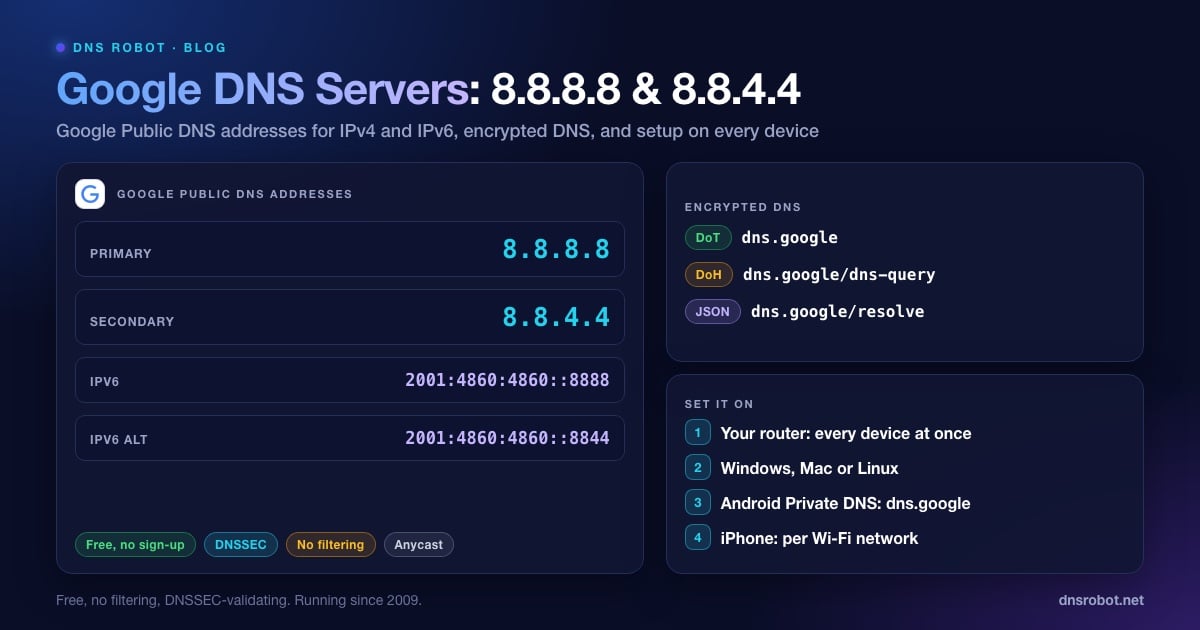
Enter these in any DNS settings field. Use both addresses: the second is the fallback if your device can't reach the first.
| Setting | IPv4 | IPv6 |
|---|---|---|
| Preferred / primary DNS | 8.8.8.8 | 2001:4860:4860::8888 |
| Alternate / secondary DNS | 8.8.4.4 | 2001:4860:4860::8844 |
# Ask Google DNS directly (macOS, Linux, or Windows with BIND tools)
dig @8.8.8.8 dnsrobot.net A +short

# Same over IPv6
dig @2001:4860:4860::8888 dnsrobot.net A +short

# Windows built-in equivalent
nslookup dnsrobot.net 8.8.8.8
Both addresses are anycast: Google announces them from data centres around the world, and your query goes to the nearest one on the network. 8.8.8.8 and 8.8.4.4 are equal; neither is a slower backup server. Small speed differences between them, like the ones in our benchmark below, come down to routing on the day.
If your connection has IPv6, add the IPv6 pair too. Otherwise your device can keep sending IPv6 lookups to your ISP's resolver and quietly bypass Google.
Advertisement
Google DNS64 Addresses for IPv6-Only Networks
Google also runs a DNS64 service. On a network that has only IPv6, it invents IPv6 addresses for sites that only have IPv4, so a NAT64 gateway can translate the traffic. You only need this if you run an IPv6-only network with NAT64 using the well-known 64:ff9b::/96 prefix.
| Service | Address 1 | Address 2 |
|---|---|---|
| Google Public DNS64 | 2001:4860:4860::6464 | 2001:4860:4860::64 |
DNS over HTTPS, DNS over TLS and the JSON API
Plain DNS on port 53 isn't encrypted, so your ISP and anyone else on the path can read the names you look up. Google Public DNS also answers over encrypted protocols:
DNS over HTTPS (DoH):
https://dns.google/dns-query. Chrome and Edge use it when you pick Google in their secure DNS setting; Firefox doesn't list Google, so choose Custom there and paste the URL.DNS over TLS (DoT): hostname
dns.googleon port 853. This is what you type into Android's Private DNS setting.JSON API:
https://dns.google/resolve?name=example.com&type=Areturns the answer as JSON, which is handy in scripts and for quick checks in a browser.
# Google's JSON API: works with plain curl
curl -s 'https://dns.google/resolve?name=dnsrobot.net&type=A'
# {"Status":0, ... "Answer":[{"name":"dnsrobot.net.","type":1,"TTL":300,"data":"172.67.150.248"}, ...],
#  "Comment":"Response from 108.162.193.236."}
The Comment field tells you which authoritative server Google asked for the answer. In this case that's one of Cloudflare's nameservers, because dnsrobot.net's DNS is hosted on Cloudflare.
Advertisement
Google DNS Privacy: What It Logs
Google sets out its logging in the Google Public DNS privacy page. It keeps two kinds of logs:
Temporary logs hold your full IP address and the query. Google deletes them within 24 to 48 hours, and uses them to fight abuse and fix problems.
Permanent logs keep a sample of queries with the IP address removed. In its place they store a city- or region-level location, alongside details such as your network's ASN, the name looked up and the record type.
Google says it doesn't combine these logs with personal information from your Google account or other Google services, except to deal with security and abuse.
EDNS Client Subnet (ECS): Google passes the first 24 bits of your IPv4 address (56 bits for IPv6), or fewer, to the website's DNS servers when they support ECS. That helps CDNs send you to a nearby server. Cloudflare's 1.1.1.1 doesn't do this.
That's less than many ISP resolvers keep, but more than 1.1.1.1, which truncates IP addresses straight away and never writes the full address to disk. Neither service hides your lookups from your ISP unless you use DoH or DoT.
Does Google DNS Block Anything?
No. Google says Google Public DNS doesn't block or filter domains of any kind, except in rare security or legal cases. It does validate DNSSEC, so a domain with broken signatures fails with SERVFAIL instead of returning an answer that might be forged. If you want filtering, use a resolver built for it:
| Provider | Primary | Secondary | Filtering |
|---|---|---|---|
| Google Public DNS | 8.8.8.8 | 8.8.4.4 | None |
| Cloudflare | 1.1.1.1 | 1.0.0.1 | None |
| Cloudflare for Families | 1.1.1.3 | 1.0.0.3 | Malware and adult content |
| Quad9 | 9.9.9.9 | 149.112.112.112 | Malicious domains |
| OpenDNS FamilyShield | 208.67.222.123 | 208.67.220.123 | Adult content (preset) |
Advertisement
Google DNS vs Cloudflare vs Quad9: Our Speed Test
Is 8.8.8.8 faster than 1.1.1.1? It depends on your network, so we measured. On 4 October 2026 we sent each resolver 15 lookups of a popular name (cached) and 15 lookups of brand-new names (uncached) from two places in India: a Jio home connection in Andhra Pradesh, and our web server in a Navi Mumbai data centre. The table shows the median response time.
| Resolver | Home line: cached | Home line: uncached | Data centre: cached | Data centre: uncached |
|---|---|---|---|---|
| Cloudflare 1.1.1.1 | 26 ms | 148 ms | 3 ms | 71 ms |
| Cloudflare 1.0.0.1 | 26 ms | 146 ms | 2 ms | 136 ms |
| Google 8.8.8.8 | 53 ms | 116 ms | 3 ms | 64 ms |
| Google 8.8.4.4 | 31 ms | 121 ms | 3 ms | 64 ms |
| Quad9 9.9.9.9 | 37 ms | 330 ms | 2 ms | 269 ms |
Globally, DNSPerf's resolver ranking (last 30 days, read on 4 October 2026) has 1.1.1.1 slightly ahead, averaging 13.63 ms against 19.47 ms for Google and 21.62 ms for Quad9. Our numbers from India show why an average can mislead.
Google won the uncached test on both networks (116–121 ms on the home line, 64 ms from the data centre), which is what you feel when you visit a site for the first time. Cloudflare answered cached names faster on the home line (26 ms against 31 ms for 8.8.4.4 and 53 ms for 8.8.8.8). From the data centre, every resolver answered cached names in 2–3 ms.
So neither one is "the fastest DNS" everywhere. The gap between them is a few tens of milliseconds, either way. That's less than the gap between a good public resolver and a slow ISP one.
How to Set Up Google DNS (8.8.8.8)
Setting it on your router covers every device on your Wi-Fi. Set it on a device instead when you can't change the router, or for laptops and phones that leave home.
Advertisement
On Your Router
Sign in to the router's admin page, usually 192.168.1.1 or 192.168.0.1. Our router login guide has the default address and password for 25+ brands and ISPs.
Open the Internet, WAN or DHCP settings and find the DNS fields.
Switch DNS from automatic to manual and enter 8.8.8.8 and 8.8.4.4. If there's an IPv6 section, enter 2001:4860:4860::8888 and 2001:4860:4860::8844.
Save, then reconnect your devices (or restart the router) so they pick up the change.
On Windows 11 and 10
Open Settings → Network & internet, choose Wi-Fi or Ethernet, then click your connection.
Next to DNS server assignment, click Edit and switch to Manual.
Under IPv4, enter 8.8.8.8 (preferred) and 8.8.4.4 (alternate). Windows 11 lets you set DNS over HTTPS to On (automatic template) for each one.
Under IPv6, enter 2001:4860:4860::8888 and 2001:4860:4860::8844, then save.
Windows 10 has no separate DNS option in Settings. Press Win + R, run
ncpa.cpl, right-click your adapter and open Properties → Internet Protocol Version 4 (TCP/IPv4) → Properties → Use the following DNS server addresses. The commands below work on both versions.
REM Command Prompt as administrator. Replace "Wi-Fi" with your adapter name
REM (list them with: netsh interface show interface)
netsh interface ipv4 set dnsservers name="Wi-Fi" source=static address=8.8.8.8 validate=no
netsh interface ipv4 add dnsservers name="Wi-Fi" address=8.8.4.4 index=2 validate=no
ipconfig /flushdns
On macOS and Linux
macOS: System Settings → Network → Wi-Fi → Details → DNS, click + and add 8.8.8.8, 8.8.4.4 and the two IPv6 addresses.
Linux with systemd-resolved (for example Ubuntu and Fedora desktops): set it per connection in NetworkManager, or use
resolvectlas below. Don't edit/etc/resolv.confby hand on these systems; it's regenerated.
# macOS
networksetup -setdnsservers Wi-Fi 8.8.8.8 8.8.4.4 2001:4860:4860::8888 2001:4860:4860::8844

# Linux (NetworkManager): replace "Home Wi-Fi" with your connection name
nmcli con mod "Home Wi-Fi" ipv4.dns "8.8.8.8 8.8.4.4" ipv4.ignore-auto-dns yes
nmcli con up "Home Wi-Fi"

# Linux (systemd-resolved, until the next reconnect; replace wlan0 with your interface)
sudo resolvectl dns wlan0 8.8.8.8 8.8.4.4
resolvectl status wlan0
On Android and iPhone
Android 9 or later: open Settings → Network & internet → Private DNS (under Advanced on some phones), choose Private DNS provider hostname and type dns.google. It encrypts your lookups and works on mobile data as well as Wi-Fi.
iPhone and iPad: Settings → Wi-Fi, tap (i) next to your network, then Configure DNS → Manual. Remove the existing entries and add 8.8.8.8 and 8.8.4.4. This applies to that one Wi-Fi network only.
How to Check You're Using Google DNS
Google publishes a special name that answers with the address of whoever asked it. Run it without naming a server, so the query goes through your normal settings:
# Windows, macOS or Linux
nslookup -type=TXT o-o.myaddr.l.google.com

# Using Google DNS: you get a Google address (often 172.253.x.x or 74.125.x.x)
# plus an "edns0-client-subnet" line.
# Not using Google: you get your ISP's or VPN's resolver address instead.

# DNSSEC check: this deliberately broken domain must fail
dig @8.8.8.8 dnssec-failed.org | grep status
# status: SERVFAILIf the answer still shows your ISP, something is overriding your setting: the router handing out its own address, a VPN, or the browser's own secure DNS setting. After any change, flush your DNS cache so old answers don't confuse the test.
8.8.8.8 Not Working? Common Causes
Google Public DNS itself is very rarely down. When it seems to fail, it's usually one of these:
Your network intercepts DNS. Some ISPs, hotels and office firewalls redirect every query on port 53 to their own resolver, so 8.8.8.8 in your settings changes nothing. The
o-o.myaddr.l.google.comtest above shows a non-Google address when this happens. DoH or DoT to dns.google usually gets around it, where the network allows it.A captive portal. On hotel, airport and café Wi-Fi, the sign-in page often only appears through the network's own DNS. Set DNS back to automatic, sign in, then switch back.
A firewall that only allows its own DNS. Corporate and school networks often block port 53 and 853 to outside resolvers. Use the network's resolver there.
A domain with broken DNSSEC. Google validates signatures. If a domain's DNSSEC is misconfigured, Google answers SERVFAIL while a resolver that doesn't validate may still return an address. The fix is on the domain's side.
Rate limiting. Google allows up to 1,500 queries per second from each IPv4 address (or IPv6 /64). Home users never get near that, but a busy mail server or crawler behind one IP can.
Stale answers. After switching, cached answers stay on your device until their TTL runs out. Flush the cache and test again.
If no site loads at all, follow our guide to DNS server not responding. If only one site fails with DNS_PROBE_FINISHED_NXDOMAIN, the problem is usually that domain's own records; see how to fix NXDOMAIN.
Is 8.8.8.8 the fastest DNS for you?
Run DNS Robot's DNS Speed Test from your own browser. It times Google, Cloudflare and Quad9 with uncached DNS-over-HTTPS lookups and ranks them by median response time on your network.
Try DNS Speed TestAdvertisement
Frequently Asked Questions
Google Public DNS uses 8.8.8.8 and 8.8.4.4 for IPv4, and 2001:4860:4860::8888 and 2001:4860:4860::8844 for IPv6. Enter both addresses of each pair so your device has a fallback.