Spectrum DNS Servers: Complete List & Setup Guide
Advertisement
What Are Spectrum DNS Servers?
Spectrum DNS servers are the Domain Name System resolvers operated by Charter Communications (Spectrum's parent company) that translate domain names like google.com into IP addresses your device can connect to. Every time you visit a website on your Spectrum connection, your device sends a DNS query to these servers.
When you sign up for Spectrum Internet, your router is automatically configured to use Spectrum's own DNS servers. These servers are located in Spectrum's data centers across the United States and handle DNS resolution for over 31 million customers across 41 states.
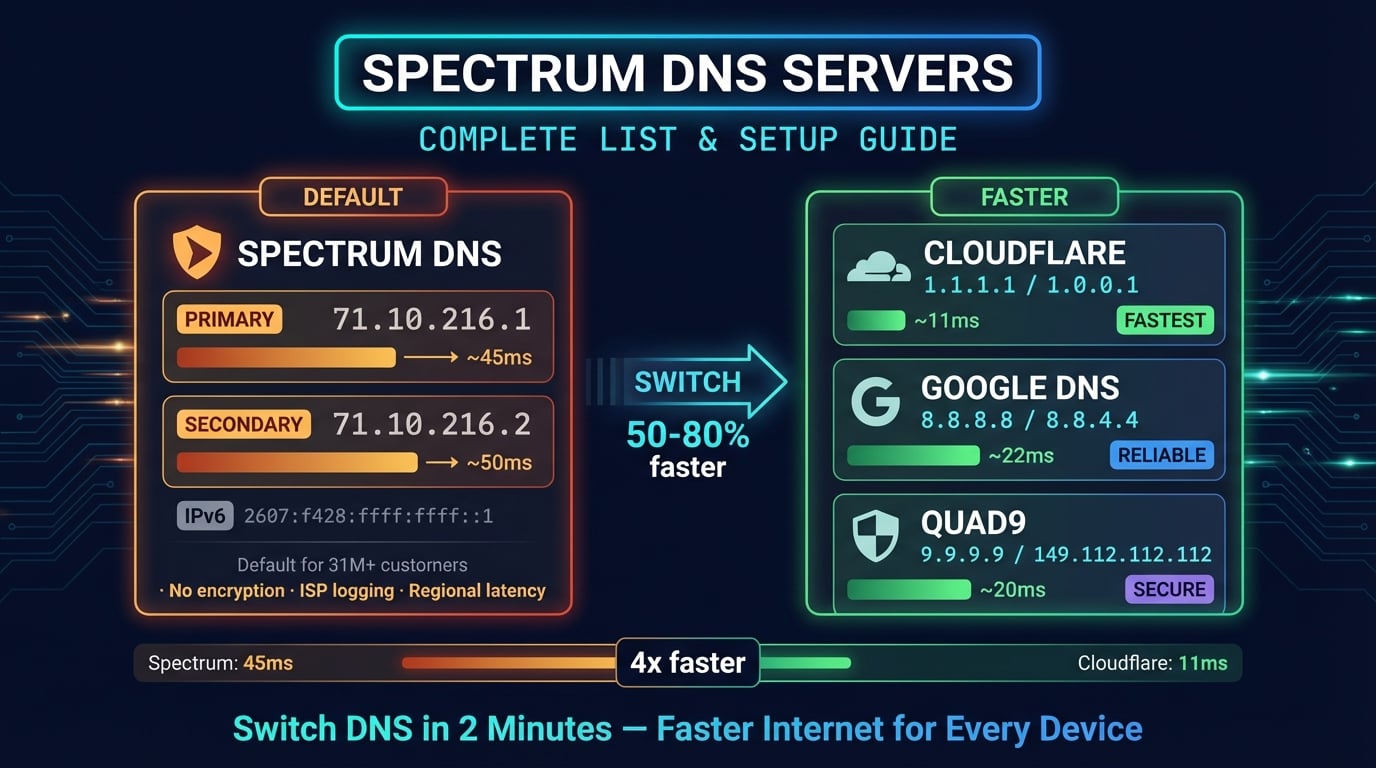
While Spectrum's DNS servers work reliably for most users, they are not always the fastest option. Independent benchmarks from DNSPerf consistently show that public DNS providers like Cloudflare and Google resolve queries 50–80% faster than most ISP DNS servers, including Spectrum's.
Spectrum DNS Server IP Addresses (IPv4)
Here are Spectrum's default DNS server addresses that your router uses automatically. These are the same servers assigned to residential Spectrum Internet customers across the United States.
| Server | IP Address | Type |
|---|---|---|
| Primary DNS | 71.10.216.1 | Preferred |
| Secondary DNS | 71.10.216.2 | Alternate |
| Legacy Charter DNS | 24.196.64.53 | Regional |
| Legacy TWC DNS 1 | 209.18.47.61 | Regional |
| Legacy TWC DNS 2 | 209.18.47.62 | Regional |
The 71.10.216.x pair is the most commonly assigned DNS for current Spectrum customers. The legacy addresses (24.196.64.53, 209.18.47.x) may still be active in regions that were formerly Charter or Time Warner Cable territories.
You can verify which DNS servers your Spectrum connection is currently using by running a quick command on your device — see the verification section below.
Advertisement
Spectrum IPv6 DNS Servers
Spectrum also provides IPv6 DNS servers for customers with IPv6-enabled connections. IPv6 support is available on most current Spectrum plans and is enabled by default on newer routers.
| Server | IPv6 Address |
|---|---|
| Primary IPv6 DNS | 2607:f428:ffff:ffff::1 |
| Secondary IPv6 DNS | 2607:f428:ffff:ffff::2 |
If you are switching to a third-party DNS provider, make sure to update both your IPv4 and IPv6 DNS settings. Leaving IPv6 DNS on Spectrum's defaults while changing only IPv4 can cause inconsistent behavior — some queries will still go through Spectrum's servers.
Spectrum Business DNS Servers
Spectrum Business customers use the same DNS infrastructure as residential users by default. However, business accounts have access to static IP addresses and the option to run their own DNS servers for custom domain configurations.
If you run a business on Spectrum, consider using a premium DNS provider like Cloudflare (1.1.1.1 for Families) or Quad9 (9.9.9.9) for built-in malware blocking. These services filter known malicious domains at the DNS level, adding a layer of security without additional software.
Advertisement
Why Change Spectrum's Default DNS?
Spectrum's DNS servers work fine for casual browsing, but there are several compelling reasons to switch to a public DNS provider.
Faster DNS resolution — Public DNS providers like Cloudflare (avg. 11ms global latency) and Google (avg. 22ms) consistently outperform ISP DNS servers. Spectrum's DNS latency typically ranges from 30–60ms depending on your region
Better uptime — Cloudflare and Google operate anycast networks with 99.99%+ uptime. Spectrum DNS has experienced multiple outages affecting millions of customers, including notable incidents in 2023 and 2024
Privacy protection — Spectrum's DNS privacy policy allows them to collect and share DNS query data. Cloudflare commits to deleting all DNS logs within 24 hours and undergoes annual KPMG audits
Bypass DNS-based content filtering — Some ISPs redirect failed DNS queries to their own search pages or inject ads. Switching DNS prevents this
Security features — Quad9 (9.9.9.9) blocks known malicious domains. Cloudflare for Families (1.1.1.3) blocks malware and adult content at the DNS level
Avoid DNS hijacking — ISP DNS servers are larger targets for DNS poisoning attacks. Public resolvers implement DNSSEC validation and DNS-over-HTTPS/TLS encryption
Best DNS Servers for Spectrum Users
These are the best public DNS alternatives for Spectrum customers, ranked by speed, privacy, and features. All are free and work with any Spectrum plan.
| Provider | Primary IPv4 | Secondary IPv4 | Avg Latency | Best For |
|---|---|---|---|---|
| Cloudflare | 1.1.1.1 | 1.0.0.1 | ~11ms | Speed + privacy |
| Google DNS | 8.8.8.8 | 8.8.4.4 | ~22ms | Reliability + global reach |
| Quad9 | 9.9.9.9 | 149.112.112.112 | ~20ms | Security (malware blocking) |
| OpenDNS | 208.67.222.222 | 208.67.220.220 | ~25ms | Parental controls |
| Cloudflare Families | 1.1.1.3 | 1.0.0.3 | ~11ms | Malware + adult content filter |
| Spectrum Default | 71.10.216.1 | 71.10.216.2 | ~30-60ms | No setup needed |
For most Spectrum users, Cloudflare (1.1.1.1) is the best overall choice — it's the fastest public DNS resolver globally and has the strongest privacy commitment. If you want built-in malware protection, Quad9 (9.9.9.9) is excellent. For families wanting content filtering, Cloudflare for Families (1.1.1.3) or OpenDNS FamilyShield are great options. Full address lists and setup steps: our Cloudflare DNS servers guide and Google DNS servers guide.
You can benchmark DNS performance for your specific location using GRC DNS Benchmark (Windows) or the dig command on Mac/Linux.
Advertisement
How to Change DNS on Your Spectrum Router
Changing DNS on your Spectrum router applies the new DNS servers to every device on your network — phones, laptops, smart TVs, and gaming consoles. This is the recommended approach because you only configure it once.
Method 1: Via Router Admin Panel (192.168.1.1)
This works on most Spectrum-provided routers (RAC2V1K, RAC2V1A, SAC2V1K, and similar models).
Step 1 — Open a browser and go to 192.168.1.1 (or 192.168.0.1 on older routers). Log in with your router credentials (default is usually admin/admin or printed on the router label)
Step 2 — Click Advanced in the top navigation menu. You should land on the Internet tab by default
Step 3 — Scroll down to DNS Configuration. Change "Connect to DNS Server" from Yes to No. This makes the DNS input fields editable
Step 4 — Enter your preferred DNS servers. For example: Primary = 1.1.1.1, Secondary = 1.0.0.1 (Cloudflare)
Step 5 — Click Apply to save. Your router will briefly reconnect
Method 2: Via My Spectrum App
The My Spectrum app (iOS and Android) lets you change DNS without accessing the router admin panel.
Step 1 — Open the My Spectrum app and sign in to your account
Step 2 — Go to Services tab → select Router under Equipment
Step 3 — Scroll down and tap Advanced Settings
Step 4 — Tap DNS Server → select Manage DNS
Step 5 — Enter your preferred DNS (e.g., 8.8.8.8 for Google DNS) and save
Change DNS on Windows (Spectrum Connection)
If you can't change DNS on the router, you can change it per device. Here's how to do it on Windows 10 and 11.
Advertisement
Windows 11 (Settings App)
The fastest way on Windows 11 is through the Settings app.
Step 1 — Open Settings → Network & Internet → click your connection (Wi-Fi or Ethernet)
Step 2 — Click Edit next to DNS server assignment
Step 3 — Switch from Automatic (DHCP) to Manual
Step 4 — Enable IPv4 and enter: Preferred DNS = 1.1.1.1, Alternate DNS = 1.0.0.1
Step 5 — (Optional) Enable IPv6 and enter: 2606:4700:4700::1111 and 2606:4700:4700::0064
Step 6 — Click Save
# PowerShell: Change DNS on active network adapter
$adapter = Get-NetAdapter | Where-Object {$_.Status -eq 'Up'} | Select-Object -First 1
Set-DnsClientServerAddress -InterfaceIndex $adapter.ifIndex -ServerAddresses '1.1.1.1','1.0.0.1'

# Verify the change
Get-DnsClientServerAddress -InterfaceIndex $adapter.ifIndex
Windows 10/11 (Command Prompt)
# Find your network adapter name
netsh interface show interface

# Set primary DNS (replace "Wi-Fi" with your adapter name)
netsh interface ip set dns name="Wi-Fi" static 1.1.1.1

# Set secondary DNS
netsh interface ip add dns name="Wi-Fi" 1.0.0.1 index=2

# Flush DNS cache to apply immediately
ipconfig /flushdns

# Verify new DNS servers
nslookup google.comChange DNS on Mac (Spectrum Connection)
macOS makes it easy to change DNS servers through System Settings (macOS Ventura and later) or System Preferences (older versions).
Step 1 — Open System Settings → Network → click your active connection (Wi-Fi or Ethernet)
Step 2 — Click Details → select DNS from the sidebar
Step 3 — Click the + button to add DNS servers. Enter 1.1.1.1 and 1.0.0.1
Step 4 — Remove any existing Spectrum DNS entries by selecting them and clicking −
Step 5 — Click OK → Apply
# Terminal: Set DNS for Wi-Fi interface
networksetup -setdnsservers Wi-Fi 1.1.1.1 1.0.0.1

# Flush DNS cache
sudo dscacheutil -flushcache && sudo killall -HUP mDNSResponder

# Verify DNS servers
networksetup -getdnsservers Wi-Fi

# Test DNS resolution
dig @1.1.1.1 google.com +short
Change DNS on iPhone & Android (Spectrum Wi-Fi)
If you're connected to Spectrum Wi-Fi but can't change the router settings, you can override DNS on your phone.
iPhone / iPad
Step 1 — Open Settings → Wi-Fi → tap the (i) icon next to your Spectrum network
Step 2 — Scroll down and tap Configure DNS
Step 3 — Switch from Automatic to Manual
Step 4 — Delete existing DNS entries, then tap Add Server and enter 1.1.1.1 and 1.0.0.1
Step 5 — Tap Save
Android
Android 9+ has a built-in Private DNS feature that applies encrypted DNS globally — across all networks, including Spectrum Wi-Fi and mobile data.
Step 1 — Open Settings → Network & Internet → Private DNS
Step 2 — Select Private DNS provider hostname
Step 3 — Enter one.one.one.one (Cloudflare) or dns.google (Google DNS)
Step 4 — Tap Save
How to Verify Your DNS Settings Changed
After changing DNS, verify that your device is actually using the new servers. Here are the fastest methods.
# Windows — Check current DNS servers
nslookup google.com
# Look for the "Server:" line — should show 1.1.1.1, not 71.10.216.1

# Mac/Linux — Check DNS response time
dig google.com @1.1.1.1 | grep "Query time"
# Should show ~10-20ms for Cloudflare

dig google.com @71.10.216.1 | grep "Query time"
# Compare with Spectrum's response timeYou can also use DNS Robot's DNS Lookup tool to check which DNS server is resolving your queries. Enter any domain name and compare the results from different DNS providers.
If nslookup still shows Spectrum's DNS (71.10.216.1), try flushing your DNS cache and restarting your browser. Router-level DNS changes may take 10–15 minutes to propagate to all devices.
Common Spectrum DNS Issues & Fixes
Spectrum DNS servers occasionally experience outages and slowdowns. Here are the most common issues and how to resolve them.
DNS Server Not Responding on Spectrum
This is the most common Spectrum DNS issue. Your browser shows "DNS_PROBE_FINISHED_NXDOMAIN" or "DNS server not responding" even though your modem shows a solid connection.
Quick fix — Switch to Google DNS (8.8.8.8) or Cloudflare (1.1.1.1) to bypass Spectrum's servers entirely
Restart modem and router — Unplug both for 30 seconds, then plug in the modem first, wait 2 minutes, then plug in the router
Flush DNS cache — Run
ipconfig /flushdnson Windows orsudo dscacheutil -flushcacheon MacCheck for outage — Visit Downdetector Spectrum to see if others are affected
Slow DNS Lookups on Spectrum
If websites take a few seconds to start loading but download fast once they begin, slow DNS resolution is likely the cause. ISP DNS servers like Spectrum's can have 30–60ms latency compared to 11ms for Cloudflare.
Switching to a faster DNS resolver reduces lookup time for every single request your device makes — including APIs, CDN resources, and background service calls. A single page load can trigger 20–50 DNS queries, so a 40ms improvement per query adds up fast.
Not sure which resolver to switch to? Run a free DNS speed test first — it benchmarks Cloudflare, Google and Quad9 from your own Spectrum connection and ranks them by real measured latency, so you pick the fastest one for your location instead of guessing.
Spectrum Router Locks DNS Settings
Some Spectrum-issued routers (especially older models) prevent you from changing DNS settings. The DNS fields appear grayed out or revert after saving.
Workarounds for locked DNS:
Use your own router — Buy a third-party router (TP-Link, Netgear, ASUS) and use Spectrum's device as a modem only. You'll have full control over DNS and all other settings
Change DNS per device — Set DNS on each computer, phone, and tablet individually instead of on the router
Use Private DNS (Android) — Android's built-in Private DNS overrides the router's DNS at the OS level
Use DoH in your browser — Chrome, Firefox, and Edge all support DNS-over-HTTPS, which bypasses the router's DNS entirely
Check Your DNS Configuration
Use DNS Robot's free DNS Lookup tool to verify which DNS servers your domain is using and inspect A, AAAA, MX, CNAME, TXT, and NS records.
Try DNS LookupAdvertisement
Frequently Asked Questions
Spectrum's primary DNS server is 71.10.216.1 and the secondary is 71.10.216.2. For IPv6, the addresses are 2607:f428:ffff:ffff::1 and 2607:f428:ffff:ffff::2.