What Is 192.168.1.254?
192.168.1.254 is the default address of gateways that internet providers supply: a modem and Wi-Fi router in one box. Instead of the usual .1 at the end, these devices take the last usable address of the 192.168.1.0/24 network.
The best-known users are AT&T in the United States, the BT Smart Hub in the United Kingdom, Telmex (Infinitum) modems in Mexico, and Technicolor gateways supplied by several other providers. All of them print a unique password on the device instead of using a shared default, so the label is the first place to look.
How to Log In to 192.168.1.254
Join its Wi-Fi or plug in a cable. On a phone, turn off mobile data.
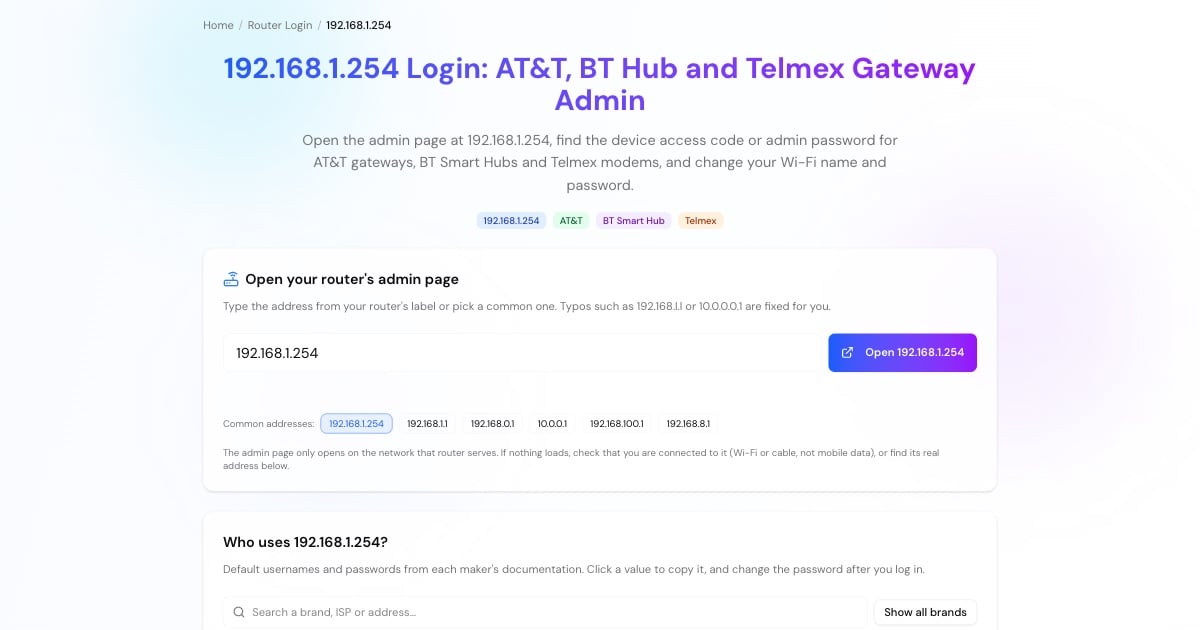
Type http://192.168.1.254 in the browser's address bar, or use the button above.
AT&T calls it the Device Access Code; BT prints an admin password on the back of the Hub; Telmex prints the login on the sticker under the modem.
On AT&T and BT gateways many status pages open without a login; the code or password is requested when you change a setting.
Advertisement
192.168.1.254 Password by Provider
None of these gateways uses a public default like admin / admin. Where to find the login:
AT&T: the Device Access Code is printed on the label on the side or bottom of the gateway. It is different from the Wi-Fi password printed next to it.
BT Smart Hub: the admin password is on the back of the Hub and on the Hub settings card that came with it.
Telmex: the username and password are on the label under the modem. If they don't work, Telmex support can confirm or reset them.
Technicolor gateways from other providers: usually on the label; otherwise ask your provider.
Changed and forgotten? A factory reset restores the label password, but also clears your Wi-Fi name, password and any provider settings.
Change Your Wi-Fi Name and Password
Each provider puts the wireless settings in a slightly different place:
AT&T: Home Network → Wi-Fi, enter the Device Access Code when asked, then change the network name and password. AT&T's Smart Home Manager app does the same.
BT Smart Hub: Advanced Settings → Wireless, sign in with the admin password, then edit the Wi-Fi name and password.
Telmex and Technicolor: open the Wi-Fi or WLAN section, change the network name (SSID) and the security key, and save.
Use WPA2 or WPA3 with at least 12 characters, and reconnect every device afterwards.
Advertisement
192.168.1.254 Not Opening?
If the page doesn't load:
You have your own router behind the gateway. Your devices are then on that router's network (for example 192.168.0.1 or 192.168.1.1), and the gateway may be hidden. Connect a device straight to the gateway, or open your own router's page instead.
The gateway is in passthrough or bridge mode. Some providers' gateways can hand the connection to your router (AT&T calls it IP Passthrough); the admin page then may only be reachable from a device connected directly to the gateway.
You are on mobile data or another Wi-Fi. Connect to the gateway's network.
Type http:// in full:
http://192.168.1.254.Turn off VPNs and iCloud Private Relay, then restart the gateway if it still doesn't respond.
192.168.1.254 vs 192.168.1.1
Both sit on the same 192.168.1.0/24 network; only the last number differs. Retail routers usually take .1, many provider gateways take .254, and the addresses in between go to your devices. If you can't remember which one your gateway uses, your device's default gateway tells you: see the steps in the tool above.
Using a router from a store behind the provider's gateway? Its own page is usually at 192.168.1.1 or 192.168.0.1.
Advertisement
More Router and Network Tools
Related pages: