What Is 192.168.1.1?
192.168.1.1 is the most common default address of a home router's admin page. It is a private IP address from the 192.168.0.0/16 range, so it only works inside your own network: millions of homes use the same address without conflict, and it cannot be reached from the internet.
Routers that ship with 192.168.1.1 include Linksys, many NETGEAR models, older ASUS models, some TP-Link models, Verizon Fios routers and many fiber and DSL routers that internet providers hand out, including ZTE and Huawei models. If yours uses a different address, the tool above shows how to find it.
How to Log In to 192.168.1.1
Use its Wi-Fi or a network cable. On a phone, turn off mobile data.
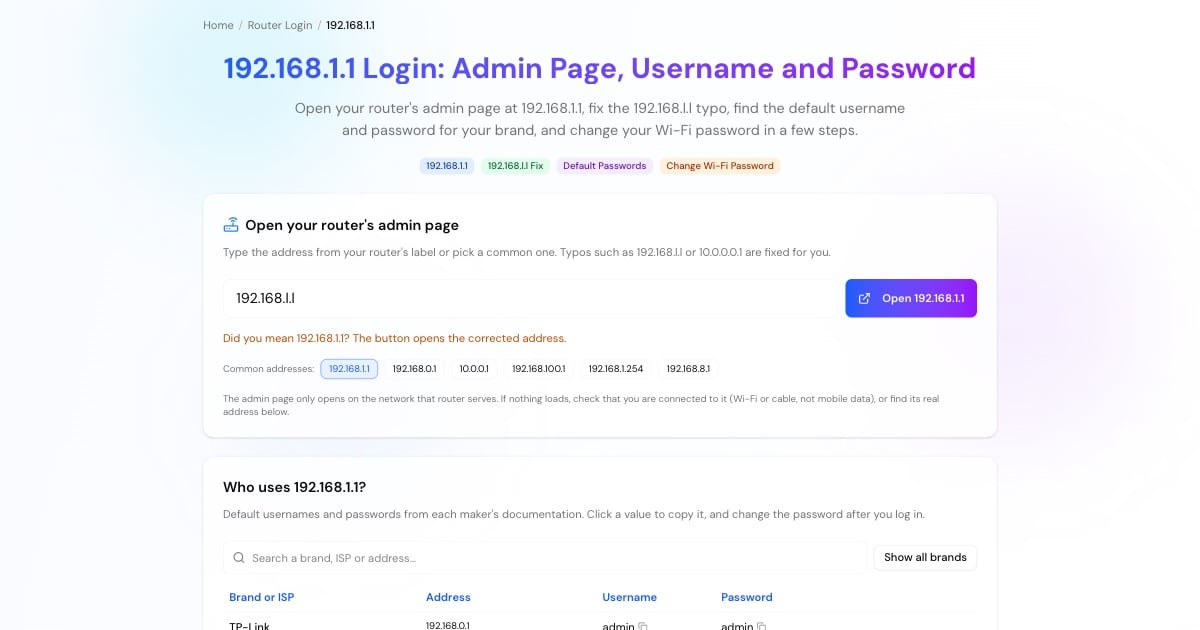
Type http://192.168.1.1 into the browser's address bar, not a search box, or use the Open button above.
Check the label on the router first. Otherwise try the default for your brand in the table above, such as admin / admin or admin / password.
Once you are in, set a new admin password, then a strong Wi-Fi password.
Advertisement
192.168.l.l or 192.168.1.1?
192.168.l.l is the most searched router address that does not exist. It contains the letter l where the digit 1 belongs, which is an easy mistake because the two look alike in many fonts. A browser treats 192.168.l.l as a search term, so the login page never opens.
The correct address is 192.168.1.1: four numbers, three dots, no letters. The same goes for 192.168.1.l, 192.168.l.1 and 192.168.11 (a missing dot). Type any of them into the tool above and it opens the right address.
192.168.1.1 Username and Password
There is no single password for 192.168.1.1: it depends on who made the router and on your provider. Start with the label on the bottom or back of the router. Common defaults for routers on this address:
NETGEAR: admin / password (also reachable at routerlogin.net)
Linksys: admin / admin on older models; Smart Wi-Fi models use the password set during setup (myrouter.local)
ASUS (older models): admin / admin; newer models ask you to create a password
TP-Link: admin / admin on older models; newer ones ask you to create a password at first login (tplinkwifi.net)
Verizon Fios, ZTE and other provider routers: printed on the router's label
Forgotten or changed password: hold the reset button for about 10 seconds to restore the factory login, then set up Wi-Fi again
Advertisement
How to Change Your Wi-Fi Password at 192.168.1.1
Menu names differ between brands, but the steps are nearly identical on every router:
Follow the steps above and sign in with the admin username and password.
Look for Wireless, Wi-Fi, WLAN or Wireless Security. Dual-band routers have separate 2.4 GHz and 5 GHz sections.
Choose WPA2-PSK or WPA3 security and enter a new password (pre-shared key) of at least 12 characters. Change the network name (SSID) here too if you like.
Click Save or Apply. Every device disconnects and must reconnect with the new password.
192.168.1.1 Refused to Connect or Took Too Long to Respond
"This site can't be reached", "refused to connect" or "took too long to respond" mean the browser reached no admin page at that address. Check these in order:
Your router may not use 192.168.1.1. Many TP-Link and D-Link routers use 192.168.0.1, Xfinity uses 10.0.0.1 and AT&T uses 192.168.1.254. Check your default gateway with the steps in the tool above.
You are on mobile data or another network. Connect to the router's Wi-Fi or a cable.
The browser forced HTTPS. Type
http://192.168.1.1in full; most routers don't serve the admin page over HTTPS.A VPN, proxy or iCloud Private Relay is on. Turn it off while you log in.
Your Wi-Fi comes from a mesh system (Google Nest Wifi, eero). Those are managed in their apps.
The router has frozen. Unplug it for 30 seconds and try again.
Advertisement
192.168.1.1 vs 192.168.0.1
Both are default router addresses from the same private range; the only difference is the third number, which picks a different subnet. Routers on 192.168.1.1 hand out device addresses such as 192.168.1.2–192.168.1.254, while routers on 192.168.0.1 use 192.168.0.x. A device on one subnet cannot open the other's admin page.
To see exactly which addresses a network covers, enter it in the subnet calculator. Your public IP address, the one websites see, is a different number entirely: What Is My IP shows it.
More Router and Network Tools
Next steps once you are logged in: