What Is 192.168.100.1?
192.168.100.1 is usually the address of your modem, the box that connects your home to the provider's line, rather than of a separate Wi-Fi router. Two kinds of devices use it:
Fiber ONTs (optical network terminals) handed out by fiber providers, very often Huawei EchoLife models, and cable modems such as ARRIS SURFboard and NETGEAR. Many fiber ONTs are also the Wi-Fi router, so 192.168.100.1 is where you change everything. Others feed a separate router that has its own address, such as 192.168.1.1 or 192.168.0.1.
How to Log In to 192.168.100.1
Use a network cable to the modem, or its Wi-Fi if it is a fiber ONT with Wi-Fi built in. Turn off mobile data on a phone.
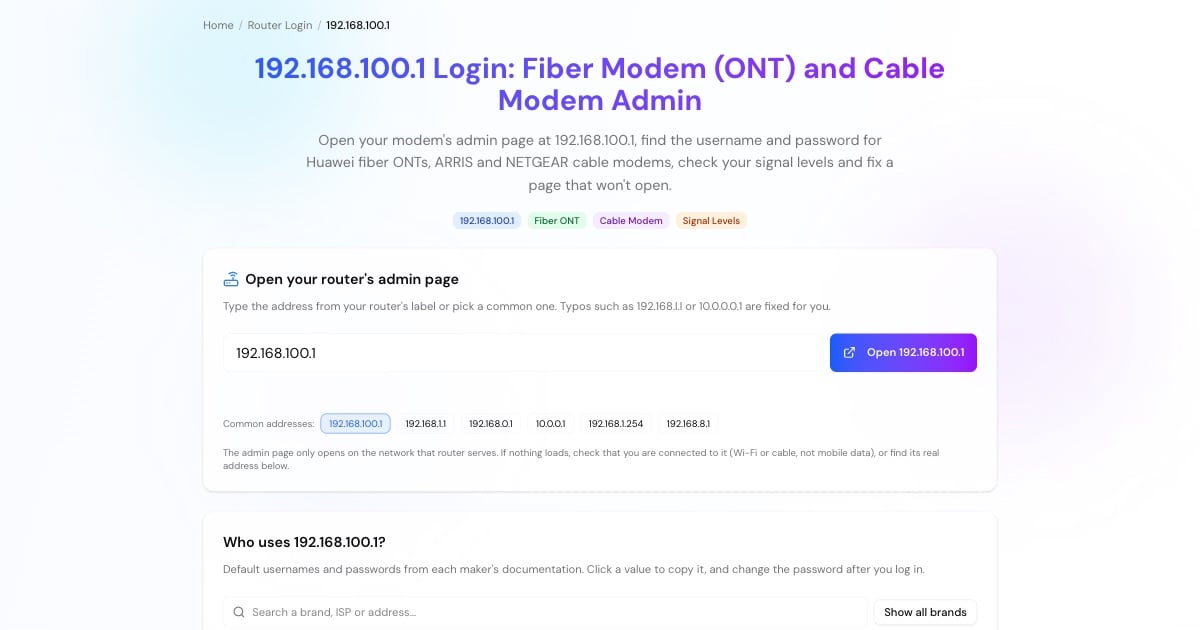
Type http://192.168.100.1 in the browser's address bar, or tap the button above.
Fiber ONTs print a username and password on the sticker underneath. ARRIS and NETGEAR cable modems use admin / password when a login is required at all.
The home page shows whether the line is up, the signal levels and the connected devices, all useful before calling your provider.
Advertisement
192.168.100.1 Username and Password
The login depends on the device and on your provider:
Huawei fiber ONT: the username and password are printed on the label. Many providers configure two accounts: a user account given to you and an administrator account they keep for themselves.
ARRIS / SURFboard cable modem: admin / password. You are asked to change it the first time.
NETGEAR cable modem: admin / password.
Other provider-supplied modems: check the label or ask your provider; some lock the admin page and offer an app instead.
Forgotten password: a factory reset restores the label login, but on fiber ONTs it can also erase the provider's settings. Ask your provider before you reset.
Check Your Signal on 192.168.100.1
The modem page is the quickest way to tell whether a slow or dropping connection is a line problem.
On a fiber ONT, look for optical power (Rx power). GPON receivers usually work with roughly −8 to −27 dBm; a value weaker than that, or a red LOS light on the box, points to a dirty or bent fiber, which only your provider can fix.
On a cable modem, look at the downstream and upstream tables. As a rough guide, many manufacturers consider downstream power between about −7 and +7 dBmV and a signal-to-noise ratio above about 33 dB healthy; your provider's own limits may differ. Note the numbers and the event log before you call support.
Advertisement
Modem or Router: Which Page Do You Need?
If your modem is also your Wi-Fi router (common with fiber ONTs), 192.168.100.1 is where you change the Wi-Fi name and password. On Huawei ONTs this is usually under WLAN, where the Wi-Fi password is labelled WPA PreSharedKey.
If a separate router makes your Wi-Fi, change the Wi-Fi on that router instead, typically at 192.168.1.1 or 192.168.0.1. The modem page is then only for the line status. Cable modems usually stay reachable at 192.168.100.1 even from behind your router.
192.168.100.1 Not Opening?
Work through these if the page doesn't load:
Connect directly. Plug a cable into the modem, or join the ONT's own Wi-Fi rather than a separate router's network.
Type http:// in full:
http://192.168.100.1. Modems don't serve the page over HTTPS.Your modem may use another address. Check the label, or look up your default gateway with the steps in the tool above.
Your provider may have locked it. Some disable the web page or only allow access through their app.
Turn off VPNs and Private DNS while you open the page.
Restart the modem by unplugging it for 30 seconds.
Advertisement
More Router and Network Tools
Related pages: