What Is 192.168.0.1?
192.168.0.1 is the second most common router address after 192.168.1.1. It is the default for many TP-Link and D-Link routers, Tenda routers, some NETGEAR models and the Virgin Media Hub in the UK. Like every 192.168.x.x address it is private: it works only on your own network, and thousands of homes can use it without conflict.
Several of these brands also answer to a friendly name that always finds the router, whatever its IP: tplinkwifi.net for TP-Link, dlinkrouter.local for D-Link, tendawifi.com for Tenda and routerlogin.net for NETGEAR.
How to Log In to 192.168.0.1
Connect by Wi-Fi or cable. A brand-new TP-Link or Tenda router broadcasts the network name and password printed on its label.
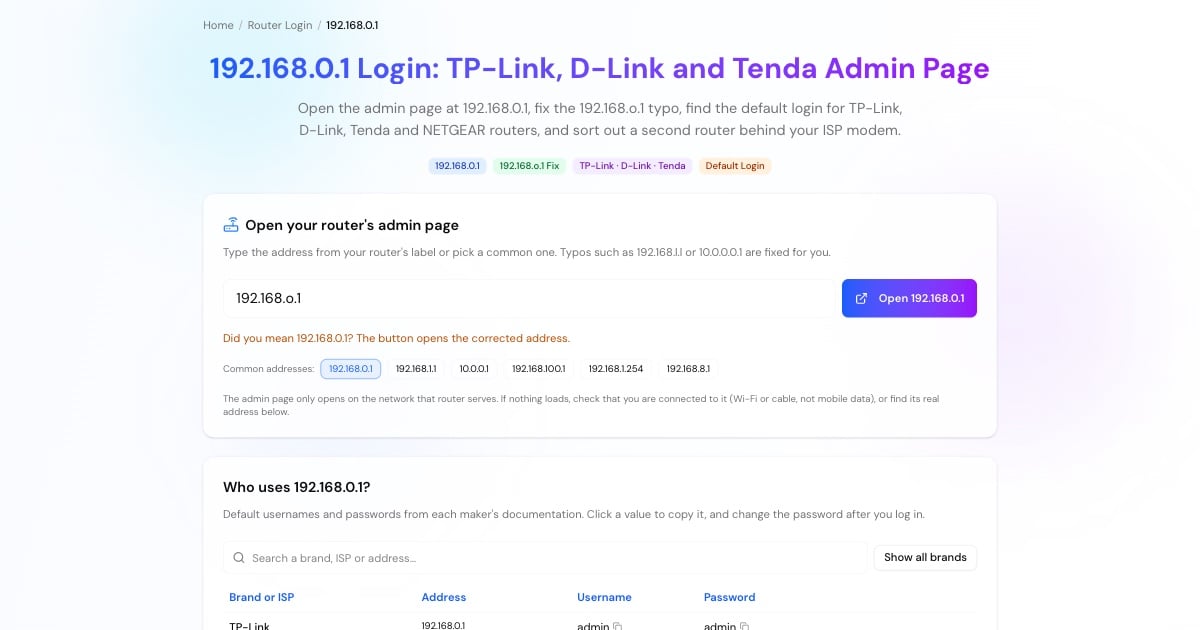
Enter http://192.168.0.1 in the browser's address bar, or tap the button above. On TP-Link you can also use tplinkwifi.net.
Older TP-Link models use admin / admin and D-Link uses admin with an empty password. Newer TP-Link and Tenda routers ask you to create an admin password the first time.
Pick your connection type (dynamic IP, PPPoE with the username from your provider, or static IP), then set the Wi-Fi name and password.
Advertisement
192.168.o.1 or 192.168.0.1?
192.168.o.1 has the letter o where the digit 0 belongs. Like 192.168.l.l, it is one of the most searched addresses that cannot work: an IP address is made of digits only, so the browser runs a search instead of opening your router.
Other near misses for this address include 192.168.0.l, 192.168.01 (a missing dot) and 192.168.0.1. with a trailing dot. The tool above corrects all of them to 192.168.0.1.
192.168.0.1 Username and Password by Brand
Check the label on the router first; it often shows the exact login. Otherwise, the usual defaults on 192.168.0.1 are:
TP-Link: admin / admin on older models. Current models have no default: you create the password at first login. Forgot it? Reset the router.
D-Link: username admin, password left empty. Newer models may ask you to set one during setup.
Tenda: you set a login password during the first setup at tendawifi.com.
NETGEAR: admin / password.
Virgin Media Hub: the settings password is printed on the bottom of the Hub.
Advertisement
Two Routers? Reaching 192.168.0.1 Behind Your ISP Modem
A very common setup: your internet provider's modem-router uses 192.168.1.1, and a TP-Link or D-Link router you bought is plugged in behind it on 192.168.0.1. Each one has its own admin page, and you can only open the one whose network you are on.
If 192.168.0.1 won't open, check which Wi-Fi you are connected to: on the provider's network you reach 192.168.1.1, on your own router's network you reach 192.168.0.1. Two routers doing the same job ("double NAT") can break games and port forwarding. If that happens, put the provider's box in bridge mode or switch your own router to access point mode, and use the port checker to confirm that forwarded ports are open.
How to Change the Wi-Fi Password on 192.168.0.1
The menu names differ slightly by brand, but the path is short on all of them:
TP-Link: Wireless → Wireless Security on older models, or Advanced → Wireless → Wireless Settings on newer ones; enter the new password and Save.
D-Link: Settings → Wireless → enter a new Password → Save.
Tenda: WiFi Settings → WiFi Name & Password → Save.
Choose WPA2-PSK or WPA3, use at least 12 characters, and reconnect every device afterwards.
Advertisement
192.168.0.1 Not Working?
If the page doesn't load or keeps spinning:
Your router may be on 192.168.1.1 or another address. Check the default gateway with the steps in the tool above.
You are on mobile data or the wrong Wi-Fi. Connect to the router you want to configure.
Try the brand name address: tplinkwifi.net, dlinkrouter.local or tendawifi.com.
Type http:// in full. Most of these routers don't serve the admin page over HTTPS.
Turn off VPNs and iCloud Private Relay while you log in.
Restart the router, and as a last resort hold the reset button for about 10 seconds (this erases your settings).
More Router and Network Tools
Related pages for the next step: