






Как создать QR-код бесплатно: ссылка, Wi-Fi, логотип, размер
 Shaik Vahid15 мин чтения
Ключевой вывод
Чтобы создать QR-код, выберите тип содержимого (URL, текст, Wi-Fi, vCard, e-mail, телефон, SMS, WhatsApp, местоположение, событие или платёжная схема), введите данные, оставьте коррекцию ошибок на уровне M (H с логотипом), при желании добавьте цвета, рамку или логотип и скачайте PNG для экранов либо SVG или PDF для печати. Бесплатный браузерный генератор делает всё это без регистрации, а данные не покидают ваше устройство. В реальной жизни QR-коды подводят из-за низкого контраста, слишком мелкой для расстояния сканирования печати, слишком большого логотипа и ссылки, которая меняется после печати, поэтому проверяйте каждый код на телефоне, прежде чем он куда-либо попадёт.
Проверьте сейчас
Открыть Генератор QR-кода
Начать чтение
- Что нужно, чтобы создать QR-код
- Как создать QR-код: пошаговая инструкция
- Типы QR-кодов и что в них вводить
- Как создать QR-код для Wi-Fi, vCard и WhatsApp
- Уровни коррекции ошибок QR-кода
- Как добавить логотип, цвета и рамку
- Размер QR-кода для печати и экрана
- Статические и динамические QR-коды
- Как проверить QR-код и считать переходы по нему
- Ошибки при создании QR-кода
- Как создать QR-код: частые вопросы
Что нужно, чтобы создать QR-код
Как создать QR-код, если коротко: выберите, что будет в коде, введите это в генератор QR-кодов, задайте размер и уровень коррекции ошибок и скачайте изображение. Это весь процесс, и в браузерном инструменте вроде генератора QR-кода он занимает около 30 секунд — без аккаунта, без приложения и без оплаты.
QR-код — это двумерный штрихкод, описанный стандартом ISO/IEC 18004 (действующая редакция — 2024 года) и представленный компанией Denso Wave в 1994 году. Он хранит текст, а всё остальное (сайт, данные для входа в Wi-Fi, карточка контакта, платёж) — это просто текст, оформленный так, чтобы телефон его распознал. Самая большая версия (версия 40, 177 × 177 модулей) при самом низком уровне коррекции ошибок вмещает 7089 цифр, 4296 буквенно-цифровых символов или 2953 байта, согласно спецификации Denso Wave, но такой плотный код трудно отсканировать; на практике в коде несколько сотен символов. QR Code — зарегистрированный товарный знак DENSO WAVE INCORPORATED.
В этом руководстве — пять шагов, что вводить для каждого типа содержимого, как связаны коррекция ошибок и логотип, какой размер надёжно сканируется в печати, чем статические коды отличаются от динамических и как проверить код, прежде чем отправить его на плакат, в меню или на визитку.
Создать QR-код сейчас
Как создать QR-код: пошаговая инструкция
Пять шагов ниже соответствуют настройкам большинства генераторов. В примере используется бесплатный инструмент DNS Robot, который целиком работает в вашем браузере.
Шаг 1. Выберите тип содержимого
Выберите тип, который соответствует тому, что должно произойти после сканирования: открыть URL, подключиться к Wi-Fi, сохранить контакт, начать чат в WhatsApp, отправить письмо, позвонить, открыть место на карте или оплатить. От типа зависит, как телефон отреагирует на сканирование, поэтому выбирайте его, а не вставляйте всё как обычный текст.
Шаг 2. Введите данные
Введите или вставьте содержимое. Для сайта используйте полный URL вместе с https://: голый домен работает в большинстве сканеров, но не во всех. Для Wi-Fi введите имя сети, пароль и тип защиты точно так, как они указаны на роутере. Держите содержимое коротким: чем меньше символов, тем менее плотный код и тем с большего расстояния его можно отсканировать.
Шаг 3. Задайте уровень коррекции ошибок
Большинство генераторов по умолчанию ставят M: он подходит для экранов и большей части печатных материалов. H — уровень для логотипа или кода, который будет пачкаться или царапаться. Инструмент DNS Robot выбирает уровень за вас: M по умолчанию, H, как только вы добавляете логотип, а проверка сканированием предлагает переключиться на H в один клик, если коду нужен больший запас. Более высокие уровни выдерживают больше повреждений, но делают код плотнее; этот компромисс объясняется ниже, в разделе о коррекции ошибок.
Шаг 4. Настройте цвета, рамку и логотип (по желанию)
Настройте узор точек, цвета и стиль угловых квадратов, добавьте рамку с призывом к действию, например «Отсканируйте меня», или наложите логотип. Сохраняйте тёмные модули на светлом фоне с сильным контрастом и позвольте инструменту переключить коррекцию ошибок на H, когда добавляете логотип.
Шаг 5. Скачайте и проверьте
Скачайте PNG для сайтов, писем и презентаций или SVG либо PDF для всего, что будут печатать или масштабировать. Затем, прежде чем где-либо использовать результат, отсканируйте его камерой телефона и вторым приложением, например сканером QR-кода онлайн.
Типы QR-кодов и что в них вводить
В таблице — типы содержимого, которые поддерживает современный генератор, что вводить и что происходит, когда кто-то сканирует результат. Правый столбец — это то, что телефон на самом деле декодирует; он пригодится, если вы захотите создать такой же код с обычным типом «Текст» в другом инструменте.
| Тип | Что вводить | Что делает телефон | Закодированный текст |
|---|---|---|---|
| Ссылка (URL) | Полный веб-адрес | Открывает страницу в браузере | https://example.com/menu |
| Текст | Любой текст | Показывает текст | Стол 12, заказ у барной стойки |
| Wi-Fi | Имя сети, пароль, защита | Предлагает подключиться к сети | WIFI:T:WPA;S:Cafe;P:espresso-2026;; |
| Контакт (vCard) | Имя, телефон, e-mail, компания, адрес | Предлагает сохранить контакт | BEGIN:VCARD ... END:VCARD |
| Адрес, тема, текст | Открывает заполненное письмо | mailto:hi@example.com?subject=Quote | |
| Звонок | Номер | Предлагает позвонить | tel:+14155550100 |
| SMS | Номер и сообщение | Открывает заполненное SMS | SMSTO:+14155550100:Hello |
| Номер и сообщение | Открывает чат WhatsApp | https://wa.me/14155550100?text=Hi | |
| Место | Широта и долгота | Открывает приложение карт в этой точке | geo:37.7749,-122.4194 |
| Событие | Название, место, начало и конец | Предлагает добавить его в календарь | BEGIN:VCALENDAR ... END:VCALENDAR |
| Оплата (UPI, PayPal, крипто) | ID получателя или адрес кошелька, сумма | Открывает платёжное приложение с заполненными данными | upi://pay?pa=name@bank&pn=Shop&am=100.00&cu=INR |
Генератор DNS Robot поддерживает 16 типов: десять повседневных и шесть платёжных схем, от UPI и Pix до банковских переводов SEPA. Для двух задач есть отдельные страницы с уже выбранным типом: генератор QR-кода для Wi-Fi для гостевых сетей и генератор UPI QR-кода для платёжных кодов, которые читают PhonePe, Google Pay, Paytm и BHIM.
Как создать QR-код для Wi-Fi, vCard и WhatsApp
После URL эти три типа запрашивают чаще всего, и у каждого есть особенность формата, которую стоит знать. Генератор сам оформляет текст, но, увидев его в исходном виде, легко понять, почему код иногда не срабатывает.
QR-код для Wi-Fi
Формат Wi-Fi — WIFI:T:<security>;S:<network name>;P:<password>;;, где security — это WPA (используется и для сетей WPA2 и WPA3), WEP или nopass для открытых сетей. В формате ZXing, который читают iPhone и телефоны на Android, перед обратной косой чертой, точкой с запятой, запятой, двоеточием или двойной кавычкой в имени или пароле ставится обратная косая черта; в версии WPA3 от Wi-Fi Alliance точка с запятой записывается как %3B, поэтому проверяйте любой код с такими символами на телефоне. Сеть только с WPA3 добавляет R:1;, а скрытая сеть — H:true;, хотя Apple заявляла, что «Камера» iPhone не поддерживает скрытые сети, так что проверьте это на iPhone.
WIFI:T:WPA;S:Blue Cafe Guest;P:latte\;2026;;

# Network name: Blue Cafe Guest
# Password:     latte;2026   (the ; is escaped as \;)
# Security:     WPA/WPA2/WPA3
QR-код vCard (визитка)
QR-код vCard хранит карточку контакта, которую камеры iPhone и Android предлагают сохранить. Ограничьтесь именем, одним телефоном, одним e-mail, компанией и сайтом: даже тогда код ниже — это сетка 53 × 53, по оценке размера ниже около 6 см в ширину при сканировании с 25 см, поэтому на визитке часто удобнее короткая ссылка на вашу страницу контактов. Наш генератор записывает vCard 3.0 — версию из собственного примера ZXing — или более короткий формат MECARD.
BEGIN:VCARD
VERSION:3.0
N:Shaik;Vahid;;;
FN:Vahid Shaik
ORG:DNS Robot
TEL;TYPE=CELL:+14155550100
EMAIL:hello@dnsrobot.net
URL:https://dnsrobot.net
END:VCARD
QR-код для WhatsApp
Код WhatsApp — это просто URL вида https://wa.me/<number>?text=<message>, где номер указан в международном формате без плюса, пробелов и дефисов, а сообщение закодировано для URL. При сканировании открывается чат с уже введённым сообщением, поэтому рестораны и небольшие магазины используют такие коды для заказов.
Уровни коррекции ошибок QR-кода
Каждый QR-код содержит избыточные данные, поэтому он сканируется, даже если часть его испачкана, порвана, закрыта логотипом или плохо напечатана. Стандарт определяет четыре уровня, и выбор между ними — это компромисс между надёжностью и плотностью.
| Уровень | Сколько кодовых слов восстанавливает | Подходит для |
|---|---|---|
| L (Low) | Около 7 % | Чистые экраны, максимум данных, очень маленькие коды |
| M (Medium) | Около 15 % | По умолчанию: экраны, флаеры, меню, плакаты |
| Q (Quartile) | Около 25 % | Этикетки и упаковка, которые пачкаются или стираются |
| H (High) | Около 30 % | Логотипы, уличные вывески, всё, что часто берут в руки |
Логотип закрывает часть кода, поэтому расходует коррекцию ошибок, причём больше, чем подсказывают проценты: они считают кодовые слова, а не площадь изображения, а логотип портит каждое кодовое слово, которого касается (Denso Wave). Держите логотип в пределах примерно 10 % площади кода на уровне H; наш генератор переключается на H, когда вы добавляете логотип, никогда не даёт логотипу превысить 15 % и читает код перед скачиванием. Не добавляйте логотип на уровнях L и M: код может сканироваться на вашем телефоне и не сработать на чужом.
Как добавить логотип, цвета и рамку
Именно при оформлении появляется большинство несканируемых кодов. Три правила сохраняют фирменный код надёжным.
- Сначала контраст. Тёмные модули на светлом фоне. Камера переводит картинку в чёрно-белую по порогу посередине между самыми светлыми и самыми тёмными её частями, поэтому бледные точки или светлый код на тёмном фоне оказываются по другую сторону порога, а инвертированные коды сканируются только теми считывателями, которые пробуют их читать. Держите контраст между модулями и фоном не ниже 40 % (оценка качества печати ставит A при 70 % и выше).
- Оставьте свободную зону. Пустое поле вокруг кода шириной не меньше четырёх модулей — часть кода. Рамки, текст и логотипы должны располагаться за его пределами.
- Не трогайте три «глаза». Большие квадраты в трёх углах — это то, по чему сканер находит код и определяет его ориентацию. Их форму можно менять (скруглённые углы, круги), но каждое кольцо и центр должны оставаться сплошными; никогда не закрывайте их и не окрашивайте настолько светло, что они сливаются с фоном.
Градиенты работают, если оба их конца остаются тёмными на фоне. Рамка с коротким призывом к действию, например «Сканируйте, чтобы открыть меню», повышает число сканирований, потому что люди знают, что получат, а страница за кодом должна дать ровно это — задача хорошо сфокусированной посадочной страницы. Прежде чем отправлять оформленный дизайн в печать, проверьте его и на iPhone, и на телефоне с Android, в том числе при тусклом свете.
Размер QR-кода для печати и экрана
Удобная оценка: каждый модуль (один квадрат сетки) должен быть не меньше 1/250 расстояния сканирования. Для короткой ссылки это код шириной около 3,3 сантиметра вместе с полями, если его читают с 25 сантиметров, и около 13 сантиметров — если с 1 метра. Производители QR-кодов формулируют проще: телефон читает типичный код с расстояния примерно в десять его ширин, не считая полей (QRStuff). Ни один стандарт не задаёт расстояние, поэтому при плохом освещении или под углом берите размер побольше и помните, что более длинное содержимое, логотип на уровне H или полная карточка контакта добавляют модули и требуют больше места.
| Где размещается | Типичное расстояние сканирования | Минимальная ширина для короткой ссылки |
|---|---|---|
| Визитка | 20–30 см | Около 2,6–4 см |
| Меню, флаер, упаковка товара | 30–50 см | Около 4–6,6 см |
| Плакат, витрина магазина | 1–2 м | Около 13–26 см |
| Баннер, билборд, транспорт | 5 м и больше | Около 66 см и больше |
| Сайт или письмо | Расстояние до экрана | 150–250 пикселей на экране |
| Слайд презентации | 3–6 м | Около 40–80 см в проекции |
Для всего печатного экспортируйте SVG или PDF: оба масштабируются до любого размера без размытия. Для экранов экспортируйте PNG и позвольте странице уменьшить его. Короткое содержимое помогает и здесь: URL из 30 символов даёт более крупную и легко сканируемую сетку, чем URL из 200 символов при том же физическом размере. QR-код на визитке, который открывает ваш сайт-резюме, — классический пример малого формата: короткий URL, уровень M и около 3 сантиметров в ширину.
Статические и динамические QR-коды
Статический QR-код кодирует содержимое напрямую: URL, данные Wi-Fi, vCard. Он никогда не истекает, не требует никакого сервиса и не может быть изменён после печати. Динамический QR-код кодирует короткий URL перенаправления, которым управляет сервис, поэтому адрес назначения можно позже сменить, а сканирования — подсчитать, обычно за ежемесячную плату.
Преимущества динамических кодов можно получить без подписки: направьте код на короткий URL в домене, которым вы управляете, и настраивайте перенаправление сами. Напечатайте на карточке https://yourdomain.com/menu, перенаправьте его туда, где в этом месяце лежит меню, и меняйте перенаправление когда угодно. Проверка редиректов подтвердит, что короткий URL ведёт на конечную страницу за один переход (петля проявится как ошибка ERR_TOO_MANY_REDIRECTS), а проверка домена поможет, если у вас ещё нет короткого домена для этого.
Как проверить QR-код и считать переходы по нему
Проверка занимает две минуты и предотвращает самый дорогой провал с QR-кодом: тысячу напечатанных меню, ведущих на страницу с предупреждением браузера. Отсканируйте итоговый макет, а не только скачанный PNG, стандартным приложением камеры на iPhone и на телефоне с Android, а также отдельным считывателем, например сканером QR-кода онлайн, который ещё и показывает точный декодированный текст.
Для кодов с URL проверяйте не только код, но и страницу назначения. Она должна открываться по HTTPS с действительным сертификатом, потому что предупреждение о конфиденциальности после сканирования обрывает визит. Проверка SSL-сертификата подтвердит сертификат за секунды, а инструкция по ошибке «Ваше подключение не является приватным» объяснит предупреждение, если вы его увидите. Если ссылка перенаправляет, проверка редиректов покажет каждый переход. Чтобы считать визиты с кода без платного сервиса, добавьте к ссылке UTM-метки: ваша аналитика покажет эти визиты под указанными источником и кампанией. Считаются загрузки страницы, а не сканирования, поэтому сканирование, после которого страницу не открыли, или посетитель, блокирующий аналитику, не учитываются. Не помещайте метки в печатный код: напечатайте короткую ссылку на своём домене и добавьте метки к адресу страницы, на которую она перенаправляет, — так код останется маленьким.
https://yourdomain.com/menu-tables
  → redirects to https://yourdomain.com/menu?utm_source=qr&utm_medium=print&utm_campaign=menu&utm_content=table-tents

# One short link per placement: table-tents, window, flyer
# utm_content tells the placements apart in your analyticsОшибки при создании QR-кода
- Слишком мелкая печать. Подбирайте размер под расстояние сканирования (модуль не меньше 1/250 этого расстояния) и печатайте пробный экземпляр перед большим тиражом.
- Низкий контраст или инвертированные цвета. Светлые модули на тёмном фоне по-прежнему не читаются некоторыми сканерами.
- Закрытые «глаза» или свободная зона — логотипом, рамкой или текстом.
- Длинный URL в коде. Сократите его на своём домене: сетка кода станет крупнее, и он будет сканироваться с большего расстояния.
- Адрес назначения, который меняется. Если страница может переехать, направьте код на перенаправление, которым управляете вы.
- Ссылка на HTTP-страницу или неисправный сертификат. Отсканируйте код и убедитесь, что на странице есть значок замка.
- Проверка только на своём телефоне. Ваш телефон этот код уже видел, а телефон незнакомца — нет.
- Нет призыва к действию. Голый код сканируют реже, чем код, рядом с которым написано, что даст сканирование.
Создайте QR-код сейчас — бесплатно и без регистрации
Бесплатный генератор QR-кода от DNS Robot создаёт 16 видов кодов — от ссылок, Wi-Fi и карточек контактов до шести платёжных схем — с цветами, рамками и логотипом в безопасных пределах. Он читает каждый код перед скачиванием в SVG, PNG, JPEG, WebP или PDF, и всё работает в вашем браузере.
Источники
- ISO/IEC 18004:2024 (QR Code), ISO
- QR Code versions and capacity, Denso Wave
- QR Code error correction, Denso Wave
Как создать QR-код: частые вопросы
Как создать QR-код бесплатно?
Как сделать QR-код на ссылку?
Как создать QR-код для Wi-Fi?
Можно ли добавить логотип в QR-код?
Какого размера должен быть QR-код?
Есть ли у QR-кода срок действия?
Чем статический QR-код отличается от динамического?
В каком формате скачивать QR-код, PNG или SVG?
Сколько данных вмещает QR-код?
Как проверить QR-код перед печатью?
Об авторе
Shaik VahidОснователь DNS Robot. Вахид много лет работал в поддержке веб-хостинга: исправлял клиентам домены, DNS-записи, SSL-сертификаты и доставку почты. Он создаёт инструменты DNS Robot и пишет эти руководства по ошибкам, с которыми люди сталкиваются на самом деле.
Похожие статьи
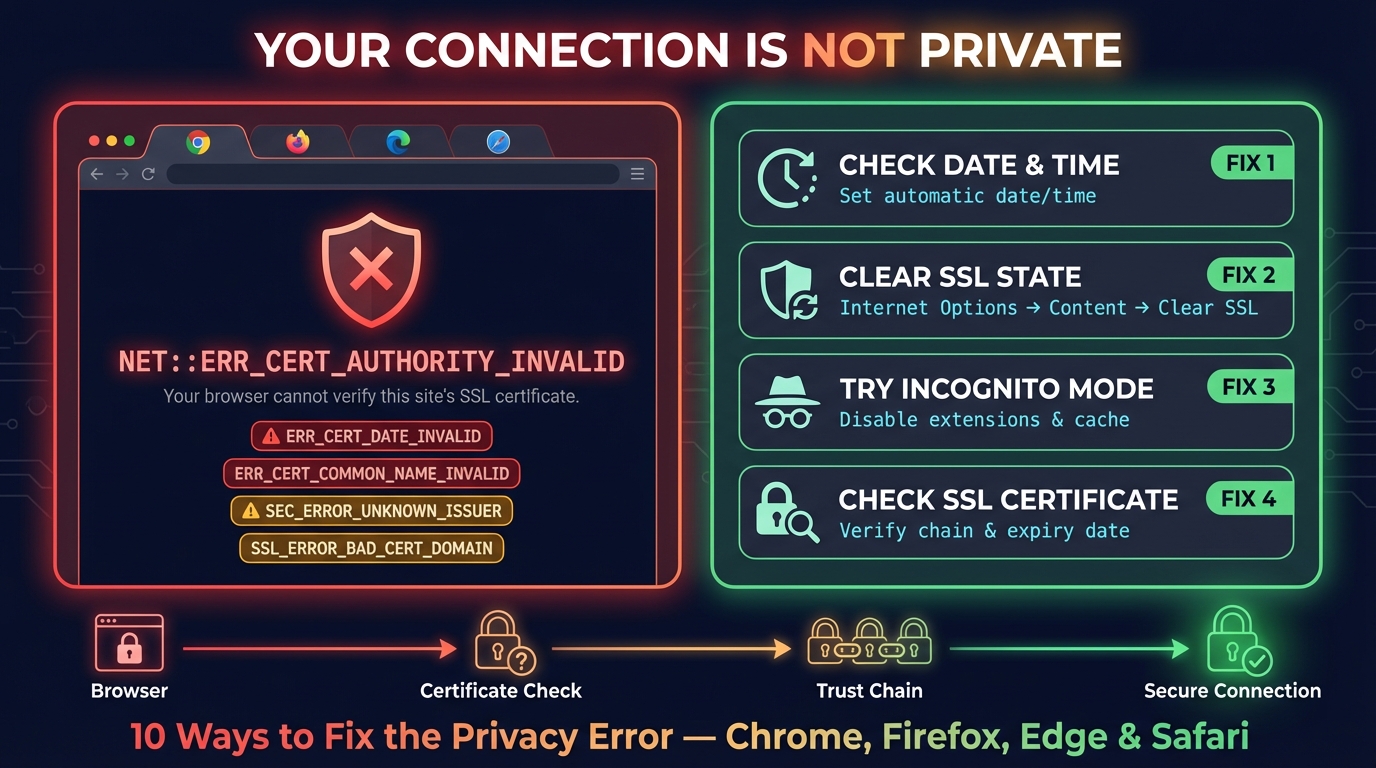
"Ваше подключение не является приватным" — как исправить (все браузеры)
Как исправить «Ваше подключение не является приватным» в Chrome, Edge, Firefox и предупреждение Safari на iPhone и iPad: что оно значит и что делать при каждой причине.
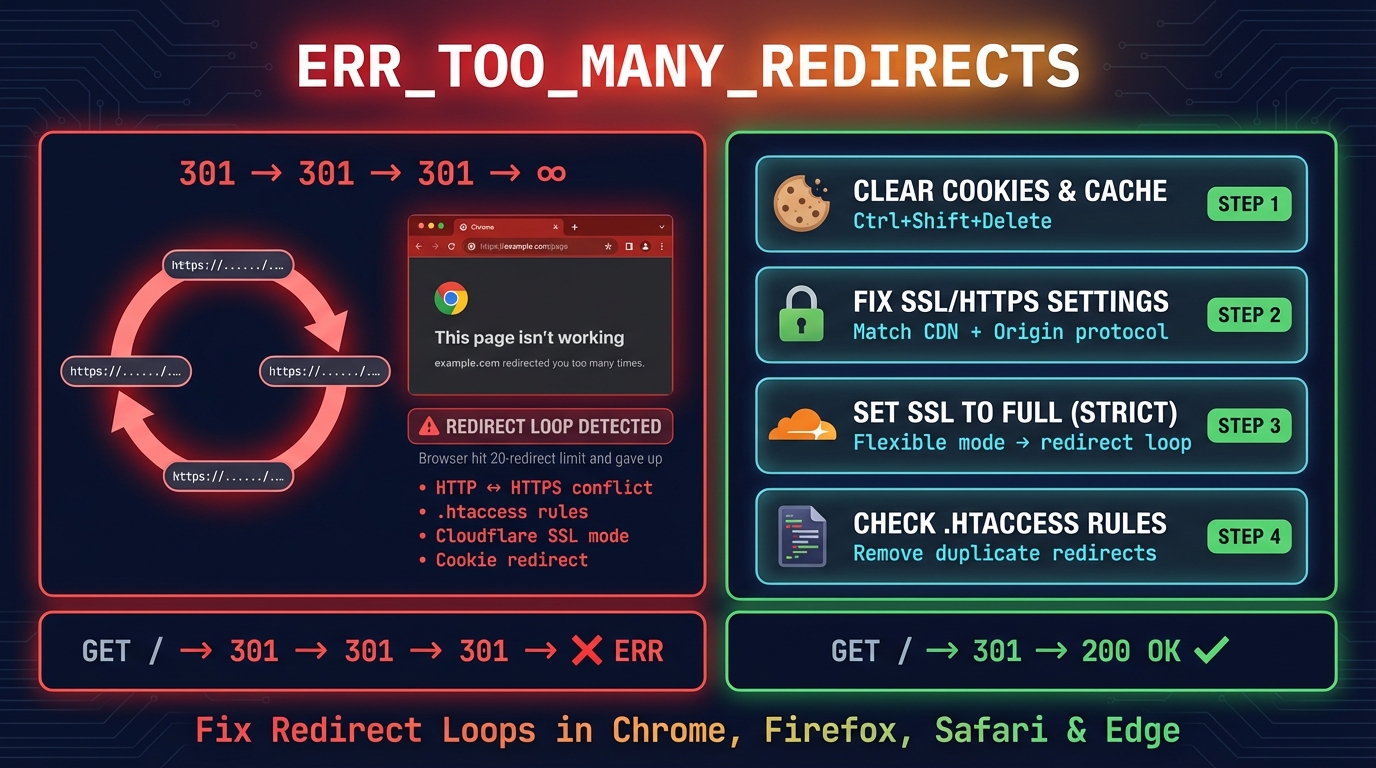
ERR_TOO_MANY_REDIRECTS: как исправить (все браузеры)
ERR_TOO_MANY_REDIRECTS: как исправить в Chrome, Edge, Firefox и Safari. Удалите cookies сайта или устраните цикл в Cloudflare SSL, WordPress или .htaccess.


Связанные инструменты
Генератор QR-кода
Создайте QR-код для ссылки, Wi-Fi, контакта, WhatsApp, платежа UPI или Pix, с логотипом и цветами; код проверяется перед скачиванием SVG, PNG или PDF
Сканер QR кода
Мгновенное сканирование QR кодов с веб-камеры или загруженных изображений
Генератор QR-кода для Wi-Fi
QR-код для Wi-Fi: гости подключаются одним сканированием камерой iPhone или в настройках Wi-Fi на Android. WPA2, WPA3 и карточка для печати
Генератор QR кода UPI
Создание платёжных QR кодов UPI для PhonePe, Google Pay, Paytm, BHIM, Amazon Pay и WhatsApp Pay — один стандартный код для всех индийских платёжных приложений
Проверка редиректов
Проверка редиректов URL, цепочек перенаправлений и кодов HTTP статуса для SEO
Проверка SSL сертификата
Проверка действительности SSL сертификата и деталей безопасности