






How to Generate a QR Code (Free): Types, Sizes and Logos
 Shaik Vahid15 min read
Key takeaway
To generate a QR code, pick the content type (URL, text, Wi-Fi, vCard, email, phone, SMS, WhatsApp, location, event or a payment scheme), enter the data, keep error correction at M (H with a logo), optionally add colours, a frame or a logo, and download it as PNG for screens or SVG or PDF for print. A free browser-based generator does all of this without sign-up, and the data never leaves your device. QR codes fail in the real world through low contrast, a print size too small for the scanning distance, an oversized logo and a link that changes after printing, so test every code on a phone before it goes anywhere.
Check it now
Open QR Code Generator
Start reading
- What You Need to Generate a QR Code
- How to Generate a QR Code Step by Step
- QR Code Content Types and What to Enter
- How to Generate a QR Code for WiFi, vCard and WhatsApp
- QR Code Error Correction Levels
- Adding a Logo, Colours and a Frame
- QR Code Size for Print and Screens
- Static vs Dynamic QR Codes
- How to Test and Track a QR Code
- QR Code Mistakes to Avoid
- How to Generate a QR Code FAQ
What You Need to Generate a QR Code
How to generate a QR code in one sentence: choose what the code should contain, enter it in a QR code generator, pick a size and error correction level, and download the image. That is the whole process, and with a browser-based tool such as the QR Code Generator it takes about 30 seconds and needs no account, no app and no payment.
A QR code is a two-dimensional barcode defined by the ISO/IEC 18004 standard (current edition: 2024) and released by Denso Wave in 1994. It stores text, and everything else (a website, a WiFi login, a contact card, a payment) is just text formatted in a way phones recognise. The largest version (Version 40, 177 by 177 modules) at the lowest error correction level holds 7,089 digits, 4,296 alphanumeric characters or 2,953 bytes, according to Denso Wave's specification, though a code that dense is hard to scan; practical codes hold a few hundred characters. QR Code is a registered trademark of DENSO WAVE INCORPORATED.
This guide covers the five steps, what to enter for each content type, how error correction and logos interact, the size that scans reliably in print, the difference between static and dynamic codes, and how to test a code before you commit it to a poster, menu or business card.
Make a QR code now
How to Generate a QR Code Step by Step
The five steps below match the controls in most generators. The example uses DNS Robot's free tool, which runs entirely in your browser.
Step 1: Choose the Content Type
Pick the type that matches what the scanner should do: open a URL, join WiFi, save a contact, start a WhatsApp chat, send an email, dial a number, open a map location or make a payment. The type determines how the phone reacts after scanning, so choose it rather than pasting everything as plain text.
Step 2: Enter the Data
Type or paste the content. For a website, use the full URL including https://; a bare domain works in most scanners but not all. For WiFi, enter the network name, password and security type exactly as they appear on the router. Keep the content short: fewer characters means a less dense code that scans from further away.
Step 3: Set the Error Correction Level
Most generators default to M, which suits screens and most print; H is the level for a logo or a code that will get dirty or scratched. DNS Robot's tool sets it for you: M by default, H as soon as you add a logo, and its scan check offers a one-click switch to H when a code needs more margin. Higher levels survive more damage but make the code denser; the section on error correction below explains the trade-off.
Step 4: Customise Colours, Frame and Logo (Optional)
Adjust dot pattern, colours, eye style, add a frame with a call to action such as "Scan me", or overlay a logo. Keep dark modules on a light background with strong contrast, and let the tool switch error correction to H when a logo is added.
Step 5: Download and Test
Download PNG for websites, email and presentations, or SVG or PDF for anything that will be printed or resized. Then scan the result with your phone camera and with a second app, such as the QR Code Scanner, before you use it anywhere.
QR Code Content Types and What to Enter
The table lists the content types a modern generator supports, what to enter, and what happens when someone scans the result. The right column is what the phone actually decodes, which is useful when you want to generate the same code with the plain Text type in another tool.
| Type | What you enter | What the phone does | Encoded text looks like |
|---|---|---|---|
| URL | A full web address | Opens the page in the browser | https://example.com/menu |
| Text | Any text | Shows the text | Table 12, order at the bar |
| WiFi | Network name, password, security | Offers to join the network | WIFI:T:WPA;S:Cafe;P:espresso-2026;; |
| vCard | Name, phone, email, company, address | Offers to save the contact | BEGIN:VCARD ... END:VCARD |
| Address, subject, body | Opens a pre-filled email | mailto:hi@example.com?subject=Quote | |
| Phone | A number | Offers to dial it | tel:+14155550100 |
| SMS | A number and message | Opens a pre-filled text message | SMSTO:+14155550100:Hello |
| A number and message | Opens a WhatsApp chat | https://wa.me/14155550100?text=Hi | |
| Geo location | Latitude and longitude | Opens a map app at that point | geo:37.7749,-122.4194 |
| Event | Title, place, start and end | Offers to add it to the calendar | BEGIN:VCALENDAR ... END:VCALENDAR |
| Payment (UPI, PayPal, crypto) | Payee ID or wallet address, amount | Opens the payment app with details filled | upi://pay?pa=name@bank&pn=Shop&am=100.00&cu=INR |
DNS Robot's generator supports 16 types: ten everyday ones and six payment schemes, from UPI and Pix to SEPA bank transfers. Two jobs have their own pages with the type preselected: the WiFi QR Code Generator for guest networks, and the UPI QR Code Generator for payment codes that PhonePe, Google Pay, Paytm and BHIM read.
How to Generate a QR Code for WiFi, vCard and WhatsApp
These three are the most requested after URLs, and each has a format quirk worth knowing. The generator handles the formatting for you, but seeing the raw text explains why a code sometimes fails.
WiFi QR Code
The WiFi format is WIFI:T:<security>;S:<network name>;P:<password>;; where security is WPA (also used for WPA2 and WPA3 networks), WEP or nopass for open networks. In ZXing's format, which iPhones and Android phones read, a backslash, semicolon, comma, colon or double quote inside the name or password gets a backslash in front of it; the Wi-Fi Alliance's WPA3 version writes a semicolon as %3B instead, so test any code with these characters on a phone. A WPA3-only network adds R:1;, and a hidden network adds H:true;, though Apple has said the iPhone Camera doesn't support hidden networks, so test that on an iPhone.
WIFI:T:WPA;S:Blue Cafe Guest;P:latte\;2026;;

# Network name: Blue Cafe Guest
# Password:     latte;2026   (the ; is escaped as \;)
# Security:     WPA/WPA2/WPA3
vCard (Contact) QR Code
A vCard QR code encodes a contact card that iPhone and Android cameras offer to save. Keep it to name, one phone, one email, company and website: even then the code below is a 53 × 53 grid, about 6 cm wide at 25 cm by the size estimate further down, so on a business card a short link to your contact page often fits better. Our generator writes vCard 3.0, the version in ZXing's own example, or the shorter MECARD format.
BEGIN:VCARD
VERSION:3.0
N:Shaik;Vahid;;;
FN:Vahid Shaik
ORG:DNS Robot
TEL;TYPE=CELL:+14155550100
EMAIL:hello@dnsrobot.net
URL:https://dnsrobot.net
END:VCARD
WhatsApp QR Code
A WhatsApp code is just a URL in the form https://wa.me/<number>?text=<message> with the number in international format without plus, spaces or dashes, and the message URL-encoded. Scanning opens a chat with the message pre-filled, which is why restaurants and small shops use it for orders.
QR Code Error Correction Levels
Every QR code includes redundant data so it still scans when part of it is dirty, torn, covered by a logo or badly printed. The standard defines four levels, and the choice trades robustness for density.
| Level | Codewords it can restore | Best for |
|---|---|---|
| L (Low) | About 7 percent | Clean screens, maximum data, very small codes |
| M (Medium) | About 15 percent | The default: screens, flyers, menus, posters |
| Q (Quartile) | About 25 percent | Labels and packaging that get dirty or scuffed |
| H (High) | About 30 percent | Logos, outdoor signs, anything that gets handled |
A logo covers part of the code, so it consumes error correction, and more of it than the percentages suggest: they count codewords, not picture area, and a logo breaks every codeword it touches (Denso Wave). Keep the logo to about 10 percent of the code's area at level H; our generator switches to H when you add one, never lets a logo pass 15 percent, and reads the code back before you download it. Do not add a logo at level L or M; the code may scan on your phone and fail on someone else's.
Adding a Logo, Colours and a Frame
Customisation is where most unscannable codes are born. Three rules keep a branded code reliable.
- Contrast first. Dark modules on a light background. A camera turns the picture into black and white at a threshold halfway between its lightest and darkest parts, so pale dots or a light code on a dark ground fall on the wrong side of it, and inverted codes only scan in readers that try them. Keep at least 40 percent contrast between modules and background (print grading gives an A at 70 percent and more).
- Leave the quiet zone. The blank margin around the code, at least four modules wide, is part of the code. Frames, text and logos must sit outside it.
- Keep the three eyes intact. The large squares in three corners are how the scanner finds and orients the code. You can change their shape (rounded corners, circles), but keep each ring and centre solid, and never cover them or colour them so lightly that they blend into the background.
Gradients work if both ends stay dark against the background. A frame with a short call to action, such as "Scan for menu", raises scan rates because people know what they will get, and the page behind the code should deliver exactly that, which is the job of a focused landing page. Test any customised design on both an iPhone and an Android phone, in dim light, before it goes to print.
QR Code Size for Print and Screens
A useful estimate is to make each module (one square of the grid) at least 1/250 of the scanning distance. For a short link, that means a code about 3.3 centimetres wide, margin included, when it's read from 25 centimetres, and about 13 centimetres from 1 metre. QR vendors put it more simply: a phone reads a typical code from about ten times its width, not counting the margin (QRStuff). No standard sets a distance, so go a size up in poor light or at an angle, and remember that longer content, a logo at level H or a full contact card adds modules and needs more room.
| Where it goes | Typical scan distance | Smallest width for a short link |
|---|---|---|
| Business card | 20 to 30 cm | About 2.6 to 4 cm |
| Menu, flyer, product packaging | 30 to 50 cm | About 4 to 6.6 cm |
| Poster, shop window | 1 to 2 m | About 13 to 26 cm |
| Banner, billboard, vehicle | 5 m and beyond | About 66 cm and up |
| Website or email | Screen distance | 150 to 250 pixels displayed |
| Presentation slide | 3 to 6 m | About 40 to 80 cm as projected |
Export SVG or PDF for anything printed; both scale to any size without blurring. For screens, export a PNG and let the page scale it down. Shorter content helps here too: a 30-character URL produces a coarser, easier-to-scan grid than a 200-character one at the same physical size. A QR code on a business card that opens your resume website is the classic small-format case: a short URL, level M, and about 3 centimetres across.
Static vs Dynamic QR Codes
A static QR code encodes the content directly: the URL, the WiFi login, the vCard. It never expires, needs no service, and cannot be changed after printing. A dynamic QR code encodes a short redirect URL that a service controls, so the destination can be changed later and scans can be counted, usually for a monthly fee.
You can get the benefits of dynamic codes without the subscription by pointing the code at a short URL on a domain you control and managing the redirect yourself. Print https://yourdomain.com/menu on the card, redirect it to wherever the menu lives this month, and change the redirect whenever you like. The Redirect Checker confirms the short URL reaches the final page in a single hop (a loop shows up as the too many redirects error), and the Domain Availability Checker helps if you do not yet own a short domain for it.
How to Test and Track a QR Code
Testing takes two minutes and prevents the most expensive QR failure: a thousand printed menus pointing at a page that shows a browser warning. Scan the final artwork, not just the downloaded PNG, with the native camera app on an iPhone and on an Android phone, and with a dedicated reader such as the QR Code Scanner, which also shows you the exact decoded text.
For URL codes, check the destination as well as the code. The page must load over HTTPS with a valid certificate, because a privacy warning after a scan ends the visit. The SSL Checker confirms the certificate in seconds, and the connection is not private fix explains the warning if you see one. If the link redirects, the Redirect Checker shows every hop. To count visits from the code without a paid service, tag the link with UTM parameters; your analytics then shows those visits under that source and campaign. It counts page loads, not scans, so a scan that never opens the page, or a visitor who blocks analytics, is missed. Keep the tags off the printed code: print a short link on your own domain and add them to the page it redirects to, so the code stays small.
https://yourdomain.com/menu-tables
  → redirects to https://yourdomain.com/menu?utm_source=qr&utm_medium=print&utm_campaign=menu&utm_content=table-tents

# One short link per placement: table-tents, window, flyer
# utm_content tells the placements apart in your analyticsQR Code Mistakes to Avoid
- Printing too small. Size the code for the distance it's scanned from (a module at least 1/250 of it), and print a test copy before a large run.
- Low contrast or inverted colours. Light modules on a dark background still fail on some scanners.
- Covering the eyes or the quiet zone with a logo, a frame or text.
- Encoding a long URL. Shorten it on your own domain; the code gets coarser and scans further away.
- A destination that changes. If it might move, point the code at a redirect you control.
- Linking to an HTTP page or a broken certificate. Scan, then check the page shows a padlock.
- Never testing on another phone. Your own phone has seen the code before; a stranger's has not.
- No call to action. A bare code gets fewer scans than one that says what the scan gives.
Generate a QR code now, free and without sign-up
DNS Robot's free QR Code Generator makes 16 kinds of code, from links, Wi-Fi and contact cards to six payment schemes, with colours, frames and a logo kept within a safe size. It reads every code back before you download SVG, PNG, JPEG, WebP or PDF, and everything runs in your browser.
Sources
- ISO/IEC 18004:2024 (QR Code), ISO
- QR Code versions and capacity, Denso Wave
- QR Code error correction, Denso Wave
How to Generate a QR Code FAQ
How do I generate a QR code for free?
How do I make a QR code for a link?
How do I generate a QR code for WiFi?
Can I add a logo to a QR code?
What size should a QR code be?
Do QR codes expire?
What is the difference between a static and a dynamic QR code?
Which file format should I download, PNG or SVG?
How much data can a QR code hold?
How do I test a QR code before printing?
About the author
Shaik VahidFounder of DNS Robot. Vahid spent years in web hosting support fixing domains, DNS records, SSL certificates and email delivery for customers. He builds DNS Robot's tools and writes these guides from the errors people actually hit.
Related Articles
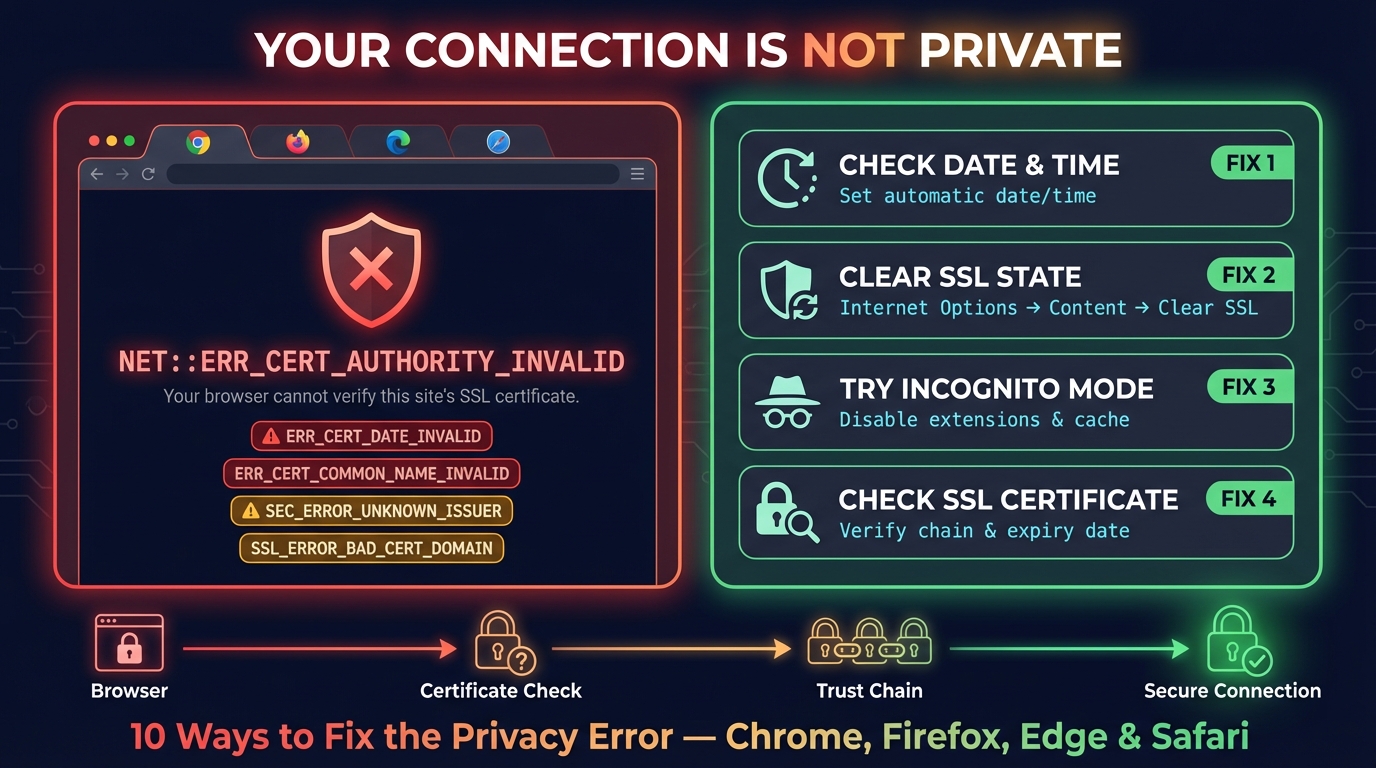
Connection Is Not Private: Fix It on iPhone, iPad & Chrome
Fix "Your connection is not private" in Chrome and "This Connection Is Not Private" on iPhone and iPad: what the warning means and the fix for each cause.
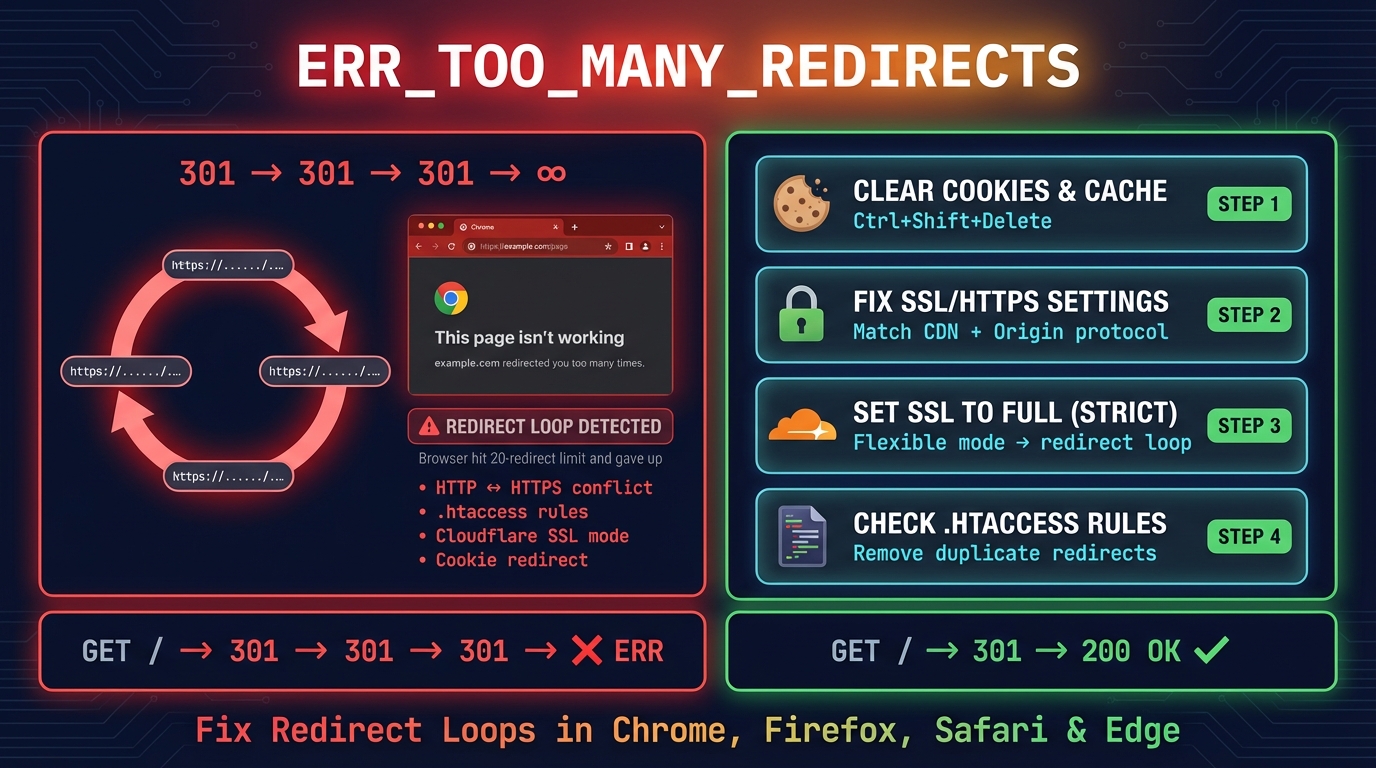
ERR_TOO_MANY_REDIRECTS: How to Fix It (All Browsers)
Fix ERR_TOO_MANY_REDIRECTS in Chrome, Edge, Firefox and Safari: clear the site's cookies, or fix the Cloudflare SSL, WordPress or .htaccess loop causing it.


Related Tools
QR Code Generator
Make QR codes for links, Wi-Fi, contacts, WhatsApp and UPI or Pix payments, with your logo and colours, read back before you download SVG, PNG or PDF
QR Code Scanner
Scan QR codes from webcam or uploaded images instantly
WiFi QR Code Generator
A WiFi QR code guests join in one scan with the iPhone Camera or Android's Wi-Fi settings: WPA2 and WPA3, and a printable guest card
UPI QR Code Generator
Turn a UPI ID into a QR code PhonePe, Google Pay, Paytm and every UPI app can pay, with a fixed amount or without, and print it as a stand
Redirect Checker
Follow every redirect hop by hop: 301/302 chains, timing and bulk checks
SSL Certificate Check
Verify SSL certificate validity and security details