ERR_CONNECTION_CLOSED: What It Means & How to Fix It
Advertisement
What Is ERR_CONNECTION_CLOSED?
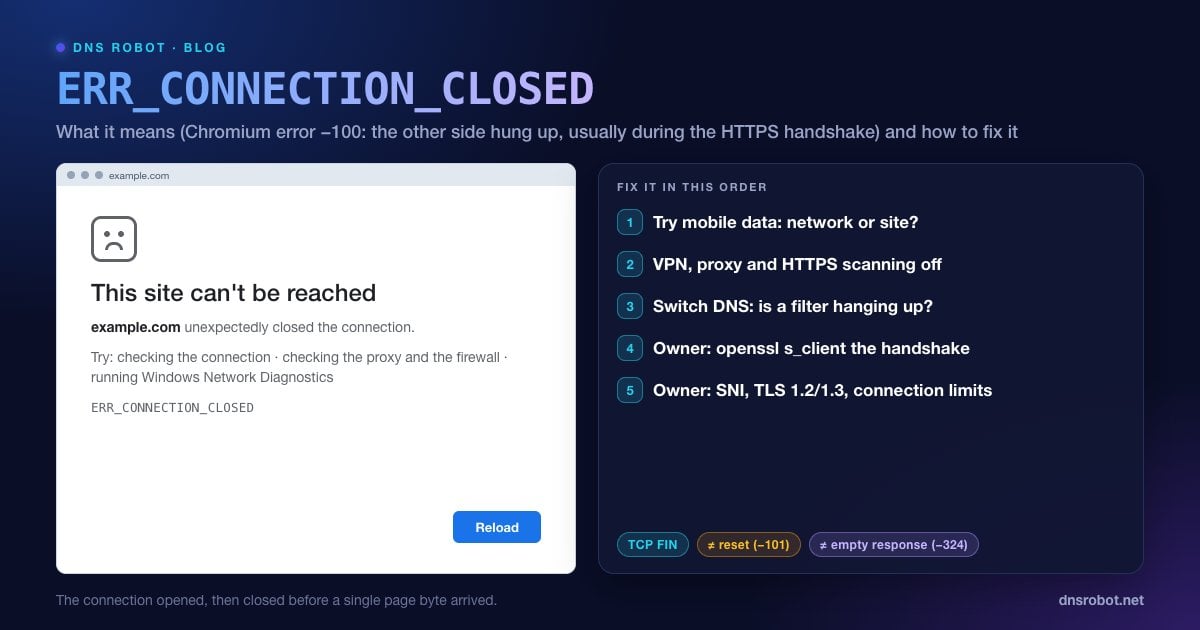
ERR_CONNECTION_CLOSED is the Chrome and Edge error that reads "This site can't be reached. example.com unexpectedly closed the connection." In Chromium it is net error -100, defined as "a connection was closed (corresponding to a TCP FIN)."
A FIN is the polite way to end a TCP connection. It's the opposite of a reset: nothing crashed or was killed, one side simply said "I'm done" and hung up. The problem is the timing. The other side hung up before the browser got the page, so there was nothing to show.
Something chose to end your connection early. It could be the website's server, a CDN in front of it, a filter on your network, or software on your own computer. The fixes below show you which.
Where the Close Happens: Usually the HTTPS Handshake
Chromium's networking code tells us where to look. When a connection ends during the TLS (HTTPS) handshake, the encryption layer turns that end-of-connection into ERR_CONNECTION_CLOSED. When a fresh connection gets its request through and the server then closes without answering, Chrome reports ERR_EMPTY_RESPONSE instead.
Chrome also retries a request automatically when an old, reused connection closes underneath it, so you rarely see the error from that. As a result, an ERR_CONNECTION_CLOSED page on an HTTPS site usually means something hung up while the secure connection was being set up. That points to whatever handles TLS along the path: your antivirus's HTTPS scanner, a VPN or proxy, a filtering box on your network, the site's CDN, or the web server's TLS configuration.
Advertisement
What Causes ERR_CONNECTION_CLOSED?
| Cause | Side | Clue |
|---|---|---|
| VPN or proxy ending connections | You | Every HTTPS site fails, or only with the VPN on |
| Antivirus HTTPS scanning | You | Works in another browser profile or after pausing web protection |
| Network filter blocking the domain (school, work, ISP) | Network | One site fails on one network only |
| Server has no certificate for that hostname (SNI) | Website | Fails for everyone; often only www or only non-www |
| Old or strict TLS settings on the server | Website | Fails in some browsers or devices, not others |
| Server or CDN connection limits, DDoS protection | Website | Fails under load or from certain countries |
| Corrupted network settings | You | Several sites fail on one device only |
Fix 1: Try Another Network to Find the Culprit
Open the page on your phone using mobile data (Wi-Fi off), or on another computer on a different network.
Works elsewhere: the close comes from your device or network. Continue with Fixes 2 to 6.
Fails everywhere: the website's server or CDN is hanging up. Only the owner can fix that. If it's your site, skip to the website owners section below.
Check the certificate from outside: DNS Robot's SSL Checker connects to the site from our servers and shows whether the HTTPS handshake succeeds and which certificate is served.
Advertisement
Fix 2: Turn Off VPN and Proxy
VPN servers and proxies handle every connection you make, and when they're overloaded or blocked they often end connections at the handshake. Disconnect the VPN completely, then check for a proxy:
Windows 11: Settings → Network & internet → Proxy → under Manual proxy setup, turn Use a proxy server off.
macOS: System Settings → Network → your connection → Details… → Proxies → turn them off.
Browser extensions that act as a VPN or proxy count too. Test in an Incognito window, where extensions are off by default.
Fix 3: Pause Antivirus HTTPS Scanning
Security suites that inspect encrypted traffic sit in the middle of every HTTPS handshake. If the scanner can't negotiate with a site, for example because of a newer TLS feature or an unusual certificate, it often just closes the connection.
Look for a setting named HTTPS scanning, Web Shield, SSL/TLS protocol filtering or Scan encrypted connections, turn only that off, and reload. If the page loads, add the site as an exclusion and turn scanning back on. Updating the antivirus often fixes it permanently.
Advertisement
Fix 4: Change DNS to Rule Out Filtering
Some ISPs and network filters block sites by pointing the domain at their own server, which then hangs up on HTTPS connections it can't serve. If DNS Robot's DNS Lookup returns different IP addresses for the site than your computer does (nslookup example.com), your resolver is redirecting you.
Switch to a public resolver such as Cloudflare (1.1.1.1), Google (8.8.8.8) or Quad9 (9.9.9.9), then flush your DNS cache and try again. If your network also blocks encrypted DNS, see this network is blocking encrypted DNS traffic.
Fix 5: Clear SSL State, Socket Pools and Browser Data
Chrome socket pools: open
chrome://net-internals/#socketsand click Flush socket pools, so Chrome stops reusing connections that may be stale.Windows SSL state: press Win + R, type
inetcpl.cpl, open the Content tab and click Clear SSL state.Site data: click the icon at the left of the address bar → Site settings → Delete data, so cookies or cached data for that site start fresh.
Update the browser: go to
chrome://settings/help. Older builds can fail handshakes with servers that use newer TLS features.
Advertisement
Fix 6: Reset the Network Stack and Restart the Router
If several sites fail on one device only, reset its network configuration. Restart the router too, which clears its connection table. On Windows, run these in an administrator Command Prompt, then restart:
netsh winsock reset
netsh int ip reset
ipconfig /release
ipconfig /renew
ipconfig /flushdns
Windows 11 also has Settings → Network & internet → Advanced network settings → Network reset, which reinstalls the network adapters. On a Mac, remove the Wi-Fi network from System Settings → Wi-Fi and join it again.
Fix ERR_CONNECTION_CLOSED on Android and iPhone
Switch networks: Wi-Fi to mobile data or the other way round, to find out whether a network filter is involved.
Turn off VPN, ad-blocking and "security" apps. Many of them route traffic through a local VPN and inspect it.
Android Private DNS: Settings → Network & internet → Private DNS → Automatic. See the Private DNS guide for what each option does.
Update Chrome or Safari through the app store, and update the operating system if it's several versions behind.
Reset network settings: on iPhone, Settings → General → Transfer or Reset iPhone → Reset → Reset Network Settings. On Android, Settings → System → Reset options → Reset Bluetooth & Wi-Fi (and Reset Mobile Network Settings if mobile data also fails).
For Website Owners: Why Your Server Hangs Up
If visitors on many networks get ERR_CONNECTION_CLOSED, test the TLS handshake yourself from a machine outside your network. openssl s_client shows exactly where it stops:
SNI and certificates: every hostname visitors use, both
example.comandwww.example.com, needs aserver_nameentry and a certificate that covers it. Hostnames that land on a default server block with no certificate often have their handshake closed.Protocols: serve
TLSv1.2andTLSv1.3. Very old configurations that offer only TLS 1.0/1.1, or unusual cipher lists, fail with current browsers. The SSL Checker shows the certificate and chain visitors receive.Connection limits: if nginx logs
worker_connections are not enough, or a firewallconnlimitor DDoS rule kicks in, new connections are dropped or closed under load. Raise the limits or find the traffic source.CDN and WAF: check the CDN's security events for the affected visitors. Bot protection and geo-blocking rules can close connections from whole regions.
Logs: look in the web server's error log for
SSL_do_handshake() failedlines around the time of the reports. nginx logs most client-side handshake failures at theinfolevel, so with the defaulterrorlevel you may see nothing: seterror_log /var/log/nginx/error.log info;briefly while you investigate.
# Full handshake with SNI (the hostname visitors use)
openssl s_client -connect example.com:443 -servername example.com </dev/null

# Good: certificate chain, "Verify return code: 0 (ok)", a TLSv1.3 or TLSv1.2 protocol line
# Bad: "unexpected eof while reading" or "no peer certificate available"
#      = the server (or something in front of it) closed the handshake

# Test a specific protocol version
openssl s_client -connect example.com:443 -servername example.com -tls1_2 </dev/nullThen check these, in order:
ERR_CONNECTION_CLOSED vs Reset vs Empty Response vs SSL Errors
| Error | Code | What happened |
|---|---|---|
| ERR_CONNECTION_CLOSED | -100 | Normal close (FIN) before the page arrived, usually during the HTTPS handshake |
| ERR_CONNECTION_RESET | -101 | Abrupt cut (RST) of an open connection |
| ERR_EMPTY_RESPONSE | -324 | Request sent, then closed with zero bytes back |
| ERR_SSL_PROTOCOL_ERROR | -107 | The TLS handshake broke protocol rules |
| ERR_SSL_VERSION_OR_CIPHER_MISMATCH | -113 | No TLS version or cipher in common |
Our related guides: ERR_CONNECTION_RESET, ERR_SSL_PROTOCOL_ERROR, ERR_SSL_VERSION_OR_CIPHER_MISMATCH and ERR_CONNECTION_REFUSED.
If the request got through and the server then sent nothing, see ERR_EMPTY_RESPONSE.
Does the site's HTTPS handshake work from outside?
DNS Robot's free SSL Checker connects to any domain from our servers and shows the certificate, chain and expiry. If it connects for us but closes for you, the problem is on your side.
Try SSL CheckerAdvertisement
Frequently Asked Questions
It means the server, or something between you and it, ended the connection with a normal TCP close (FIN) before your browser received the page. In Chromium it is net error -100. On HTTPS sites it usually happens during the TLS handshake.