ERR_EMPTY_RESPONSE: What It Means & How to Fix It
Advertisement
What Is ERR_EMPTY_RESPONSE?
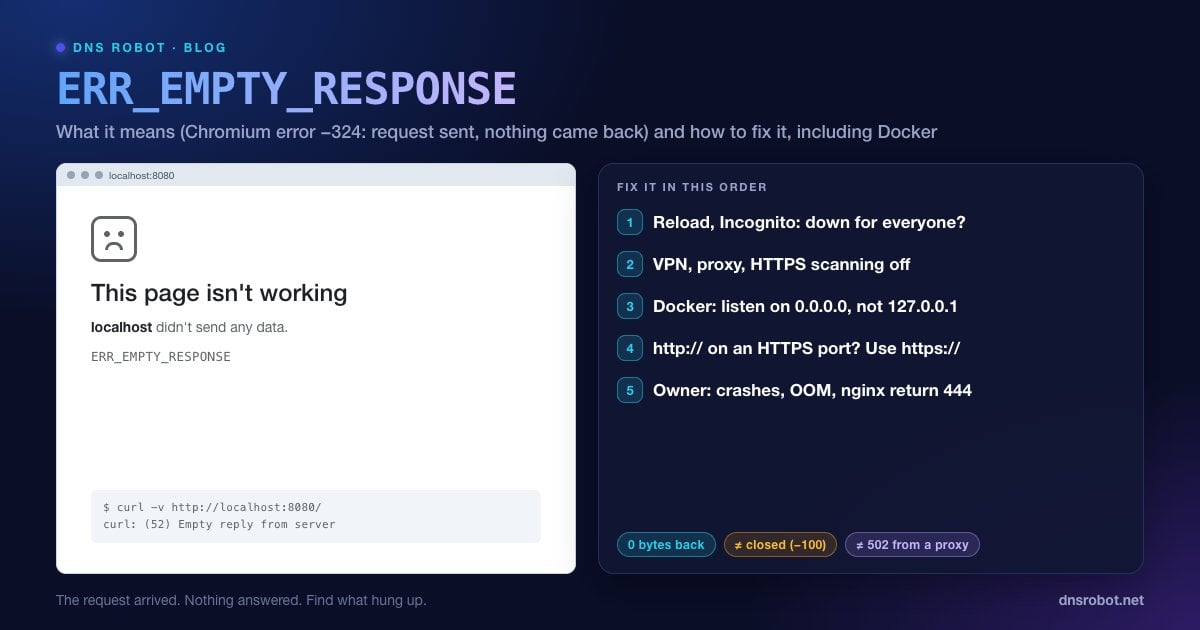
ERR_EMPTY_RESPONSE is the Chrome and Edge error page that reads "This page isn't working. example.com didn't send any data." In Chromium it is net error -324, defined as: "The server closed the connection without sending any data."
The browser got further than with most connection errors. The address resolved, the connection opened, and the browser sent its request. Then the server, or something in front of it, closed the connection with an empty reply: no status code, no headers, no page. Chromium's code only uses this error for a fresh connection that closes with zero bytes. When an old, reused connection closes, Chrome quietly retries instead.
Because a request was actually delivered, ERR_EMPTY_RESPONSE usually points at the server side: an app that crashed while handling the request, a rule that deliberately drops connections, or a service that accepted the connection but had nothing behind it. A few causes on your own computer can produce it too.
What Causes ERR_EMPTY_RESPONSE?
| Cause | Where | Clue |
|---|---|---|
| App crashed or was killed while handling the request | Server | Fails for everyone, often on one heavy page |
| A rule that drops connections (nginx return 444, WAF, anti-bot) | Server | Fails for some visitors, IPs or user agents only |
| A port forward with nothing listening behind it (Docker, load balancer) | Server / developer | Port is open but every request returns empty |
| http:// sent to a port that only speaks HTTPS | Developer | Works with https://, fails with http:// |
| VPN, proxy or antivirus HTTPS scanning | Your device | Fails only on your device or network |
| Request or headers too large for the server | Server | Fails after login or with many cookies |
Advertisement
Fix 1: Reload and Try Incognito
If the server restarted at the wrong moment, a reload a few seconds later is all you need. If the error repeats, open the page in an Incognito window (Ctrl + Shift + N, Mac Cmd + Shift + N). Incognito starts with no cookies and no extensions, so it quickly tells you whether something stored in your browser is involved.
Then check whether the site is down for everyone. DNS Robot's HTTP Headers tool requests the page from our servers: if we get a normal response, the problem is between you and the site. If we also get nothing, the site itself is failing.
Fix 2: Turn Off VPN, Proxy and HTTPS Scanning
Anything that sits in the middle of your connections can accept the request and then close it without passing the reply back:
VPN: disconnect it completely and reload.
Proxy: on Windows 11, Settings → Network & internet → Proxy → turn Use a proxy server off. On a Mac, System Settings → Network → your connection → Details… → Proxies.
Antivirus HTTPS scanning: turn off only the web or HTTPS-scanning feature (often called HTTPS scanning, Web Shield or SSL/TLS protocol filtering) and reload. If that fixes it, add an exclusion for the site and turn scanning back on.
Advertisement
Fix 3: Clear the Site's Data and Disable Extensions
Very large or corrupted cookies can make a server drop the request instead of answering, which often shows up as an error only after you log in. Clear that site's cookies: click the icon at the left of the address bar → Cookies and site data (or Site settings) → delete the data, then sign in again.
Next, disable all extensions at chrome://extensions and reload. Re-enable them one at a time to find the one that interferes, which is often an ad blocker, a privacy tool or anything that edits requests.
Fix 4: Flush DNS and Reset the Network Stack
If every site gives empty responses on one computer, reset its network configuration. In an administrator Command Prompt on Windows, run the commands below and restart. On a Mac, flush the DNS cache and remove and re-add the Wi-Fi network.
ipconfig /flushdns
netsh winsock reset
netsh int ip reset
ipconfig /release
ipconfig /renew
Also try another network, such as your phone's mobile data. If the site works there, a filter on your usual network (school, work or ISP) may be cutting the connection.
Advertisement
ERR_EMPTY_RESPONSE on Localhost and Docker
Developers see this error most often on their own machine. The usual causes:
The app in a Docker container listens on 127.0.0.1. Inside a container,
127.0.0.1means "only this container", so Docker's port forward has nothing to connect to and your browser gets an empty reply (or, depending on the setup, a connection reset). Make the app listen on0.0.0.0inside the container, for examplenext dev -H 0.0.0.0,vite --host 0.0.0.0,flask run --host=0.0.0.0oruvicorn main:app --host 0.0.0.0.The container port mapping doesn't match.
-p 8080:3000forwards your port 8080 to port 3000 inside the container. If the app actually listens on 5000, every request comes back empty.http:// on an HTTPS-only port. Some servers expect TLS on a port and simply hang up when plain HTTP arrives. Try
https://localhost:8443instead ofhttp://.The dev server crashed while handling the request. Check the terminal it runs in. An exception or out-of-memory error at that moment is your answer.
# Reproduce without the browser
curl -v http://localhost:8080/
# "Empty reply from server" = connection accepted, nothing sent back

# Which ports does the container publish, and what listens inside it?
docker ps --format "table {{.Names}}\t{{.Ports}}"
docker exec -it <container> sh -c "netstat -tlnp 2>/dev/null || ss -tlnp"For Website Owners: Why Your Server Sends Empty Replies
Crashes and out-of-memory kills. If the process handling the request dies, the connection closes with nothing sent. Check the app logs and
dmesg -T | grep -i "killed process"for the Linux out-of-memory killer, especially on heavy pages and uploads.Deliberate drops. nginx's special
return 444;closes the connection without any response, and it's often used to block bad bots or unknown hostnames. If a rule like that matches real visitors (an over-broad user-agent or GeoIP rule), they see ERR_EMPTY_RESPONSE, or ERR_HTTP2_PROTOCOL_ERROR on HTTP/2 connections, where nginx resets the stream instead. WAFs, rate limiters and anti-bot services can do the same.Port forwards and load balancers with no backend. A listener that accepts the connection but has no healthy server behind it can close it empty. Check target health and that the backend port matches.
Timeouts that close instead of answering. Make long-running requests return a proper error (such as 504) instead of silently closing the socket, so visitors and monitoring see what happened.
Oversized requests. Very large headers or cookies can make some servers drop the request. Keep cookies small.
# Any rules that drop connections?
sudo grep -rn "return 444" /etc/nginx/

# Test from outside, the way visitors connect
curl -sv https://yourdomain.com/ -o /dev/nullAdvertisement
ERR_EMPTY_RESPONSE vs Similar Errors
| Error | Code | What happened |
|---|---|---|
| ERR_EMPTY_RESPONSE | -324 | Request sent, connection closed with zero bytes back |
| ERR_CONNECTION_CLOSED | -100 | Closed before a request could be sent, usually during the HTTPS handshake |
| ERR_CONNECTION_RESET | -101 | Connection cut abruptly with a TCP reset |
| 502 Bad Gateway | HTTP | A proxy answered, but its upstream app failed |
Related guides: ERR_CONNECTION_CLOSED, ERR_CONNECTION_RESET, 502 Bad Gateway and 500 Internal Server Error. To check whether a server's port accepts connections from outside, use the Port Checker.
Does the server answer from outside your network?
DNS Robot's Port Checker tests whether a domain's port 443 or 80 accepts connections from our servers. Pair it with the HTTP Headers checker to see whether the server sends a real response.
Try Port CheckerAdvertisement
Frequently Asked Questions
It means the browser connected to the server and sent its request, and the server closed the connection without sending any data back: no status code, no headers, no page. In Chromium it is net error -324, shown as "This page isn't working. example.com didn't send any data."