AT&T DNS Servers: Full List & Setup Guide (2026)
Advertisement
What Are AT&T DNS Servers?
AT&T DNS servers are the Domain Name System resolvers operated by AT&T that translate domain names like google.com into the IP addresses your devices connect to. Every website you open on an AT&T Fiber, AT&T Internet, or legacy U-verse connection starts with a DNS query — and by default, that query goes to AT&T's resolvers through your gateway.
When your AT&T gateway (such as a BGW320 or BGW210) comes online, it receives AT&T's DNS servers automatically and hands its own address out to your devices as their resolver. Your laptop asks the gateway, the gateway asks AT&T. This works fine for everyday browsing, but public resolvers like Cloudflare and Google are consistently faster in independent benchmarks, and they add privacy and security options AT&T's defaults don't offer.
You can measure the difference from your own connection in seconds with DNS Robot's DNS Speed Test — it benchmarks the major resolvers from your network and shows which is fastest where you live.
AT&T DNS Server IP Addresses (IPv4)
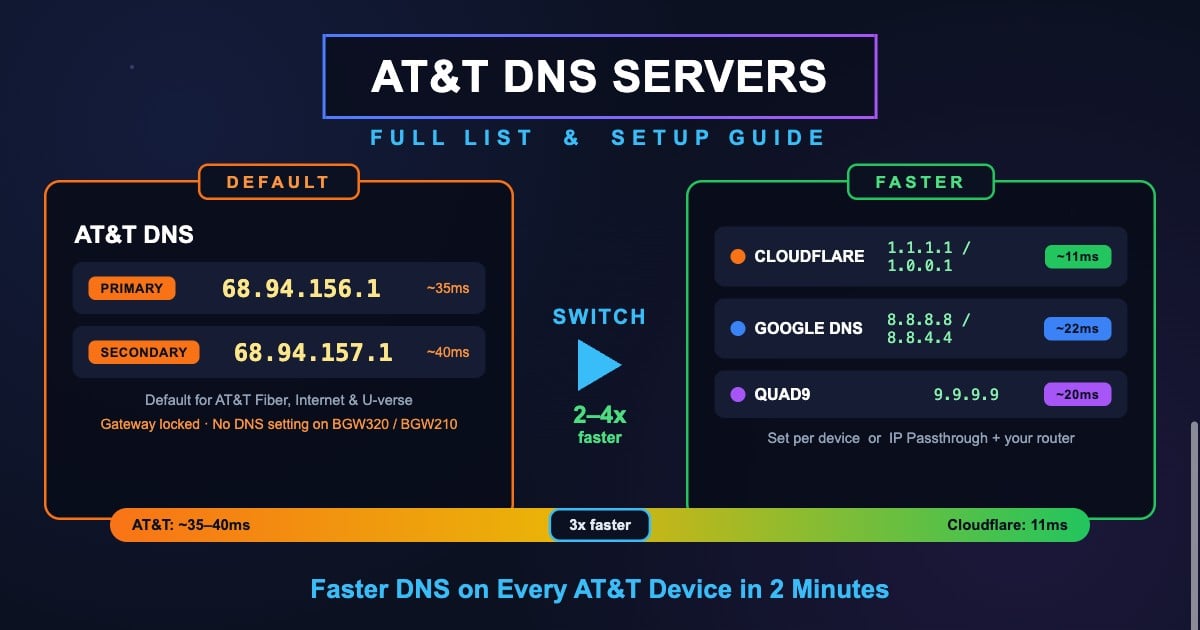
Here are AT&T's default DNS server addresses, used by residential AT&T customers nationwide.
| Server | IP Address | Type |
|---|---|---|
| Primary DNS | 68.94.156.1 | Preferred |
| Secondary DNS | 68.94.157.1 | Alternate |
The 68.94.156.1 / 68.94.157.1 pair dates back to the SBC/AT&T network and remains the standard resolver set for AT&T consumer connections. In day-to-day use your devices usually point at the gateway itself (typically 192.168.1.254), which forwards queries to these servers upstream.
You can confirm the servers are answering right now with DNS Robot's DNS Lookup tool, or ping them directly with the Ping tool.
Advertisement
AT&T IPv6 DNS Servers
AT&T Fiber connections are fully dual-stack — IPv6 is enabled by default on BGW gateways. Unlike Comcast, however, AT&T does not publish standalone public IPv6 resolver addresses for residential use. Instead, the gateway announces itself as the IPv6 DNS server (via router advertisements and DHCPv6), and forwards those queries to AT&T's resolvers upstream.
In practice this means: if you want third-party DNS over IPv6, set it per device or on your own router — and update both protocols. Changing only IPv4 while leaving IPv6 on the gateway's defaults causes split behavior where many lookups still flow through AT&T.
| Provider | Primary IPv6 | Secondary IPv6 |
|---|---|---|
| Cloudflare | 2606:4700:4700::1111 | 2606:4700:4700::1001 |
| Google DNS | 2001:4860:4860::8888 | 2001:4860:4860::8844 |
| Quad9 | 2620:fe::fe | 2620:fe::9 |
These are the IPv6 addresses of the major public resolvers — use them wherever you enter the IPv4 ones in the setup steps below.
AT&T Business DNS Servers
AT&T Business Fiber and dedicated internet customers use the same DNS foundations by default, with static IP blocks available as an add-on. If you run servers or email on a static block, you'll manage reverse DNS (PTR records) through AT&T Business support — use DNS Robot's Reverse DNS tool to confirm your PTR records resolve correctly.
For office networks, consider a security-focused resolver such as Quad9 (9.9.9.9) or Cloudflare's 1.1.1.2 (malware blocking). These filter known-malicious domains at the DNS layer for every device on the network, with nothing to install.
Advertisement
Why Change AT&T's Default DNS?
AT&T's DNS is serviceable, but there are concrete reasons most power users switch to a public resolver.
One quick sanity check before you start: if you're on a reseller plan, building WiFi, or mobile data, you may not actually be on AT&T's network at all. Check your ISP first — it shows the network and ASN really carrying your traffic, so you change the right settings.
Faster resolution — Cloudflare (~11ms average) and Google (~22ms) typically beat ISP resolvers. AT&T DNS latency commonly sits in the 25–50ms range depending on region and load
Better reliability — Public resolvers run global anycast networks with 99.99%+ uptime. When an ISP's regional resolver has a bad day, every customer in the area feels it
Privacy — Cloudflare commits to not selling or using DNS data for advertising and undergoes independent audits. ISP DNS handling falls under AT&T's broader privacy policy
No lookup redirection — Some ISP resolvers have historically redirected failed lookups to branded search pages. Public resolvers return a clean NXDOMAIN, which some applications depend on
Built-in security filtering — Quad9 (9.9.9.9) and Cloudflare's 1.1.1.2 block known malware and phishing domains before a connection is ever made
Encrypted DNS support — Public resolvers support DNS-over-HTTPS (DoH) and DNS-over-TLS (DoT), so your lookups can't be read or altered on the network
Best DNS Servers for AT&T Users
These are the best public DNS alternatives for AT&T Fiber and Internet customers, ranked by speed, privacy, and features. All are free and work on any AT&T plan.
| Provider | Primary IPv4 | Secondary IPv4 | Avg Latency | Best For |
|---|---|---|---|---|
| Cloudflare | 1.1.1.1 | 1.0.0.1 | ~11ms | Speed + privacy |
| Google DNS | 8.8.8.8 | 8.8.4.4 | ~22ms | Reliability + reach |
| Quad9 | 9.9.9.9 | 149.112.112.112 | ~20ms | Security (malware blocking) |
| AdGuard DNS | 94.140.14.14 | 94.140.15.15 | ~25ms | Ad + tracker blocking |
| Cloudflare Families | 1.1.1.3 | 1.0.0.3 | ~11ms | Malware + adult-content filter |
| AT&T Default | 68.94.156.1 | 68.94.157.1 | ~25-50ms | No setup needed |
For most AT&T users, Cloudflare (1.1.1.1) is the best overall pick — the fastest resolver globally with the strongest privacy stance. Gamers on AT&T Fiber often see the biggest subjective improvement, since every server browser refresh and matchmaking call starts with DNS lookups. Full address lists and setup steps: our Cloudflare DNS servers guide and Google DNS servers guide.
Don't guess — the fastest resolver depends on your city and AT&T's regional routing. Run DNS Robot's free DNS Speed Test to benchmark them from your own connection and pick the real winner.
Advertisement
How to Change DNS on an AT&T Gateway
Here's the part AT&T customers discover the hard way: AT&T gateways (BGW320, BGW210, and older NVG/Pace models) do not allow changing the DNS servers handed out over DHCP. Unlike most routers, the gateway's admin interface has no editable DNS field for your LAN — devices get the gateway's address as their resolver, and that's that. Your three real-world options, from easiest to most thorough:
Method 1: Check the Gateway Admin (and Set Expectations)
It's worth a look at your gateway's settings first — you'll need the admin panel for Method 3 anyway.
Step 1 — Open a browser and go to 192.168.1.254 (the AT&T gateway admin address)
Step 2 — When prompted, enter the Device Access Code printed on the sticker on your gateway
Step 3 — Browse to Home Network → Subnets & DHCP. You can adjust DHCP ranges here, but you will not find an editable DNS server field on current firmware
Step 4 — Since the gateway won't hand out custom DNS, use Method 2 (per-device) or Method 3 (IP Passthrough) below
Method 2: Set DNS Per Device (works on any gateway)
The most reliable approach on AT&T: configure DNS directly on each device. A device's own DNS setting overrides whatever the gateway hands out via DHCP. It takes about a minute per device — jump to the Windows, Mac, or mobile steps below.
Method 3: IP Passthrough + Your Own Router
For network-wide control, put the AT&T gateway into IP Passthrough mode and let your own router (ASUS, TP-Link, Netgear, eero, UniFi) handle DHCP and DNS. IP Passthrough is AT&T's equivalent of bridge mode: the gateway still terminates the connection, but it hands the public IP to your router, which then controls everything on your LAN — including DNS.
Step 1 — Connect your router's WAN port to a LAN port on the AT&T gateway
Step 2 — Sign in at 192.168.1.254 with the Device Access Code, then go to Firewall → IP Passthrough
Step 3 — Set Allocation Mode to
Passthrough, Passthrough Mode toDHCPS-fixed, and select your router's MAC address from the device listStep 4 — Save, restart both devices, and confirm your router now shows the public IP on its WAN interface
Step 5 — In your router's LAN/DHCP settings, set the DNS servers to your choice (e.g.
1.1.1.1/1.0.0.1) — every device on the network now uses them automatically
Change DNS on Windows (AT&T Connection)
Setting DNS on Windows overrides the AT&T gateway's DNS for that PC. Here's how on Windows 11 and 10.
Step 1 — Open Settings → Network & Internet → click your connection (Wi-Fi or Ethernet)
Step 2 — Click Edit next to DNS server assignment
Step 3 — Switch from Automatic (DHCP) to Manual, then turn on IPv4
Step 4 — Preferred DNS = 1.1.1.1, Alternate DNS = 1.0.0.1 (Cloudflare)
Step 5 — (Optional) Turn on IPv6 and add 2606:4700:4700::1111 / 2606:4700:4700::1001, then Save
# PowerShell: set DNS on the active adapter
$adapter = Get-NetAdapter | Where-Object {$_.Status -eq 'Up'} | Select-Object -First 1
Set-DnsClientServerAddress -InterfaceIndex $adapter.ifIndex -ServerAddresses '1.1.1.1','1.0.0.1'

# Flush the resolver cache and verify
Clear-DnsClientCache
Get-DnsClientServerAddress -InterfaceIndex $adapter.ifIndexAdvertisement
Change DNS on Mac (AT&T Connection)
macOS lets you override the gateway's DNS per network service in a few clicks.
Step 1 — Open System Settings → Network → select your active connection (Wi-Fi or Ethernet)
Step 2 — Click Details → choose DNS from the sidebar
Step 3 — Click + and add 1.1.1.1 and 1.0.0.1
Step 4 — Remove any existing entries (like 192.168.1.254) with −
Step 5 — Click OK → Apply
# Terminal: set DNS for the Wi-Fi service
networksetup -setdnsservers Wi-Fi 1.1.1.1 1.0.0.1

# Flush the DNS cache
sudo dscacheutil -flushcache && sudo killall -HUP mDNSResponder

# Verify and test resolution
networksetup -getdnsservers Wi-Fi
dig @1.1.1.1 google.com +short
Change DNS on iPhone & Android (AT&T Wi-Fi)
Since the gateway's DNS can't be changed, override it on your phone instead.
iPhone / iPad
Step 1 — Settings → Wi-Fi → tap the (i) next to your AT&T network
Step 2 — Scroll to Configure DNS → switch from Automatic to Manual
Step 3 — Delete existing entries, then Add Server → 1.1.1.1 and 1.0.0.1
Step 4 — Tap Save
Android (Private DNS)
Android 9+ has a global Private DNS feature that applies encrypted DNS everywhere — including your AT&T Wi-Fi and mobile data.
Step 1 — Settings → Network & Internet → Private DNS
Step 2 — Select Private DNS provider hostname
Step 3 — Enter one.one.one.one (Cloudflare) or dns.google (Google)
Step 4 — Tap Save
How to Verify Your DNS Changed
After changing DNS, confirm your device is actually using the new servers instead of the gateway.
# Windows — show the resolver in use
nslookup google.com
# The "Server:" line should show 1.1.1.1,
# not 192.168.1.254 or 68.94.156.1

# Mac/Linux — compare response times
dig google.com @1.1.1.1 | grep "Query time"      # Cloudflare
dig google.com @68.94.156.1 | grep "Query time" # AT&T (compare)For a visual, side-by-side comparison from your browser, run DNS Robot's DNS Speed Test — it ranks the major resolvers by real latency from your connection.
If nslookup still shows 192.168.1.254, your device is still using the gateway: re-check the DNS setting, flush your cache, and reconnect to the network.
Common AT&T DNS Issues & Fixes
AT&T's DNS occasionally has regional slowdowns and outages. Here are the most common problems and their fastest fixes.
AT&T DNS Server Not Responding
Your browser shows "DNS server not responding", ERR_NAME_NOT_RESOLVED, or DNS_PROBE_FINISHED_NXDOMAIN even though the gateway shows a solid connection.
Quick fix — Switch your device to Cloudflare (1.1.1.1) or Google (8.8.8.8) to bypass AT&T's resolvers entirely
Restart the gateway — Unplug the AT&T gateway for 30 seconds, plug it back in, and wait 2–3 minutes for it to fully sync
Flush DNS cache —
ipconfig /flushdnson Windows orsudo dscacheutil -flushcacheon MacCheck for an outage — Look at the myAT&T app's outage checker or Downdetector AT&T
Slow DNS Lookups on AT&T
If pages pause before they start loading but then download at full fiber speed, slow DNS resolution is the likely cause. A single page can trigger 20–50 DNS lookups, so shaving 20–30ms off each one makes browsing feel dramatically snappier — especially on gigabit connections where DNS is the last bottleneck.
Switch to a faster resolver (per device or via IP Passthrough), then confirm the improvement with the DNS Speed Test and our guide on fixing slow DNS lookups.
AT&T Gateway Won't Let Me Change DNS
Correct — it won't, and it's not you. AT&T's BGW320, BGW210, and older gateways deliberately omit a LAN DNS setting. Your options when you want custom DNS network-wide:
Set DNS per device — Override on each computer, phone, console, and TV (steps above). The fastest path for most people
IP Passthrough + your own router — Full network-wide control over DNS and every other setting (Method 3 above)
Android Private DNS / iOS DNS profiles — Force encrypted DNS at the OS level regardless of the gateway
Browser DoH — Chrome, Edge, and Firefox can use DNS-over-HTTPS, bypassing the gateway's DNS for web traffic only
Find Your Fastest DNS on AT&T in 30 Seconds
Don't guess which resolver beats AT&T's default. DNS Robot's free DNS Speed Test benchmarks Cloudflare, Google, Quad9 and more from your own connection and ranks them by real latency.
Try DNS Speed TestAdvertisement
Frequently Asked Questions
AT&T's primary DNS server is 68.94.156.1 and the secondary is 68.94.157.1. These defaults are used across AT&T Fiber, AT&T Internet, and legacy U-verse connections. On your local network, devices typically point at the gateway itself (192.168.1.254), which forwards queries to these servers.