Tracert-Befehl: Traceroute unter Windows, Mac & Linux nutzen
Advertisement
Was ist der Tracert-Befehl?
Tracert (Trace Route) ist ein Windows-Befehl, der den Weg zeigt, den Ihr Datenverkehr zu einem anderen Host nimmt – jeden Router („Hop“) auf der Strecke und wie lange jeder für seine Antwort braucht. Unter macOS und Linux heißt dasselbe Werkzeug traceroute.
Zu diesem Werkzeug greifen Sie, wenn eine Website langsam oder gar nicht erreichbar ist und Sie wissen wollen, wo das Problem liegt: in Ihrem eigenen Netzwerk, bei Ihrem Internetanbieter, irgendwo dazwischen oder beim Ziel. Während Ping Ihnen sagt, ob ein Host antwortet, zeigt tracert die Route und die Stelle, an der sie abbricht.
So führen Sie Tracert unter Windows aus
Drücken Sie Windows + R, geben Sie
cmdein und drücken Sie die Eingabetaste (oder suchen Sie nach „Eingabeaufforderung“).Geben Sie
tracertgefolgt von einem Domainnamen oder einer IP-Adresse ein, zum Beispieltracert example.com, und drücken Sie die Eingabetaste.Warten Sie. Tracert prüft bis zu 30 Hops mit je drei Testpaketen und wartet bis zu 4 Sekunden auf jede Antwort – eine saubere Routenverfolgung ist in wenigen Sekunden fertig, eine voller Zeitüberschreitungen kann mehrere Minuten dauern. Mit Strg + C brechen Sie vorzeitig ab; mit
-dund-w(siehe unten) geht es schneller.
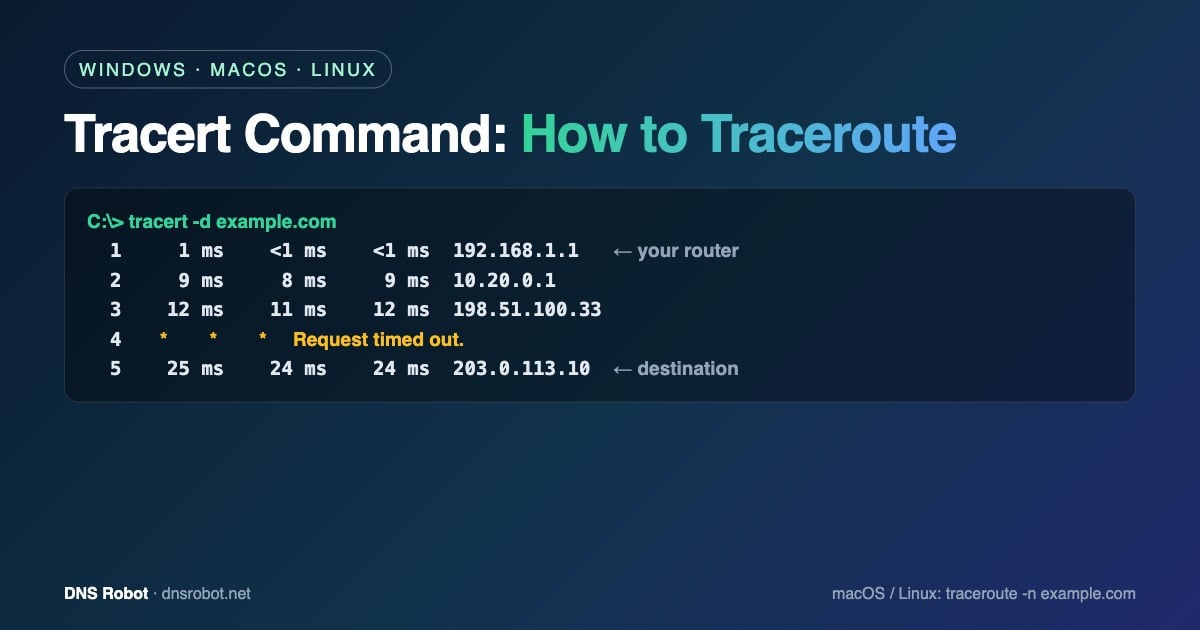
C:\> tracert example.com

Tracing route to example.com [203.0.113.10]
over a maximum of 30 hops:

  1     1 ms    <1 ms    <1 ms  192.168.1.1
  2     9 ms     8 ms     9 ms  10.20.0.1
  3    12 ms    11 ms    12 ms  198.51.100.33
  4     *        *        *     Request timed out.
  5    24 ms    23 ms    24 ms  203.0.113.1
  6    25 ms    24 ms    24 ms  203.0.113.10

Trace complete.
Jede Zeile ist ein Hop. Die drei Zahlen sind drei separate Messungen; die Adresse rechts ist der Router, der geantwortet hat. Hop 1 ist fast immer Ihr eigener Router, die letzte Zeile ist das Ziel. (Die IP-Adressen oben sind reservierte Dokumentationsadressen.) Auf einem deutschsprachigen Windows lauten die Meldungen „Routenverfolgung zu …“, „Zeitüberschreitung der Anforderung.“ und „Ablaufverfolgung beendet.“
Advertisement
Optionen des Tracert-Befehls
Die Syntax lautet tracert [options] target. Die Optionen, die Sie in der Praxis tatsächlich brauchen:
| Option | Funktion | Beispiel |
|---|---|---|
| -d | IP-Adressen nicht in Hostnamen auflösen – deutlich schneller | tracert -d example.com |
| -h max_hops | Maximale Anzahl an Hops (Standard: 30) | tracert -h 15 example.com |
| -w timeout | Wartezeit pro Antwort in Millisekunden (Standard: 4000) | tracert -w 1000 example.com |
| -4 | IPv4 erzwingen | tracert -4 example.com |
| -6 | IPv6 erzwingen | tracert -6 example.com |
Die Optionen lassen sich frei kombinieren: tracert -d -w 1000 example.com liefert die schnellste brauchbare Routenverfolgung. Um das Ergebnis für den Support Ihres Internetanbieters oder Hosters zu speichern, leiten Sie die Ausgabe in eine Datei um: tracert -d example.com > trace.txt.
So führen Sie Traceroute auf dem Mac aus
Öffnen Sie das Terminal (Programme › Dienstprogramme) und führen Sie traceroute example.com aus. macOS sendet standardmäßig UDP-Pakete; mit -I verwenden Sie wie Windows ICMP, worauf oft auch Router antworten, die UDP ignorieren. Nützliche Optionen: -n (keine Namensauflösung), -m 30 (maximale Anzahl an Hops; macOS erlaubt standardmäßig bis zu 64), -w 2 (Wartezeit pro Testpaket in Sekunden) und -q 1 (ein Testpaket pro Hop statt drei).
traceroute -n -I example.comAdvertisement
So führen Sie Traceroute unter Linux aus
Führen Sie traceroute example.com aus. Wird der Befehl nicht gefunden, installieren Sie ihn (sudo apt install traceroute unter Debian/Ubuntu, sudo dnf install traceroute unter Fedora) oder verwenden Sie tracepath, das meist vorinstalliert ist. Traceroute unter Linux sendet standardmäßig UDP-Pakete, 3 pro Hop, bis zu 30 Hops.
| Option | Funktion |
|---|---|
| -n | Nur IP-Adressen anzeigen (keine DNS-Abfragen) |
| -I | ICMP-Echo-Pakete verwenden (wie tracert unter Windows) |
| -T | TCP-SYN-Pakete verwenden (Standardport 80) – kommt durch Firewalls, die UDP/ICMP blockieren; erfordert sudo |
| -p port | Zielport für die Testpakete, z. B. -T -p 443 |
| -m max_ttl | Maximale Anzahl an Hops (Standard: 30) |
| -q n | Testpakete pro Hop (Standard: 3) |
| -w seconds | Wartezeit pro Antwort in Sekunden |
$ traceroute -n example.com
traceroute to example.com (203.0.113.10), 30 hops max, 60 byte packets
 1  192.168.1.1  0.612 ms  0.571 ms  0.534 ms
 2  10.20.0.1  8.911 ms  9.004 ms  8.872 ms
 3  * * *
 4  203.0.113.10  24.112 ms  23.980 ms  24.051 ms
Um den Pfad zu einem Webserver genau so zu testen, wie Browser ihn erreichen, verfolgen Sie die Route über TCP-Port 443: sudo traceroute -T -p 443 example.com.
Tracert-Ergebnisse richtig lesen
Zeitüberschreitungen an einem Hop in der Mitte, spätere Hops antworten aber (
*oder „Zeitüberschreitung der Anforderung“ bzw. „Request timed out“): normal. Viele Router sind so konfiguriert, dass sie diese Testpakete ignorieren oder nur gedrosselt beantworten. Der Pfad ist in Ordnung.Zeitüberschreitungen ab einem Hop bis zum Ende: Der Datenverkehr wird am oder nach dem letzten antwortenden Hop verworfen – oft durch eine Firewall am Ziel oder wegen eines Routing-Problems. Notieren Sie sich den letzten Hop, der geantwortet hat; an dieses Netzwerk sollten Sie sich wenden.
Ein Latenzsprung, der bei allen folgenden Hops hoch bleibt (zum Beispiel 10 ms → 120 ms → 121 ms → 125 ms): Die Verzögerung ist real und beginnt an diesem Hop – oft eine Langstreckenverbindung oder ein überlastetes Netz. Ein Sprung an einem einzelnen Hop, der danach wieder sinkt, bedeutet nur, dass dieser Router langsam antwortet, und kann ignoriert werden.
„Zielhost nicht erreichbar“ oder „Zielnetz nicht erreichbar“: Ein Router hat gemeldet, dass er keine Route zum Ziel kennt – prüfen Sie die Adresse, oder es liegt ein Firewall- bzw. Routing-Problem an diesem Hop vor.
Private Adressen (192.168.x.x, 10.x.x.x) bei den ersten Hops: Das sind Ihr eigener Router (bei einer FRITZ!Box meist 192.168.178.1) und das interne Netz Ihres Internetanbieters. Langsame Zeiten deuten hier auf Ihr lokales WLAN oder Modem hin.
Die Routenverfolgung endet mit niedrigen Zeiten am Ziel: Der Netzwerkpfad ist in Ordnung; eine langsame Website liegt dann eher an einem Server- oder DNS-Problem – prüfen Sie das mit unserer DNS-Abfrage und dem DNS-Geschwindigkeitstest.
Advertisement
So funktioniert Tracert
Jedes IP-Paket hat einen TTL-Zähler (Time to Live), den jeder Router um eins verringert; erreicht er null, verwirft der Router das Paket und schickt eine ICMP-Meldung „Time Exceeded“ zurück. Genau das nutzt tracert aus: Es sendet Testpakete mit TTL 1, dann 2, dann 3 und so weiter, sodass sich jeder Router auf dem Pfad der Reihe nach zu erkennen gibt – bis schließlich das Ziel antwortet.
Die Betriebssysteme verwenden unterschiedliche Testpakete. Tracert unter Windows sendet ICMP-Echo-Anfragen (dieselben Pakete wie ping). Traceroute unter macOS und Linux sendet UDP-Pakete, standardmäßig an hohe Ports. Firewalls behandeln diese unterschiedlich – deshalb kann dieselbe Routenverfolgung unter Windows und Linux verschieden aussehen, und deshalb gibt es die Optionen -I und -T.
Tracert vs. Traceroute vs. Pathping vs. MTR
| Werkzeug | Plattform | Geeignet für |
|---|---|---|
| tracert | Windows | Schnelle Pfadprüfung mit ICMP-Paketen |
| traceroute | macOS, Linux | Pfadprüfung mit UDP-, ICMP- (-I) oder TCP-Paketen (-T) |
| pathping | Windows | Führt eine Routenverfolgung durch und misst danach den Paketverlust an jedem Hop (ca. 25 Sekunden pro Hop) |
| mtr | macOS, Linux (unter Windows per WinMTR) | Laufend aktualisierte Live-Routenverfolgung mit Paketverlust und Latenz pro Hop |
| tracepath | Linux | Traceroute ohne Root-Rechte, das zusätzlich die Pfad-MTU ermittelt |
Bei sporadischen Problemen sind pathping oder mtr besser als ein einzelnes tracert, denn Paketverlust, der nur ab und zu auftritt, zeigt sich nicht in drei Testpaketen.
Advertisement
Traceroute online ausführen
Eine Routenverfolgung von Ihrem eigenen Computer zeigt nur den Pfad aus Ihrem Netzwerk. Um zu sehen, ob eine Website auch von anderswo erreichbar ist – oder um ganz ohne Terminal zu testen –, nutzen Sie unser Online-Traceroute: Es verfolgt die Route von den Servern von DNS Robot aus und zeigt jeden Hop mit Standort und Netzwerk. Kombinieren Sie es mit dem Ping-Tool, um Latenz und Paketverlust zu messen, und mit der IP-Abfrage, um herauszufinden, wem die IP-Adresse eines Hops gehört.
Route verfolgen – ganz ohne Terminal
Starten Sie ein Traceroute von den Servern von DNS Robot zu jeder Domain oder IP-Adresse und sehen Sie jeden Hop mit Latenz, Netzwerk und Standort.
Testen Online-TracerouteAdvertisement
Häufige Fragen zum Tracert-Befehl
Öffnen Sie unter Windows die Eingabeaufforderung und geben Sie tracert gefolgt von einer Domain oder IP-Adresse ein, zum Beispiel tracert example.com. Unter macOS oder Linux öffnen Sie das Terminal und geben traceroute example.com ein.