











DNS Server Unavailable: What It Means & How to Fix It
 Shaik Vahid9 min read
Key takeaway
"Your DNS server might be unavailable" is Windows Network Diagnostics telling you your device gets no answers from its DNS server: the connection may be fine, but names can't be turned into IP addresses. Flush the DNS cache and renew your IP, switch to a public DNS server such as 1.1.1.1 or 8.8.8.8, restart the router, and pause antivirus web filtering or a VPN. A page saying "Service Unavailable - DNS failure" with a reference number is different: that's the website's CDN failing to look up the site's own server, not your DNS.
Check it now

Start reading
- What "DNS Server Unavailable" Means
- "Service Unavailable - DNS failure" Is Something Else
- Why It Happens
- Fix 1: Flush DNS and Renew Your Connection
- Fix 2: Switch to a Public DNS Server
- Fix 3: Restart the Router
- Fix 4: Disable Antivirus Web Protection, VPN, and Proxies
- Fix 5: Reset the Windows Network Stack
- Fix 6: Set Public DNS on the Router Itself
- Fix 7: Test in Safe Mode with Networking (Windows)
- Fix 8: When It's Genuinely Your ISP
- How to Verify the Fix Worked
- Frequently Asked Questions
What "DNS Server Unavailable" Means
When websites stop loading and you run the Windows troubleshooter, it often reports "Your DNS server might be unavailable" or "Your computer appears to be correctly configured, but the device or resource (DNS server) is not responding." Browsers show their own versions: ERR_NAME_NOT_RESOLVED or a DNS_PROBE code in Chrome, and "Hmmm… can't reach this page" in Edge.
DNS (Domain Name System) translates domain names like google.com into IP addresses your device connects to. Every page load starts with a DNS query to the resolver your device is configured to use — normally your router, which forwards queries to your ISP's servers. "Unavailable" means those queries are going unanswered: the server is down, unreachable, or something between you and it is eating the requests.
Because the error is confined to the DNS step, your connection itself usually still works, and pointing your device at a healthy resolver often fixes it straight away.
Does the domain resolve outside your network? Check it
"Service Unavailable - DNS failure" Is Something Else
If a website shows a page titled Service Unavailable - DNS failure with a line like "Reference #11.…", your DNS is fine. That page comes from Akamai, the CDN in front of many big sites: Akamai's edge servers couldn't look up the site's own origin server, because its name servers returned "doesn't exist" or didn't answer in time (Akamai).
Only the site's owner (or Akamai, if its own DNS is having an outage) can fix it. As a visitor, wait and retry later; other sites loading normally confirms it isn't you.
Why It Happens
The usual causes:
- Your ISP's DNS resolver is down or overloaded — most home connections use it by default, often through the router.
- The router's DNS forwarder glitched — devices send queries to the router; when its forwarding service hangs, every device shows DNS errors while WiFi looks fine.
- Corrupted local DNS cache — your device keeps re-serving failed lookups it cached.
- Antivirus or firewall interception — web-protection modules proxy DNS traffic, and when they misfire, all resolution dies.
- A dead VPN tunnel or leftover proxy — DNS queries route into a tunnel that no longer answers.
- Broken network stack settings (Windows) — corrupted Winsock/TCP-IP configuration after updates or malware cleanup.
- Manually set DNS server that no longer exists — an old office/school/VPN address still configured on the adapter.
Fix 1: Flush DNS and Renew Your Connection
Start by clearing every cached lookup and forcing a fresh DHCP lease — this alone clears stale-cache and stale-lease causes in one pass.
# Windows (Command Prompt as Administrator)
ipconfig /flushdns
ipconfig /release
ipconfig /renew

# macOS
sudo dscacheutil -flushcache; sudo killall -HUP mDNSResponder

# Then test resolution directly:
nslookup google.com
# "DNS request timed out" = server still unreachable → Fix 2
If nslookup now answers, browse normally — you're done. If it times out, your configured DNS server is genuinely unreachable; move to Fix 2. For a full per-platform walkthrough, see how to flush DNS on every OS.
Fix 2: Switch to a Public DNS Server
If your ISP's resolver is the problem, stop using it. The big public resolvers run worldwide networks and rarely go down:
| Provider | Primary | Secondary | Best for |
|---|---|---|---|
| Cloudflare | 1.1.1.1 | 1.0.0.1 | Privacy |
| Google Public DNS | 8.8.8.8 | 8.8.4.4 | Reliability |
| Quad9 | 9.9.9.9 | 149.112.112.112 | Malware blocking |
| OpenDNS | 208.67.222.222 | 208.67.220.220 | Phishing blocking (family filter: 208.67.222.123) |
Windows: Settings → Network & internet → Wi-Fi → Manage known networks → your network (Ethernet → your network) → Edit next to DNS server assignment → Manual → IPv4 on → Preferred 1.1.1.1, Alternate 1.0.0.1 → Save. Windows 10 has no DNS option in Settings: press Win + R, run ncpa.cpl, right-click your adapter → Properties → Internet Protocol Version 4 → Properties → Use the following DNS server addresses.
macOS: System Settings → Network → Wi-Fi → Details → DNS → remove old entries, add 1.1.1.1 and 1.0.0.1 → OK.
Android: Settings → Network & internet → Private DNS → hostname one.one.one.one (Android looks this name up through your current DNS, so if the network's DNS is completely down it may report that the server can't be reached until the router is fixed). iPhone: Settings → Wi-Fi → (i) → Configure DNS → Manual.
Which resolver answers fastest depends on where you are, and an ISP's resolver can be faster for names it already has. Benchmark them from your own connection with the DNS Speed Test.
Fix 3: Restart the Router
When every device in the house shows DNS errors at once, the router's DNS forwarder is the prime suspect — it hangs while the WiFi radio keeps broadcasting happily.
Unplug the router (and modem) for 30 seconds, plug back in, and wait 2–3 minutes. If DNS dies again within days, stop depending on the router's forwarder: set public DNS directly on your devices (Fix 2) or in the router's own settings (Fix 6) so queries skip the flaky middleman.
Fix 4: Disable Antivirus Web Protection, VPN, and Proxies
Security software sits directly in the DNS path more often than people realize. Antivirus "web shield" modules intercept DNS to filter malicious sites — when the module breaks, DNS breaks with it. Temporarily disable the web-protection component (not the whole antivirus) and test.
Disconnect any VPN and test again — a connected tunnel whose DNS server stopped answering kills all resolution. Then check for stray proxies: Windows Settings → Network & Internet → Proxy (turn off manual proxy), macOS Network → Details → Proxies (uncheck all).
Fix 5: Reset the Windows Network Stack
If nslookup still fails against 1.1.1.1 directly (Fix 2 didn't help on one Windows machine), the network stack itself may be corrupted. Reset it:
# Command Prompt as Administrator — then restart the PC
netsh winsock reset
netsh int ip reset
ipconfig /flushdns
This rebuilds the socket and TCP/IP configuration that all DNS queries pass through. It takes one restart and repairs damage left behind by uninstalled VPNs, network "optimizer" tools and malware cleanups; VPN or security software that hooks into Winsock may need reinstalling afterwards.
Fix 6: Set Public DNS on the Router Itself
Changing DNS on the router fixes every device on the network at once — phones, TVs, consoles included. Log into the router admin (gateway IP, commonly 192.168.1.1 or 192.168.0.1), find DNS settings under WAN/Internet or DHCP/LAN, and replace the ISP defaults with 1.1.1.1 and 8.8.8.8.
Note: some ISP-locked gateways (notably AT&T's BGW series) don't allow changing the DNS they hand out — in that case set DNS per device instead, as explained in our AT&T DNS servers guide.
Fix 7: Test in Safe Mode with Networking (Windows)
Still broken on one PC? Boot into Safe Mode with Networking: hold Shift while clicking Restart → Troubleshoot → Advanced options → Startup Settings → Restart, then press 5 or F5. Safe Mode loads Windows without third-party services and drivers.
If DNS works in Safe Mode, some installed software is intercepting it in normal mode — antivirus, VPN clients, or "web filtering" tools are the usual suspects. Uninstall or update the most recently added one. If DNS fails even in Safe Mode, the stack reset (Fix 5) and network driver reinstall are next.
Fix 8: When It's Genuinely Your ISP
ISP resolver outages happen: a regional DNS failure takes every customer on the default settings offline while the network itself runs fine. The tell: everything works the moment you switch to 1.1.1.1 or 8.8.8.8, and restarting the router didn't help.
You can stay on a public resolver, or switch back once your provider fixes it. Check your provider's status page for confirmation, and see our guide to fixing "DNS server not responding" for more steps.
How to Verify the Fix Worked
Confirm resolution directly instead of just reloading pages:
# Ask your current resolver:
nslookup example.com
# The "Server:" line shows WHICH resolver answered

# Ask a public resolver directly (bypasses your settings):
nslookup example.com 1.1.1.1

# If the second works and the first doesn't,
# your configured DNS server is still the problem — redo Fix 2.
And to see whether a specific website resolves for the rest of the world, run it through the DNS Propagation Checker: it asks 34 resolvers in 28 countries at once. DNS Lookup shows the domain's records straight from its own name servers.
Does the domain resolve for everyone else?
DNS Robot's free DNS Lookup asks a domain's own name servers and Google's and Cloudflare's resolvers. If they answer and your device doesn't, the problem is your resolver or network, not the website.
Sources
- Origin DNS Failure, Akamai
- 1.1.1.1 IP addresses, Cloudflare
Frequently Asked Questions
What does "the DNS server is unavailable" mean?
How do I fix an unavailable DNS server on Windows 11?
Why does the DNS server keep becoming unavailable?
Is "DNS server unavailable" my ISP's fault?
What's the difference between "DNS server unavailable" and "DNS server not responding"?
Can I just use 1.1.1.1 or 8.8.8.8 permanently?
Why is DNS unavailable on every device in my house?
Does antivirus software cause DNS server unavailable errors?
How do I check which DNS server my computer is using?
How do I test if a website's DNS is working for everyone else?
About the author
Shaik VahidFounder of DNS Robot. Vahid spent years in web hosting support fixing domains, DNS records, SSL certificates and email delivery for customers. He builds DNS Robot's tools and writes these guides from the errors people actually hit.
Related Articles
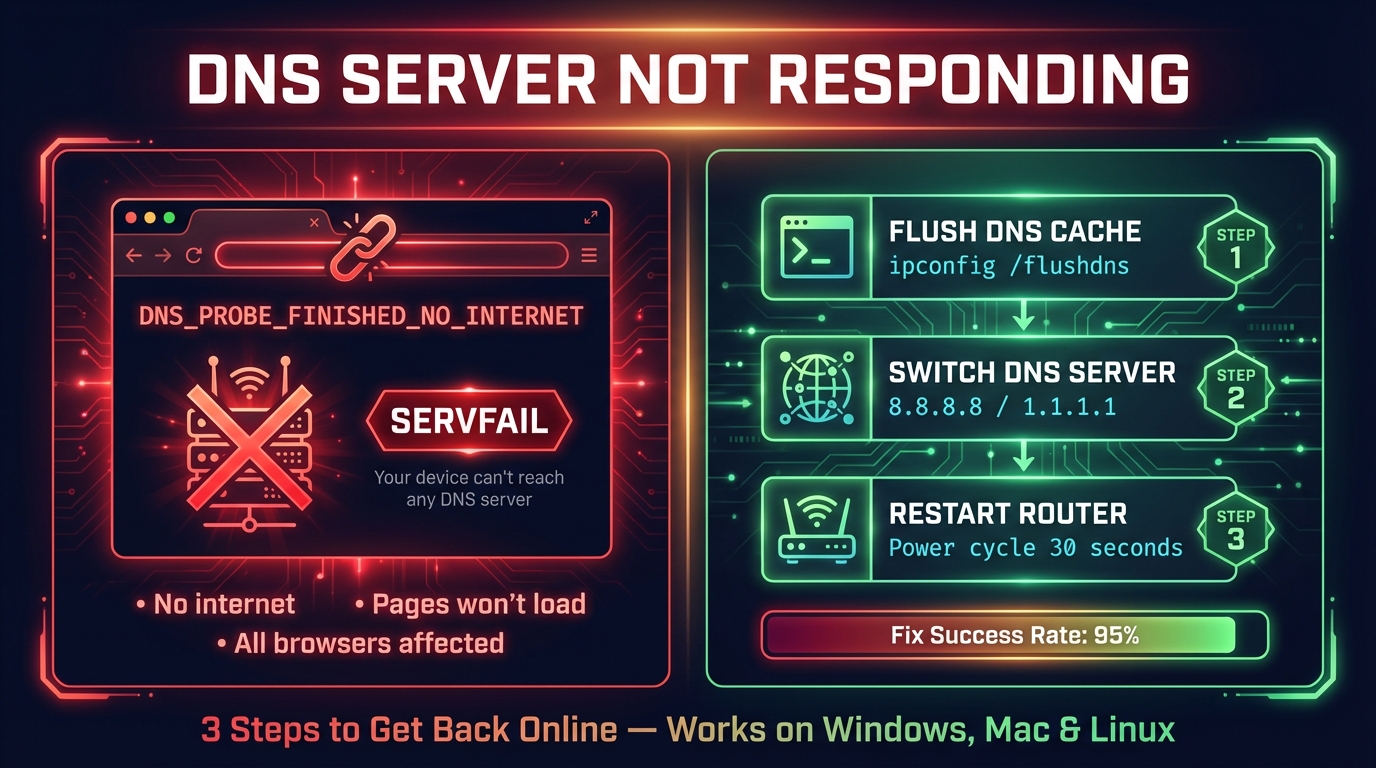
How to Fix DNS Server Not Responding (Step-by-Step)
Fix "DNS server not responding" on Windows, Mac, phones and consoles: what the message means, the quick fixes that work, and how to check DNS is back.
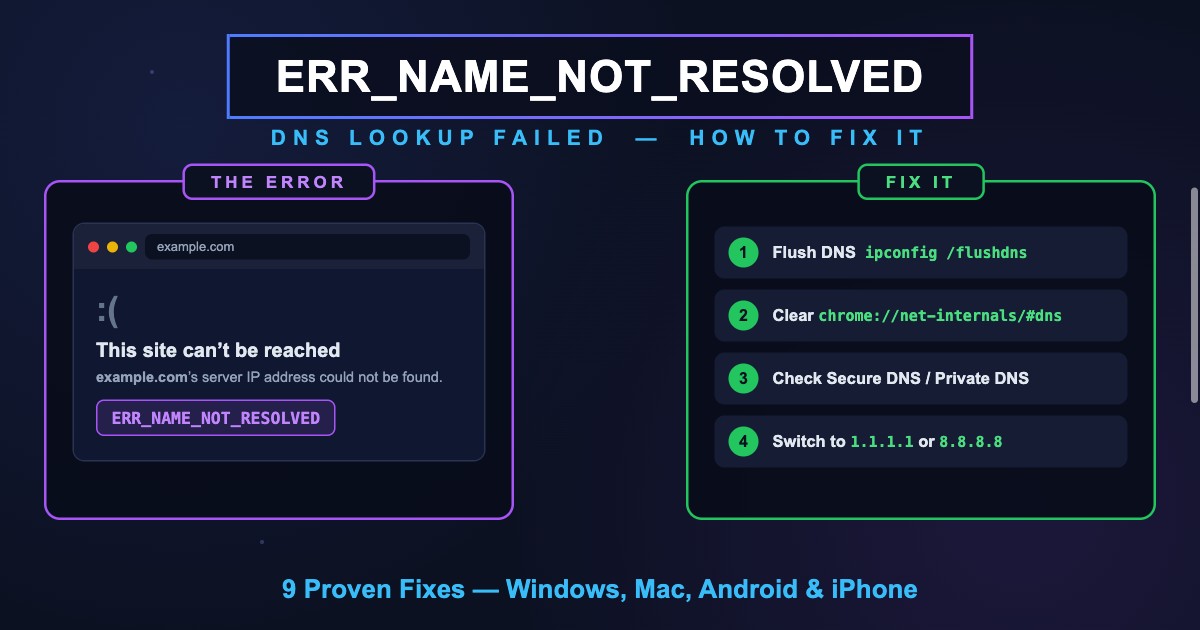
ERR_NAME_NOT_RESOLVED (-105): Meaning & Fix in Chrome
ERR_NAME_NOT_RESOLVED (-105) means Chrome couldn't find the site's IP address in DNS. What it means, why you see it instead of DNS_PROBE codes, and the fixes.
WiFi Connected But No Internet? 10 Fixes That Work
Fix 'WiFi connected but no internet' on Windows, Mac, Android and iPhone: find out if it's one device or the network, then fix DNS, the IP lease or the router.


Related Tools
DNS Lookup
Every DNS record from the domain's own nameservers, beside Google's and Cloudflare's cache
DNS Speed Test
Time Cloudflare 1.1.1.1, Google 8.8.8.8 and more public DNS servers from your own browser, against your current DNS, and find the fastest for you
Ping Test
Test your ping, jitter and packet loss, see your ping to 34 cloud regions, and ping any website or IP from 11 cities
What Is My ISP
Discover your ISP, ASN, and connection details