











WiFi Connected But No Internet? 10 Fixes That Work
 Shaik Vahid10 min read
Key takeaway
"WiFi connected but no internet" means your device reached the router, but traffic isn't making it from the router to the wider internet, or DNS is failing so nothing resolves. Start by checking whether other devices work (that tells you device or network), then restart the router and modem, renew your IP lease, flush DNS and switch to a public DNS server like 1.1.1.1 or 8.8.8.8, and check for an ISP outage. On public Wi-Fi, open neverssl.com to bring up the login page.
Check it now

Start reading
- What "WiFi Connected But No Internet" Actually Means
- First: Is It One Device or the Whole Network?
- Common Causes
- Fix 1: Restart the Router and Modem (Properly)
- Fix 2: Release and Renew Your IP Address
- Fix 3: Flush DNS and Switch to a Public DNS Server
- Fix 4: Forget the Network and Reconnect
- Fix 5: Check for an ISP Outage
- Fix 6: Trigger the Captive Portal (Hotels, Cafés, Airports)
- Fix 7: Disable VPN, Proxy, and Firewall Interference
- Fix 8: Update or Reinstall Network Drivers (Windows)
- Fix 9: Check Router Settings (DHCP, MAC Filtering, Firmware)
- Fix 10: Full Network Reset (Last Resort on the Device)
- Still Broken? How to Prove It's Your ISP
- Frequently Asked Questions
What "WiFi Connected But No Internet" Actually Means
The WiFi icon shows full bars, your device says "Connected" — and nothing loads. This happens because WiFi and internet are two separate connections: WiFi is the radio link between your device and the router; internet is the router's link to your ISP and beyond. "Connected, no internet" means the first link works and the second one — or the DNS layer that translates names to addresses — is broken.
Operating systems detect this by quietly loading a known test page after connecting (Microsoft, Apple and Google each run their own connectivity check). When the check fails, Windows shows "No internet, secured", Android shows "No internet" under the network name (or a "has no internet access" notification; AOSP), and iPhone shows "No Internet Connection" under the network name.
The failure is usually in one of three places: your device's network configuration (wrong IP, stale DNS), the router (glitched DHCP, dropped ISP session), or the ISP itself (outage, authentication issue). The 10 fixes below walk through them from fastest to most thorough.
Does a site's DNS answer from outside your network?
First: Is It One Device or the Whole Network?
Thirty seconds of triage saves an hour of random fixes. Check the internet on a second device connected to the same WiFi — another phone, laptop, or TV.
| Symptom | Where the problem is | Start with |
|---|---|---|
| Only one device has no internet | That device's network config | Fix 2 (renew IP), Fix 3 (DNS), Fix 4 (forget network) |
| No device has internet | Router or ISP | Fix 1 (restart router), Fix 5 (ISP outage) |
| Only certain websites fail | DNS or the sites themselves | Fix 3 (DNS), check the site with a DNS lookup |
| Works on phone, not laptop | Laptop drivers/settings | Fix 8 (drivers), Fix 10 (network reset) |
You can also confirm whether name resolution is the broken layer: if you can't open any website, open https://1.1.1.1/cdn-cgi/trace in the browser. It loads a few lines of text without any DNS lookup, so if it loads but normal sites don't, your connection is fine and DNS is the problem: Fix 3 will solve it.
Common Causes
The usual culprits:
- Router lost its ISP session — the WiFi radio keeps working while the WAN link is down. A restart renegotiates it.
- Stale or conflicting IP lease — your device holds an address the router no longer honors, or two devices collided.
- Broken DNS — the router's DNS forwarder glitched or the ISP's resolver is down; everything "connects" but nothing resolves.
- ISP outage — area-wide maintenance or failures; nothing on your side is wrong.
- Captive portal not completed — hotel/café/airport networks block everything until you accept their login page.
- VPN, proxy, or firewall interference — a dead VPN tunnel or leftover proxy setting silently blackholes traffic.
- Outdated or corrupted network drivers (Windows) — connects to WiFi but fails the internet check.
- Router misconfiguration — broken DHCP range, MAC filtering, or an ISP-pushed firmware update gone wrong.
If pages fail with "Your connection was interrupted. A network change was detected.", the connection keeps dropping or switching rather than being down. See ERR_NETWORK_CHANGED.
Fix 1: Restart the Router and Modem (Properly)
It's the cliché for a reason: a power cycle forces the router to rebuild its connection table, renew its own lease from the ISP, and restart its DNS forwarder — clearing three common failure points in one move.
Unplug the router and the modem (if separate) from power. Wait a full 30 seconds so both devices fully power down. Plug the modem in first, wait until its status lights stabilize (1–2 minutes), then plug in the router and give it 2–3 minutes. Reconnect and test.
If internet returns but drops again within hours or days, don't keep rebooting forever — that's a symptom of an overheating router, failing power adapter, or an ISP line problem worth reporting.
Fix 2: Release and Renew Your IP Address
Your device leases an IP address from the router via DHCP. When that lease goes stale or conflicts with another device, you stay connected to WiFi with no working route. Renewing forces a fresh lease — and fresh DNS server assignments with it.
# Windows (Command Prompt as Administrator)
ipconfig /release
ipconfig /renew
ipconfig /flushdns

# macOS — renew DHCP lease
# System Settings → Network → Wi-Fi → Details → TCP/IP → Renew DHCP Lease
# or from Terminal (en0 is Wi-Fi on most laptops; check with networksetup -listallhardwareports):
sudo ipconfig set en0 DHCP

# Android: Settings → WiFi → your network → Forget, then reconnect
# iPhone: Settings → Wi-Fi → (i) → Renew LeaseAfter renewing, check what you got: an address starting with 169.254.x.x means DHCP failed completely (the device gave itself a dead-end address) — that points at the router's DHCP server, so restart the router (Fix 1) or check its DHCP settings (Fix 9).
Fix 3: Flush DNS and Switch to a Public DNS Server
This is the fix to try when WiFi shows connected and sites won't load, especially if https://1.1.1.1/cdn-cgi/trace opens in your browser but named sites don't. Your cached lookups may be stale, or the DNS server your router assigned (usually the ISP's) may be down entirely.
First flush the cache: ipconfig /flushdns on Windows, sudo dscacheutil -flushcache; sudo killall -HUP mDNSResponder on macOS. Then switch your DNS to a public resolver:
| Provider | Primary | Secondary | Best for |
|---|---|---|---|
| Cloudflare | 1.1.1.1 | 1.0.0.1 | Privacy |
| Google Public DNS | 8.8.8.8 | 8.8.4.4 | Reliability |
| Quad9 | 9.9.9.9 | 149.112.112.112 | Malware blocking |
Windows 11: Settings → Network & internet → Wi-Fi → your network → Edit next to DNS server assignment → Manual → IPv4 → 1.1.1.1 / 1.0.0.1 (Windows 10 steps are in DNS server not responding). macOS: System Settings → Network → Wi-Fi → Details → DNS. Android: Settings → Network & internet → Private DNS (under Advanced on some phones) → one.one.one.one; if Android then says "Private DNS server cannot be accessed", check the spelling or set it back to Automatic. iPhone: Settings → Wi-Fi → (i) → Configure DNS → Manual.
Not sure which resolver is fastest from your connection? Benchmark them with the DNS Speed Test. And if only one specific site won't load, check whether its DNS resolves around the world with the DNS Propagation Checker: the problem may be the site's, not yours.
Fix 4: Forget the Network and Reconnect
Your device stores the network's configuration — security type, band preferences, IP settings — and that stored profile can go stale after a router update or settings change. Forgetting the network deletes the profile and negotiates everything fresh.
Windows: Settings → Network & Internet → Wi-Fi → Manage known networks → your network → Forget. macOS: System Settings → Wi-Fi → Details → Forget This Network. Android/iPhone: tap the network → Forget. Then reconnect with the password and test.
Fix 5: Check for an ISP Outage
If no device in the house has internet and a router restart didn't help, there's a good chance nothing on your side is broken. Check your ISP's status page or app using mobile data, or look the provider up on Downdetector.
Also glance at the modem's indicator lights: a blinking or red "Internet"/"Online" light means the ISP link itself is down — no amount of device-side fixing will help. Report it and wait it out. If outages happen weekly, that history is worth citing when you call to complain (or negotiate).
Fix 6: Trigger the Captive Portal (Hotels, Cafés, Airports)
Public networks hold every connection until you accept terms on their login page, and if that page never popped up, you're "connected" with zero internet (Android shows "Sign in required" under the network). Force it to appear:
- Open
http://neverssl.comin your browser — a plain HTTP site that portals can intercept (HTTPS sites often can't be redirected) - Or visit the gateway address shown as "Router" in your Wi-Fi details: some portals answer there
- Turn off the private Wi-Fi address for this network if the portal keeps asking you to log in (iPhone and Mac: Private Wi-Fi Address → Off; Android: Privacy → Use device MAC): portals remember the MAC address you logged in with, and iPhones use a rotating private address on open networks
- Complete the login/accept page, then test again
Fix 7: Disable VPN, Proxy, and Firewall Interference
A VPN whose tunnel died takes all your traffic down with it — the WiFi stays connected while every request disappears into a dead tunnel. Disconnect the VPN entirely and test.
Next, proxies: Windows Settings → Network & Internet → Proxy → turn off "Use a proxy server"; macOS System Settings → Network → Wi-Fi → Details → Proxies → turn every proxy off. A leftover proxy from an old app or network is a classic silent killer.
Finally, briefly disable third-party antivirus/firewall web protection and test — some suites intercept all traffic through a local filter that can wedge itself. Re-enable it right after testing either way.
Fix 8: Update or Reinstall Network Drivers (Windows)
If your laptop shows "No internet, secured" while phones work fine on the same WiFi, suspect the Windows Wi-Fi adapter driver, especially after a Windows update.
Open Device Manager → Network adapters → right-click your WiFi adapter → Update driver → Search automatically. If that finds nothing, try Uninstall device (leave "Attempt to remove the driver for this device" unticked), then restart: Windows reinstalls the adapter on boot. For persistent cases, download the latest driver from the laptop manufacturer's site using another device.
Fix 9: Check Router Settings (DHCP, MAC Filtering, Firmware)
Log into the router's admin page (the "gateway" IP from your WiFi details, commonly 192.168.1.1 or 192.168.0.1; our router login guide lists the address and default password for 80+ routers and providers) and check three things:
DHCP is enabled and its address pool isn't exhausted — a full pool means new devices connect to WiFi but never get a working IP. MAC filtering isn't silently blocking the affected device — some routers ship with an allowlist a family member once configured. Firmware is current, and the internet (WAN) settings survived the last update: if they were reset, reapplying your ISP's connection credentials (PPPoE username/password, if used) fixes it.
While you're in there: if the router's DNS is set to the ISP's servers, changing it to 1.1.1.1 / 8.8.8.8 applies the new DNS servers to every device on the network at once.
If MAC filtering is enabled, the address each device uses on this network must be on the allow list, and one typo silently blocks a device. Phones and recent Macs join with a private (random) address by default, so copy the address from the device's Wi-Fi details, not from its box. The MAC address lookup shows the manufacturer of a hardware address and marks private ones as randomized, which helps you tell which entry belongs to which device and spot one that shouldn't be there.
If your browser can't even open the router's admin page and shows "http://192.168.1.1/ is unreachable", see ERR_ADDRESS_UNREACHABLE for finding the right gateway address and the macOS Local Network permission that blocks it.
Fix 10: Full Network Reset (Last Resort on the Device)
When one specific device still refuses to work, reset its entire network stack — this wipes saved networks, adapters, and misconfigured settings back to defaults:
- Windows: Settings → Network & internet → Advanced network settings → Network reset (Windows 10: Network & Internet → Status → Network reset); the PC restarts
- macOS: there's no one-click reset; remove the Wi-Fi service in System Settings → Network, add it back, and rejoin your network
- Android: Pixel: Settings → System → Reset options → Reset Bluetooth & Wi-Fi; Samsung: Settings → General management → Reset → Reset network settings
- iPhone: Settings → General → Transfer or Reset iPhone → Reset → Reset Network Settings
You'll need to re-enter WiFi passwords afterwards — but this clears virtually every device-side misconfiguration in one shot.
Still Broken? How to Prove It's Your ISP
If every fix above failed and every device is offline, build a 2-minute case before calling support; it makes the call shorter:
Confirm the modem's WAN/Online light is red or blinking, and note whether the outage tracker shows your area. If you have partial connectivity, run ping 8.8.8.8 on your computer (raw connectivity, no DNS) and nslookup example.com (DNS). Telling support "ping to 8.8.8.8 works but DNS fails", or that tracert 8.8.8.8 stops at the first hop, helps support skip the basic script. Our Ping test also measures your own ping, jitter and packet loss in the browser.
And once you're back online, What Is My ISP shows which provider and network your connection actually goes through, which is useful to have when you call.
Is it your network, or the website's DNS?
DNS Robot's free DNS Propagation Checker asks 34 resolvers in 28 countries for any domain at once. If a site resolves around the world but not for you, the problem is on your side, so start with the fixes above.
Sources
- SettingsLib strings (Wi-Fi status: No internet, Sign in required), Android Open Source Project
- 1.1.1.1 setup, Cloudflare
Frequently Asked Questions
Why does my WiFi say connected but no internet?
How do I fix WiFi connected but no internet on Windows?
How do I fix WiFi connected but no internet on Android?
Why is there no internet on just one device while WiFi works on others?
What does "No internet, secured" mean on Windows?
Can a DNS problem make WiFi show connected but no internet?
Why do I have to restart my router every day?
Does 169.254.x.x mean no internet?
Why does WiFi work but Ethernet doesn't (or vice versa)?
How do I check if my ISP is down?
About the author
Shaik VahidFounder of DNS Robot. Vahid spent years in web hosting support fixing domains, DNS records, SSL certificates and email delivery for customers. He builds DNS Robot's tools and writes these guides from the errors people actually hit.
Related Articles
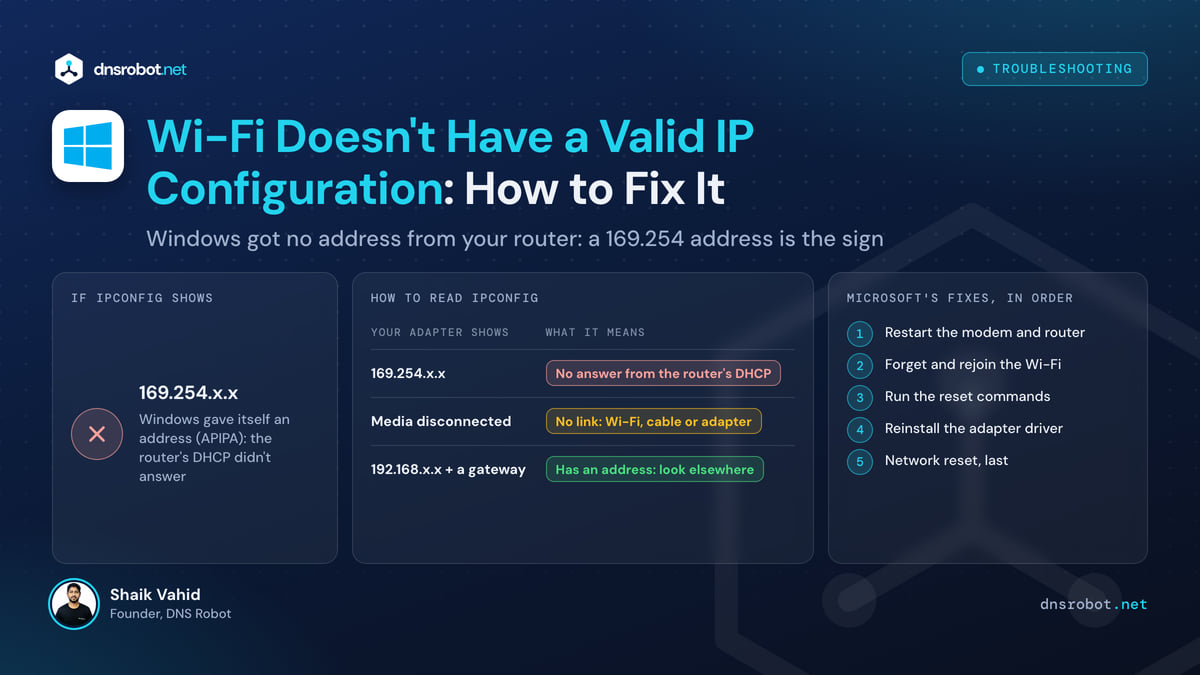
Wi-Fi Doesn't Have a Valid IP Configuration: How to Fix It
"Wi-Fi doesn't have a valid IP configuration" means Windows got no address from your router, often 169.254. Check it in 10 seconds and fix it, Ethernet too.
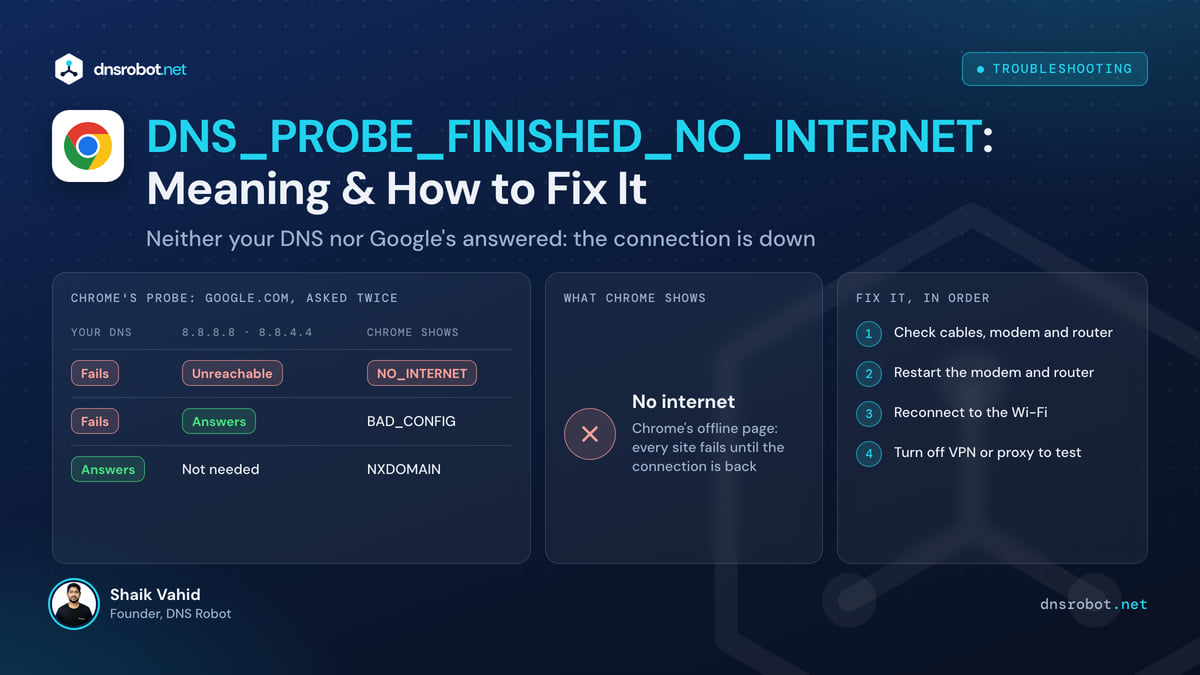
DNS_PROBE_FINISHED_NO_INTERNET: Meaning & How to Fix It
DNS_PROBE_FINISHED_NO_INTERNET means Chrome couldn't reach your DNS or Google's 8.8.8.8: your connection is down. Find where it breaks and get back online.
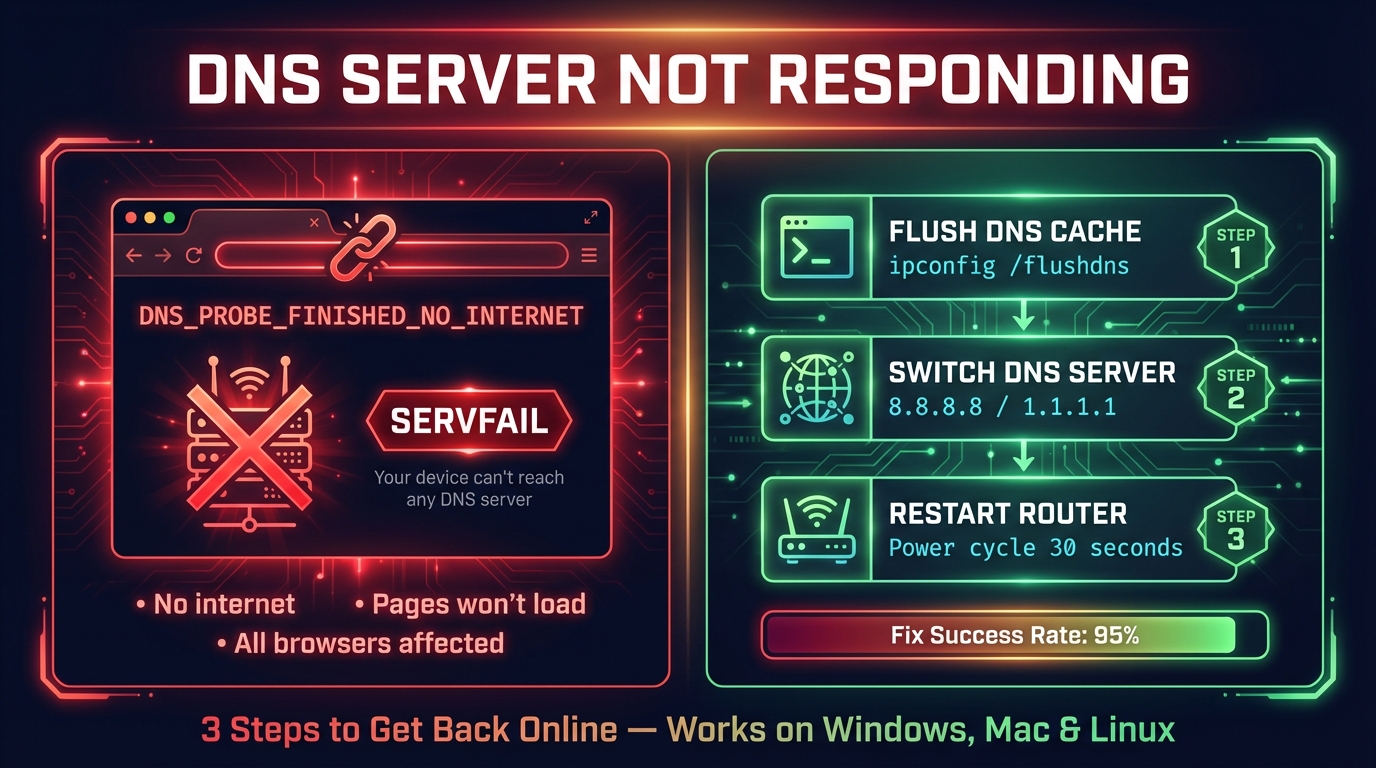
How to Fix DNS Server Not Responding (Step-by-Step)
Fix "DNS server not responding" on Windows, Mac, phones and consoles: what the message means, the quick fixes that work, and how to check DNS is back.


Related Tools
DNS Speed Test
Time Cloudflare 1.1.1.1, Google 8.8.8.8 and more public DNS servers from your own browser, against your current DNS, and find the fastest for you
Router Login
Open your router's admin page, fix address typos and find default logins by brand
Ping Test
Test your ping, jitter and packet loss, see your ping to 34 cloud regions, and ping any website or IP from 11 cities
What Is My ISP
Discover your ISP, ASN, and connection details