











DNS_PROBE_FINISHED_NO_INTERNET: Meaning & How to Fix It
 Shaik Vahid6 min read
Key takeaway
DNS_PROBE_FINISHED_NO_INTERNET means Chrome's DNS probe failed with your DNS servers and couldn't reach Google Public DNS either, so Chrome treats you as offline. The site isn't the problem: check whether other devices are online, restart the modem and router, reconnect the Wi-Fi or cable, and turn off a VPN or firewall that may block the connection.
Check it now
Open Packet Loss Test
Start reading
What Does DNS_PROBE_FINISHED_NO_INTERNET Mean?
Before Chrome can open a site, it looks up the site's name in DNS. When that lookup fails, Chrome runs a quick test, a DNS probe, and the code after DNS_PROBE_FINISHED_ is the probe's answer. NO_INTERNET is the bluntest one. Chromium's source describes it in four words: "There's no internet connection." (Chromium)
Chrome treats it exactly like being offline. Its error page code groups DNS_PROBE_FINISHED_NO_INTERNET with ERR_INTERNET_DISCONNECTED as an offline error, shows the heading No internet and suggests: "Checking the network cables, modem, and router", "Reconnecting to Wi-Fi" and, on Windows, "Running Windows Network Diagnostics". On Android and iPhone it suggests turning off airplane mode, turning on mobile data or Wi-Fi, and checking the signal. (Chromium)
How Chrome Decides You're Offline
The probe asks for google.com twice: once through your device's DNS settings and once straight through Google Public DNS at 8.8.8.8 and 8.8.4.4. NO_INTERNET is the result when both fail and Google's servers couldn't be reached at all. In Chromium's words: "If the current DNS config is not working and Google DNS is unreachable, assume the internet connection is down." (Chromium)
"Unreachable" covers more than a dead line. A timeout counts too: Chromium's rule is that any error other than a DNS answer means "we never reached the DNS server in the first place". (Chromium)
| Your DNS | Google Public DNS | Chrome's error |
|---|---|---|
| Fails | Can't be reached (or times out) | NO_INTERNET |
| Fails | Answers | BAD_CONFIG: your DNS setting is the problem |
| Fails | Answers with errors | INCONCLUSIVE: something is rewriting DNS |
| Answers | (not needed) | NXDOMAIN: the site's name doesn't exist |
Find Where the Connection Breaks
The connection runs from your device to the router, then the modem, then your provider. A few quick checks tell you which part failed:
| Check | If it fails | If it works |
|---|---|---|
| Do other devices on the same Wi-Fi or router get online? | The router, modem or provider: restart them, check for an outage | Only this device: its Wi-Fi, cable, adapter or software |
| Does a phone on mobile data load sites? | A wider outage, or a problem on that phone | The internet is fine: your home line or this device |
| Does ipconfig show a 169.254 address? | The router didn't give an address: see no valid IP configuration | The device has an address; look further up the line |
| Do other browsers or apps work on this device? | The device's connection itself | Something blocks Chrome: a proxy, VPN, extension or firewall rule |
How to Fix DNS_PROBE_FINISHED_NO_INTERNET
Reload the page after each step.
- Check the cables, modem and routerChrome's own first suggestion. Make sure cables are seated and the router and modem lights show a connection.
- Restart the modem and routerUnplug them, wait, and plug them back in. Microsoft: "This helps create a new connection to your Internet service provider (ISP)."
- Reconnect to the Wi-FiTurn Wi-Fi off and on, or forget the network and join it again with the password.
- Run Windows Network DiagnosticsOn Windows, Chrome links it from the error page: select the link and follow its checks.
- Turn off a VPN, proxy or security app to testIf the connection comes back without it, update or reconfigure that software rather than leaving it off.
- Reset the network settingsIf only this device fails, run Microsoft's reset commands (netsh winsock reset, netsh int ip reset, ipconfig /release, ipconfig /renew, ipconfig /flushdns) as administrator, as in our IP configuration guide.
DNS_PROBE Errors Compared
The other probe results point at different culprits, and each has its own guide:
- DNS_PROBE_STARTED: the probe is still running. See DNS_PROBE_STARTED.
- DNS_PROBE_FINISHED_NXDOMAIN: your DNS works and says the name doesn't exist. See the NXDOMAIN guide.
- DNS_PROBE_FINISHED_BAD_CONFIG: your DNS fails while Google's answers, so the connection works and the DNS setting doesn't. See BAD_CONFIG.
- DNS_PROBE_FINISHED_NO_INTERNET: neither answers. This guide.
If It Keeps Coming Back
An error that comes and goes usually means the connection drops for seconds at a time: weak Wi-Fi, an overloaded router, or a line that loses its sync with the provider. Pages fail during a drop and load again after it.
When you're back online, measure it: the Packet Loss Test sends a steady stream of packets for a while and shows when and how many get lost, and a ping test shows whether the delay jumps when the drops happen. Our Wi-Fi connected but no internet guide covers the Wi-Fi side.
Does your connection keep dropping?
DNS Robot's free Packet Loss Test sends a steady stream of packets from your browser and shows how many get lost, when, and in which direction, so you can tell a flaky line from a dead one.
Sources
- net_error_info.h: DnsProbeStatus, Chromium
- dns_probe_service_factory.cc: EvaluateResults, Chromium
- dns_probe_runner.cc, Chromium
- localized_error.cc: offline errors and suggestions, Chromium
- error_page_strings.grdp, Chromium
- Fix Wi-Fi connection issues in Windows, Microsoft
Frequently Asked Questions
What does DNS_PROBE_FINISHED_NO_INTERNET mean?
Is the website down?
How is it different from DNS_PROBE_FINISHED_BAD_CONFIG?
How is it different from ERR_INTERNET_DISCONNECTED?
Why do other apps work but Chrome shows this error?
Can a VPN cause DNS_PROBE_FINISHED_NO_INTERNET?
Will flushing DNS fix it?
How do I fix it on Windows 11?
About the author
Shaik VahidFounder of DNS Robot. Vahid spent years in web hosting support fixing domains, DNS records, SSL certificates and email delivery for customers. He builds DNS Robot's tools and writes these guides from the errors people actually hit.
Related Articles
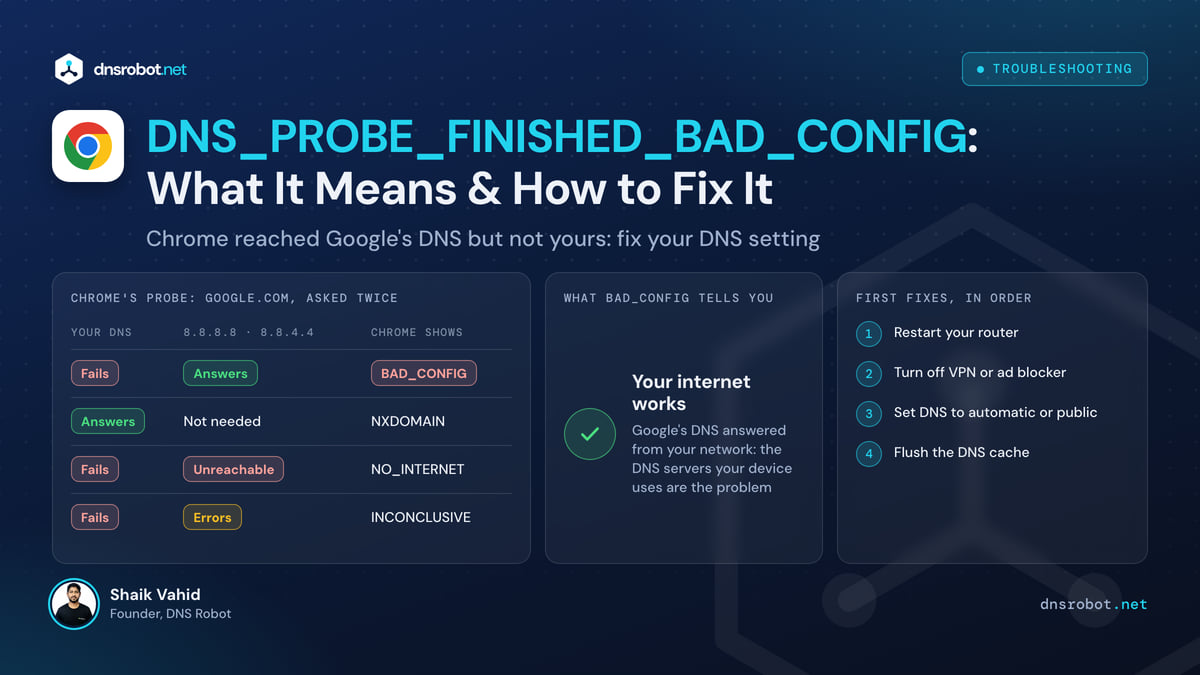
DNS_PROBE_FINISHED_BAD_CONFIG: What It Means & How to Fix It
DNS_PROBE_FINISHED_BAD_CONFIG means Chrome reached Google's DNS but not yours: your DNS servers are wrong or down. See how Chrome decides it and how to fix it.
WiFi Connected But No Internet? 10 Fixes That Work
Fix 'WiFi connected but no internet' on Windows, Mac, Android and iPhone: find out if it's one device or the network, then fix DNS, the IP lease or the router.
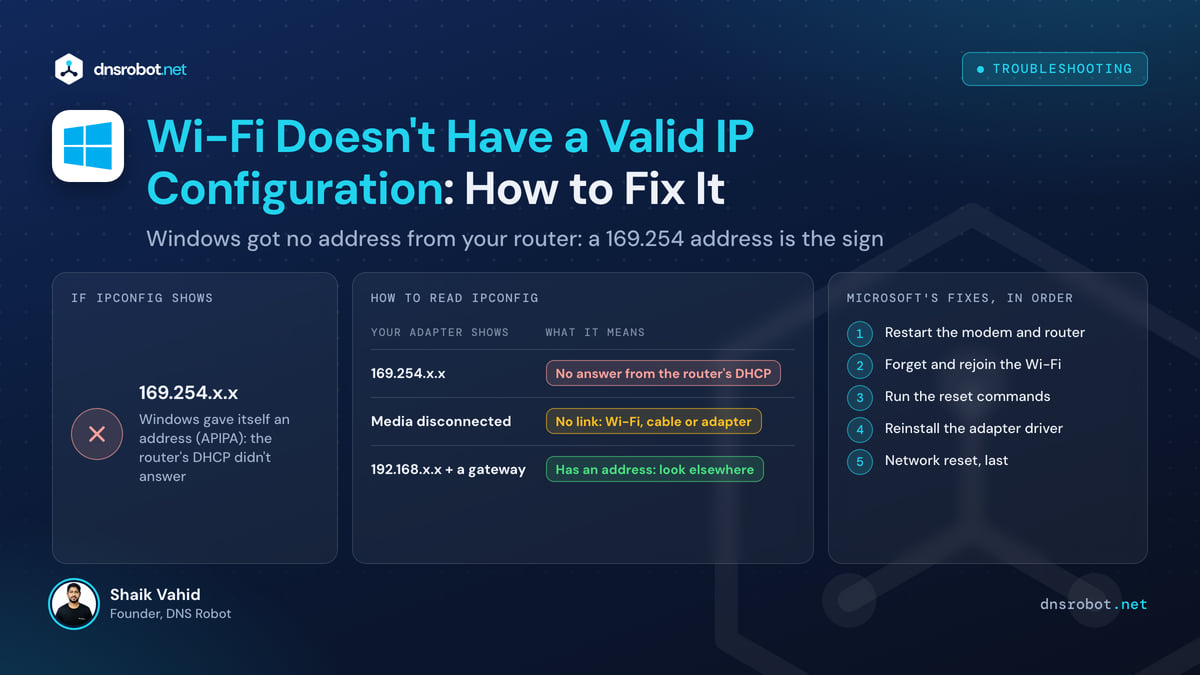
Wi-Fi Doesn't Have a Valid IP Configuration: How to Fix It
"Wi-Fi doesn't have a valid IP configuration" means Windows got no address from your router, often 169.254. Check it in 10 seconds and fix it, Ethernet too.


Related Tools
Packet Loss Test
Real UDP packet loss, jitter and bufferbloat to Cloudflare's nearest data centre, split into upload and download
Ping Test
Test your ping, jitter and packet loss, see your ping to 34 cloud regions, and ping any website or IP from 11 cities
Router Login
Open your router's admin page, fix address typos and find default logins by brand
What Is My IP
Your public IPv4 and IPv6 at once, with the network, location and a VPN check