ERR_NETWORK_CHANGED: What It Means & How to Fix It
Advertisement
What Is ERR_NETWORK_CHANGED?
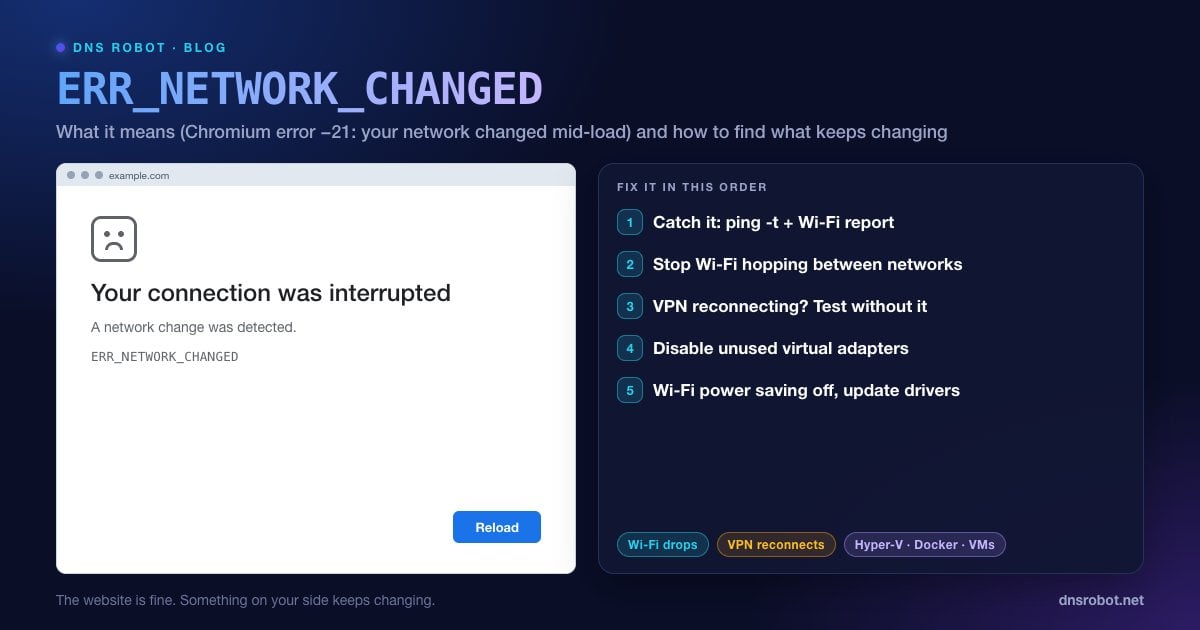
ERR_NETWORK_CHANGED is the error Chrome, Edge and other Chromium browsers show with the heading "Your connection was interrupted" and the line "A network change was detected." In Chromium it is net error -21, described in the source simply as "the network changed."
Chrome watches your operating system for network changes: an IP address appearing or disappearing, a network adapter connecting or disconnecting, the default route moving to a different interface. When that happens while a page is loading, Chrome can't be sure the connection it was using still works, so it abandons the request and shows this page instead of hanging.
So the error isn't really about the website. It tells you that something on your side changed. Once is normal, for example when you move between rooms and the laptop switches Wi-Fi access points. If it keeps happening, something on your device or network is changing over and over, and that's what you need to find.
What Counts as a "Network Change"?
Any of these will trigger the error if it happens while a page is loading:
| Change | Typical cause |
|---|---|
| Wi-Fi disconnects and reconnects | Weak signal, router band steering, mesh nodes handing you over |
| You switch networks | Laptop auto-joins a different saved Wi-Fi, phone flips between Wi-Fi and mobile data |
| A VPN connects, drops or reconnects | VPN client reconnecting on an unstable link |
| A virtual adapter goes up or down | Hyper-V, WSL2, VirtualBox, VMware or Docker starting and stopping |
| Your IP address changes | DHCP handing out a new address, IPv6 temporary addresses rotating |
| The adapter powers down | Windows power saving turning off the Wi-Fi card |
| Ethernet is plugged in or out | Docks, loose cables, USB network adapters |
Advertisement
Step 1: Find What Keeps Changing
Before trying random fixes, catch the change in the act. On Windows, a continuous ping shows drops as they happen, and Windows can produce a detailed Wi-Fi report of every disconnect from the last three days:
:: Leave this running while you browse; "Request timed out" lines = the link dropped
ping -t 8.8.8.8

:: Wi-Fi history report (run in an administrator Command Prompt)
netsh wlan show wlanreport
:: Open C:\ProgramData\Microsoft\Windows\WlanReport\wlan-report-latest.html

:: List every adapter and its state
ipconfig /all
In the Wi-Fi report, red error circles in the summary chart that line up with the errors point to the wireless link. If Wi-Fi looks steady, look at ipconfig /all for extra adapters, such as vEthernet, VirtualBox Host-Only, VMware Network Adapter, or the VPN's TAP or WireGuard adapter. Those are the usual suspects. Visiting What Is My IP twice a few minutes apart also helps: if your public IP changes between visits, your connection or VPN is switching routes.
Fix 1: Make Your Wi-Fi Connection Stable
Remove saved networks you don't use. If your laptop knows a neighbour's or a phone hotspot's Wi-Fi, it may hop to it whenever your main signal dips. On Windows, Settings → Network & internet → Wi-Fi → Manage known networks → Forget. On a Mac, System Settings → Wi-Fi → the … button next to a network → Forget This Network.
Stop band and node hopping. Mesh systems and dual-band routers move devices between 2.4 GHz, 5 GHz and different nodes. If the errors happen in one spot, move closer to the router or a node, or give the 5 GHz band its own network name and connect to that.
Restart the router. Unplug it for 30 seconds. Long-running routers sometimes get unstable, and a restart also gets the latest DHCP lease.
Use Ethernet for a test. If the error disappears on a cable, the problem is the wireless link, not Chrome.
Advertisement
Fix 2: Check Your VPN
Every time a VPN connects or reconnects it adds or changes a network adapter and the default route, which is exactly what Chrome reacts to. A VPN on a weak connection may reconnect every few minutes, and each reconnect can break whatever page was loading.
Disconnect the VPN and browse for a while. If the errors stop, switch the VPN to a different server or protocol (WireGuard tends to reconnect faster and less often than OpenVPN over TCP), turn off any "auto-switch to the fastest server" option, and update the VPN app.
Fix 3: Disable Virtual Network Adapters You Don't Need
Virtualisation tools create their own network adapters. Hyper-V and WSL2 (the vEthernet adapters), VirtualBox, VMware, Docker Desktop and some VPN apps all do this, and when those tools start or stop, the adapters appear and disappear, and Chrome sees a network change each time.
Open Network Connections (press Win + R, type ncpa.cpl, press Enter), right-click each virtual adapter you don't need and choose Disable. Leave your real Wi-Fi or Ethernet adapter alone. If you do use the tool, consider closing it while you browse, or test with it closed to confirm it's the cause.
Advertisement
Fix 4: Turn Off Wi-Fi Power Saving and Update Drivers
Windows can switch the Wi-Fi card off briefly to save power, and some drivers reconnect afterwards. Each reconnect is a network change.
Open Device Manager (right-click Start → Device Manager) → Network adapters.
Double-click your Wi-Fi adapter → Power Management tab (if your adapter has one) → untick Allow the computer to turn off this device to save power.
On the Driver tab, choose Update driver, or get the latest driver from the laptop maker or the chip vendor (Intel, Realtek, MediaTek, Qualcomm). Outdated Wi-Fi drivers are a common cause of repeated drops.
In Settings → System → Power & battery, a battery-saver mode can also reduce Wi-Fi performance. Test while plugged in.
Fix 5: Rule Out IPv6 Address Changes
With IPv6, your device usually has a stable address plus temporary privacy addresses that are replaced regularly, and a router can also announce new prefixes. On some networks, especially with a flaky router or an ISP whose IPv6 keeps restarting, those changes happen often enough to trigger ERR_NETWORK_CHANGED.
As a test, turn IPv6 off on your Wi-Fi or Ethernet adapter: ncpa.cpl → right-click the adapter → Properties → untick Internet Protocol Version 6 (TCP/IPv6) → OK. If the errors stop, the real fix is on the router (update its firmware, or ask the ISP about unstable IPv6). Turn IPv6 back on afterwards if you can, because more and more of the internet prefers it.
Advertisement
Fix 6: Flush DNS and Reset the Network Stack
If nothing above stands out, reset Windows networking to defaults. Run these in an administrator Command Prompt, then restart:
ipconfig /flushdns
netsh winsock reset
netsh int ip reset
ipconfig /release
ipconfig /renewFor a full reset, Windows 11 has Settings → Network & internet → Advanced network settings → Network reset, which reinstalls every adapter. Then flush DNS in Chrome too: open chrome://net-internals/#dns and click Clear host cache.
Fix ERR_NETWORK_CHANGED on a Mac
Remove extra network services: System Settings → Network shows every interface. Bluetooth PAN, iPhone USB, Thunderbolt Bridge and old VPN entries can come and go. Remove or deactivate the ones you don't use.
Stop auto-joining other networks: System Settings → Wi-Fi → the … button next to a saved network → turn off Auto-Join for the ones you only use now and then, so the Mac doesn't jump to them.
Check VPN and network extensions: some security tools and VPN clients install network filters. Quit them one at a time to test.
Renew the lease: System Settings → Network → Wi-Fi → Details… → TCP/IP → Renew DHCP Lease.
Fix ERR_NETWORK_CHANGED on Android and iPhone
Phones switch between Wi-Fi and mobile data automatically, and that switch is a network change. Android's Adaptive connectivity and Switch to mobile data automatically features, and the iPhone's Wi-Fi Assist (replaced by Connectivity Assist in recent iOS versions), move you to mobile data when Wi-Fi is weak or has no internet. If you get this error often on a weak Wi-Fi network, either turn the feature off while you're on that network or move closer to the router.
Also turn off VPN and ad-blocking apps for a test, since many run as a local VPN, and on Android set Private DNS to Automatic. See the Private DNS guide for what each option does.
ERR_NETWORK_CHANGED vs Similar Errors
| Error | Code | What happened |
|---|---|---|
| ERR_NETWORK_CHANGED | -21 | Your device's network configuration changed mid-request |
| ERR_INTERNET_DISCONNECTED | -106 | The device has no network connection at all |
| ERR_CONNECTION_RESET | -101 | An open connection was cut by a TCP reset |
| ERR_NAME_NOT_RESOLVED | -105 | DNS couldn't find the domain |
If your Wi-Fi stays connected but nothing loads, see Wi-Fi connected but no internet. If pages fail with a reset rather than a network change, see ERR_CONNECTION_RESET, and for DNS problems, DNS server not responding. The Ping Test checks whether a site answers at all from our servers.
Is your public IP changing?
Open DNS Robot's What Is My IP page now and again in a few minutes. If your public IP or ISP changes between visits, your connection or VPN is switching routes, which is exactly what triggers ERR_NETWORK_CHANGED.
Try What Is My IPAdvertisement
Frequently Asked Questions
It means Chrome detected a change in your device's network configuration, such as a Wi-Fi reconnect, a VPN connecting or a virtual adapter appearing, while a page was loading, so it stopped the request. In Chromium it is net error -21. The website itself is usually fine.