ERR_CONNECTION_TIMED_OUT : signification et solutions
Advertisement
Qu'est-ce que ERR_CONNECTION_TIMED_OUT ?
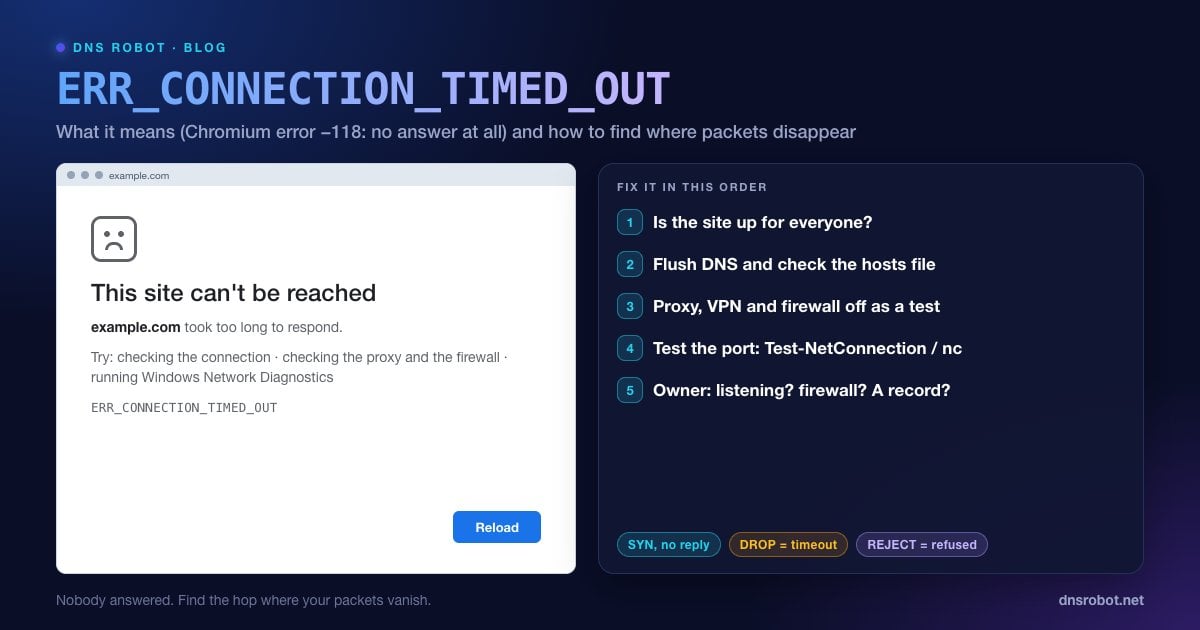
ERR_CONNECTION_TIMED_OUT est l'erreur que Chrome et les autres navigateurs Chromium affichent lorsqu'ils n'obtiennent aucune réponse du serveur d'un site web. La page indique « Ce site est inaccessible. example.com a mis trop de temps à répondre. » En interne, il s'agit de l'erreur réseau Chromium -118 : « une tentative de connexion a expiré ».
Pour ouvrir une connexion, votre ordinateur envoie au serveur une demande de connexion TCP, un paquet SYN, et attend une réponse. Normalement, celle-ci arrive en quelques millisecondes. Quand aucune réponse ne revient, le système d'exploitation renvoie le SYN plusieurs fois à intervalles croissants, puis le navigateur finit par abandonner et affiche cette erreur.
Le silence est le détail clé. Un serveur en ligne sur lequel rien n'écoute répond immédiatement par un refus. Avec un délai dépassé, personne n'a répondu du tout : les paquets ont été abandonnés quelque part, ou envoyés à une adresse où rien n'existe.
ERR_CONNECTION_TIMED_OUT ou ERR_TIMED_OUT ?
Chrome a deux erreurs de délai d'apparence similaire, qui échouent à des étapes différentes :
ERR_CONNECTION_TIMED_OUT (-118) : la connexion n'a jamais été établie, car le serveur n'a pas répondu au SYN initial. Examinez le trajet réseau, les pare-feu, le DNS et la disponibilité du serveur.
ERR_TIMED_OUT (-7) : un délai dépassé plus général. Chrome le signale quand sa propre limite de temps expire, par exemple quand la connexion TCP s'est ouverte mais que la négociation HTTPS est restée bloquée 30 secondes, ou quand une connexion ouverte cesse de recevoir des réponses. Cela désigne généralement un serveur lent ou bloqué, ou un proxy qui se fige.
Les solutions ci-dessous s'appliquent aux deux. ERR_TIMED_OUT relève plus souvent d'un problème du site web, tandis que ERR_CONNECTION_TIMED_OUT relève plus souvent du trajet réseau ou d'un pare-feu.
Advertisement
Quelles sont les causes de ERR_CONNECTION_TIMED_OUT ?
| Cause | Où cela se produit | Indice typique |
|---|---|---|
| Serveur hors ligne ou surchargé | Site web | Échoue pour tout le monde, sur tous les réseaux |
| Pare-feu qui abandonne silencieusement le trafic | Site web, votre réseau ou votre PC | Le ping peut fonctionner alors que le port 443 ne répond pas |
| DNS obsolète : le site a déménagé, vous avez encore l'ancienne IP | Votre cache ou résolveur DNS | Fonctionne en données mobiles, échoue à la maison |
| Entrée du fichier hosts pointant vers une mauvaise IP | Votre PC | Seul cet ordinateur échoue |
| Proxy ou VPN défaillant | Votre PC ou votre réseau | Tous les sites expirent, ou seulement avec le VPN activé |
| Le réseau bloque le site ou son port | FAI, école, entreprise, Wi-Fi d'hôtel | Échoue sur un seul réseau |
| Port non standard bloqué en sortie | Votre réseau | Les sites en :8080 ou :8443 échouent alors que les sites normaux fonctionnent |
Solution 1 : vérifier si le site est en ligne pour tout le monde
Si le serveur est hors service, rien de votre côté n'y changera quoi que ce soit : vérifiez donc ce point en premier :
Ouvrez le site sur votre téléphone en données mobiles (Wi-Fi désactivé). S'il se charge, le problème vient de votre appareil ou de votre réseau.
Lancez un [Test Ping](/ping) depuis DNS Robot. Une réponse signifie que la machine serveur est en ligne. L'absence de réponse peut signifier qu'elle est hors service, ou qu'elle bloque le ping, comme le font beaucoup de serveurs : considérez-le comme un indice plutôt qu'une preuve.
Testez le port web avec le [Vérificateur de ports](/port-checker). Vérifiez le port 443 (HTTPS) et le port 80 (HTTP). « Ouvert » depuis nos serveurs alors que votre navigateur expire signifie que quelque chose sur votre trajet abandonne le trafic. « Filtré » pour nous aussi signifie que le pare-feu du serveur ou le serveur lui-même est en cause.
Lancez un [traceroute](/traceroute) pour voir jusqu'où vont les paquets. Si le tracé s'arrête aux derniers sauts, c'est le réseau de l'hébergeur du site qui les abandonne.
Advertisement
Solution 2 : vider votre cache DNS (et celui de Chrome)
Quand un site migre vers un nouveau serveur, votre ordinateur peut continuer à utiliser l'ancienne adresse IP jusqu'à l'expiration de son cache. Si l'ancien serveur est éteint ou protégé par un pare-feu, chaque tentative expire. Videz le cache du système d'exploitation et le cache d'hôtes propre à Chrome :
# Windows (invite de commandes)
ipconfig /flushdns

# macOS
sudo dscacheutil -flushcache; sudo killall -HUP mDNSResponder

# Linux avec systemd-resolved
resolvectl flush-caches

# Chrome : ouvrez chrome://net-internals/#dns et cliquez sur "Clear host cache"
Pour confirmer que le cache était en cause, comparez l'IP que résout votre ordinateur (nslookup example.com) avec la réponse de la Recherche DNS de DNS Robot. Si elles diffèrent, votre résolveur sert un enregistrement périmé. Le guide pour vider le cache DNS couvre chaque navigateur et système d'exploitation.
Solution 3 : vérifier le fichier hosts
Le fichier hosts a priorité sur le DNS pour tout nom qui y figure. Les développeurs, les bloqueurs de publicités et certains malwares y ajoutent des entrées, et une ligne oubliée qui associe le domaine à une IP ancienne ou privée expirera à chaque fois, sur cet ordinateur uniquement.
Windows : ouvrez le Bloc-notes en tant qu'administrateur, puis ouvrez
C:\Windows\System32\drivers\etc\hosts.macOS / Linux : exécutez
sudo nano /etc/hostsdans le Terminal.
Cherchez une ligne contenant le domaine qui échoue. Supprimez-la, ou ajoutez # au début pour la désactiver, enregistrez, puis videz à nouveau le DNS.
Advertisement
Solution 4 : désactiver proxy, VPN et pare-feu pour tester
Si tous les sites expirent, un proxy ou un VPN qui ne fonctionne plus est la cause habituelle, car tout le trafic part vers une impasse.
Proxy Windows 11 : Paramètres → Réseau et Internet → Proxy → sous Configuration manuelle du proxy, désactivez Utiliser un serveur proxy.
Proxy macOS : Réglages Système → Réseau → votre connexion → Détails… → Proxys → désactivez-les.
VPN : déconnectez-le complètement et rechargez. Si le site fonctionne sans le VPN, changez de serveur VPN ou contactez le fournisseur.
Pare-feu / antivirus : mettez brièvement en pause le pare-feu tiers et rechargez. Si cela règle le problème, ajoutez une exception pour le navigateur au lieu de laisser le pare-feu désactivé.
Solution 5 : passer à un résolveur DNS public
Certains résolveurs de FAI tardent à se mettre à jour, et certains renvoient les domaines bloqués vers une adresse qui ne répond jamais. Passer à un résolveur public comme Cloudflare (1.1.1.1), Google (8.8.8.8) ou Quad9 (9.9.9.9) écarte cette hypothèse. Notre Test de vitesse DNS indique lequel est le plus rapide depuis chez vous.
Si c'est votre serveur DNS lui-même qui défaille, vous verrez peut-être d'autres erreurs, traitées dans le serveur DNS ne répond pas et serveur DNS indisponible.
Advertisement
Solution 6 : réinitialiser la pile réseau et redémarrer le routeur
Redémarrez le routeur et le modem : débranchez-les 30 secondes, puis laissez-leur deux ou trois minutes pour se reconnecter. Sous Windows, réinitialisez aussi la pile TCP/IP depuis une invite de commandes administrateur :
netsh winsock reset
netsh int ip reset
ipconfig /release
ipconfig /renew
ipconfig /flushdns
:: Redémarrez le PC pour terminer la réinitialisation
Sur Mac, désactivez puis réactivez le Wi-Fi, ou supprimez puis rajoutez le réseau dans Réglages Système → Réseau. Vous pouvez aussi lancer les Diagnostics réseau Windows (le lien sur la page d'erreur de Chrome) et laisser Windows réparer la carte réseau.
Solution 7 : tester le port depuis votre propre ordinateur
Ce test vous dit en quelques secondes si votre machine peut seulement ouvrir une connexion vers le site, sans passer par le navigateur :
# Windows PowerShell
Test-NetConnection example.com -Port 443
# TcpTestSucceeded : False  -> aucune réponse depuis votre réseau

# macOS / Linux
nc -vz -w 5 example.com 443
# "timed out" -> paquets abandonnés ; "Connection refused" -> rejeté par le serveurSi le test échoue depuis votre ordinateur alors que le Vérificateur de ports de DNS Robot affiche le port ouvert, quelque chose sur votre réseau le bloque : votre routeur, le pare-feu de l'entreprise, votre FAI, ou un filtre Wi-Fi d'hôtel ou d'école. Essayez un autre réseau, ou contactez l'administrateur réseau.
Corriger ERR_CONNECTION_TIMED_OUT sur Android et iPhone
Changez de réseau : essayez les données mobiles au lieu du Wi-Fi, ou l'inverse. Les portails captifs des Wi-Fi publics font expirer les connexions tant que vous n'avez pas accepté leur page de connexion.
DNS privé sur Android : Paramètres → Réseau et Internet → DNS privé → Automatique. Un nom d'hôte personnalisé injoignable fait échouer toutes les résolutions. Consultez notre guide du DNS privé.
Désactivez les applications VPN et de blocage de publicités, car beaucoup fonctionnent comme un VPN local.
Réinitialisez les paramètres réseau : sur iPhone, Réglages → Général → Transférer ou réinitialiser l'iPhone → Réinitialiser → Réinitialiser les réglages réseau. Sur Android, Paramètres → Système → Options de réinitialisation → Réinitialiser le Bluetooth et le Wi-Fi (et Réinitialiser les paramètres du réseau mobile si les données mobiles échouent aussi).
Pour les propriétaires de sites : pourquoi vos visiteurs expirent
Si votre site expire pour tout le monde, les paquets sont abandonnés avant d'atteindre votre serveur web. Vérifiez ces points dans l'ordre :
Quelque chose écoute-t-il ? Sur le serveur,
sudo ss -tlnp | grep -E ':(80|443) 'doit afficher nginx, Apache ou votre application. Si rien n'apparaît, démarrez le service. Notez qu'un service arrêté produit généralement un refus plutôt qu'un délai dépassé, sauf si un pare-feu abandonne les paquets avant.Le pare-feu autorise-t-il les ports 80 et 443 ? Lancez
sudo ufw status verbosesur Ubuntu ousudo firewall-cmd --list-allsur les systèmes de la famille RHEL. Une politique DROP par défaut est exactement ce qui produit des délais dépassés.Les pare-feu cloud sont distincts. Les Security Groups AWS, les règles de pare-feu Google Cloud, les NSG Azure et les pare-feu des panneaux de nombreux hébergeurs VPS refusent le trafic entrant par défaut. Autorisez le TCP 80 et 443 depuis
0.0.0.0/0(et::/0pour l'IPv6).Le DNS pointe-t-il vers ce serveur ? Après une migration, vérifiez les enregistrements A et AAAA avec la Recherche DNS. Un enregistrement AAAA pointant vers une adresse sur laquelle le serveur ne répond pas réellement peut provoquer des chargements lents ou des délais dépassés pour les visiteurs sur des réseaux IPv6.
Le serveur est-il surchargé ? Si la file d'attente des connexions se remplit sous forte charge, les nouvelles tentatives de connexion sont abandonnées et expirent. Vérifiez le CPU, la mémoire et le nombre de connexions au moment où cela se produit.
# Ubuntu : autoriser le trafic web dans ufw
sudo ufw allow 80/tcp
sudo ufw allow 443/tcp
sudo ufw status verbose

# Vérifier depuis l'extérieur (une autre machine) :
nc -vz -w 5 yourdomain.com 443Délai dépassé, refus ou reset : comment les distinguer
| Erreur | Code | Ce qu'a fait le réseau | Cause la plus probable |
|---|---|---|---|
| ERR_CONNECTION_TIMED_OUT | -118 | Silence : aucune réponse à la demande de connexion | Pare-feu qui abandonne les paquets, serveur hors ligne, mauvaise IP |
| ERR_CONNECTION_REFUSED | -102 | Rejet immédiat de la demande de connexion | Rien n'écoute, ou pare-feu configuré pour rejeter |
| ERR_CONNECTION_RESET | -101 | Connexion ouverte, puis coupée par un reset | VPN, antivirus, filtrage, plantage du serveur |
| ERR_NAME_NOT_RESOLVED | -105 | Le DNS n'a pas trouvé le domaine du tout | Faute de frappe, domaine expiré, panne DNS |
Un pare-feu configuré pour abandonner (drop) le trafic produit un délai dépassé ; un pare-feu configuré pour le rejeter (reject) produit un refus. Guides détaillés : ERR_CONNECTION_REFUSED, ERR_CONNECTION_RESET et ERR_NAME_NOT_RESOLVED.
Le site est-il hors ligne pour tout le monde, ou seulement pour vous ?
Pinguez n'importe quel serveur depuis DNS Robot pour voir s'il est en ligne, puis vérifiez le port 443 avec notre Vérificateur de ports. Ensemble, ils montrent en quelques secondes si le délai dépassé vient du site ou de votre réseau.
Essayer Test PingAdvertisement
Questions fréquemment posées
Cela signifie que votre navigateur a envoyé une demande de connexion au serveur du site web sans jamais recevoir de réponse, et qu'il a donc cessé d'attendre. Dans Chromium, c'est l'erreur réseau -118. Les paquets ont été abandonnés quelque part : le serveur est hors ligne, un pare-feu les rejette sans répondre, ou votre appareil les envoie vers une adresse IP erronée ou périmée.